
iOS 27 Finally Unlinks Alarm Volume From Your iPhone Ringer
iOS 27 Revolutionizes iPhone Alarms: Finally Separate Your Alarm Volume from Your Ringer!
For what feels like an eternity, iPhone users have shared a common frustration: the alarm volume was directly tied to the ringer volume. This meant that if you thoughtfully silenced your iPhone for a peaceful night's sleep, you inadvertently also quieted your morning alarm. The result? Missed appointments, oversleeping, and a daily gamble with your wake-up call. But rejoice, fellow iPhone users! iOS 27 arrives with a long-awaited and highly anticipated fix, finally decoupling your alarm volume from your ringer. This seemingly small change marks a massive improvement in user convenience and control, promising a new era of reliable wake-up calls.
With the release of iOS 27, your iPhone’s Settings now features a brand-new "Alarms and Timers" section. Within this dedicated area, you'll discover a crucial toggle labeled "Match Ringtone Volume." The magic happens when you switch this toggle off. Doing so immediately reveals a separate, independent slider. This slider allows you to precisely set the volume for your alarms and timers, completely independent of your iPhone's general ringer volume. You can now confidently slide your ringer volume all the way down to mute for a silent night, secure in the knowledge that your alarm will blare at precisely the volume you've chosen, ensuring you never miss an important moment again.
This long-overdue enhancement addresses a pain point that has plagued iPhone users for nearly two decades. Before iOS 27, the only workaround for many was to manually adjust the ringer volume before bed and then remember to turn it back up in the morning, or resort to third-party alarm apps that offered independent volume controls. Such solutions were often clunky or required extra steps. Now, Apple has integrated this critical functionality directly into the core operating system, making it seamless and intuitive for everyone.
How to Set a Separate Alarm Volume in iOS 27: A Step-by-Step Guide
Accessing and configuring this new, independent alarm volume setting is straightforward. Apple has designed the interface to be user-friendly, ensuring that you can quickly customize your wake-up experience. Follow these simple steps to gain full control over your alarm and timer volumes:
- Open Settings on your iPhone: Locate the grey gear icon on your home screen and tap it. This is your gateway to customizing nearly every aspect of your device.
- Tap Sounds & Haptics: Scroll down a bit within the Settings menu until you find "Sounds & Haptics." This section controls all sound-related behaviors, from ringtones to keyboard clicks.
- Under "Alarms and Timers," toggle off Match Ringtone Volume: This is the key step. You'll see a new section specifically for "Alarms and Timers." Within it, you'll find the "Match Ringtone Volume" toggle. Tap it to switch it to the 'off' position (it will likely turn grey or an indicator will show it's off).
- Drag the slider that appears to set your alarm and timer volume: As soon as you toggle off "Match Ringtone Volume," a dedicated volume slider will immediately appear directly beneath it. This slider is exclusively for your alarms and timers. Drag it to the left to decrease the volume or to the right to increase it. You can test the volume as you adjust it to find your perfect wake-up intensity without affecting your main ringer.
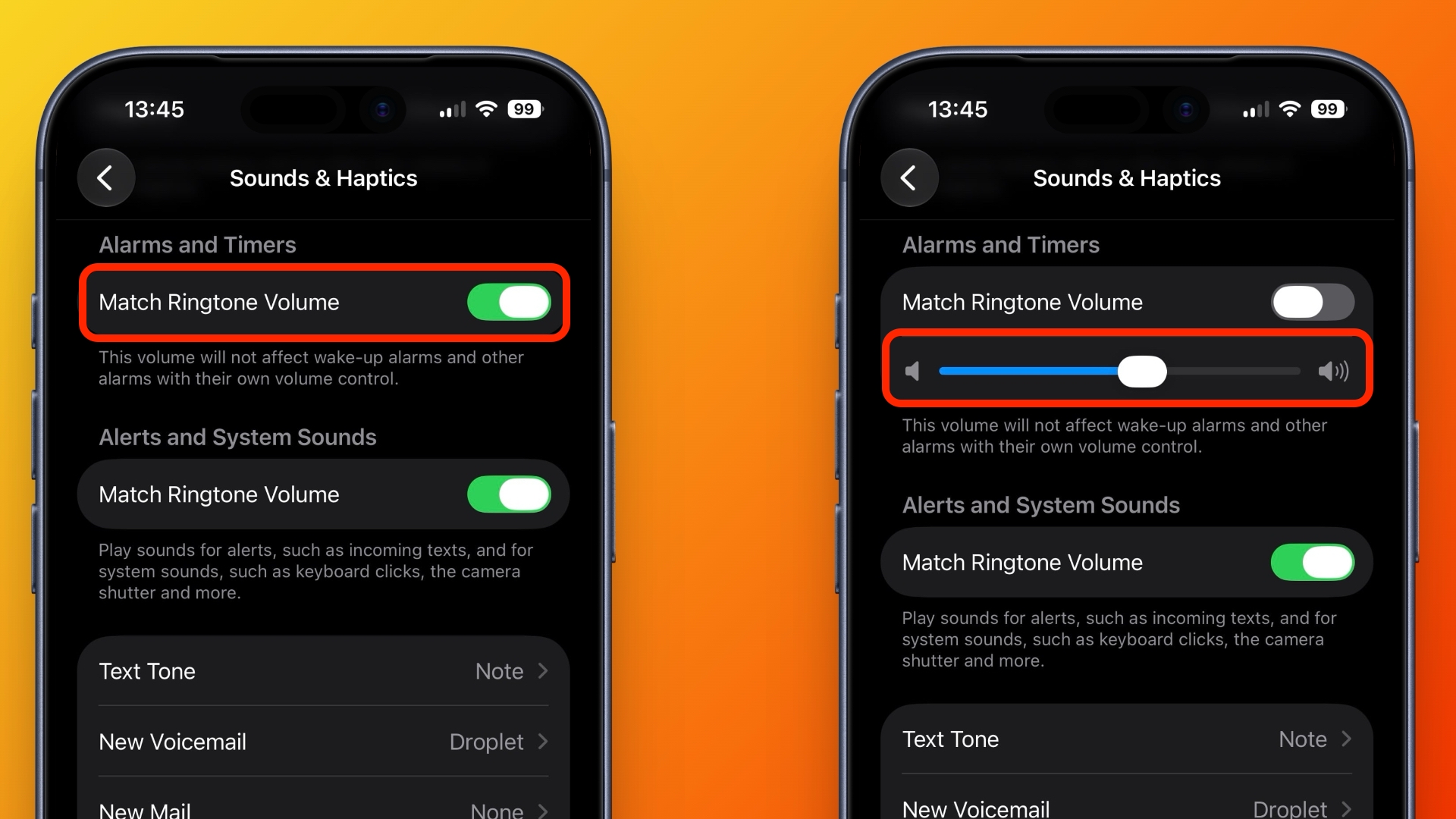
That's all there is to it! With these simple steps, your alarms and timers now have their own independent volume level. This means you can set your iPhone's main ringer to be as quiet or as loud as you desire for calls and notifications, while your alarms maintain their chosen volume, consistently delivering your wake-up sound without compromise. This newfound independence brings peace of mind, ensuring that your device adapts to your lifestyle rather than dictating it.
Beyond the Basics: Sleep Schedule Alarms and Returning to Old Behavior
It's important to note how this new feature interacts with existing alarm functionalities, particularly those integrated with Apple's Health and Sleep schedule features. If you utilize the "Sleep Schedule" within the Health app to manage your bedtime and wake-up times, any alarms set through this feature often carry their own dedicated volume control. These alarms will typically retain the individual level you've specifically chosen for them within the Sleep schedule settings, regardless of the "Alarms and Timers" slider. This thoughtful integration ensures consistency for those who rely on Apple's comprehensive sleep tracking and management tools.
Should you ever wish to revert to the previous behavior – where your alarm volume was linked directly to your ringer volume – the process is just as simple. Just navigate back to the "Sounds & Haptics" section in Settings, find the "Alarms and Timers" section, and toggle "Match Ringtone Volume" back on. As soon as you do, the independent alarm volume slider will disappear, and your alarms will once again sync their volume with your main ringer. This flexibility allows users to choose the setup that best suits their preferences and daily routines, making the feature versatile and adaptable.
A Second Toggle for Alerts and System Sounds: More Customization!
As you explore the "Sounds & Haptics" settings in iOS 27, you might notice another equally useful addition located directly below the "Alarms and Timers" controls. This is a second "Match Ringtone Volume" switch, situated in a separate section dedicated to "Alerts and System Sounds." This toggle provides independent volume control for a broader range of iPhone sounds, offering even more granular customization.
This second toggle specifically covers sounds like incoming text messages, email notifications, keyboard clicks, lock sounds, and other system-generated audio cues. By toggling this setting off, you'll unlock a similar independent slider, allowing you to set a unique volume level for these alerts and system sounds, separate from both your main ringer and your alarms.
This is an incredibly neat fix for common user scenarios. For example, perhaps you prefer a loud ringer volume so you never miss an important call, but you find loud keyboard clicks or notification pings to be disruptive. In the past, achieving this balance was impossible; a loud ringer meant loud everything else. Now, you can have your loud ringer for calls, a medium alarm volume to wake you up gently, and a very quiet or even muted volume for your keyboard clicks and text alerts. This level of independent audio control truly elevates the user experience, making the iPhone more adaptable to individual preferences and environmental needs.
Whether you're in a quiet office setting, a bustling city, or simply enjoy a minimalist sound profile, this second toggle for alerts and system sounds empowers you to tailor your iPhone's audio feedback to perfection. It reduces audio fatigue and helps maintain focus by ensuring only the most critical sounds grab your attention at their desired volume, while less important or more frequent sounds remain subtle.
Why Independent Volume Controls Are Crucial: User Scenarios and Benefits
The introduction of independent volume controls for alarms, alerts, and system sounds is more than just a convenience feature; it addresses genuine user needs and improves the daily iPhone experience significantly. Let's delve into why this change is so impactful for various users:
- For the Heavy Sleeper: No more anxiety about missing your alarm because you forgot to turn up your ringer. You can blast your alarm at full volume while keeping your phone muted for calls overnight.
- For Shift Workers: Those with irregular sleep patterns can rely on their alarms without disturbing others with unexpected phone calls or notifications during their off-peak sleep hours.
- For Parents: Keep your ringer low or off to avoid waking a sleeping child, while still having a reliable alarm to get yourself up for work or early morning duties. You can also customize notification sounds so that only urgent alerts (like a baby monitor app notification) are loud, while general texts are quiet.
- For Students: Silence your phone during lectures or study sessions, confident that your alarm will still go off for your next class or exam. Keep system sounds like keyboard clicks silent in quiet environments.
- For Professionals: Maintain a professional image by muting your phone for meetings or presentations, yet ensure critical reminders and alarms function as expected. Avoid the embarrassing "ping" of a text during a quiet moment.
- For Enhanced Accessibility: Users with hearing impairments can set their ringer to maximum to feel strong vibrations for calls, but keep other, less critical sounds at a lower volume or off. Conversely, those who rely solely on sound can ensure alarms are always audible.
- For Peace of Mind: The most significant benefit is the reduction in daily friction and anxiety. No longer do users need to perform a mental check or manual adjustment every night and morning. The settings persist, offering consistent and reliable behavior.
This level of customization demonstrates Apple's commitment to refining the user experience based on long-standing feedback. It transforms a common point of frustration into a seamless and intuitive feature, allowing users to fine-tune their device's audio profile to perfectly match their personal preferences and their dynamic daily lives.
Tips for Mastering Your iPhone's Audio Settings in iOS 27
With these new controls, you have unprecedented power over your iPhone's soundscape. Here are some tips to help you make the most of iOS 27's audio enhancements:
- Set and Forget Your Alarm Volume: Once you've found your ideal alarm volume using the independent slider, you typically won't need to change it again. This is the beauty of the new feature – it's designed for reliability.
- Experiment with Alert Volumes: Don't be afraid to adjust the second "Alerts and System Sounds" slider. Try different levels for a day or two to see what feels most comfortable and least disruptive for your daily notifications and interactions.
- Leverage Focus Modes: Combine these new volume controls with iOS's powerful Focus Modes. You can configure specific Focus Modes (like "Sleep," "Work," or "Driving") to automatically mute certain sounds or allow only priority notifications, further enhancing your custom sound profile.
- Regularly Review Settings: While the goal is "set and forget," it's a good idea to periodically review your "Sounds & Haptics" settings, especially after major iOS updates, just to ensure everything is configured exactly as you like it.
- Consider Haptics: Remember that "Sounds & Haptics" also controls vibrations. You can combine a silent alarm sound with strong haptic feedback, or a loud alarm with no haptics, depending on your preference.
- Custom Ringtones and Text Tones: These new volume controls work in conjunction with your chosen ringtones and text tones. You can still assign unique sounds to specific contacts or types of notifications, and their volume will be governed by these new independent sliders.
Common Alarm Issues & How to Avoid Them (Even with the New Feature)
While iOS 27 largely resolves the alarm volume dilemma, it's still good to be aware of other factors that can affect your alarms. Here are some common issues and how to troubleshoot them:
- "Do Not Disturb" (Focus Modes): Even with independent alarm volume, if you have a Focus Mode (like "Do Not Disturb" or "Sleep Focus") enabled and configured to silence all notifications and calls, it might inadvertently affect alarms if not set up correctly. Ensure your Focus Modes are customized to "Allow Alarms" or that the "Time Sensitive Notifications" option is enabled for critical apps.
- Software Glitches: Rarely, an iOS update or specific app conflict can cause alarms to misbehave. If you experience inconsistent alarms, try restarting your iPhone. If the problem persists, check for any pending iOS updates or contact Apple Support.
- Third-Party Alarm Apps: If you use a third-party alarm app, ensure it's updated to be compatible with iOS 27. While the system-level controls are great, dedicated app settings might also play a role.
- Silent Switch: Always double-check your iPhone's physical Ring/Silent switch on the side. While the independent alarm volume works around it, ensuring your phone isn't mistakenly muted can save headaches.
- Alarm Sound Choice: Some alarm sounds are naturally quieter or more gentle than others. If you're a heavy sleeper, choose a loud, distinct, and perhaps even jarring tone to ensure you wake up.
- Charging Overnight: To ensure your alarm always works and your battery doesn't die, it's always recommended to charge your iPhone overnight, especially when relying on it for your morning wake-up.
What Else to Expect in iOS 27: A Glimpse
The independent alarm volume control is just one of many exciting improvements coming with iOS 27. While this article focuses on the audio enhancements, it's part of a broader release that brings refinements across the entire operating system. iOS 27 is currently available in public beta, allowing enthusiastic users to test drive new features and provide feedback. The general public can look forward to its official release, typically expected to be available this coming September, coinciding with Apple's new iPhone lineup. Other anticipated features include advancements in privacy, new customization options for the Lock Screen, enhancements to core apps like Messages and Photos, and improvements to overall performance and stability. These collective updates aim to make the iPhone experience more personalized, powerful, and user-friendly than ever before.
Conclusion: A Smarter, More Reliable iPhone Experience
The ability to unlink alarm volume from the ringer is a testament to Apple's dedication to user feedback and iterative improvement. It's a simple, yet profoundly impactful change that resolves a long-standing source of frustration for millions of iPhone users. No longer will you have to choose between a silent night and a reliable wake-up. With iOS 27, your iPhone finally offers the intelligent, independent volume controls you've always needed, making your daily life just a little bit smoother and more predictable.
So, get ready to update to iOS 27 this September. Once you do, head straight to your "Sounds & Haptics" settings, configure your independent alarm volume, and enjoy the peace of mind that comes with knowing your iPhone will always wake you up precisely when and how you intend, regardless of your ringer settings. This is a small feature with a massive positive impact on everyday life!
This article, "iOS 27 Finally Unlinks Alarm Volume From Your iPhone Ringer" first appeared on MacRumors.com
Discuss this article in our forums
from MacRumors
-via DynaSage
