
iOS 27 Adds New Drawing Tool to Your iPhone's Messages App
Unleash Your Creativity: iOS 27 and macOS 27 Golden Gate Bring Powerful Drawing Tools to More Apple Apps
Get ready to express yourself like never before on your favorite Apple devices! The upcoming iOS 27 and macOS 27, affectionately codenamed "Golden Gate," are set to revolutionize how we interact with our iPhones and Macs. These significant updates are expanding Apple's versatile drawing and Markup tools, making them available in more of the built-in applications we use every day. This means a more creative, intuitive, and connected experience across your Apple ecosystem.
For years, Apple has been at the forefront of combining powerful technology with user-friendly design. With iOS 27 and macOS 27 Golden Gate, that commitment reaches new heights, particularly for visual communication and creative expression. Whether you're a student sketching diagrams, a professional annotating documents, or just someone who loves to add a personal touch to messages, these updates promise to unlock a new level of engagement and productivity.
Unleashing Creativity: Drawing Tools Across Your Apple Devices
The core of these exciting updates lies in the strategic expansion of Apple’s robust Markup tools. Previously confined to specific apps or accessible only through certain workflows, these powerful drawing capabilities are now integrated directly into key communication and productivity apps. This ensures a more consistent and seamless experience, allowing you to transition effortlessly between typing, speaking, and drawing to convey your thoughts.
A New Canvas in Messages: Sketching and Annotating on iPhone
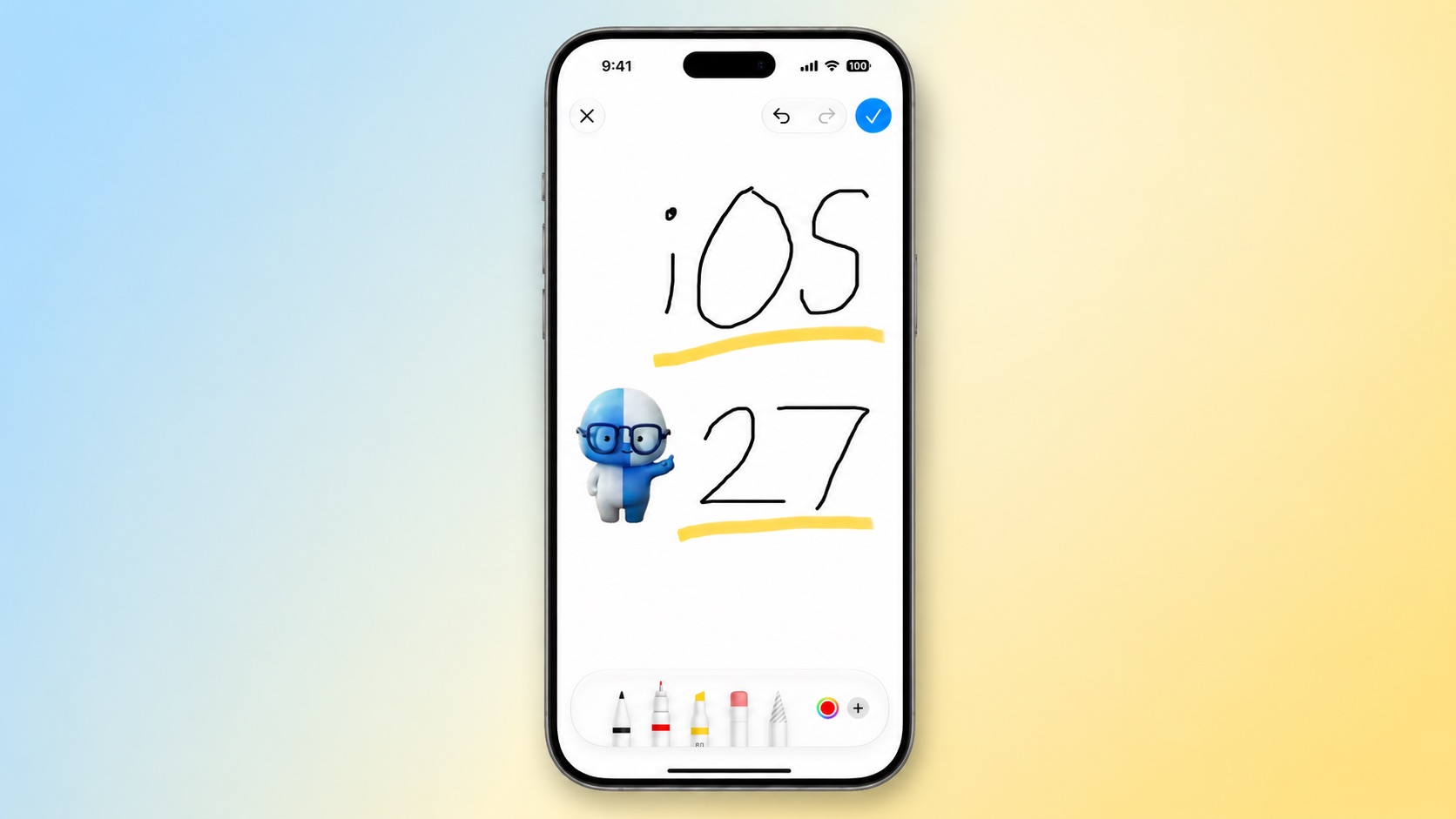
One of the most anticipated additions in iOS 27 is the integration of full Markup tools directly into the Messages app on your iPhone. For a long time, the Messages app had a very basic drawing feature, a simple sketchpad that would appear when you turned your iPhone sideways while in a conversation. It was a novel idea but lacked the sophistication and versatility that modern users demand. Often, it felt more like a nostalgic nod to simpler times rather than a truly powerful communication tool.
With iOS 27, that rudimentary drawing pad is a distant memory. Now, when you tap the familiar plus sign (+) in the bottom-left corner of the Messages app, a new "Drawing" option emerges within the app drawer. Tapping this reveals Apple's complete suite of Markup tools, transforming your message window into a dynamic canvas ready for your creative input.
Imagine the possibilities: no longer are your conversations limited to text and emojis. You can quickly sketch out directions on a map screenshot, draw a humorous caricature to lighten the mood, or visually annotate a photo to point out a specific detail to a friend. For quick explanations, a simple diagram can often convey more information than a lengthy paragraph. Think about trying to explain a complex shape or a specific sequence of actions – a quick sketch can make it instantly understandable.
The benefits extend beyond just casual conversations. For instance, if you're coordinating plans with family or friends, you can easily circle details on an event flyer, highlight key times, or even draw a small floor plan to show where to meet. Students can quickly diagram a concept to send to a study group, and professionals can annotate a shared document snippet without leaving the conversation flow.
This deep integration means that visual communication is no longer a separate, cumbersome step. It's now an organic part of how you send and receive messages. The full power of Markup, including various pen styles, colors, thickness options, and even intelligent shape recognition (more on this below), is now at your fingertips within Messages. This makes communication richer, clearer, and undeniably more fun. It adds a layer of personalization that was previously missing, allowing you to truly express yourself in a way that static text simply cannot capture.
Transforming Notes on Mac: Visualizing Your Ideas
The innovation isn't limited to iPhone. macOS 27 Golden Gate brings the robust Markup tools to the Notes and Freeform apps on your Mac. The Notes app, a staple for countless users, has always been excellent for text-based information, lists, and checklists. However, for visual thinkers or those who prefer to combine text with sketches, its capabilities were somewhat limited. That changes dramatically with macOS 27.
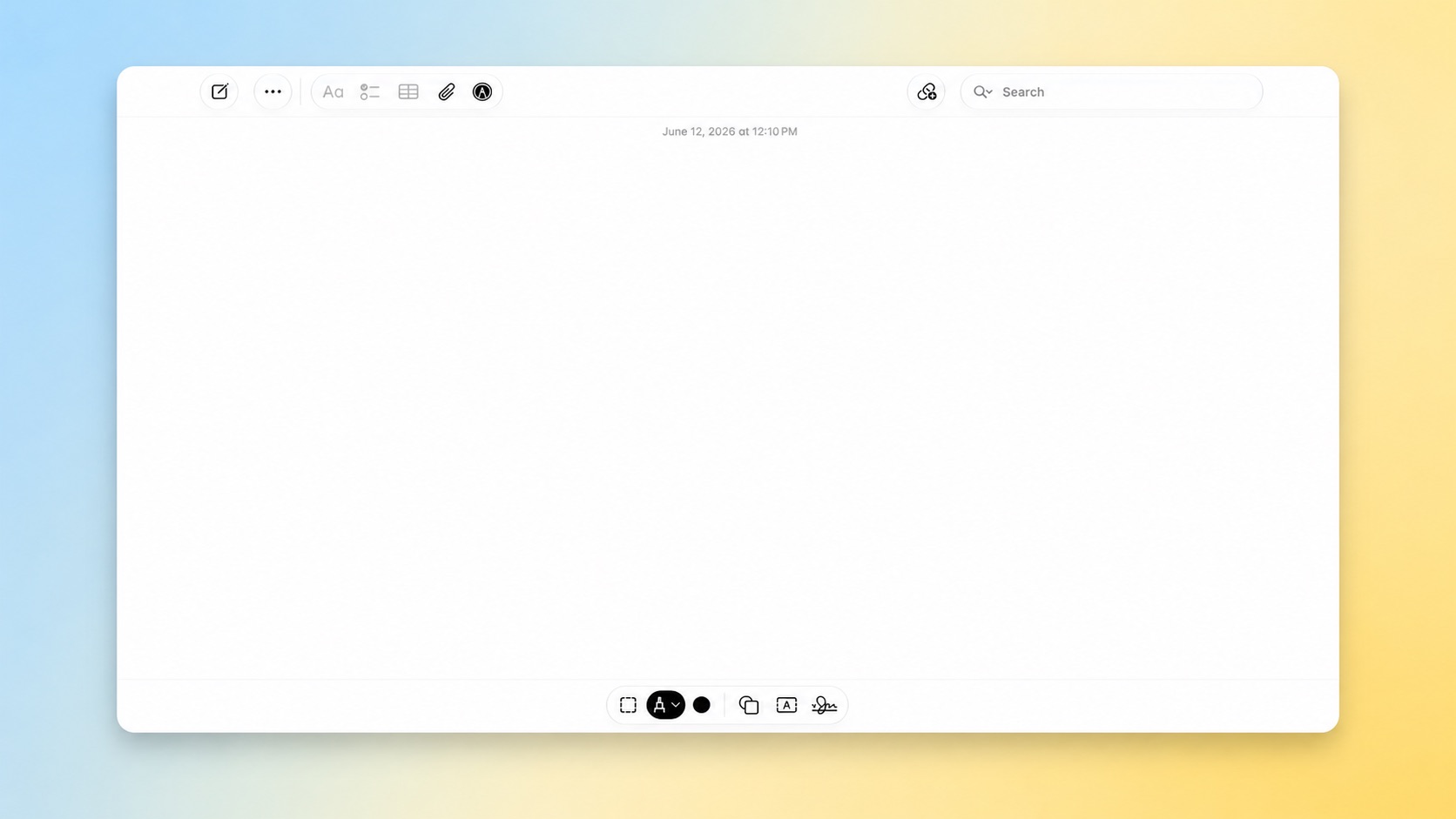
With the new update, you can now seamlessly integrate sketches, diagrams, and handwritten annotations directly into your notes. This is a game-changer for students attending lectures, professionals brainstorming ideas, or anyone organizing complex information. Imagine being able to draw a quick flowchart next to your meeting agenda, sketch a user interface concept directly within your project notes, or diagram a network topology to go along with your technical specifications.
While you might not be drawing directly on your Mac's screen with an Apple Pencil (unless you're using an iPad with Sidecar for a touch input experience), the Markup tools are fully optimized for use with a trackpad or mouse. This means you can still create surprisingly precise drawings and annotations. For those who own an iPad and an Apple Pencil, the synergy is even greater. Features like Continuity Sketch allow you to start a drawing on your iPad and have it appear instantly in your Mac's Notes app, combining the best of both worlds – the precision of the Apple Pencil with the larger screen and keyboard of your Mac.
The ability to visually organize information within Notes enhances comprehension and recall. Visual learners will particularly benefit, as they can now create richer, more personalized study guides and project outlines. Whether it's adding a quick doodle to remember a concept, illustrating a complex process, or simply signing off on a virtual checklist with your digital signature, the Notes app on Mac is evolving into a truly multi-modal canvas for your thoughts and ideas. It transforms from a purely textual repository into a dynamic creative workspace where text and visuals can coexist and complement each other.
Freeform's Fuller Potential: Collaborative Creativity on macOS Golden Gate
The Freeform app, introduced more recently, offers an infinite canvas for brainstorming and collaboration. It’s designed to be a flexible workspace where you can gather text, images, links, and documents. With macOS 27 Golden Gate, the integration of Markup tools takes Freeform to an entirely new level, truly unlocking its potential as a collaborative creative hub.
Freeform thrives on spontaneity and visual thinking. Now, with a full suite of drawing tools, you and your collaborators can sketch ideas in real-time on a shared board. Imagine a team brainstorming session where everyone can freely draw, highlight, and annotate directly on the canvas. Designers can create quick wireframes or UI mockups, marketing teams can outline campaigns with visual elements, and educators can engage students in dynamic, interactive group projects.
The impact on design sprints, creative workshops, and project planning is immense. Instead of relying solely on typed notes or external image imports, teams can now fluidly express abstract concepts or complex relationships through immediate drawings. The ability to use different pen styles, colors, and smart shapes means that visual communication can be as nuanced and expressive as needed. For example, you can use distinct colors for different team members' contributions, or quickly draw arrows and connectors to illustrate dependencies in a project timeline.
This integration removes friction from the creative process. No longer do you need to switch between apps to sketch an idea and then bring it into Freeform. Everything happens natively within the app, fostering a more continuous and fluid workflow. For remote teams, this is particularly powerful, as it replicates the experience of drawing together on a physical whiteboard, breaking down geographical barriers and enhancing shared understanding. Freeform, combined with Markup, becomes the ultimate digital collaborative canvas, empowering teams to think visually and work together more effectively than ever before.
Deep Dive into Apple's Markup Tools: What You Get
The "Markup tools" refer to a comprehensive and intuitive suite of digital drawing and annotation features that Apple has refined over several iOS and macOS iterations. With iOS 27 and macOS 27, this powerful toolkit is becoming more ubiquitous, and it's worth understanding the individual components that make it so versatile and user-friendly.
-
Digital Pens, Pencils, and Highlighters: This is the core of the drawing experience. You'll find a variety of writing instruments designed to mimic real-world art supplies. There are fine-tipped pens for precise writing, broader markers for bold statements, and realistic pencils that respond to pressure (especially with Apple Pencil) to create varying line weights and shading. Highlighters, available in translucent colors, are perfect for emphasizing text or areas without obscuring the content beneath.
-
Adjustable Stroke Thickness and Opacity: Beyond just choosing a tool, you can customize it. Most tools offer multiple options for stroke thickness, allowing you to go from a hairline delicate line to a thick, impactful brushstroke. Opacity sliders let you control how transparent your marks are, which is particularly useful for layering or creating subtle annotations.
-
Vibrant Color Palette: The color picker is robust, offering a wide spectrum of hues. You can select from a predefined grid of colors, choose from a color wheel or spectrum, or even use an eyedropper tool to pick a specific color from an image or document already on your screen. This ensures that your drawings and annotations perfectly match your aesthetic or branding needs.
-
The Eraser: Mistakes are inevitable, and Markup's eraser is designed for precision. Depending on the context, you might have a pixel eraser (which removes only the part of the stroke you touch) or an object eraser (which deletes an entire stroke with a single tap, making cleanup incredibly fast). This flexibility allows for both detailed corrections and quick revisions.
-
The Ruler: For those moments when you need perfect straight lines, the digital ruler is invaluable. Simply activate it, position it on your canvas, and draw along its edge. Your digital pen or pencil will snap to the ruler, ensuring geometrically perfect lines every time. This is fantastic for diagrams, charts, or creating organized visual layouts.
-
Smart Shapes: This is one of Markup's most clever features. If you draw a rough shape like a circle, square, triangle, heart, star, or arrow, and pause briefly at the end of your stroke, Markup will automatically "perfect" the shape, snapping it into a clean, symmetrical version. This saves time and effort, ensuring your diagrams look professional even if your freehand drawing isn't perfect.
-
Text Tool: While the focus is on drawing, the Markup suite also includes a text tool, allowing you to add typed text boxes to your creations. You can customize the font, size, and color of the text, providing a perfect complement to your hand-drawn elements. This is ideal for adding labels, captions, or longer explanations to your visual compositions.
-
Signature Tool: Though perhaps less frequently used in Messages or Notes, the signature tool is a core part of Markup. It allows you to create and save a digital version of your signature, which can then be quickly added to documents, forms, or any content that requires authentication. It streamlines the process of signing electronic papers without needing to print, sign, and rescan.
-
Magnifier: For focusing on a specific part of an image or document, the magnifier tool lets you zoom in on a chosen area, highlighting it within a circular or rectangular frame. This is excellent for calling attention to small details in photos or documents you're annotating.
The beauty of Apple's Markup tools lies in their intuitive design. They are easy to learn for beginners yet powerful enough for advanced users, especially when paired with an Apple Pencil on iPad or iPhone. This suite ensures that no matter what you're trying to create or communicate, you have the right digital tools at your disposal.
Why This Update Matters: More Than Just Drawing
While the addition of drawing tools might seem like a straightforward feature update, its broader implications for how we use our Apple devices are profound. This isn't just about adding a new button; it's about fundamentally enhancing communication, productivity, and creative expression across the entire Apple ecosystem.
-
Ecosystem Consistency and Cohesion: The expansion of Markup tools signifies Apple's ongoing commitment to creating a seamless, intuitive experience across all its devices. When a feature behaves the same way in Messages on your iPhone as it does in Notes on your Mac or Freeform on your iPad, it reduces cognitive load and makes learning new workflows effortless. This consistency reinforces the "it just works" philosophy that Apple users cherish, fostering a deeper sense of integration and fluidity between tasks performed on different devices.
-
Enhanced Communication: In an increasingly digital world, relying solely on text can often lead to misinterpretations or a lack of emotional nuance. Visual communication bridges this gap. A quick sketch can convey complex ideas instantly, a highlighted area can pinpoint crucial information, and a hand-drawn emoji can express emotion more genuinely than a generic digital one. By integrating these tools directly into Messages, Apple is empowering users to communicate more clearly, expressively, and effectively, whether they're sharing personal moments or collaborating on professional projects.
-
Boosted Productivity and Organization: For students, professionals, and anyone who deals with information overload, the ability to integrate visual elements directly into notes and brainstorming sessions is a significant productivity booster. Diagrams, flowcharts, and visual annotations help organize thoughts, clarify complex processes, and improve memory retention. Instead of lengthy descriptions, a simple visual can capture the essence of an idea. This visual shorthand saves time, reduces ambiguity, and makes revisiting information much more efficient and insightful.
-
Unleashed Creativity: By making powerful drawing tools more accessible, Apple lowers the barrier to creative expression. You don't need to be a professional artist to use these tools effectively. The intuitive interface and smart features like shape recognition encourage experimentation and playfulness. For many, drawing is a natural way to think and generate ideas, and now that avenue is open in more everyday applications. This democratizes creativity, making it an integral part of daily digital interactions.
-
Accessibility and Diverse Learning Styles: People learn and communicate in different ways. For visual learners, the ability to sketch, diagram, and annotate directly within apps like Notes and Freeform is invaluable. It provides an alternative pathway for absorbing and processing information that goes beyond traditional text-based methods. This thoughtfulness in design makes Apple's ecosystem more inclusive and caters to a wider range of user needs and preferences.
-
Future Implications: The expansion of Markup in iOS 27 and macOS 27 Golden Gate hints at a broader vision for Apple. It suggests a future where digital handwriting and drawing are as fundamental to our interactions as typing and tapping. We might see these tools integrated into even more apps, potentially transforming how we edit photos, design presentations, or even interact with augmented reality experiences. The "Golden Gate" codename itself evokes ideas of new horizons and bridging connections, perfectly encapsulating this forward-thinking step.
In essence, this update is about enriching the digital canvas that Apple provides. It's about empowering users to communicate, create, and think more flexibly, leveraging the power of visual input to complement the established strengths of text and audio. It marks a significant evolution in the way we interact with our most personal and productive devices.
Getting Ready for iOS 27 and macOS 27 Golden Gate
The exciting new drawing tools in iOS 27 and macOS 27 Golden Gate are currently available in developer beta, allowing app creators and early adopters to test the new features and ensure their applications are ready for the public release. This beta period is crucial for fine-tuning performance, squashing bugs, and gathering feedback before the wider rollout.
The general public can look forward to getting their hands on these transformative updates in September. Typically, Apple releases its major operating system updates for iPhone, iPad, and Mac around this time, often coinciding with new hardware announcements. This means you won't have long to wait before you can experience the expanded drawing capabilities in Messages, Notes, and Freeform for yourself.
As the release approaches, it's always a good idea to ensure your devices are prepared for the update. This includes backing up your important data, checking compatibility with your specific iPhone or Mac model, and ensuring you have enough free storage space. While the updates typically run smoothly, a little preparation can go a long way in ensuring a seamless transition to the new, more creative world of iOS 27 and macOS 27 Golden Gate.
Embrace the Future of Creative Communication
The upcoming iOS 27 and macOS 27 Golden Gate updates represent a significant leap forward in Apple's continuous effort to blend cutting-edge technology with intuitive user experiences. By bringing a full suite of robust drawing and Markup tools to fundamental apps like Messages, Notes, and Freeform, Apple is not just adding features; it's fundamentally enhancing how we communicate, learn, and create.
From quick, expressive sketches in your daily chats to detailed diagrams in your project notes and collaborative visual brainstorming sessions, these updates promise to make your interactions with your iPhone and Mac more engaging, productive, and personal. Get ready to unlock new dimensions of creativity and clarity across your Apple devices this September. The future of digital expression is looking brighter, and it's full of possibilities for you to draw, sketch, and imagine.
This article, "iOS 27 Adds New Drawing Tool to Your iPhone's Messages App" first appeared on MacRumors.com
Discuss this article in our forums
from MacRumors
-via DynaSage
