
All the Liquid Glass Changes in macOS Golden Gate
macOS Golden Gate: Refining the Liquid Glass Experience
When Apple first introduced its new design language, "Liquid Glass," with macOS Tahoe, it was met with a mix of anticipation and, quite quickly, significant criticism from the Mac user community. While initial previews hinted at a fresh, modern look, the reality for many users was different. Instead of a revolutionary visual update, Liquid Glass in macOS Tahoe was often perceived as an unfinished idea, an aesthetic afterthought that didn't quite live up to Apple's usual meticulous design standards. This led to widespread frustration, with users pointing out various issues that hampered their daily experience.
The complaints were diverse but centered on core usability and aesthetic concerns. Many found the contrast lacking, making text and interface elements difficult to read, especially on busy backgrounds. The excessive use of rounded corners seemed inconsistent across different applications, creating a disjointed feel. Overall design consistency was a major point of contention, as the new elements often clashed with older parts of the operating system or varied wildly between Apple's own apps and third-party software. The dissatisfaction wasn't limited to casual observations; it spurred extensive discussions and long complaint threads on forums like MacRumors and Reddit, with some users even choosing to avoid the update altogether, sticking with the previous macOS version, Sequoia, to maintain a more comfortable and familiar user interface.
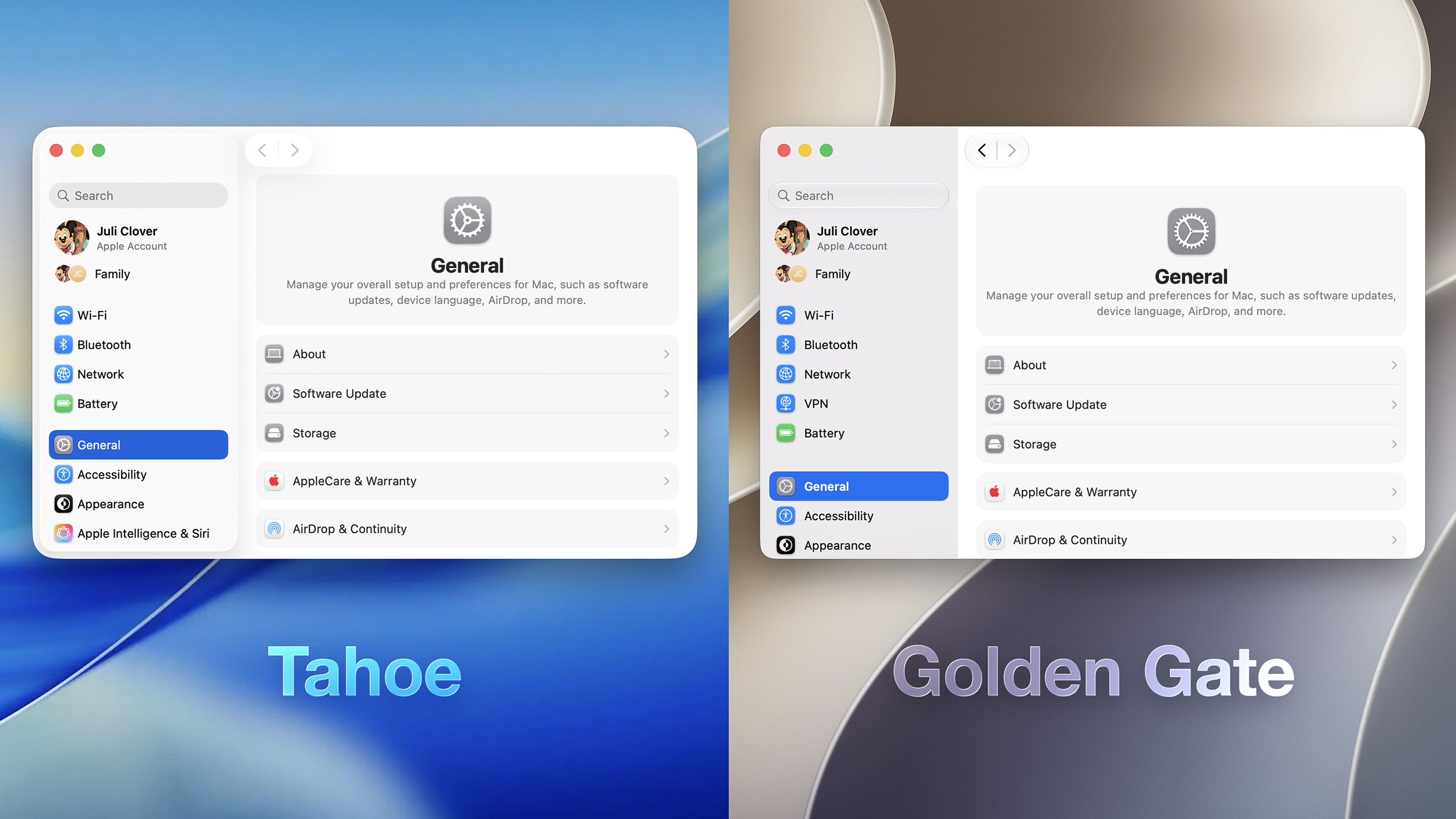
It's clear that Apple listened to this feedback. With the introduction of macOS Golden Gate, the company is making significant, albeit often subtle, revisions to the Liquid Glass aesthetic and the broader macOS design. These changes aim to address the issues raised by users in Tahoe, making the Liquid Glass design language more refined, functional, and visually appealing. The goal isn't to abandon Liquid Glass, but rather to perfect it, ensuring it enhances the user experience rather than hindering it. Let's delve into the specific improvements that could make Liquid Glass on your Mac much easier to appreciate and use.
Transparency and Diffusion: Finding the Right Balance
One of the most immediate and impactful changes in macOS Golden Gate is the enhanced control over Liquid Glass transparency. Recognizing that 'one size fits all' doesn't work for such a prominent visual effect, Apple has introduced a dedicated Liquid Glass slider. You can find this new control within System Settings, under the Appearance section. This slider empowers users to fine-tune the translucency of Liquid Glass elements throughout the operating system, offering a spectrum of options to suit individual preferences and working environments.
This new control allows for a versatile user experience. If you prefer a more modern, airy feel, you can select a clearer version of Liquid Glass. This setting allows more of your desktop background, wallpaper, or even the content of applications behind the current window to subtly show through, creating a sense of depth and integration with your entire desktop environment. It’s an aesthetic choice that can make your Mac feel more dynamic and personalized.
On the other hand, for those who prioritize legibility and focus, especially in professional or text-heavy tasks, you can opt for a more opaque, tinted version of Liquid Glass. By reducing the transparency, less of the background content peeks through, which significantly improves the contrast and clarity of text and icons against the interface elements. This makes reading and interacting with applications much more comfortable, reducing eye strain and helping you concentrate on the task at hand. The slider also allows for various intermediate settings, so you can find the perfect balance that works for your specific needs, whether you want a hint of transparency or a near-solid background.
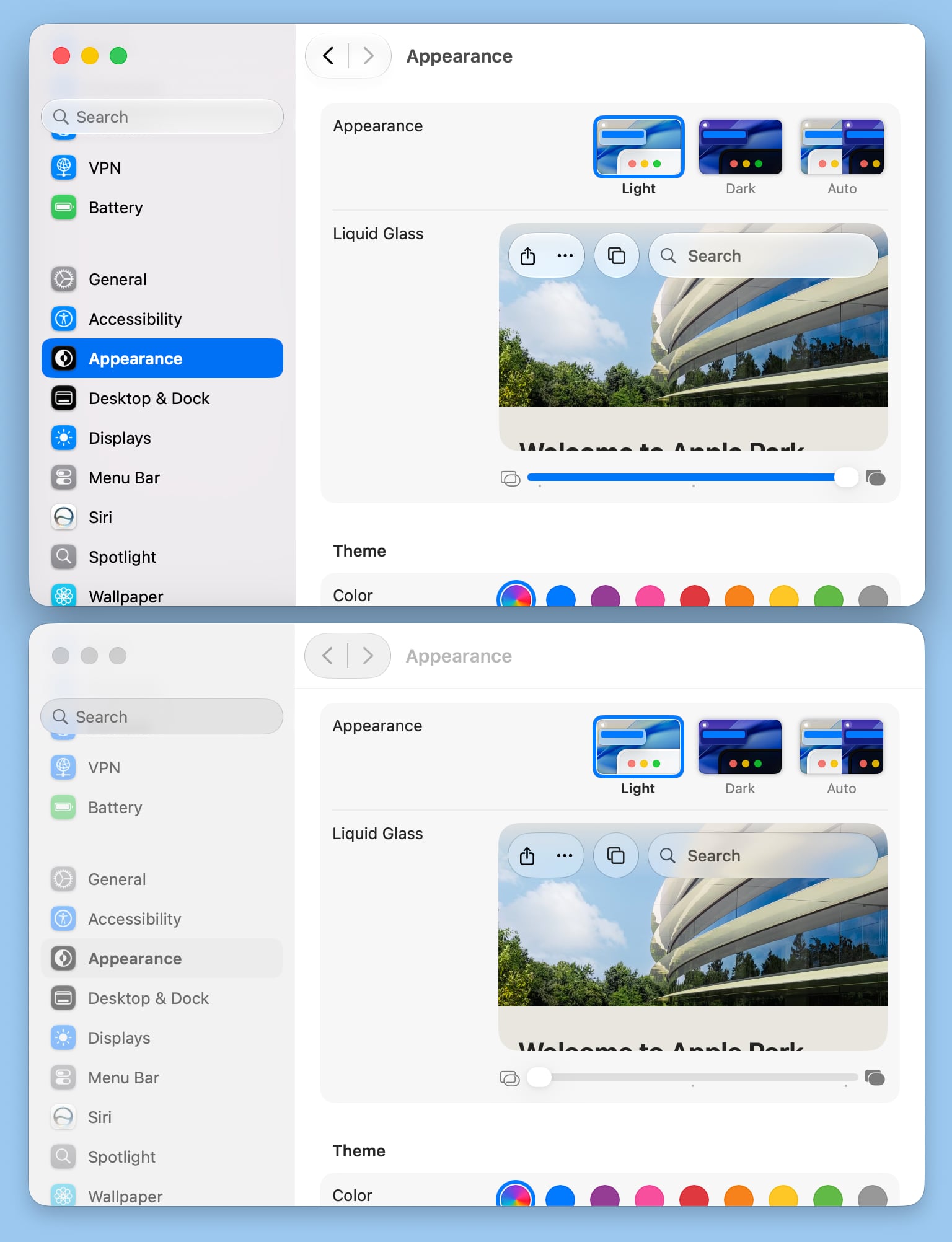
While this slider offers unprecedented control, it's worth noting one particular detail: there is no ultra-clear version of Liquid Glass available, even at its most transparent setting. Despite being able to make elements significantly clearer, the effect still doesn't quite match the pristine, almost invisible translucency that Apple initially showcased at WWDC 2025. This might be a slight disappointment for users who were captivated by that original, more ethereal vision. However, Apple likely made this decision to ensure a consistent baseline of usability, contrast, and performance across various hardware configurations and content types, balancing aesthetic ambition with practical application.
Beyond user-adjustable settings, Apple has also implemented system-wide changes to how Liquid Glass behaves. The overall opacity has been subtly tweaked, and more importantly, it now diffuses complex background content more effectively. This means that when you have a busy wallpaper or a complex application window behind a Liquid Glass element, the background blur is smarter and more refined, ensuring that the interface element itself remains distinct and readable. To further enhance this, Apple has introduced a "darkened edge" and "brighter specular highlights" around Liquid Glass elements. This isn't just jargon; it’s a clever visual trick. The darkened edge provides a subtle boundary, making the element pop out from the background, while brighter highlights simulate light reflecting off a glossy surface, giving the interface a greater sense of depth and making elements feel more distinct and separate from what’s behind them. These subtle visual cues collectively contribute to a more layered and dimensional user interface, making navigation and interaction feel more intuitive and less flat.
Toolbars and Window Shapes: A Quest for Consistency and Clarity
One of the primary goals of macOS Golden Gate's design refresh is to bring a greater sense of order and predictability to the user interface. This is particularly evident in how toolbars and window shapes have been refined. In previous iterations, there could be subtle variations in how different applications rendered their toolbars, leading to a fragmented user experience. Golden Gate addresses this by enforcing uniform toolbars across all applications, both Apple's own and third-party ones that adopt the new guidelines.
The benefit of uniform toolbars cannot be overstated. When every app presents its main controls and navigation elements in a consistent manner, users develop a muscle memory and visual familiarity that makes switching between applications seamless. This consistency also directly improves the legibility of text headings and groups of controls. With a standardized layout and appearance, the visual noise is reduced, allowing your eyes to quickly identify and understand the purpose of each section and button. This contributes to a more professional and efficient workspace, where you spend less time deciphering an interface and more time being productive.
Another area of significant visual refinement in Golden Gate relates to window corners. The debate around rounded corners in user interfaces is ongoing, but in macOS Tahoe, some users felt the corners were overly dramatic, making windows appear softer or less precise than desired. Apple has responded by standardizing the corner radius across all application windows. This means that every window, regardless of the app, will now feature the exact same, carefully considered corner curvature. This seemingly minor change significantly boosts consistency, creating a more cohesive and polished look throughout the operating system. No longer will you encounter slightly different degrees of roundness between various apps, which previously could subtly disrupt the visual harmony.
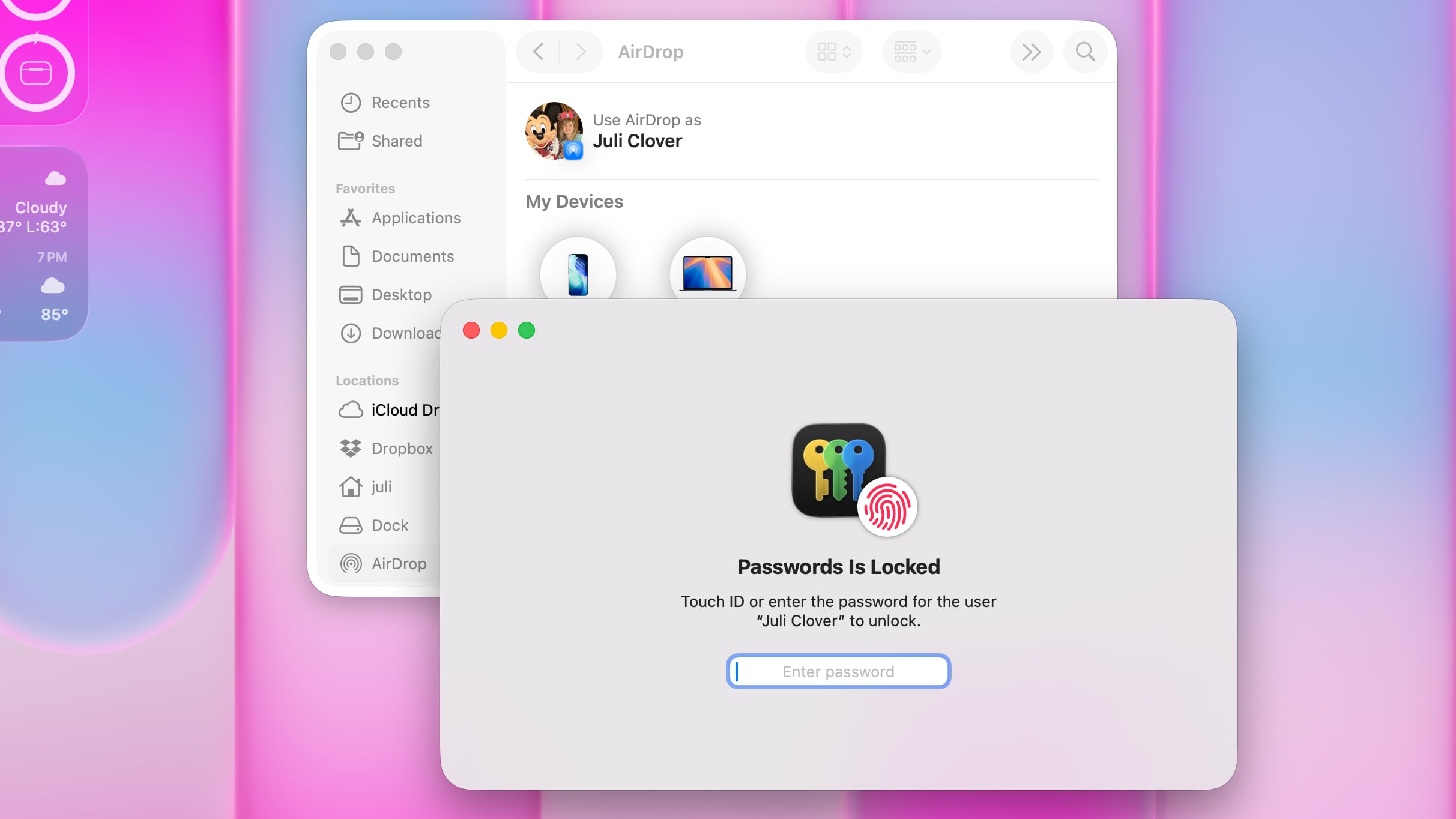 macOS Tahoe
The corners of apps in macOS Golden Gate are noticeably less dramatically rounded compared to Tahoe. This isn't a return to sharp, rectangular edges, but rather a more restrained and elegant curve that feels more balanced and modern. This subtle difference is quite striking once you notice it, contributing to a cleaner and more professional aesthetic that many users will appreciate. It's a testament to Apple's attention to detail, showing that even small adjustments can have a significant impact on the overall user experience and visual perception of the operating system.
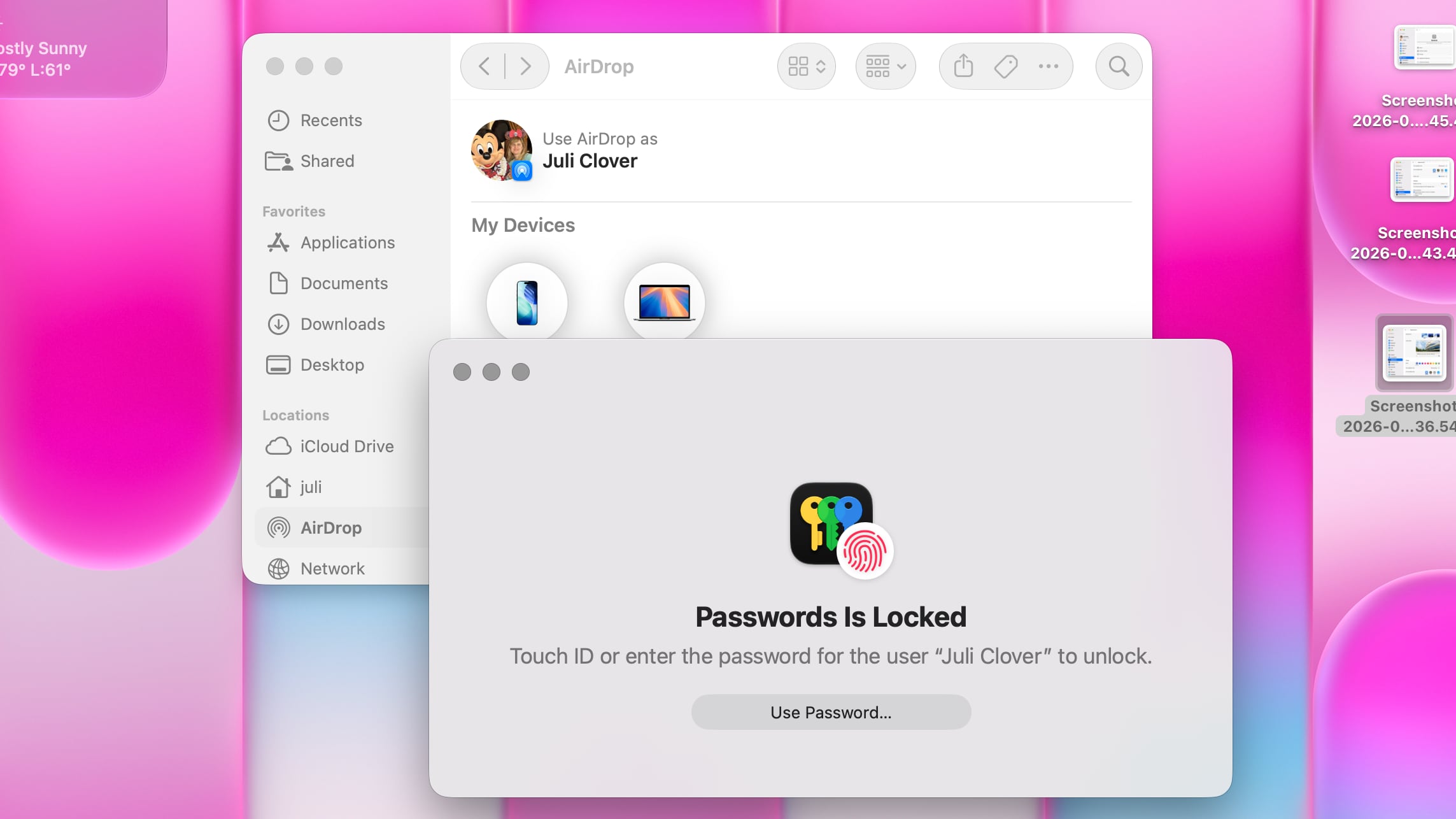 macOS Golden Gate
Beyond consistency, Golden Gate also makes it much clearer to discern which window is currently active – a crucial improvement for multitasking. This enhanced visual clarity is achieved through a combination of design elements working in concert. The updated sidebar design, which we'll discuss next, plays a role, as do the overall opacity updates to Liquid Glass elements. Crucially, changes to window shadows also contribute. Active windows now have more pronounced and refined shadows, making them visually stand out from inactive windows that might be layered behind them. This multi-pronged approach ensures that even in a busy workspace with many open applications, you can immediately identify your active window without confusion, improving focus and workflow efficiency. It's a thoughtful refinement that addresses a common pain point in modern graphical user interfaces, making the Mac feel more responsive and user-friendly.
Sidebars: Streamlined and More Informative
The sidebar is a fundamental component of many macOS applications, providing quick access to navigation, folders, and key functions. In macOS Tahoe, the sidebars often featured a 'floating' design, where they appeared somewhat detached from the main content window. While intended to create a sense of depth, this design often introduced unnecessary visual clutter, particularly with accompanying shadows that consumed valuable screen real estate and could be distracting. macOS Golden Gate introduces a significant and highly effective change to this approach: sidebars are no longer floating; they are now edge-to-edge.
This shift to an edge-to-edge sidebar design has several immediate benefits. By extending the sidebar seamlessly to the edge of the window, it creates a more unified and integrated appearance. This design feels less distracting because it eliminates the visual gaps and unnecessary shadowing that previously separated the sidebar from the rest of the application interface. The result is a cleaner, more modern look that also makes better use of the available screen space. The content within the sidebar, such as navigation links and icons, benefits from this streamlined presentation, appearing more organized and easier to scan.
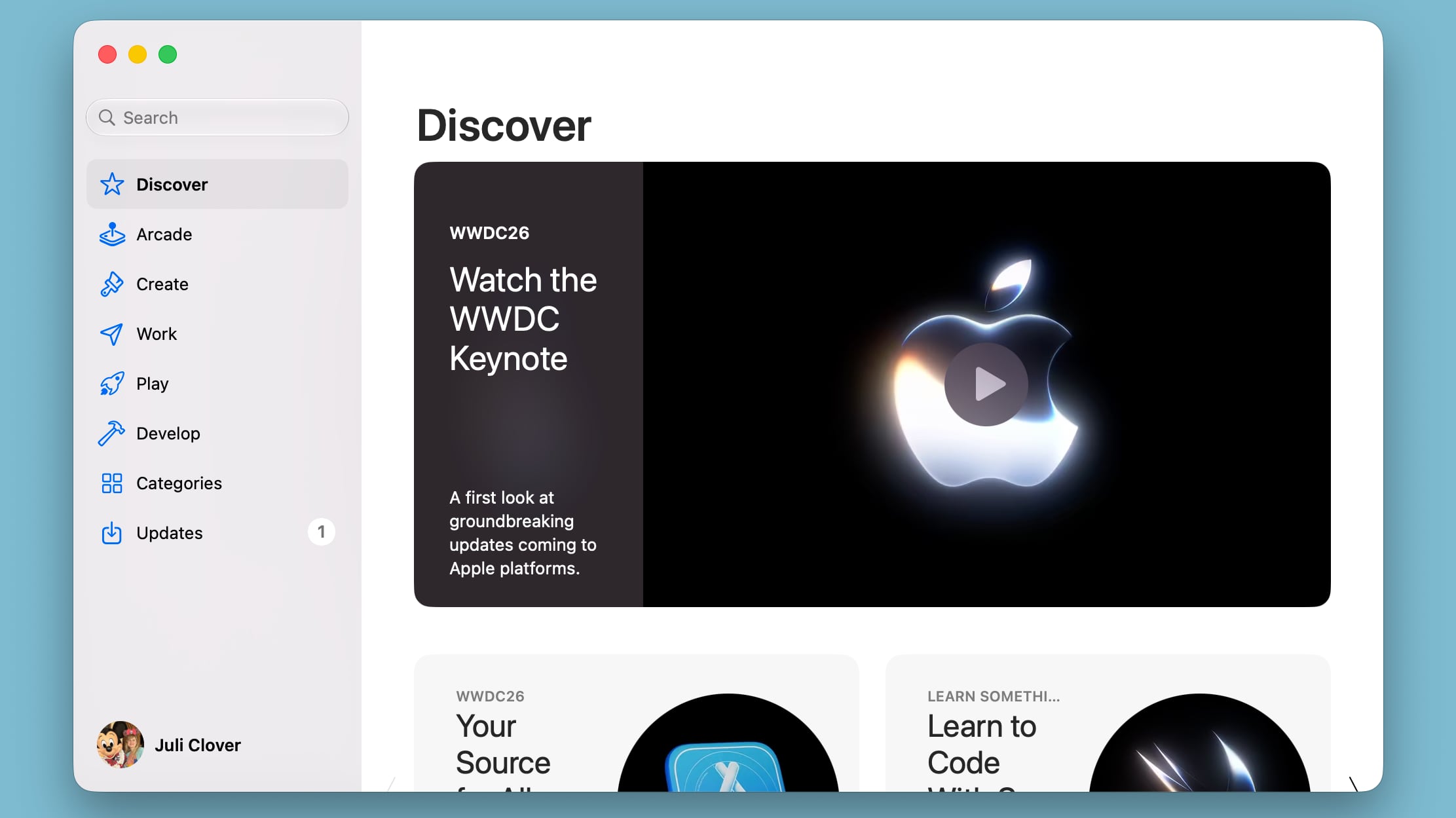
Perhaps one of the most celebrated returns in macOS Golden Gate is the reintroduction of color to sidebar icons. In macOS Tahoe, Apple moved towards a more monochrome, minimalist approach for sidebar icons, rendering them mostly in shades of gray or white. While some appreciated the clean aesthetic, a significant portion of the user base found this change detrimental to usability. Colored icons provide crucial visual cues; they allow users to quickly identify and differentiate between various categories, folders, or functions at a glance. Without color, many icons tended to blend together, making navigation slower and requiring more cognitive effort to locate specific items.
The return of color means that your Finder sidebar, Mail app, Photos, and other applications will once again feature vibrant, easily distinguishable icons. This not only enhances the visual appeal of the interface but, more importantly, dramatically improves recognition and navigation speed. For many, this is a welcome improvement that directly addresses a major usability complaint from the Tahoe era, making the macOS experience more intuitive and enjoyable. It highlights Apple's commitment to listening to user feedback and understanding the subtle but profound impact that visual details can have on daily interaction with the operating system.
Icons: Depth, Detail, and Clarity
Iconography is a cornerstone of Apple's design identity, and while the company has maintained its commitment to the "squircle" shape for Mac icons – a rounded square with continuous curvature that offers visual consistency across the system – it has significantly refined the icon design in macOS Golden Gate. This refinement is focused on enhancing the visual richness and clarity of icons, making them more engaging and informative.
The key innovation in Golden Gate's icon design is the incorporation of more layers of Liquid Glass. This isn't just an aesthetic flourish; it's a technical approach that allows for greater depth, detail, and sharpness within each icon. Imagine an icon built up of multiple translucent panes, each contributing a subtle shadow, highlight, or color tint. This layering effect allows icons to appear more three-dimensional and dynamic, responding more realistically to different lighting conditions and interface themes.
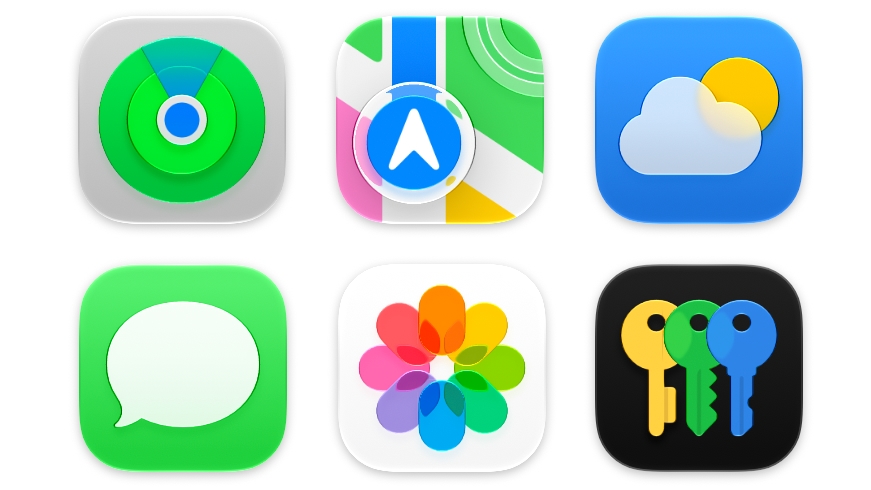
Specifically, these additional layers of Liquid Glass improve the detail and sharpness in various display modes: light mode, dark mode, tinted modes, and clear icon modes. In light mode, the icons might exhibit brighter specular highlights, making them pop. In dark mode, the deeper layers can provide more subtle shadows and depth, ensuring they remain distinct against a darker background. If you're using a tinted interface, the layers can integrate that tint more gracefully without losing icon fidelity. This meticulous approach ensures that icons look crisp, vibrant, and detailed no matter your system preferences or the ambient lighting conditions of your screen. This consistency in quality across different visual contexts is crucial for maintaining a premium and cohesive user experience.
Beyond app icons, Apple is also expanding the use of icons for certain menu bar items. The menu bar, while primarily text-based, often benefits from clear visual cues for frequently accessed actions. By incorporating well-designed icons for commonly used actions, Apple makes it easier and faster for users to locate and initiate those actions. This is particularly helpful for new users who might not be familiar with every menu item's name, or for power users who prefer visual recognition over reading text. This subtle yet impactful change contributes to a more efficient and visually intuitive interaction with the macOS environment, reinforcing the idea that good design is about making tasks simpler and quicker for everyone.
HDR: Adding New Dimensions to the Interface
In a significant stride towards a more immersive and visually rich desktop experience, Apple is now leveraging High Dynamic Range (HDR) technology within the macOS Golden Gate interface itself. While HDR has been a staple for photos and videos on compatible displays for some time, its integration into the core user interface is a new frontier for macOS, promising to bring an unprecedented level of depth and dimension to your daily computing experience.
Traditionally, user interfaces have been designed within the confines of Standard Dynamic Range (SDR), meaning the range of brightness and color they can display is limited. HDR, however, expands this range dramatically. When applied to the macOS interface, this means that elements like highlights, shadows, and subtle gradients can be rendered with far greater fidelity and intensity. Imagine buttons that subtly glow with more realistic light, or background textures that reveal deeper, more nuanced shadows. This isn't just about making things brighter; it's about creating a much more natural and lifelike representation of light and form within the digital environment.
The benefit of HDR in the interface is that it makes elements feel more tangible and real. Bright areas appear genuinely brighter, and darker areas retain more detail without crushing blacks. This increased dynamic range contributes significantly to the perception of "depth and dimension." Interface elements can appear to recede or project forward more convincingly, giving the entire user experience a more sculptural and layered feel. It makes icons pop with a greater sense of realism, and windows appear to have a more defined presence on your desktop. For users with HDR-capable displays, which are becoming increasingly common on modern Macs, this translates to a visually richer and more engaging operating system that feels more alive and less flat. It's a subtle enhancement that works in concert with other Liquid Glass refinements to create a truly next-generation graphical user interface, making the experience of simply navigating your Mac a more visually delightful one.
Launch Date and Broader Enhancements
Beyond the detailed refinements to Liquid Glass and the visual interface, macOS Golden Gate is much more than just a cosmetic update. It brings a host of under-the-hood improvements and exciting new functionalities that collectively enhance the Mac experience. A key highlight is the integration of all the innovative Siri AI features that are also making their debut in iOS 27. This means your Mac will benefit from advanced artificial intelligence capabilities, offering smarter assistance, more intuitive interactions, and enhanced productivity features that leverage the power of Apple's latest neural engines. Whether it's more contextual understanding from Siri, intelligent content suggestions, or improved automation, these AI features are set to transform how you interact with your Mac.
Furthermore, macOS Golden Gate includes significant performance improvements across the board. Apple consistently refines its operating system to be more efficient, and this update is no exception. Users can expect their Macs to feel faster and more responsive, with quicker app launches, smoother multitasking, and more efficient power management. These performance gains are crucial for both everyday tasks and demanding professional workflows, ensuring that your hardware performs at its peak and provides a consistently fluid user experience.
For those eager to get their hands on macOS Golden Gate, the initial release is currently limited to developers, allowing them to adapt their applications to the new design and features. However, Apple has a clear roadmap for wider availability. The company plans to release a public beta version in July, offering a chance for non-developers to test the new operating system and provide feedback before its official launch. This public beta program is an excellent opportunity to experience the Liquid Glass refinements, AI features, and performance boosts firsthand. The full, stable version of macOS Golden Gate is scheduled to launch this fall, typically in September or October, bringing all these enhancements to Mac users worldwide. This phased rollout ensures stability and allows Apple to iron out any remaining issues based on extensive testing, guaranteeing a polished and reliable experience for everyone upon general release.
This article, "All the Liquid Glass Changes in macOS Golden Gate" first appeared on MacRumors.com
Discuss this article in our forums
from MacRumors
-via DynaSage
