
Review: iVANKY's FusionDock Ultra is a Premium 26-Port Thunderbolt 5 Dock for Your Mac
iVANKY FusionDock Ultra: The Ultimate Dock for Your Mac?
A few years ago, I had the chance to review iVANKY's FusionDock Max 1. This was a powerful dock for Mac computers, featuring two Thunderbolt chips and two cables to connect 20 different types of ports. It offered incredible flexibility for users. Since then, iVANKY has launched even more advanced versions: the 23-port FusionDock Max 2 and now the 26-port FusionDock Ultra. I've spent the last few weeks putting the top-of-the-line FusionDock Ultra through its paces to see just how well it performs.
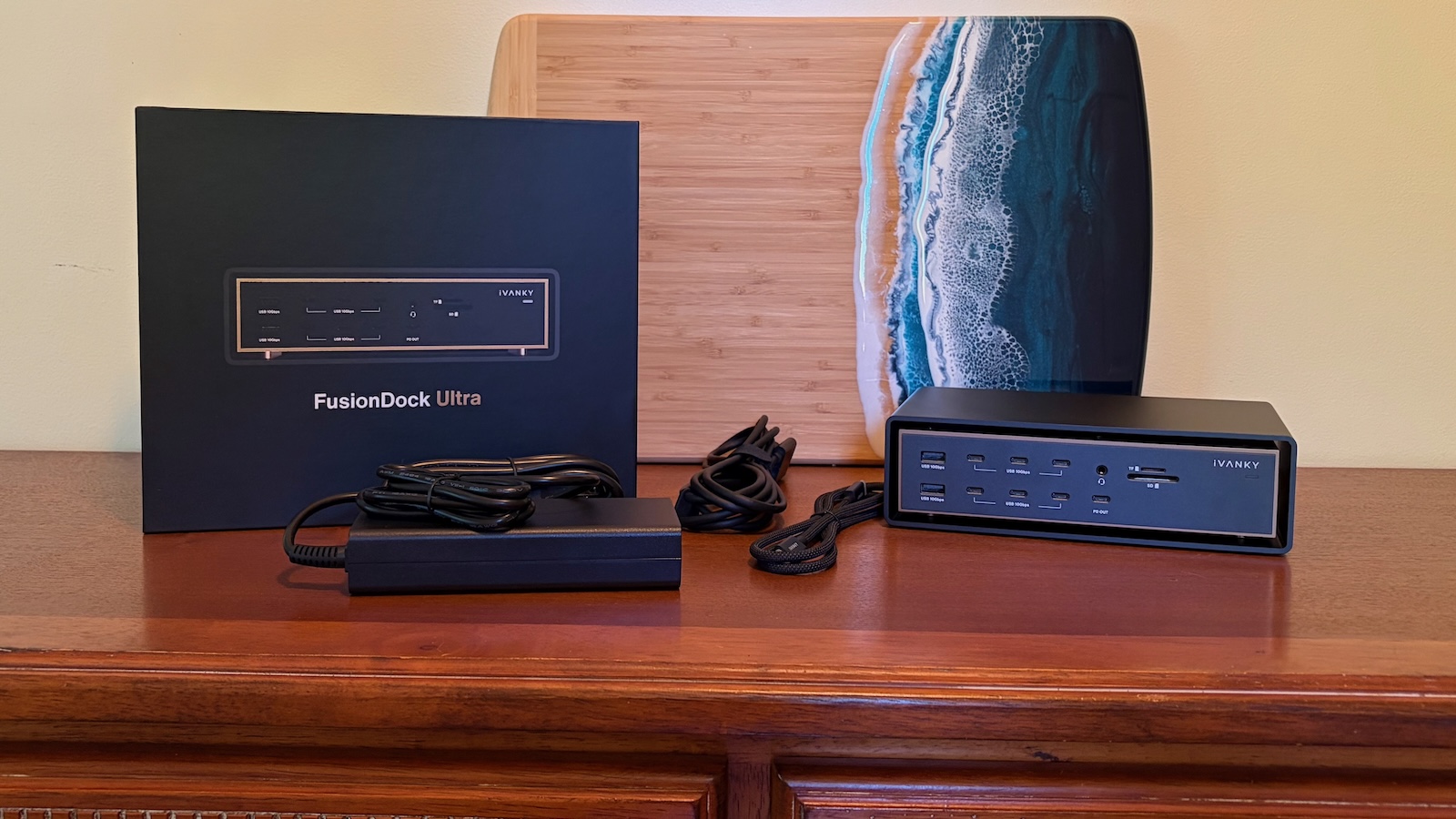
Just like its predecessor, the FusionDock Ultra uses a special design with two Thunderbolt chips. This allows it to support an impressive number of ports, perfect for advanced users who need to connect many devices. You'll find a wide variety of USB ports, super-fast 10 Gigabit Ethernet, slots for SD and TF cards, and much more.
Design and Accessibility
The FusionDock Ultra has a look that is both appealing and practical. You'll notice that the front of the dock is packed with ports. This is great for easily plugging in and unplugging devices as needed. However, it does mean the front isn't as clean-looking, and it can be a bit harder to hide all your cables. But with so many ports, iVANKY essentially had to use both the front and back panels to fit everything in, so this design choice makes sense.
The main part of the dock appears to "float" inside a larger outer case. It rests on a few small pegs within its black aluminum shell. This design looks good and also creates space for air to move around, helping with cooling. The large amount of aluminum, combined with a copper-alloy frame inside, is excellent for getting rid of heat. During my tests, the outer shell did get a little warm, but never uncomfortably hot to touch.
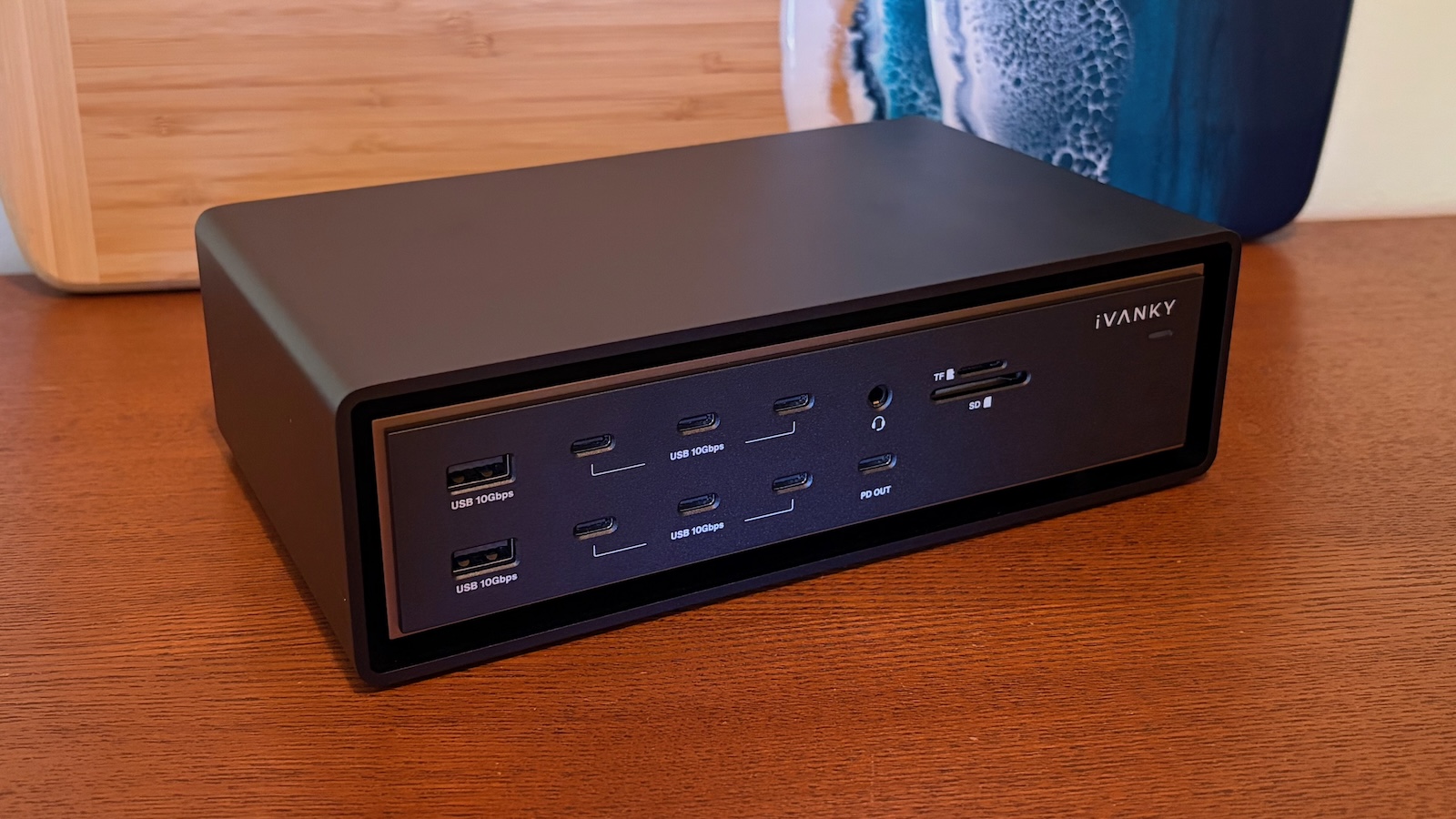
Front-Facing Ports: What You Get
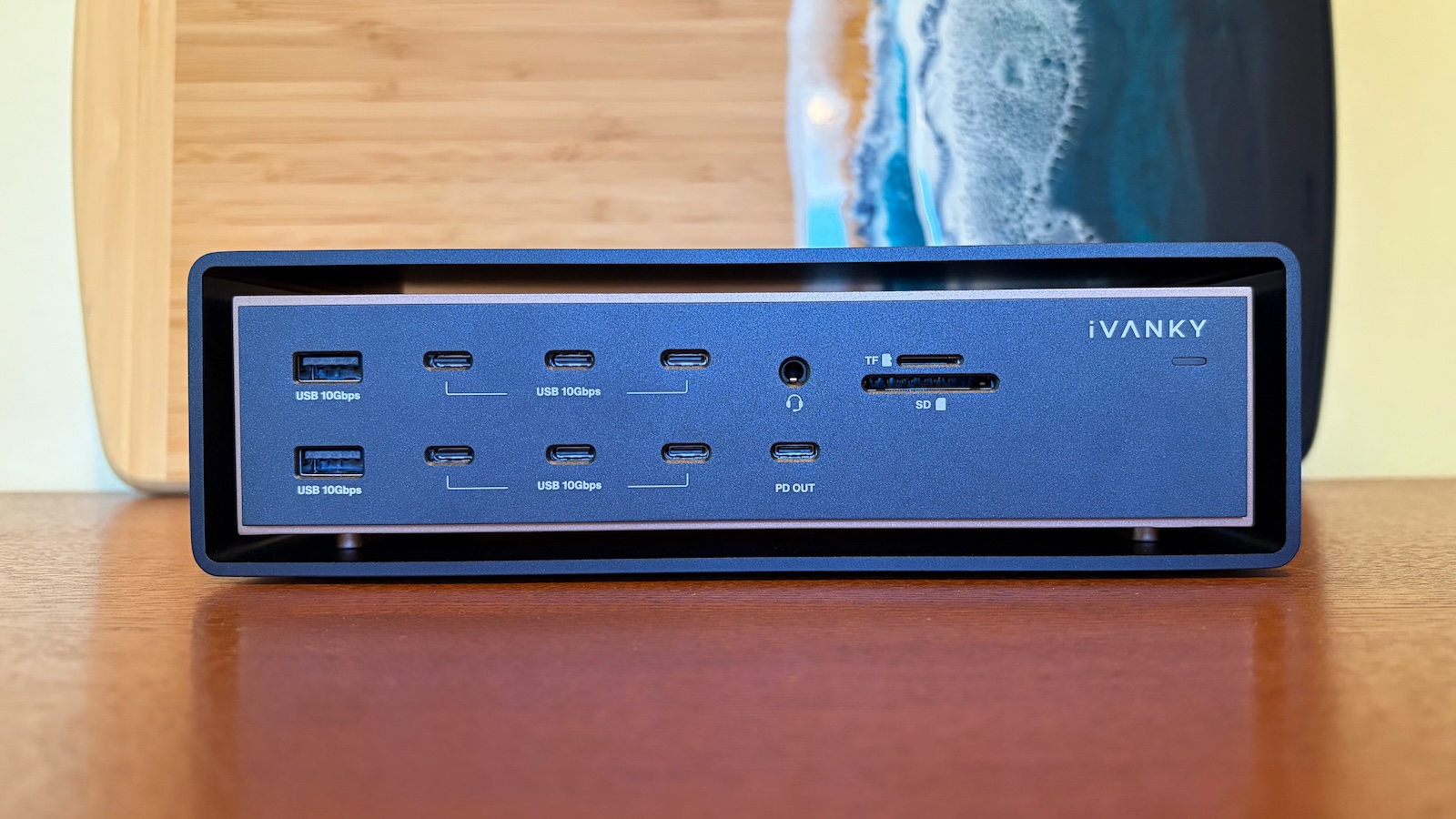
On the front of the FusionDock Ultra, you'll find an incredible number of useful connections:
- Six 10 Gbps USB-C ports: For fast data transfer with modern devices.
- One additional 10 Gbps USB-C port: This one also provides up to 45 watts of power, perfect for charging smaller devices.
- Two 10 Gbps USB-A ports: For connecting older USB devices at high speeds.
- 3.5mm combo audio port: For headphones or headsets that combine audio input and output.
- UHS-II SD and TF/microSD 4.0 card slots: High-speed slots for memory cards from cameras and other devices.
- LED power light: This light is bright enough to show the dock is on but dim enough not to bother you, even in a dark room when your screens are off.
Rear Ports: The Powerhouse Behind Your Mac
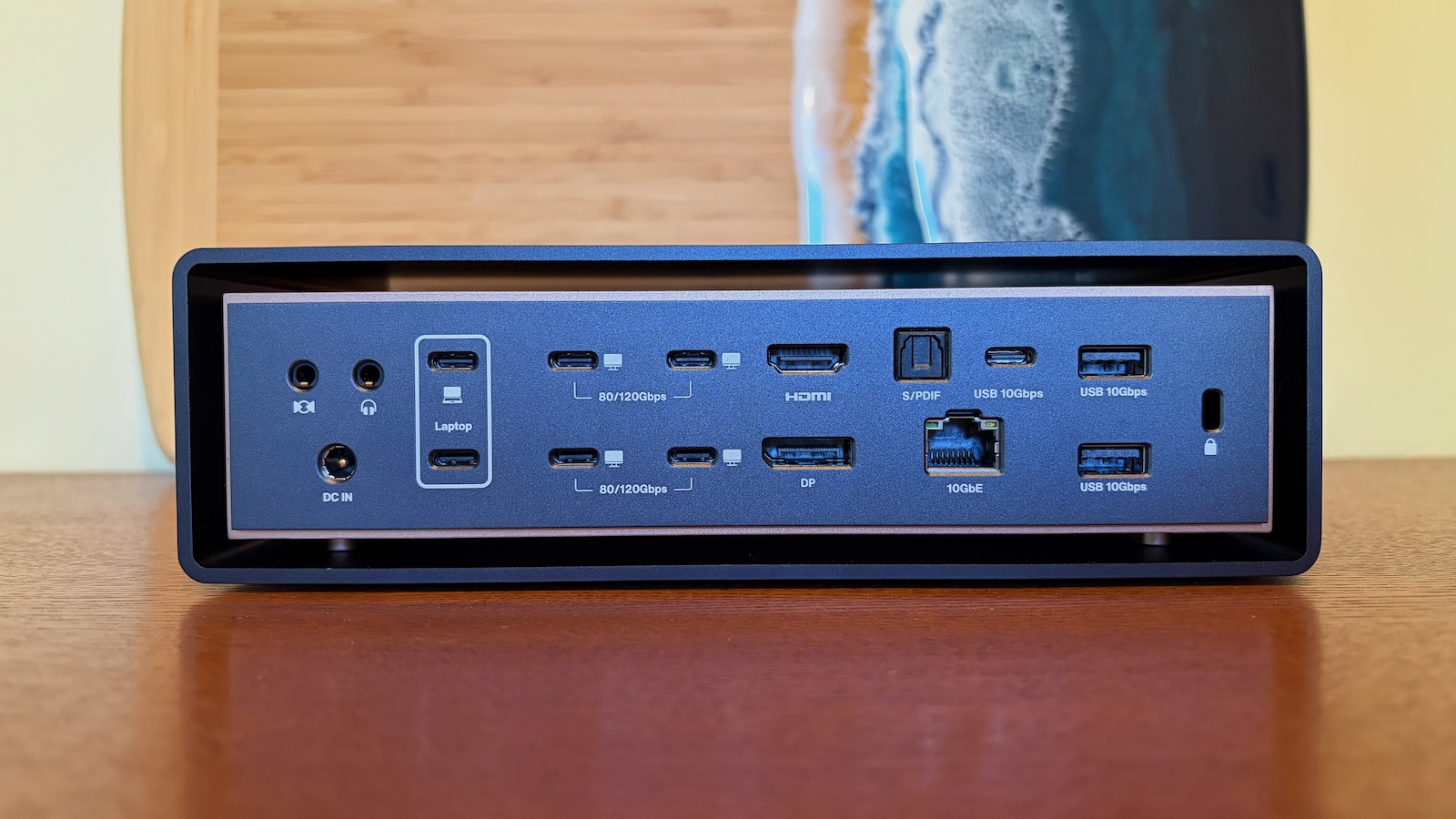
The back of the dock holds even more connections, more than a dozen in total:
- Two Thunderbolt/USB-C ports: These are for connecting the dock to your Mac.
- Four downstream Thunderbolt/USB-C ports: These are for connecting displays and can handle extremely fast data connections, up to 80 Gbps or even 120 Gbps.
- HDMI 4K port: For connecting a 4K display.
- DisplayPort 2.1 port: Another option for high-resolution displays.
- One additional 10 Gbps USB-C port: More high-speed USB-C connectivity.
- Two 10 Gbps USB-A ports: For additional USB-A accessories.
- 10 Gb Ethernet port: For super-fast wired internet connections.
- S/PDIF optical port: For high-quality digital audio output.
- Separate 3.5mm audio in and out ports: For dedicated microphone input and headphone/speaker output.
- Kensington lock slot: A security feature to help prevent theft if the dock is used in a public or shared space.
Cooling and Noise
The dock includes two internal fans to help move air and dissipate heat. You can hear them when they turn on in a very quiet room, but I didn't find them to be distractingly loud. The fans have "adaptive control," meaning their speed changes based on how much heat is being generated. They will either turn off or run very quietly at low speeds when the dock isn't working hard. They'll speed up under more demanding tasks.
iVANKY states that the fans produce 44–46 dBA (decibels) when measured from 1 cm away. This sounds accurate based on my experience. It's an audible sound, but more like a soft background hum in a quiet environment. In a busier room, you would barely notice it.
Smart Cable Design
As mentioned earlier, the FusionDock Ultra connects to your Mac using two Thunderbolt cables. iVANKY has designed these cables in a clever way to keep your desk tidy. The two Thunderbolt connectors that plug into your Mac can attach to each other magnetically. This creates what looks like a single connector, which is perfect for Macs like the MacBook Pro, where the Thunderbolt ports are spaced horizontally.
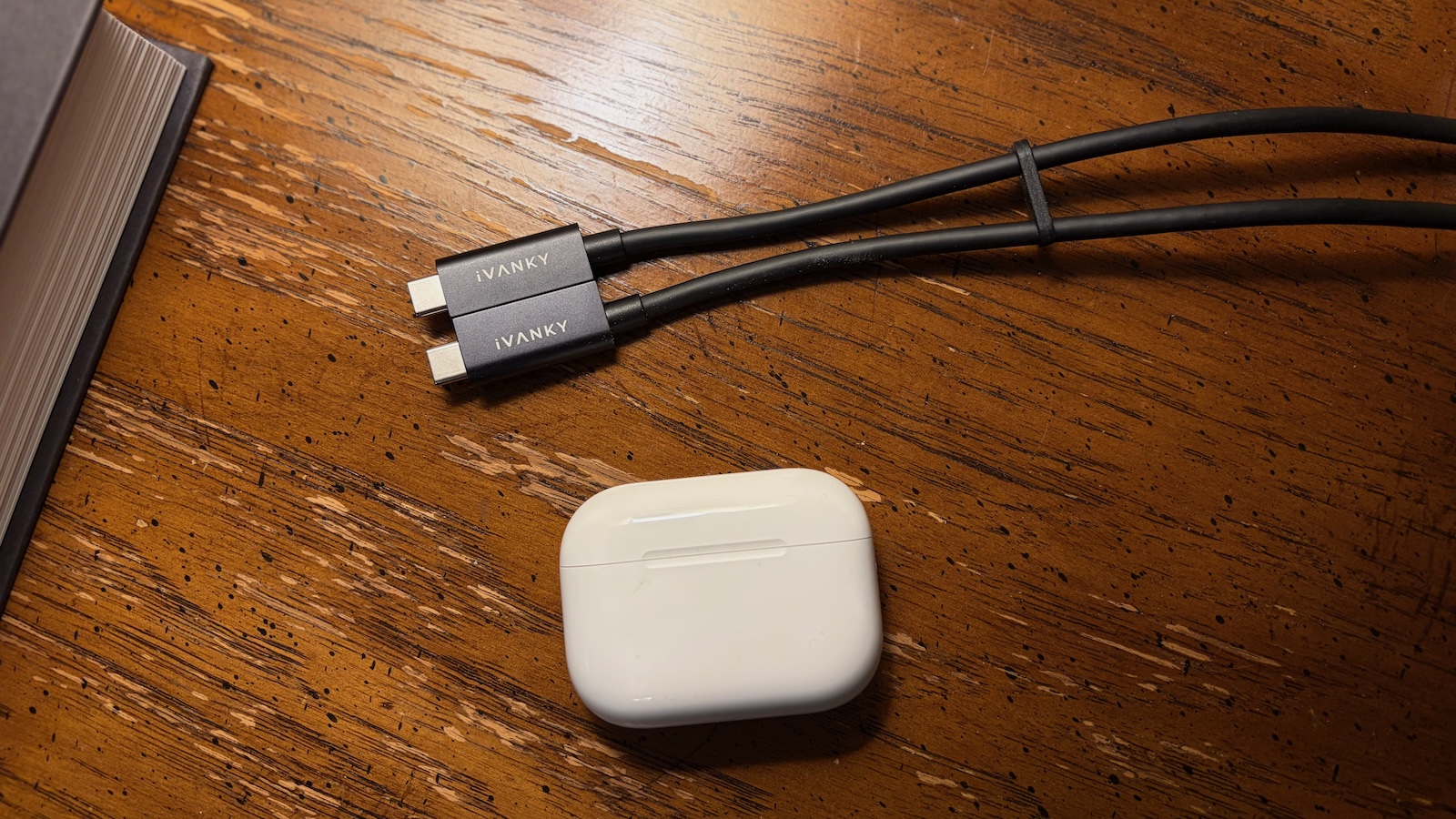
If you have a Mac with a different port layout, such as a Mac Studio or Mac mini, you can separate the cable connectors. iVANKY also includes a pair of sliding clips to help keep the two cables neatly together and organized, regardless of your Mac's port arrangement.
Power Delivery and External Display Support
A significant feature of the FusionDock Ultra is its ability to deliver up to 140 watts of power to your connected Mac through the Thunderbolt connection. This means even Apple's most power-hungry portable Macs can charge quickly. To support all these features, the dock comes with a fairly large 240-watt external power adapter. Most users should be able to hide it away on the floor or behind other equipment without much trouble.
When it comes to connecting displays, the FusionDock Ultra is capable of powering four 6K displays directly. However, the actual number of displays you can use depends entirely on the specific Mac you connect it to. To get full support for four displays, your Mac will need to have a "Max" or "Ultra" version of Apple's chip, from M1 up to M5.
- The latest MacBook Pro with an M5 Pro chip supports up to three displays.
- The latest Mac mini with either the M4 or M4 Pro chip also supports up to three displays.
- Most other Macs with different chips can support two external displays.
- Some older base chips, like the M1 or M2 in a MacBook Pro or MacBook Air, can only support one external display.
In simple terms, always check Apple's official specifications for your particular Mac model to see how many external displays it can handle. The iVANKY dock will not magically bypass these limitations by using compression tricks like DisplayLink. This approach ensures you get the best performance without sacrificing image quality or experiencing lag.
If you use LG UltraFine 5K or Samsung ViewFinity S9 5K displays, note that the FusionDock Ultra can only support two of these connected at the same time. Apple Studio Displays, however, are fully supported up to the maximum number allowed by your specific Mac. Throughout my testing, I regularly used the FusionDock Ultra with two external displays and had a brief chance to test it with four displays. I experienced no performance issues; everything worked perfectly through the dock.
10 Gigabit Ethernet and Mac Compatibility
The 10 Gigabit Ethernet connection is a major highlight for advanced users. Many other docks offer slower Ethernet speeds to manage the overall bandwidth. However, the FusionDock Ultra's dual-chip and dual-cable design provides enough capacity to support these higher data speeds without compromise.
It's important to mention that the FusionDock Ultra is only compatible with Macs that use Apple's own silicon chips (like M1, M2, M3, M4, M5, etc.). It will not work with older Intel-based Macs or Windows PCs.
Price and Value
All these advanced features come at a price. The FusionDock Ultra usually sells for $749.99. However, iVANKY is currently offering a discount, bringing the price down to $649.99 on their website and on Amazon. For advanced users who need to connect a large number of accessories to their Macs with ease, the FusionDock Ultra is an excellent choice.
If your needs aren't quite as extensive, iVANKY also provides other options:
- The FusionDock Max 2 is currently discounted to $399.99.
- The original FusionDock Max 1 is on sale for $299.99.
This article, "Review: iVANKY's FusionDock Ultra is a Premium 26-Port Thunderbolt 5 Dock for Your Mac" first appeared on MacRumors.com
Discuss this article in our forums
from MacRumors
-via DynaSage
