
This Music Selection Tweak in iOS 26.4 Will Save You Bags of Time
Revolutionize Your Apple Music Experience: How iOS 26.4's Multi-Select Playlist Feature Saves You Hours
If you're an avid Apple Music user, you likely know the drill: you discover a fantastic new track, and you want to add it to not just one, but several of your carefully curated playlists. Maybe it's perfect for your "Morning Run" playlist, your "Focus & Study" collection, and your "New Discoveries" list. In the past, this process involved a tedious dance of adding the song to one playlist, backing out, finding the song again, adding it to the next, and so on. This repetitive task, while seemingly minor, could quickly become a frustrating time sink, especially for those with extensive music libraries and a passion for detailed organization.
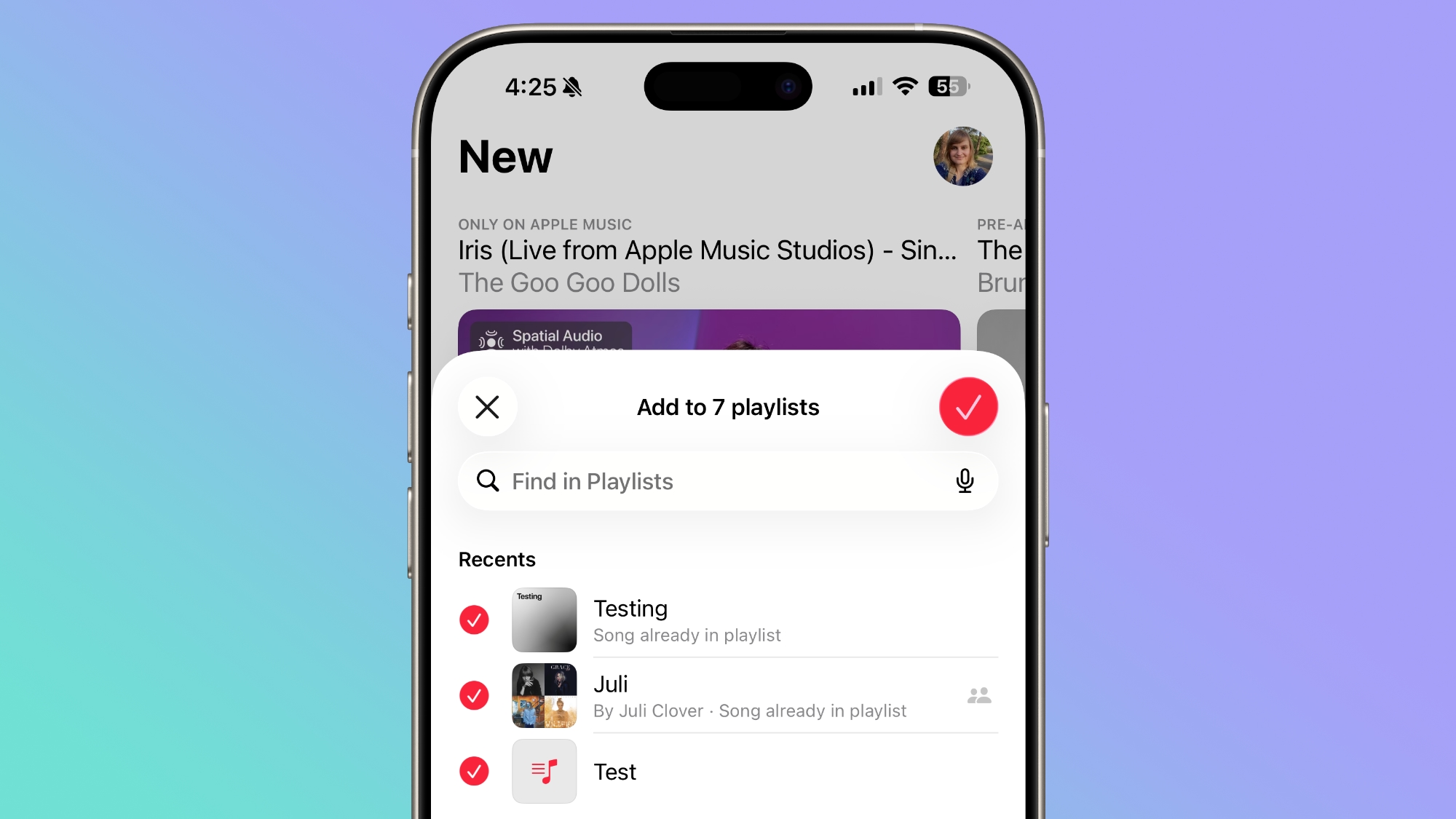
Good news has arrived for music enthusiasts! With the release of iOS 26.4, Apple has introduced a brilliant enhancement to the Music app that promises to streamline your playlist management like never before. This update includes a highly anticipated option that could save you "bags of time": you can now select multiple playlists simultaneously when adding a song. This seemingly small tweak is a monumental shift for how many users interact with their music, transforming a cumbersome chore into a quick, effortless action.
The Frustration Before iOS 26.4: A Common Scenario
Before the arrival of iOS 26.4, managing your music within the Apple Music app, particularly when it came to playlists, often felt like navigating a digital maze with unnecessary detours. Imagine this common scenario: you’re engrossed in a new album, and you stumble upon a track that just resonates with you. It’s perfect for your 'Workout Jams' playlist, your 'Relaxing Evenings' collection, and maybe even your 'Road Trip Anthems'. What did you have to do?
The old process went something like this:
- You’d long-press the song or tap the three-dot menu next to it.
- From the pop-up menu, you’d select "Add to Playlist."
- You'd be presented with a list of all your existing playlists. You could then choose one playlist.
- Once selected, the song would be added. But if you needed it in another playlist, you couldn't stay on that screen. You had to tap "Done" or go back to the song's context.
- Then, you’d have to repeat the entire process: long-press the song again, tap the three-dot menu, select "Add to Playlist," and then choose the next playlist.
This back-and-forth navigation was not just repetitive; it broke your flow. If you were in the zone of discovering new music or organizing a large batch of tracks, this interruption was significant. It added cognitive load – you had to remember which playlists you had already added the song to, and which ones were left. For users who maintain dozens or even hundreds of playlists, categorized by mood, genre, activity, or even specific events, this process could easily consume valuable minutes, or even hours, of their time each week. It was an efficiency killer, often leading users to abandon the idea of meticulous playlist curation simply because the tools weren't keeping up with their organizational desires.
Many Apple Music subscribers yearned for a simpler way, a method that mirrored the multi-selection capabilities seen in other parts of iOS or in competing music services. The community forums buzzed with requests for this exact feature, highlighting just how deeply this limitation impacted daily use. It was a clear area where user experience could be vastly improved with a straightforward, yet powerful, addition.
The Game Changer: Multi-Select Playlists in iOS 26.4
The frustration is now a thing of the past. iOS 26.4 introduces a brilliant and intuitive solution: a multi-select option directly within the "Add to Playlist" interface. This means you no longer have to perform the same action repeatedly. Instead, you can choose as many playlists as you wish in one seamless go. This update isn't just about saving clicks; it's about respecting your time and enhancing your creative control over your music library.
This new functionality is a testament to Apple's commitment to refining the user experience, even for seemingly minor features. For dedicated music curators, this "tweak" is anything but minor. It liberates them from the digital shackles of single-selection, allowing for a more fluid and enjoyable interaction with their music collection. Imagine creating a new album, or discovering a new artist, and instantly being able to sort their tracks into all relevant categories without breaking stride. That's the power of this update.
How to Master Multi-Select Playlists in Apple Music (iOS 26.4)
Using this new feature is incredibly straightforward and designed to integrate seamlessly into your existing workflow. Here’s a detailed, step-by-step guide to adding a song to multiple playlists in the Apple Music app on iOS 26.4:
-
1. Find Your Song in the Music App
First things first, open the Music app on your iPhone. Navigate to the song you wish to add to multiple playlists. You can find songs in various ways:
- Browsing Your Library: Go to the "Library" tab, then select "Songs," "Albums," or "Artists" to browse your saved music.
- Searching: Use the "Search" tab to look for specific tracks, artists, or albums.
- Exploring New Music: Discover a song in the "Browse" or "Radio" tabs, or from your personalized recommendations.
Once you’ve located the track, make sure it's visible on your screen.
-
2. Access the Song Options Menu
To bring up the options menu for the song, you have two primary methods:
- Long Press: Simply press and hold your finger on the song title for a moment. A context menu will pop up. This is a quick and intuitive gesture that iOS users are familiar with for various actions.
- Three-Dot Menu: Alternatively, you can tap the three-dot menu (...) icon usually located to the right of the song title or album art. This icon is a universal symbol for "more options" across iOS.
Both actions will present you with a list of actions you can perform on that song, such as "Play Next," "Love," "Share Song," and "Add to Playlist."
-
3. Tap "Add to Playlist"
From the options menu that appears, select Add to Playlist. This action will take you to a new screen displaying a comprehensive list of all your existing Apple Music playlists.
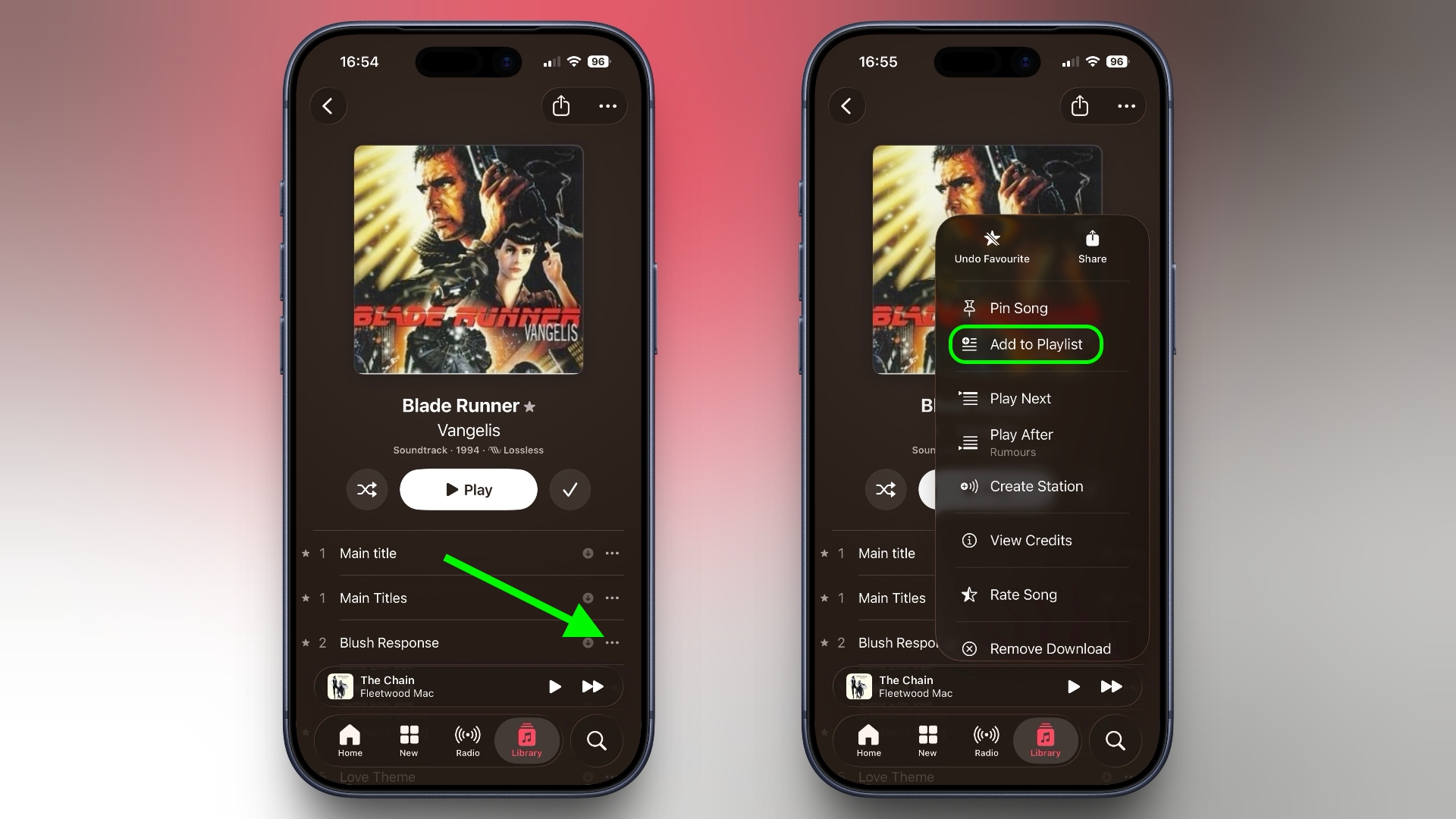
Previously, this is where the single-selection limitation would kick in. But with iOS 26.4, you'll notice a subtle yet powerful change.
-
4. Activate the Multi-Select Option
Look towards the bottom-right corner of the "Add to Playlist" screen. You will see a new multi-select button. This button typically appears as a circle with a checkmark or similar icon, signifying the ability to select multiple items. Tap this button to activate the multi-selection mode.
Upon tapping, you'll observe that each playlist entry in your list now features a circular checkbox or similar indicator next to it, signaling that they are ready for selection.
-
5. Select Your Desired Playlists
Now comes the satisfying part: freely select all the playlists you want to add the song to. Simply tap on each playlist's entry. As you select them, each chosen playlist will instantly display a distinct visual cue, such as a prominent red checkmark, confirming your selection. This visual feedback is instantaneous, allowing you to quickly verify your choices.
The beauty of this step is its simplicity. No more navigating away and back; just tap, tap, tap, until all your desired playlists are marked.
-
6. Confirm Your Selection
Once you have selected all the relevant playlists, look for the checkmark button, usually located in the top-right corner of the screen. This button serves as your final confirmation. Tap it to finalize the process.
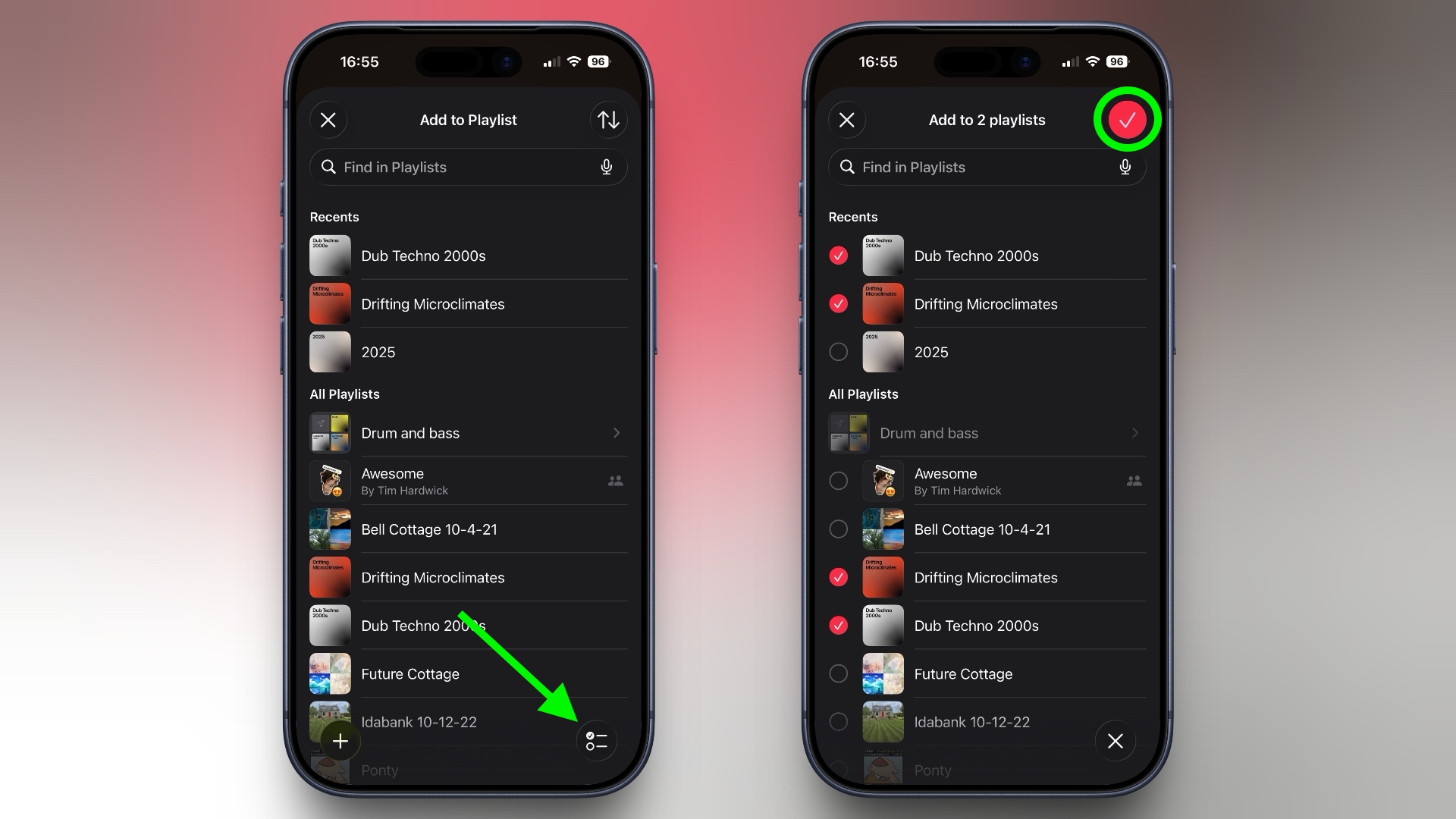
The header at the top of the screen will dynamically update to reflect how many playlists you've selected, providing a handy visual tally before you commit. This detail ensures you can keep track and double-check your choices, preventing accidental omissions or additions. Once confirmed, the song will be added to all selected playlists simultaneously, and you'll be returned to your previous screen, ready to continue enjoying your music.
Beyond Time-Saving: The Broader Impact of This "Minor" Addition
While the immediate and most obvious benefit of the multi-select playlist feature in iOS 26.4 is the immense amount of time it saves, its impact stretches far beyond mere efficiency. This seemingly minor addition addresses fundamental aspects of user experience and music management, fostering a more intuitive, enjoyable, and creative environment for Apple Music subscribers.
Enhanced Efficiency and Flow
The elimination of repetitive actions is a huge win for efficiency. Instead of multiple steps for each playlist, you now have a single, streamlined process. This means less friction, fewer interruptions to your listening or discovery flow, and more time spent actually enjoying music rather than managing it. For power users who curate extensive collections, this translates into hours saved over weeks and months.
Improved Playlist Organization and Creativity
The previous limitations often discouraged users from creating highly specific playlists. Why create a playlist for "Sunday Morning Coffee," "Afternoon Reading," and "Rainy Day Vibes" if adding a single ambient track to all three meant triple the effort? With multi-select, users are empowered to create and maintain a richer, more granular array of playlists. They can organize music by:
- Mood: Happy, melancholic, energetic, relaxed.
- Genre Subcategories: Indie folk, alternative rock, jazz fusion, lo-fi beats.
- Activity: Workout, study, cooking, sleeping, driving.
- Occasion: Party, dinner, holiday, specific events.
- Discovery Source: "New from [Artist X]," "Songs from [Album Y]."
This encourages greater creative freedom and allows users to better reflect the diverse ways they listen to and categorize music. No longer will users compromise on organization simply because the tool was cumbersome. Instead, they can build the intricate, personal musical ecosystems they truly desire.
Reduced Frustration and Enhanced User Satisfaction
It's no exaggeration to say that some users will have been waiting years for this option. The frustration of needing to add a song to several playlists but being limited to one at a time was a recurring pain point. Addressing such a common, long-standing user request significantly boosts overall user satisfaction. It demonstrates that Apple is listening to its community and continuously working to refine the core experience of its services.
A More Immersive Apple Music Experience
By removing logistical hurdles, the multi-select feature allows users to remain immersed in their music. The joy of finding a new song and instantly categorizing it into all relevant contexts without interruption keeps the focus on the music itself. This contributes to a more seamless and enjoyable overall Apple Music experience, making the platform feel more intuitive and powerful.
Setting a New Standard
While many music services offer various features, the ease and elegance of multi-selection within a platform as widely used as Apple Music sets a new standard for how users expect to interact with their digital libraries. It shows that even small interface improvements can have massive ripple effects on daily usability and perception of the entire service.
This update isn't just about a checkbox; it's about acknowledging and empowering the dedicated music lover, granting them the tools to curate their soundtrack precisely how they envision it, free from unnecessary digital friction. It’s a prime example of how thoughtful software design can profoundly enhance a daily activity.
Beyond Playlists: Other Noteworthy Enhancements in iOS 26.4
iOS 26.4 isn't just about streamlining playlist management; Apple has also introduced other visual enhancements designed to make the Apple Music experience more immersive and visually appealing. One significant change is the new fullscreen design for albums and playlists.
Immersive Fullscreen Album and Playlist Designs
In previous versions, while album artwork was prominent, the surrounding user interface (UI) elements often maintained a standard, somewhat detached appearance. With iOS 26.4, Apple has elevated the visual presentation by allowing the album artwork colors to dynamically style the entire background of the track list and other UI elements.
- Dynamic Coloring: When you open an album or playlist, the dominant colors from the artwork will subtly bleed into and tint the background, creating a unified and cohesive visual theme.
- Authentic Look: This design choice gives each album and playlist a more "immersive, authentic look." It means that the visual presentation now feels intrinsically linked to the music's aesthetic, enhancing the overall artistic experience.
- Enhanced User Interface: Elements like navigation bars, buttons, and text might subtly adjust their hues to complement the artwork, making the entire screen feel like an extension of the album or playlist's identity. This reduces visual distraction and focuses attention on the content.
For audiophiles and design enthusiasts, this subtle yet powerful change significantly enriches the visual journey through their music library. It transforms the utilitarian track list into an art piece itself, deepening the connection between the listener and the music's visual representation. It’s another step towards making the Apple Music app feel less like a utility and more like a carefully crafted experience.
Ensuring You Have iOS 26.4: How to Update Your iPhone
To take advantage of these fantastic new features, including the multi-select playlist option and the immersive album artwork designs, it's crucial to make sure your iPhone is running the latest version of iOS. Updating your device not only grants you access to new functionalities but also includes important security patches and performance improvements, ensuring your device runs smoothly and stays secure.
Here’s how to check for and install the latest software update on your iPhone:
- Open Settings: Tap the "Settings" app icon on your home screen. It usually looks like a set of gears.
- Navigate to General: Scroll down and tap on "General."
- Select Software Update: Within the General menu, tap on "Software Update."
- Check for Updates: Your iPhone will then check for any available updates. If iOS 26.4 (or a newer version) is available, you will see an option to "Download and Install."
- Download and Install: Tap "Download and Install" and follow the on-screen prompts. You might need to enter your passcode. Ensure your device is connected to Wi-Fi and has sufficient battery life (or is connected to a power source) before starting the update. The download and installation process can take some time, depending on your internet speed and device model.
Once the update is complete, your iPhone will restart, and you'll be ready to dive into the enhanced Apple Music experience with the new multi-select playlist feature and redesigned album views.
Tips for Maximizing Your Apple Music Playlist Management
With the new multi-select feature in iOS 26.4, managing your playlists is easier than ever. Here are some additional tips to help you get the most out of your Apple Music playlist experience:
1. Create More Specific Playlists
Now that adding songs to multiple playlists is effortless, don't be afraid to create more niche and specific playlists. Instead of a single "Workout" playlist, consider "High-Energy Cardio," "Strength Training Focus," and "Cool Down Stretches." This allows for more precise curation and mood matching.
2. Regularly Organize and Curate
Set aside some time each week or month to review your playlists. Remove songs you no longer enjoy, reorder tracks for a better flow, and discover new music to add. The multi-select feature makes this ongoing curation much faster.
3. Utilize Smart Playlists (if applicable via iTunes/Music on Mac)
While not directly an iOS feature, if you sync your music with a Mac or PC, Smart Playlists can automatically update based on rules you set (e.g., genre, rating, last played). These can work in conjunction with your manually curated playlists for a powerful management system.
4. Share and Collaborate
Apple Music allows you to share playlists with friends and even collaborate on them. This is a fantastic way to discover new music and build collective collections. With multi-select, you can quickly add a great new find to your personal collection AND a shared collaborative playlist with ease.
5. Use Descriptive Names and Emojis
Give your playlists clear, descriptive names. Using emojis can also add a visual cue and make them easier to spot in a long list (e.g., "Chill Vibes 🧘♀️," "Workout Pump Up 💪," "Road Trip Anthems 🚗💨").
6. Understand the "Add to Library" vs. "Add to Playlist" Distinction
Remember that adding a song to a playlist does not automatically add it to your main Apple Music library. If you want the song to appear under "Songs" or "Albums" in your library section, you must explicitly select "Add to Library" as well. With iOS 26.4, you can do this first, and then easily add it to multiple playlists from your library.
7. Leverage Search within Playlists
For very long playlists, remember that you can search within them to find specific tracks quickly. This is helpful when you want to confirm if a song is already present before adding it, or if you want to quickly navigate to a particular track.
By combining these best practices with the powerful new multi-select feature, you'll find that managing your Apple Music library becomes a far more intuitive, enjoyable, and efficient process. It truly allows you to harness the full potential of your music curation.
Conclusion: A Smarter Way to Curate Your Sound
The release of iOS 26.4 marks a significant milestone for Apple Music users, particularly those who take pride in their meticulously crafted playlists. The introduction of the multi-select playlist feature is not just another minor update; it's a profound improvement in user experience that addresses a long-standing pain point. What previously required multiple tedious steps, breaking your listening flow and consuming precious time, can now be achieved in a single, intuitive action. This simple addition saves "bags of time" and transforms the often-frustrating task of music organization into a seamless and enjoyable part of your digital life.
Beyond the direct time savings, this feature empowers users to be more creative and precise with their music curation. It encourages the creation of more diverse and specific playlists, allowing your music library to truly reflect every mood, activity, and occasion. Coupled with the visually stunning new fullscreen album and playlist designs, iOS 26.4 elevates the entire Apple Music experience, making it more immersive, efficient, and user-friendly than ever before.
If you haven't already, make sure your iPhone is updated to iOS 26.4 by heading to Settings ➝ General ➝ Software Update. Once updated, dive into your Music app and experience the difference for yourself. Your playlists (and your free time) will thank you.
This article, "This Music Selection Tweak in iOS 26.4 Will Save You Bags of Time" first appeared on MacRumors.com
Discuss this article in our forums
from MacRumors
-via DynaSage
