
Text Shortcuts You Should Be Using on iPhone and Mac
Master Your Typing: Unlock Productivity with Apple's Text Replacement
We've all been there: wrestling with autocorrect on our iPhones and iPads, trying to type a simple message, only for it to "correct" our words into something utterly nonsensical or embarrassing. While Apple's software is designed to help, its enthusiasm for changing our text can sometimes be more frustrating than helpful. But what if there was a way to turn this feature to your advantage, to make your devices type exactly what you want, when you want it, with minimal effort? Enter Text Replacement, a powerful, often overlooked feature on your Apple devices that lets you create custom shortcuts for frequently used words, phrases, and even entire sentences. It's like having a personal assistant for your keyboard, ensuring accuracy and saving you countless keystrokes every single day.
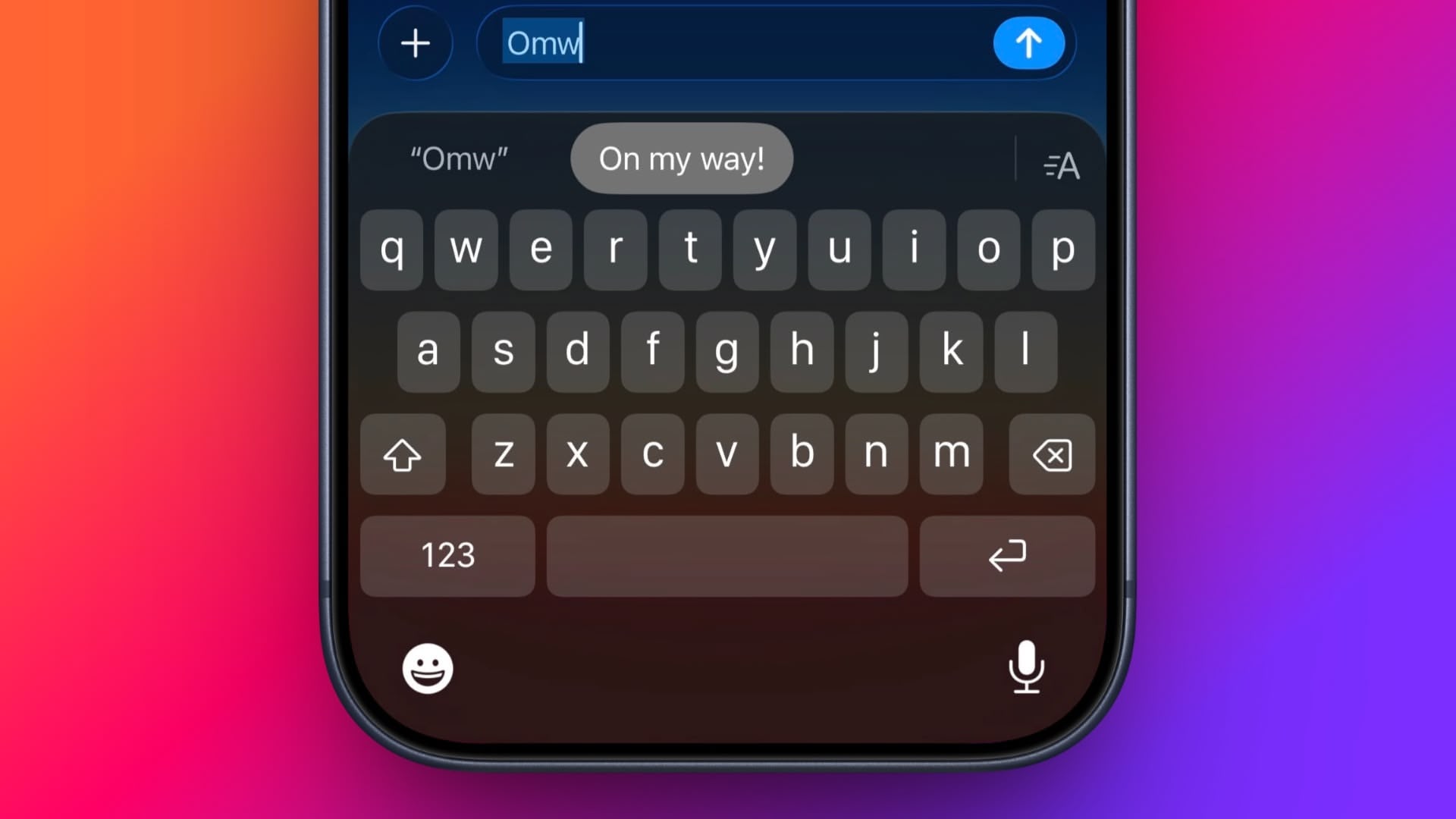
Even if you've never ventured into your device's settings to explore Text Replacement, you've likely encountered a pre-set example without realizing it. Try this: open any app where you can type text – Messages, Mail, Notes – and type "Omw" followed by a space. Watch as your iPhone or iPad instantly transforms it into "On my way!". This simple transformation is just a glimpse of the time-saving power Text Replacement puts at your fingertips. Imagine applying this concept to your email address, your home address, common greetings, or even complex legal disclaimers. The possibilities for boosting your typing efficiency are immense.
This comprehensive guide will walk you through everything you need to know about setting up and mastering Text Replacement on both your iOS devices (iPhone and iPad) and your Mac. We'll cover the step-by-step setup, explore practical applications, delve into advanced tips, and even touch upon troubleshooting common issues. By the end, you'll be a Text Replacement pro, ready to streamline your digital communication and reclaim precious moments from the tyranny of repetitive typing.
Why Text Replacement is a Game-Changer for Productivity
In our fast-paced digital world, every second counts. Text Replacement isn't just a convenience; it's a productivity superpower that can significantly enhance how you interact with your Apple devices. Here's why you should integrate it into your daily routine:
1. Unleash Unprecedented Efficiency
Think about how many times a day you type your email address, phone number, or a common phrase like "Sounds good, I'll get back to you shortly." Each time involves multiple keystrokes. With Text Replacement, these lengthy inputs are reduced to mere flickers of your thumbs or fingers. Typing "eml" for your full email address or "addr" for your complete home address saves you dozens of characters and seconds. These saved seconds accumulate, transforming into minutes, and eventually, hours over weeks and months. It's an investment of a few minutes upfront for a lifetime of typing efficiency.
2. Banish Autocorrect Frustrations and Typos
While autocorrect attempts to be helpful, it often leads to comical (or mortifying) miscommunications. Text Replacement sidesteps this issue entirely. When you define a shortcut like "imk" to expand to "I know, right?", you eliminate the chance of autocorrect guessing incorrectly or changing a properly spelled but less common word. It guarantees accuracy for specific phrases, proper nouns, brand names, or technical terms that autocorrect frequently botches. This consistency is invaluable, especially in professional communication where precision matters.
3. Ensure Brand Consistency and Professionalism
For professionals, maintaining a consistent tone and terminology is crucial. Whether it's the correct spelling of your company's product, a specific disclaimer, or a common customer service response, Text Replacement ensures that everyone on your team using Apple devices can quickly insert standardized text. This not only boosts efficiency but also reinforces your brand's image through uniform communication. Imagine having a shortcut "bizhrs" instantly expand to "Our business hours are Monday-Friday, 9 AM to 5 PM PST."
4. Personalize Your Typing Experience
Your devices should work for you, not the other way around. Text Replacement allows you to tailor your typing environment to your unique communication style and needs. If you frequently use certain emoji combinations, slang, or niche technical terms, you can create shortcuts that reflect your personal lexicon. This makes typing feel more natural, fluid, and genuinely yours, reducing the mental friction often associated with standard keyboard inputs.
5. An Accessibility Aid
For individuals with motor challenges or conditions that make extensive typing difficult, Text Replacement can be a revolutionary tool. By minimizing the number of keystrokes required to convey complex information, it empowers users to communicate more effectively and with less physical strain. It transforms what could be a laborious task into a more manageable and accessible experience.
Practical Examples: What Text Replacements Should You Set Up?
The true power of Text Replacement lies in its versatility. Here are numerous ideas for shortcuts you can create right now to start saving time and effort:
1. Your Contact Information
- Email Address: Create a shortcut like "myem" or "eadd" to expand to your full email address (e.g.,
[email protected]). - Phone Number: Use "myph" or "num" for your complete phone number (e.g.,
+1 (555) 123-4567). - Physical Address: A shortcut like "myadd" can save your full home or office address (e.g.,
123 Main Street, Suite 400, Anytown, USA 12345).
2. Common Greetings and Closings
- Good Morning/Afternoon/Evening: "gmor" ➝ "Good morning!", "gaft" ➝ "Good afternoon!", "geve" ➝ "Good evening!"
- Thank You Phrases: "tyvm" ➝ "Thank you very much!", "thx" ➝ "Thanks!"
- Signatures: "sig" ➝ "Best regards, [Your Name]", "pros" ➝ "Professionally yours, [Your Name/Title]"
3. Frequently Used Phrases and Quick Responses
- On My Way: The classic "omw" ➝ "On my way!"
- Be Right Back: "brb" ➝ "Be right back!"
- I Don't Know: "idk" ➝ "I don't know."
- No Problem: "np" ➝ "No problem!"
- Sounds Good: "sg" ➝ "Sounds good!"
- Laugh Out Loud: "lol" ➝ "Laugh out loud!" (If you prefer to type it out rather than just "lol")
- Confirmations: "cfrm" ➝ "Confirmed." or "Got it. I'll take care of it."
4. Emojis and Special Characters
- Shrug Emoji: "shrug" ➝
¯\_(ツ)_/¯ - Heart: "hrt" ➝ ❤️
- Thumbs Up: "thup" ➝ 👍
- Bullet Points: "bpt" ➝ •
5. Professional and Business Use
- Meeting Details: "meetinfo" ➝ "Our next meeting is scheduled for Tuesday at 10 AM in Conference Room B."
- Company Name: "myco" ➝ "Acme Corporation" (ensuring correct capitalization)
- Product Names: "pdt" ➝ "The revolutionary ProGrip 5000"
- Website URLs: "myweb" ➝
www.example.com - Customer Service Responses: "csr" ➝ "Thank you for contacting support. How can I assist you today?"
- Legal Disclaimers: "discl" ➝ "This email and any attachments are confidential and may be legally privileged."
- Invoice Details: "invdet" ➝ "Please find the invoice attached. Payment is due within 30 days."
6. Medical and Technical Jargon
- Medical Terms: "hypr" ➝ "Hypertension", "diab" ➝ "Diabetes Mellitus Type 2"
- Technical Acronyms: "api" ➝ "Application Programming Interface", "htmlt" ➝ "Hypertext Markup Language"
- Code Snippets: For developers, simple code fragments (e.g., "forlp" ➝
for (let i = 0; i < array.length; i++) { }).
When creating shortcuts, aim for something easy to remember but not something you'd type accidentally in regular conversation. Many users add a unique prefix (like 'x' or 'z') to their shortcuts to prevent unintended replacements. For example, 'xaddr' instead of just 'addr'.
How to Set Up Text Replacement on iPhone and iPad
Setting up your custom text replacements on your iOS device is a straightforward process. Follow these steps to start building your library of handy shortcuts:
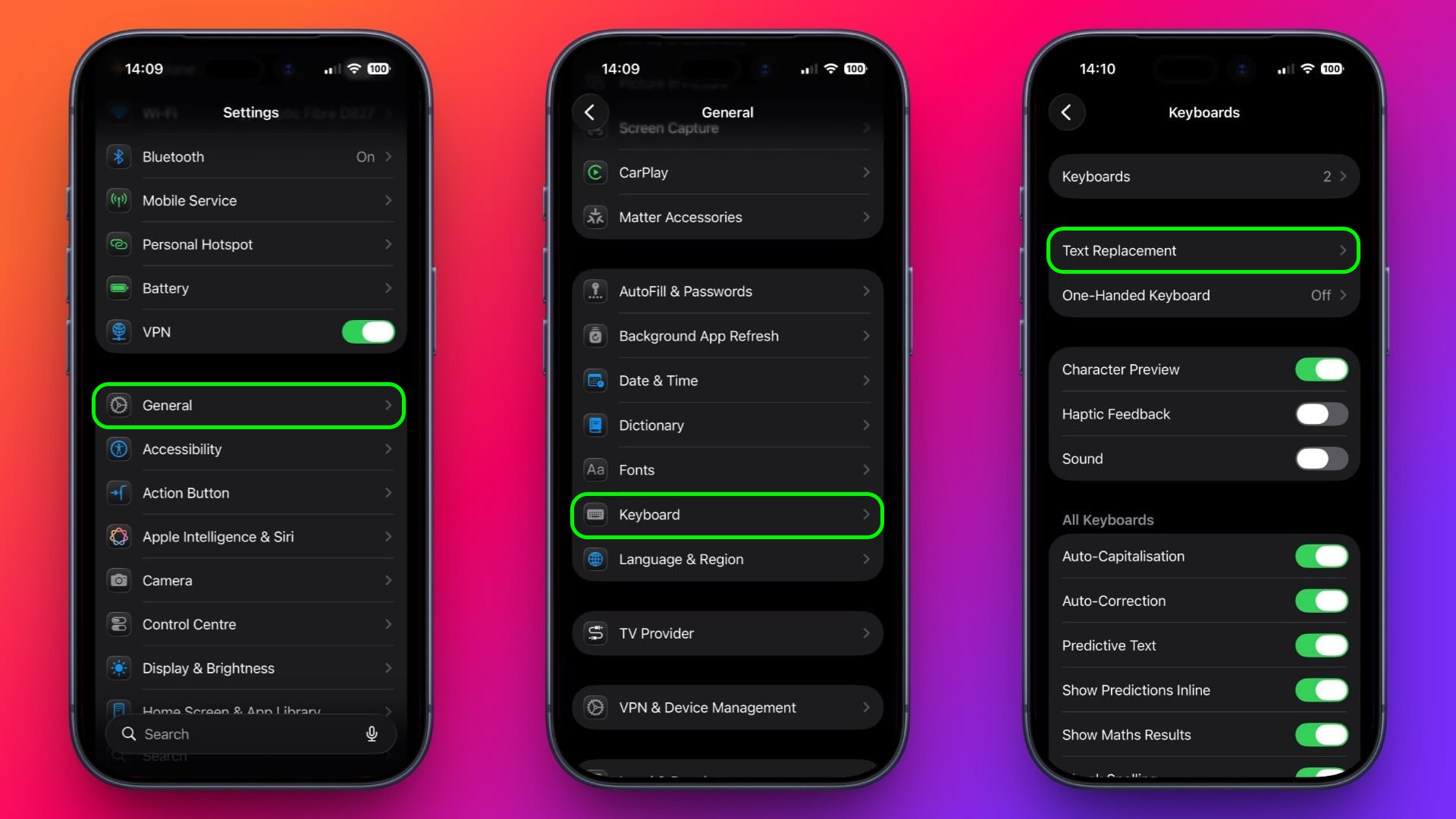
- Launch the Settings App: Begin by tapping the gray "Settings" icon on your iPhone or iPad's home screen. This is where you'll find all the configurations for your device.
- Navigate to General Settings: Within the Settings app, scroll down and tap on "General." This section houses various fundamental device settings, including keyboard options.
- Access Keyboard Settings: In the General menu, locate and tap "Keyboard." Here, you manage all aspects of your on-screen and external keyboards, including text input features.
- Select Text Replacement: You'll see several options related to the keyboard. Tap on "Text Replacement." This is the dedicated area for creating and managing your shortcuts and phrases.
- Add a New Replacement: In the Text Replacement screen, you'll see a list of any existing shortcuts (like "Omw"). To add a new one, tap the plus (+) button located in the top-right corner of the screen.
- Define Your Phrase: On the "New Text Replacement" screen, you'll see two fields. First, fill in the "Phrase" field. This is the complete word, sentence, or paragraph you want to appear every time you use your shortcut. Be precise with capitalization, punctuation, and spacing here.
- Create Your Shortcut: Next, in the "Shortcut" field, input the short, unique sequence of characters that you want to type to trigger the "Phrase." Remember the tips for choosing good shortcuts: make them easy to remember but unlikely to be typed by accident.
- Save Your New Shortcut: Once both the "Phrase" and "Shortcut" fields are filled, tap "Save" in the top-right corner of the screen to finalize your new text replacement. It will now be active across all apps on your iPhone or iPad.
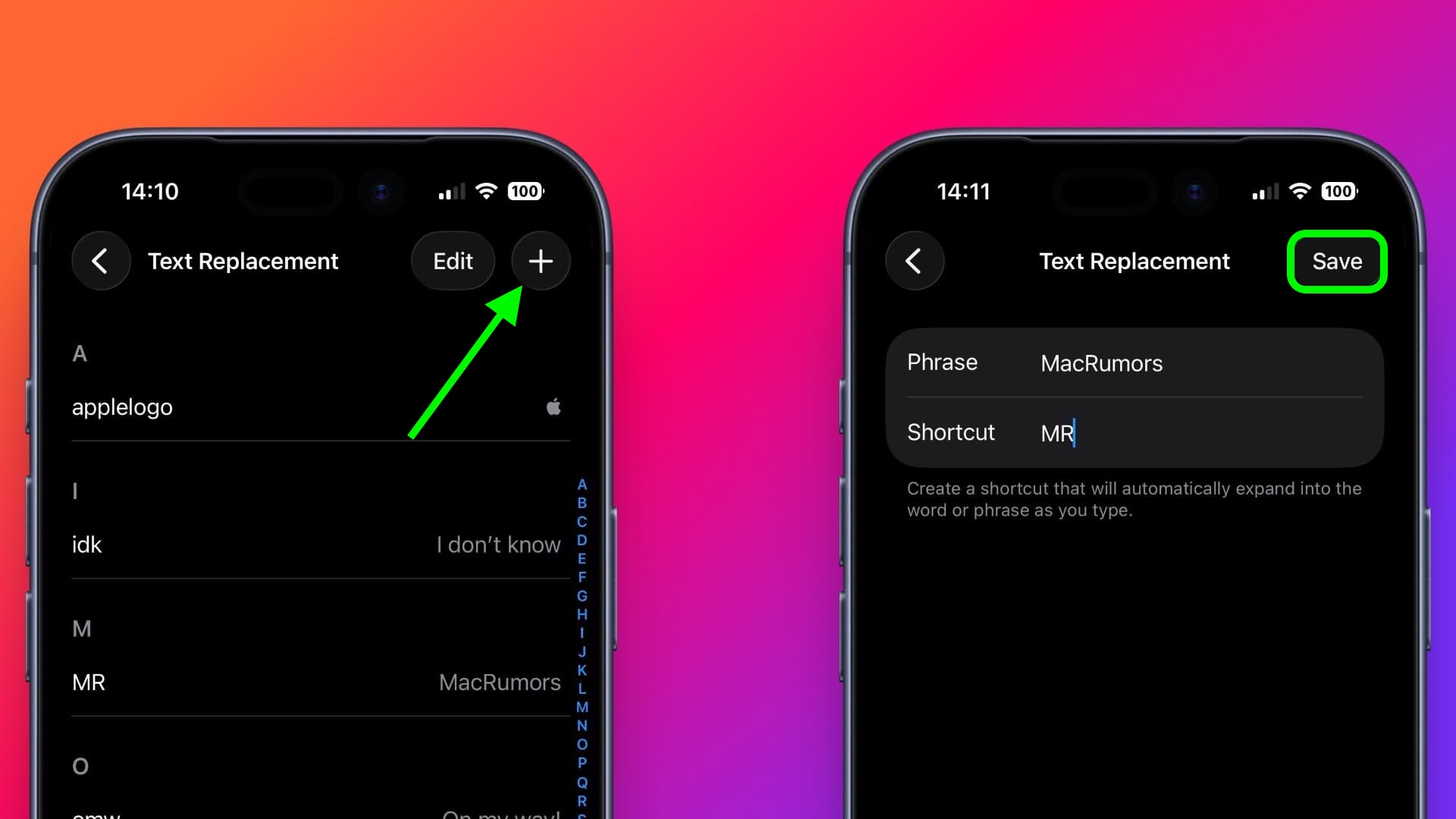
Congratulations! You've successfully created your first custom text replacement. Go into any text input area and try typing your new shortcut followed by a space. You should see it instantly expand to your defined phrase.
How to Set Up Text Replacement on Mac
The convenience of Text Replacement isn't limited to your mobile devices; it's a equally powerful tool on your Mac. The following steps are specifically for Macs running macOS Ventura and later, which introduced a redesigned System Settings interface.
- Open System Settings: On your Mac, click the iconic Apple logo located in the top-left corner of the menu bar at the very top of your screen. From the dropdown menu, select "System Settings..." This will open the main configuration window for your Mac.
- Select Keyboard Settings: In the System Settings sidebar on the left, scroll down through the various options until you find and click on "Keyboard." This section manages all keyboard-related preferences for your Mac.
- Access Text Replacements: Within the Keyboard settings pane on the right, look for the "Text Input" section. Underneath this, you'll see a button labeled "Text Replacements..." Click on this button to manage your custom text shortcuts.
- Add a New Replacement: The "Text Replacements" window will display a list of your current shortcuts. To add a new one, click the plus (+) button located near the bottom of the window. This will create a new, empty row in the list.
- Define Your Shortcut (Replace): In the "Replace" column of the new row, enter the short text string that you want to be your shortcut. This is what you'll type to trigger the expansion.
- Define Your Phrase (With): In the "With" column, type the full word, phrase, or sentence that you want your shortcut to expand into. Just like on iOS, ensure accuracy in spelling, capitalization, and punctuation.
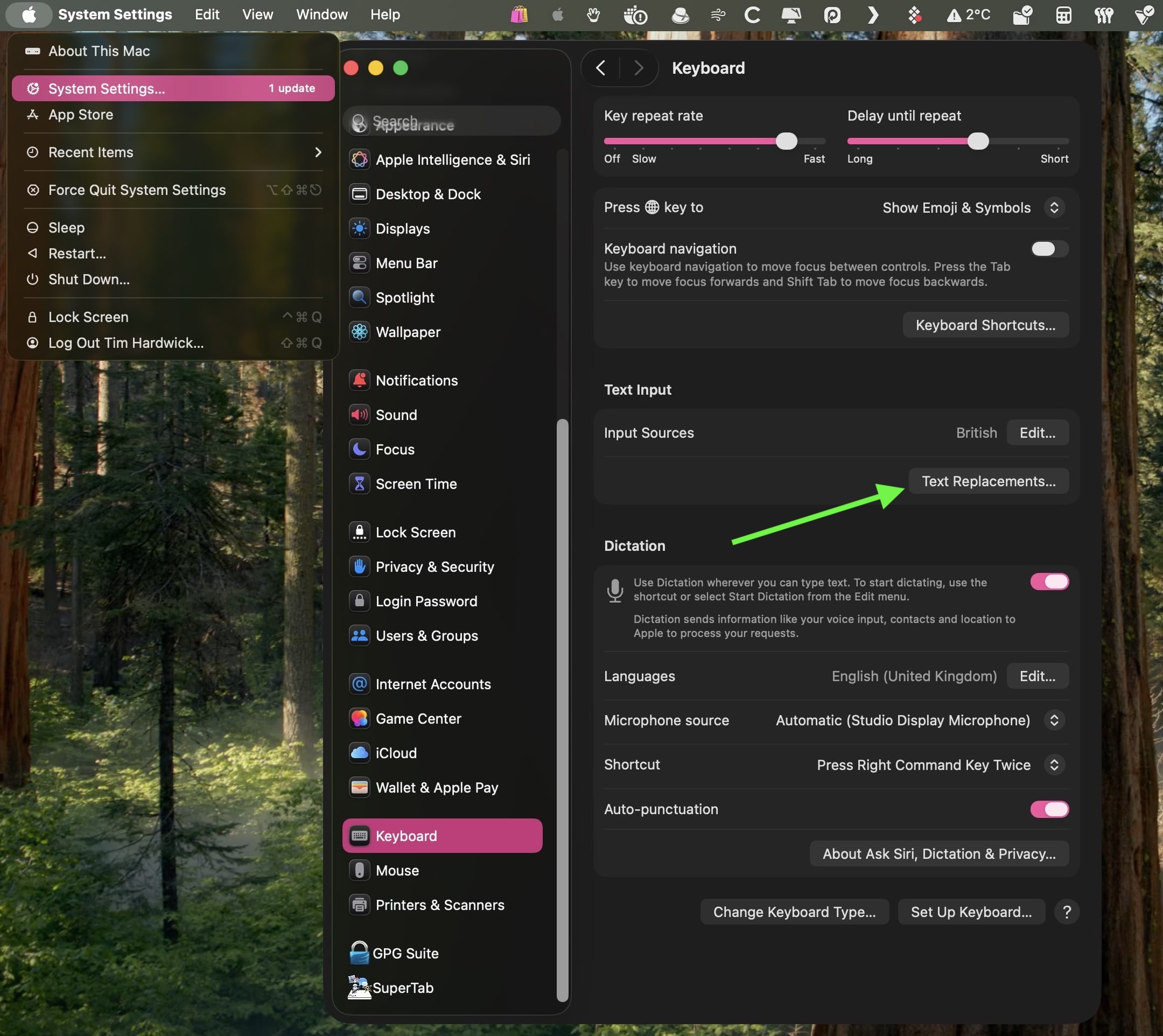
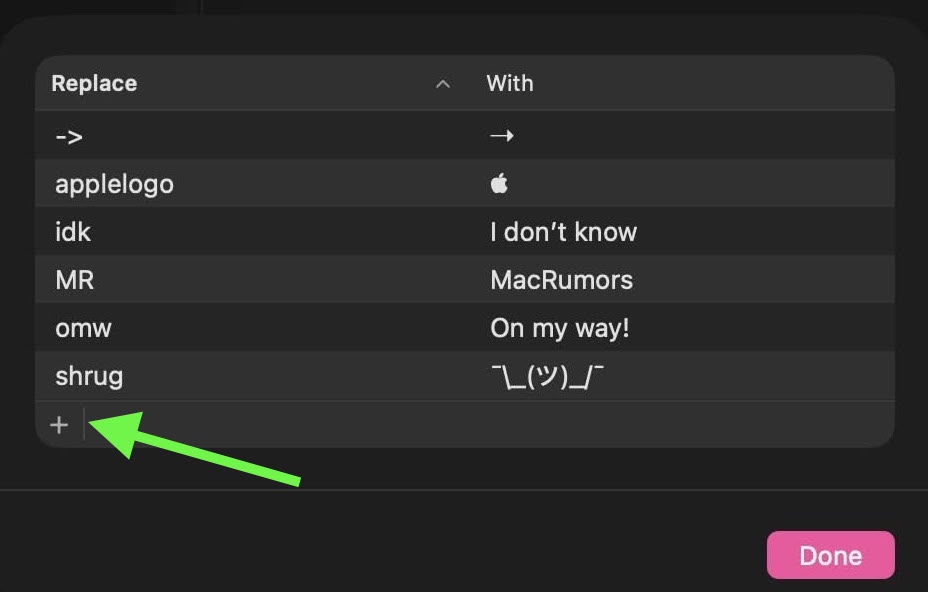
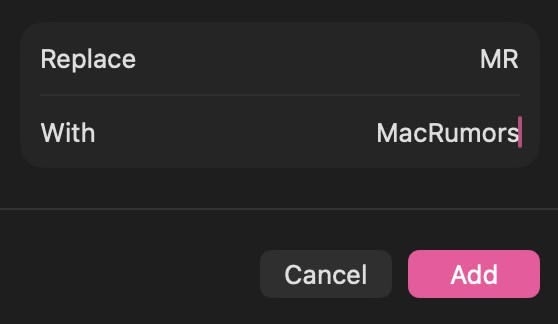
Unlike iOS, there's no explicit "Save" button for individual entries on macOS. As soon as you type into the "Replace" and "With" fields and click outside of the entry or hit Enter, your new text replacement is automatically saved and becomes active across your Mac.
Seamless Synchronization Across Your Apple Ecosystem
One of the most powerful aspects of Apple's Text Replacement feature is its seamless integration with iCloud. If you're signed into the same Apple ID across all your Apple devices – your iPhone, iPad, and Mac – any Text Replacements you create on one device will automatically sync to all the others. This means:
- Universal Access: Create a shortcut for your address on your Mac, and it will instantly be available when you're typing on your iPhone.
- Time Savings: You only need to set up a shortcut once, and it propagates everywhere, saving you the effort of recreating it on each device.
- Consistency: Ensures that your customized typing experience is consistent, no matter which Apple device you're using at any given moment.
This synchronization relies on iCloud Drive being enabled for your Apple ID. If you encounter issues with syncing, double-check that iCloud Drive is active in your iCloud settings on all your devices. Typically, this feature works flawlessly in the background, providing a truly unified user experience.
Advanced Tips and Tricks for Text Replacement Mastery
Once you're comfortable with the basics, you can elevate your Text Replacement game with these advanced strategies:
1. Use Unique Prefixes for Shortcuts
To avoid accidental expansions (e.g., typing "it" and having it become "It's a beautiful day!"), consider using a unique prefix for all your shortcuts. Common choices include a double letter (e.g., "ddr" for "Dr."), an uncommon letter (like "z" or "x", e.g., "xeml" for your email), or a punctuation mark (though this can sometimes interfere with regular typing). This ensures your shortcuts only activate when you intentionally type them.
2. Incorporate Multi-Line Phrases
Text Replacement isn't just for single sentences. You can use it for multi-line phrases, short paragraphs, or even bulleted lists. When defining your "Phrase" on iOS or "With" on macOS, simply hit the Return/Enter key to create new lines. This is incredibly useful for email signatures, standardized notes, or even short code snippets.
For example, a shortcut "mybio" could expand to:
John Doe
Senior Software Engineer
Acme Corp.
[email protected]
3. Leverage Text Replacement for Emojis and Symbols
Tired of searching through emoji keyboards? Create shortcuts for your most used emojis or complex symbol combinations. For instance, "shrug" for ¯\_(ツ)_/¯, "star" for ⭐, or "check" for ✅. This speeds up expressive communication significantly.
4. Manage Your Shortcuts Regularly
As your needs evolve, so too should your shortcuts. Periodically review your Text Replacement list. Delete old, unused shortcuts to keep the list clean and prevent clutter. You can also edit existing ones if a phrase changes or you want to refine a shortcut. On iOS, swipe left on an entry to reveal the "Delete" option. On macOS, select an entry and click the minus (-) button.
5. Back Up Your Text Replacements (Indirectly)
Since Text Replacements are synced via iCloud, they are inherently backed up. Ensure iCloud Drive is functioning correctly on all your devices. If you ever restore a device from an iCloud backup or sign into a new device with your Apple ID, your Text Replacements should automatically reappear.
Troubleshooting Common Text Replacement Issues
While Text Replacement is generally robust, you might occasionally encounter minor hiccups. Here's how to address them:
1. My Shortcut Isn't Expanding!
- Check Spelling and Case: Ensure you're typing the shortcut exactly as you defined it, including capitalization.
- Add a Space: Most Text Replacements require a space immediately after the shortcut to trigger the expansion. For example, "omw" followed by a space will work, but "omwI'mhere" won't.
- Verify the Shortcut: Go back into your Text Replacement settings (on iOS or Mac) and confirm that the shortcut and phrase are correctly entered.
- Restart the App/Device: Sometimes, an app or the device itself might need a quick restart to refresh its keyboard settings.
2. Autocorrect is Still Interfering
Text Replacement generally takes precedence over autocorrect. However, if autocorrect is changing your *shortcut* itself before it has a chance to expand, this can be an issue. Ensure your shortcut isn't a common word that autocorrect might try to fix. Using unique prefixes (as discussed in advanced tips) can help here.
3. My Shortcuts Aren't Syncing Across Devices
- Check iCloud Drive: On all your devices, go to Settings (iOS) or System Settings (macOS) > Your Name (at the top) > iCloud > iCloud Drive. Ensure iCloud Drive is turned on.
- Internet Connection: Ensure all devices are connected to the internet (Wi-Fi or cellular data) to allow iCloud to sync.
- Same Apple ID: Confirm that all your devices are signed in with the exact same Apple ID.
- Wait a Moment: iCloud sync isn't always instantaneous. Give it a few minutes to an hour for changes to propagate.
Text Replacement vs. Other Typing Features
It's helpful to understand how Text Replacement differs from other related typing features on your Apple devices:
1. Text Replacement vs. Autocorrect
Autocorrect attempts to guess and correct misspelled words as you type, often changing words without explicit input from you. It's a general spelling and grammar helper. Text Replacement, on the other hand, is an intentional action. You define a specific, short string (the shortcut) that you want to be replaced by a specific, longer string (the phrase). Text Replacement is more powerful because it allows you to dictate exact output, overriding autocorrect's guesses for those specific instances.
2. Text Replacement vs. Predictive Text
Predictive Text offers suggestions for the next word you might want to type, appearing above the keyboard. It's based on your typing habits and context. You have to tap a suggestion to insert it. Text Replacement is an automatic, direct substitution. Once you type the shortcut and a space, the full phrase appears instantly, without needing a tap.
3. Text Replacement vs. User Dictionary
The User Dictionary (found in the same Keyboard settings on iOS) allows you to add specific words that autocorrect should recognize as correct, preventing it from constantly "fixing" them. This is ideal for proper nouns, unique spellings, or industry-specific jargon that are single words. Text Replacement is designed for phrases, sentences, or even paragraphs, using a shortcut to insert longer blocks of text. While you *could* use Text Replacement for single words, the User Dictionary is more appropriate for simply teaching your device new vocabulary.
The Impact of Text Replacement on Digital Communication
Ultimately, Text Replacement is more than just a clever trick; it's a fundamental enhancement to your digital communication toolkit. In an era where we spend so much time typing on various devices, any feature that reduces friction, saves time, and boosts accuracy is invaluable. It empowers you to communicate more effectively, with less effort, and greater confidence.
By automating repetitive typing tasks, Text Replacement frees up cognitive load, allowing you to focus on the content and meaning of your messages rather than the mechanics of typing them out. It streamlines workflows for professionals, makes communication more accessible for those with physical limitations, and simply makes everyday texting and emailing a more pleasant experience for everyone.
It's a testament to the power of small, thoughtful software features that can have a disproportionately large impact on our daily productivity and overall satisfaction with our devices. Don't let autocorrect dictate your words; take control with Text Replacement.
This article, "Text Shortcuts You Should Be Using on iPhone and Mac" first appeared on MacRumors.com
Discuss this article in our forums
from MacRumors
-via DynaSage
