
Never Miss Your Doorbell While Wearing Headphones on iPhone
Never Miss Your Doorbell Again: How Your iPhone Can Listen For You
Do you love the immersive experience of noise-canceling headphones, but worry about missing important sounds like your doorbell? It's a common dilemma. While these headphones are fantastic for blocking out distractions and helping you focus, they can also make you unaware of what's happening around you. Imagine you're deep in concentration, listening to music or a podcast, and a courier arrives with that crucial package you've been waiting for. Without hearing the doorbell, you might miss them entirely.
Fortunately, if you're an iPhone user, there's a clever solution to this problem. Apple has included an accessibility feature that allows your iPhone to act as your ears, specifically for sounds you might otherwise miss. This means your device can listen for your doorbell and then alert you, ensuring you never miss a visitor or a delivery again, even when your favorite headphones are on.
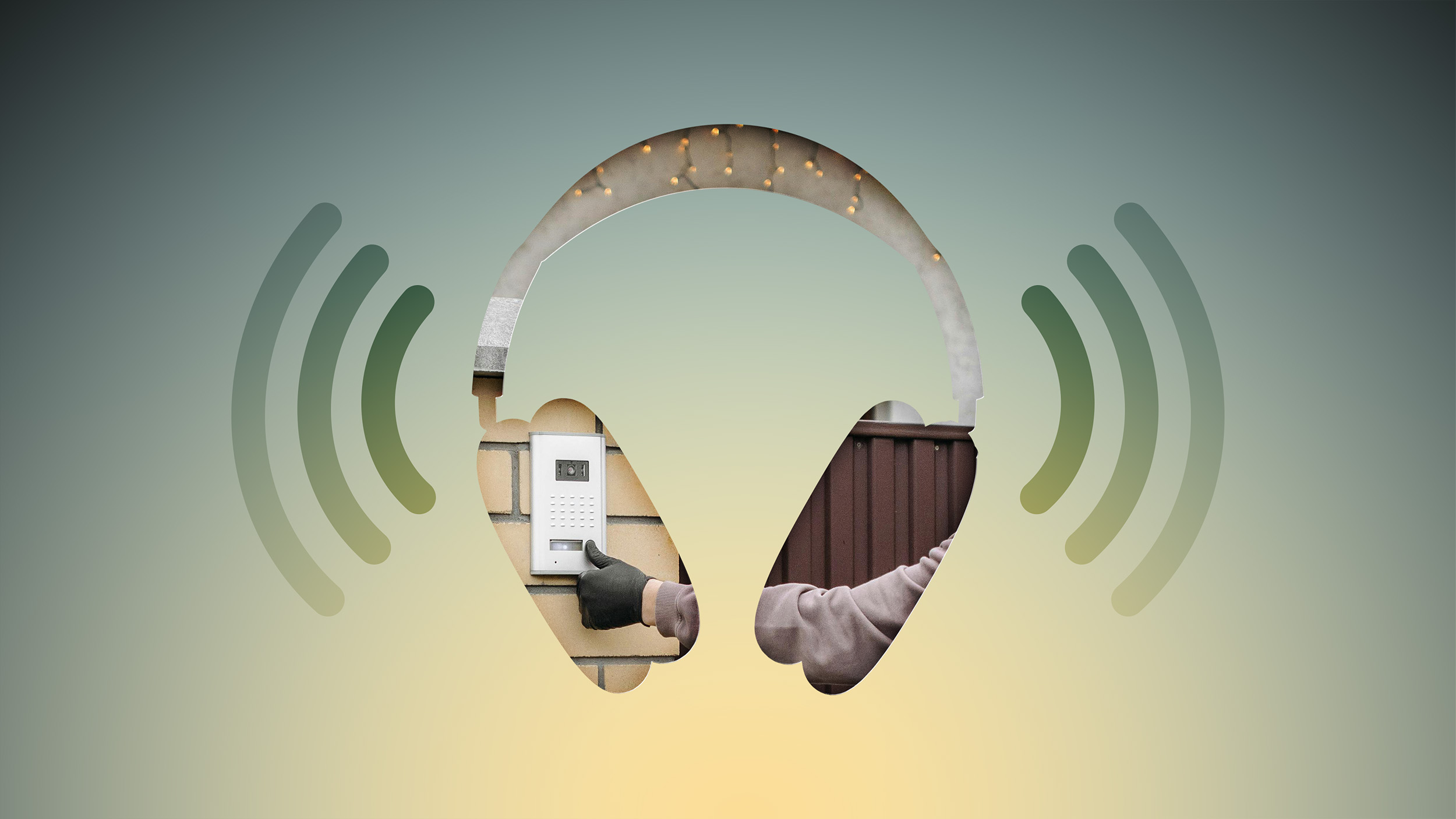
Introducing Sound Recognition: Your iPhone's Smart Listening Feature
The secret to this helpful functionality is a feature called "Sound Recognition." This isn't just a simple notification system; it's an intelligent tool that uses your iPhone's built-in microphone to constantly monitor your environment for specific sounds. Think of it as having a dedicated listener always on duty, ready to catch those important audio cues you might otherwise overlook.
When Sound Recognition detects one of the sounds you've told it to listen for – like your doorbell ringing – it doesn't just keep it to itself. Instead, it immediately sends you a notification. This alert will play directly through your connected headphones, which is incredibly useful since you're likely wearing them. In addition to the audio alert, your iPhone will also vibrate. If you happen to be wearing an Apple Watch, you'll feel a vibration there too, giving you multiple ways to be notified.
While Sound Recognition is primarily designed to assist individuals who are deaf or hard of hearing, its usefulness extends far beyond that specific group. For anyone who works from home, studies, or simply enjoys the peace and quiet offered by AirPods or other noise-canceling headphones, this feature is a game-changer. It provides peace of mind, allowing you to stay focused and immersed in your audio without the constant worry of missing something important at your front door.
Step-by-Step Guide: How to Enable Doorbell Alerts on Your iPhone
Setting up your iPhone to recognize your doorbell is a straightforward process. Just follow these simple steps, and you'll be enjoying worry-free listening in no time:
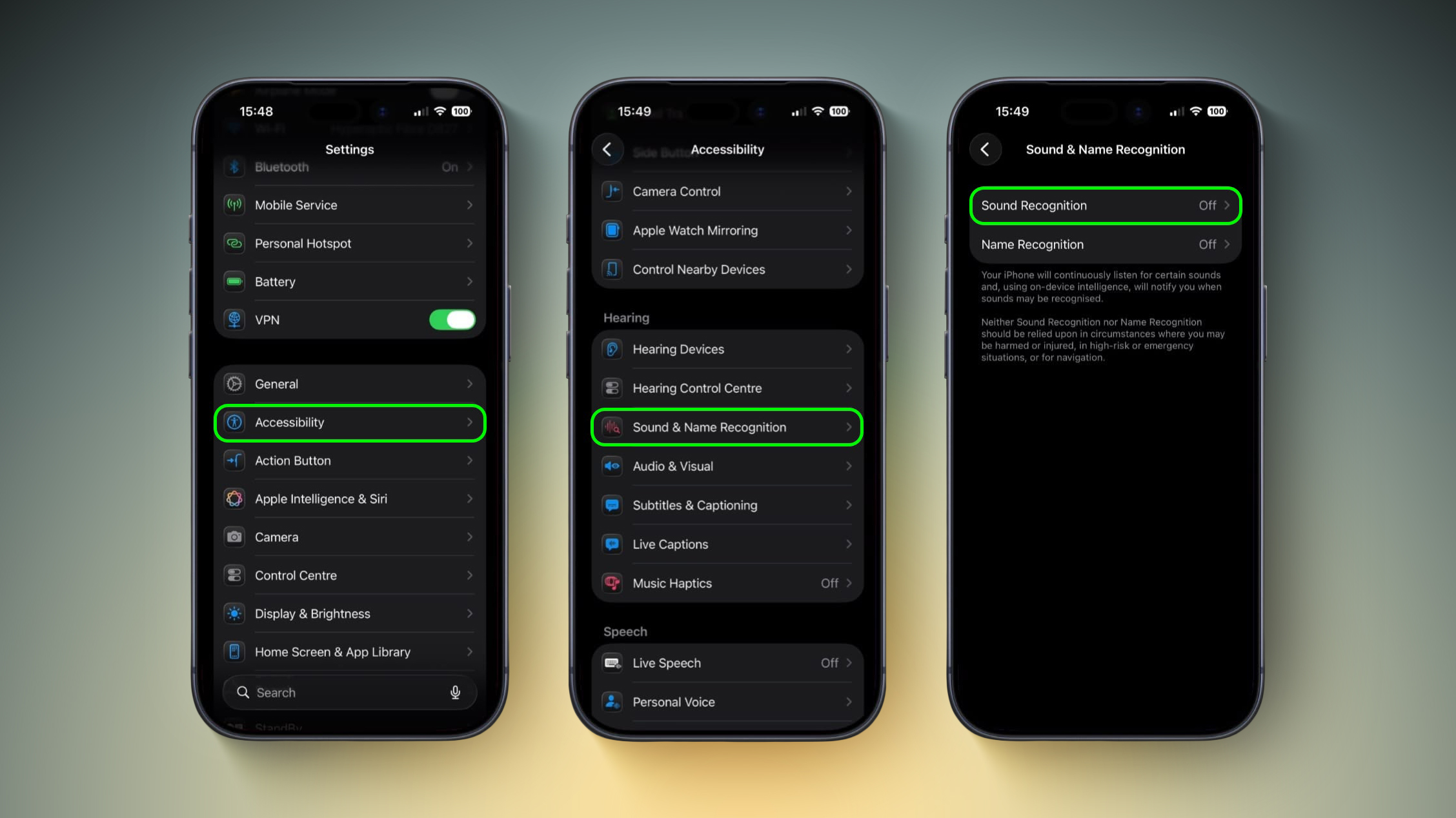
- First, unlock your iPhone and find the Settings app. Tap on it to open your phone's main configuration options.
- Scroll down through the list of settings until you see Accessibility. This section contains features designed to make your iPhone easier to use for everyone. Tap on it.
- Within the Accessibility menu, look for the "Hearing" section. Here, you'll find an option labeled Sound & Name Recognition. Tap on this, and then on the next screen, tap Sound Recognition itself.
- On the Sound Recognition screen, you'll see a toggle switch. Turn this switch on to enable the feature. Once it's active, tap on Sounds to choose which specific sounds you want your iPhone to listen for.
- Now you'll see a list of different sound categories. Scroll down to the "Household" section. Here, you'll find an option for Door Bell. Tap on it, and then on the following screen, toggle it on. This is where you activate the doorbell listening. As an added bonus, you'll also have the option to choose a specific alert tone for your doorbell, so you can easily distinguish it from other notifications.
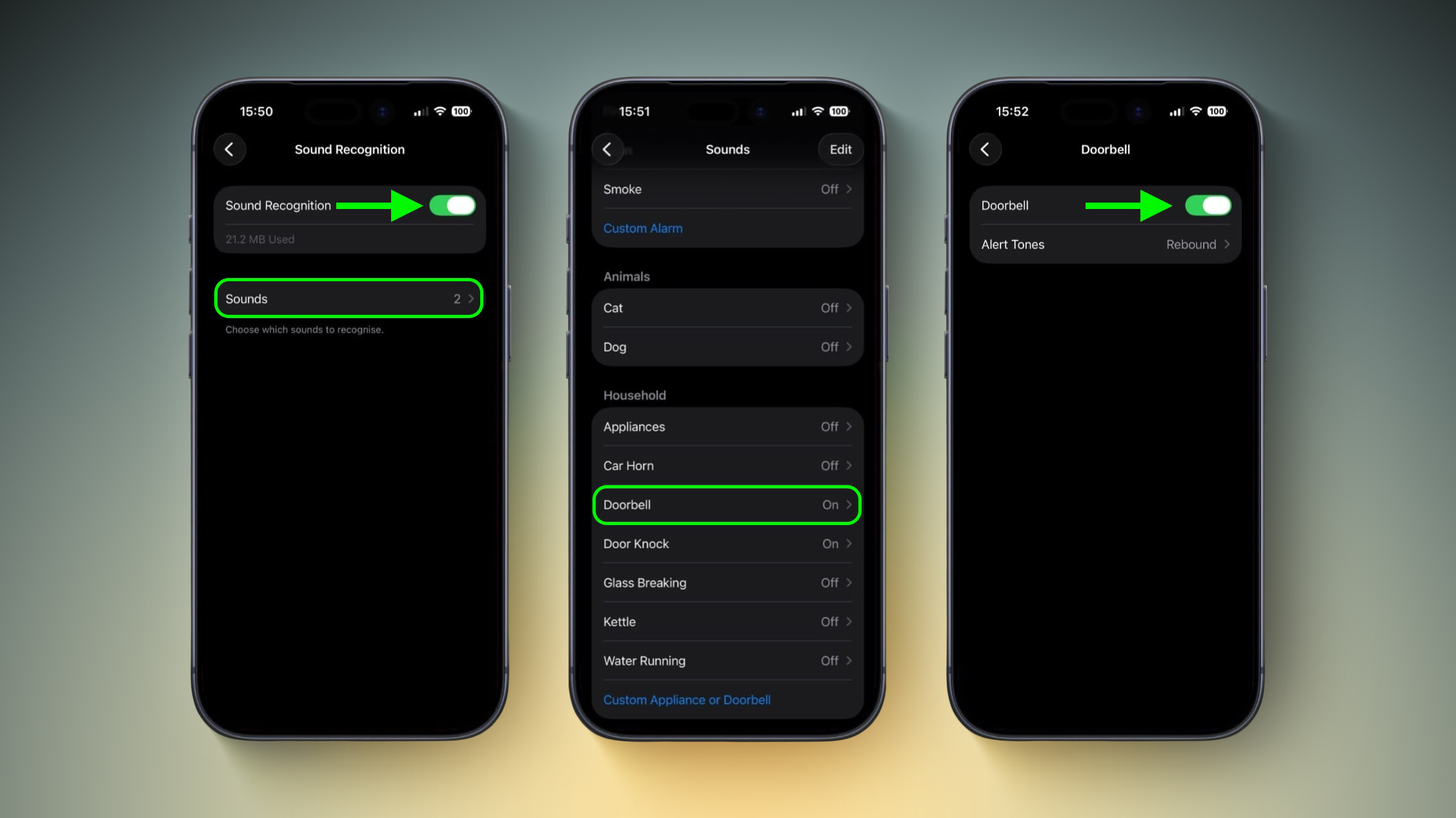
Important Note: When you first enable Sound Recognition, your iPhone might need to download a small data file. This file, usually around 30MB, helps your device understand and recognize the various sounds. So, make sure you have a Wi-Fi connection or cellular data enabled when you're setting this up, just in case it needs to download this update before the feature becomes fully active.
Making it Perfect: Training Your iPhone to Recognize Your Specific Doorbell
While your iPhone comes with a general understanding of what a doorbell sounds like, every doorbell is unique. Some are classic chimes, others are buzzing sounds, and some might even play a melody. If you find that your iPhone isn't consistently detecting your specific doorbell, don't worry! You can easily "train" it to learn and recognize the exact sound of your doorbell. This personalization ensures the feature works reliably for your home.
Here’s how to teach your iPhone the unique sound of your doorbell:
- Start by going back into your iPhone's Settings. From there, navigate through Accessibility ➝ Sound & Name Recognition ➝ Sound Recognition ➝ Sounds. This path will take you back to the list of sounds your iPhone can detect.
- In the "Sounds" list, look for and tap on the option called Custom Appliance or Doorbell. This is where you can add a new, custom sound for your iPhone to learn.
- You'll then be prompted to enter a name for this new sound. Type something descriptive, like "My Front Doorbell" or "Back Door Bell," so you can easily identify it later.
- Now, prepare to ring your doorbell. Place your iPhone close to the doorbell chime or speaker – the closer, the better for accurate listening. Once your iPhone is in position, tap Start Listening on the screen.
- Immediately after tapping "Start Listening," ring your doorbell. Your iPhone will record this sound. To ensure it gets a good grasp of the sound, you'll need to repeat this process five times. Ring your doorbell five separate times, allowing your iPhone to listen and learn each time. This repetition helps the algorithm become highly accurate in identifying your specific doorbell sound.
Once you've completed the five training rings, your iPhone will have a much better understanding of what your doorbell sounds like. This personalized training significantly improves the accuracy of the Sound Recognition feature for your home.
Quick Access: Managing Sound Recognition from Control Center
Apple understands that you might not always want Sound Recognition active, or you might want to quickly change which sounds it listens for. That's why, once you enable Sound Recognition, iOS automatically adds a convenient toggle to your Control Center. The Control Center is the handy panel you access by swiping down from the top-right corner of your screen (or up from the bottom for older iPhones).
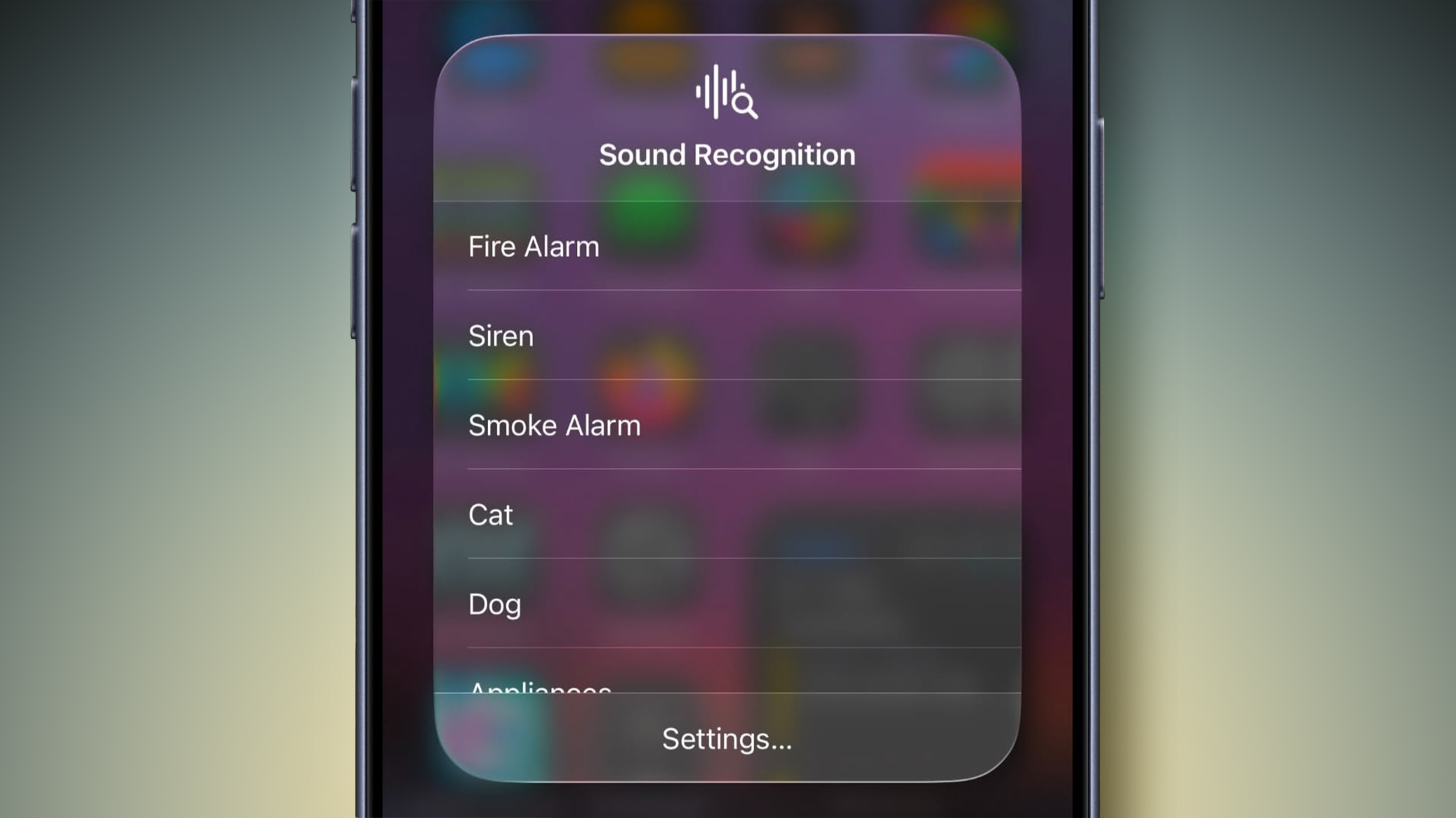
From Control Center, you can simply tap the Sound Recognition icon to quickly turn the entire feature on or off. But there's an even more powerful shortcut: if you press and hold the Sound Recognition icon, a small menu will pop up. This menu allows you to enable or disable specific sounds without needing to dive deep into the Settings app every time. This is incredibly useful if, for example, you only want doorbell detection active when you're at home wearing headphones, and you want to turn it off when you're out or not expecting visitors.
Beyond doorbells, the Sound Recognition feature is quite versatile. Your iPhone can also be trained to detect other important sounds, enhancing your awareness in various situations. For instance, it can alert you to the sound of smoke alarms, fire alarms, or even the cries of a baby. It can pick up on dog barking, running water, car horns, and even cat meows. This broad range of detectable sounds makes it a powerful tool for enhanced environmental awareness.
However, it's crucial to remember Apple's guidance on this feature. While Sound Recognition is a fantastic aid for everyday life and improved accessibility, it is not designed to be a primary safety or emergency system. Apple advises against relying on this feature in high-risk or emergency situations where immediate and direct auditory feedback is critical. Always use your best judgment and traditional safety measures alongside this feature. It's a supportive tool, not a replacement for vigilance or professional safety equipment.
This article, "Never Miss Your Doorbell While Wearing Headphones on iPhone" first appeared on MacRumors.com
Discuss this article in our forums
from MacRumors
-via DynaSage
