
Live Activities Taking Over Your Apple Watch? Here's the Fix
Taking Control: Stop Live Activities From Hijacking Your Apple Watch Face
Your Apple Watch is a marvel of personal technology, designed to keep you connected and informed with just a glance at your wrist. With each new iteration of watchOS, the experience becomes even more intuitive and powerful. In watchOS 26, for example, the Smart Stack on your Apple Watch is particularly brilliant. This dynamic collection of widgets is easily accessible with a simple scroll of the Digital Crown, and it intelligently presents you with relevant information precisely when you need it throughout your day.
However, even the smartest features can sometimes be a little *too* eager to help, and this can occasionally lead to minor frustrations. This is especially true when it comes to Live Activities – those real-time updates that aim to keep you in the loop, but sometimes overstay their welcome on your precious watch face.
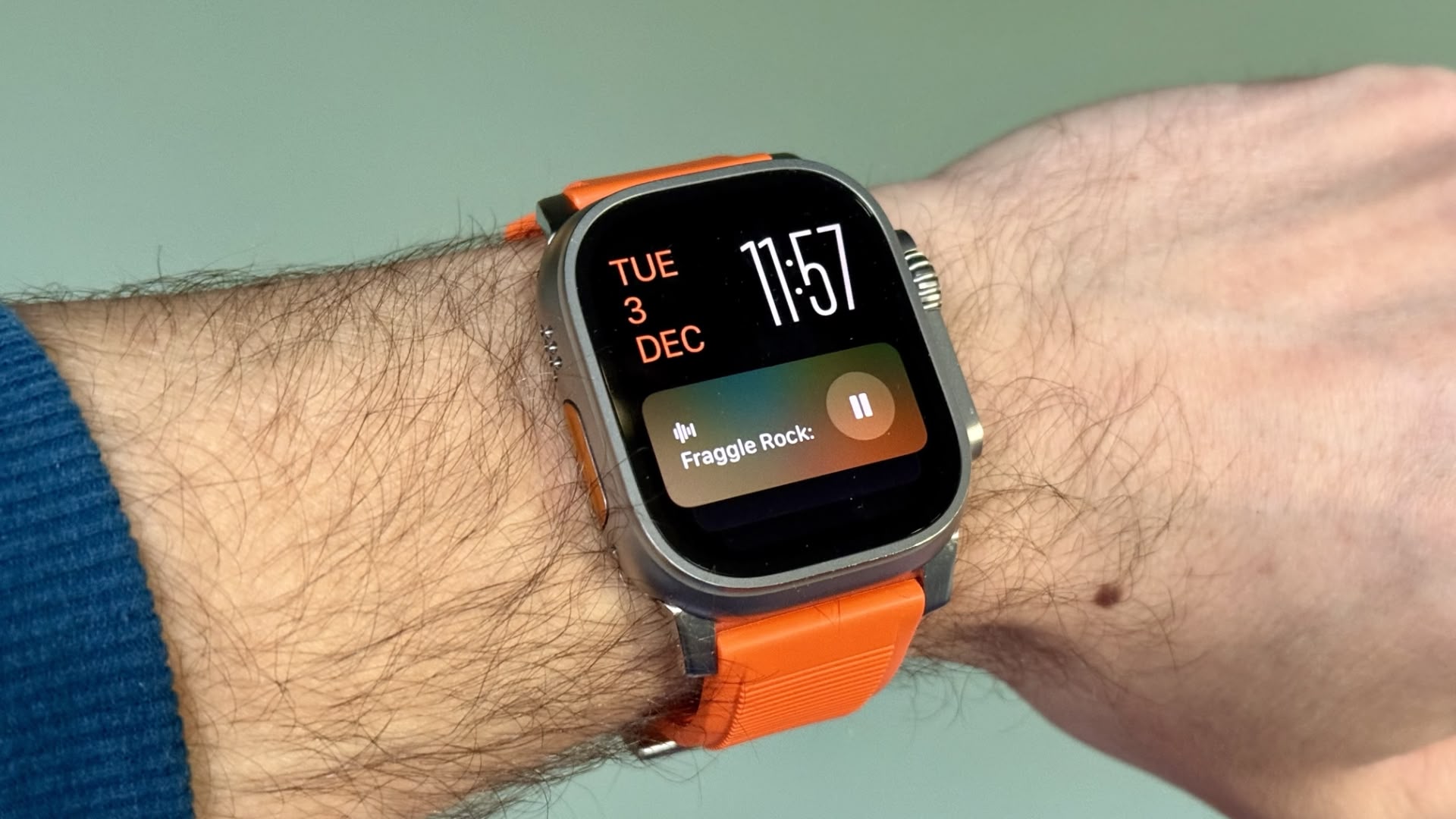
The Unexpected Takeover: When Live Activities Get Too Enthusiastic
You’re likely familiar with this common scenario: You raise your wrist, expecting to see your meticulously customized watch face – perhaps showcasing your favorite photo, a unique design, or a carefully chosen set of complications that display exactly the information you want. Instead, your watch face has been replaced. Maybe it’s showing media playback controls because someone in your household is watching content on your Apple TV, or perhaps it’s displaying a cooking timer you set much earlier, which still has a considerable amount of time left to run. While Live Activities within the Smart Stack can undoubtedly be incredibly useful, having them automatically take over your entire display isn't always the ideal user experience. It can interrupt your flow, hide the information you truly want to see, and just generally be a bit jarring. The good news is, you don't have to live with it. Here’s how you can take back control and ensure your Apple Watch serves you exactly the way you intend.
Understanding the Smart Stack and Live Activities on Apple Watch
Before we dive into the solution, let's briefly recap what we're dealing with. The Smart Stack is a core feature of watchOS, designed to bring timely and relevant information right to your wrist without you having to open individual apps. By simply turning the Digital Crown from your watch face, you can scroll through a curated list of widgets. These widgets dynamically rearrange themselves based on your routines, calendar events, location, and app usage. For instance, in the morning, you might see your calendar, the weather forecast, and your activity rings. Later in the day, it might show upcoming reminders, flight information, or news headlines. It’s an incredibly convenient way to stay updated with minimal interaction.
Live Activities, on the other hand, originate from the iPhone, where they provide real-time updates on your Lock Screen and in the Dynamic Island. Think about tracking a food delivery, monitoring the score of a sports game, keeping an eye on your ride-share progress, or watching a timer count down. These are designed to give you continuous, glanceable information without needing to constantly unlock your phone or switch between apps. On the Apple Watch, Live Activities extend this functionality to an even more personal screen, aiming to provide similar instant updates. They integrate into the Smart Stack, theoretically enhancing its ability to show you what’s most important *right now*. However, the "auto-launch" feature can sometimes override your preferences, pushing essential watch face information out of sight.
The Impact of Auto-Launching Live Activities
The core of the issue lies in the "auto-launch" behavior. When enabled, specific Live Activities will automatically appear on your watch face, effectively replacing whatever you had chosen to display. While this might be convenient for a critical, time-sensitive event like an incoming ride-share or an urgent timer with only a minute left, it often becomes a nuisance in less critical situations. Let's explore some common pain points:
- Persistent Media Controls: Perhaps the most frequent offender. If someone is streaming music on a HomePod, watching a movie on an Apple TV, or even playing a podcast on another device linked to your Apple ID, those media playback controls can suddenly dominate your watch. You just wanted to check the time or your activity rings, but now you're presented with play/pause, skip, and volume controls for content you might not even be actively listening to or watching. This is particularly annoying if you're not the one controlling the media or if it's playing in the background.
- Long-Running Timers: Setting a timer for an hour to bake something, or even longer for a slow-cooker meal, is common. If this timer automatically takes over your watch face, it means for that entire hour (or more), you won't see your preferred watch face unless you manually dismiss the Live Activity or switch faces. It makes quick glances for other information far less efficient.
- Sports Scores and Delivery Updates: While useful, do you really need the constantly updating score of a football game or the exact GPS location of your pizza delivery to be the *default* display on your wrist for extended periods? Often, these are things you might want to check occasionally, not have them front and center, pushing aside your personalized watch experience.
- Workout Interruptions: While a workout Live Activity is often desirable during an active exercise session, sometimes you might prefer to see your own custom workout metrics on a dedicated watch face, or simply your standard watch face during a break, rather than the default Live Activity.
These scenarios highlight a fundamental tension between automation and personal preference. Your Apple Watch is a highly personal device, and its default display—your watch face—is a canvas for your chosen information and style. When Live Activities automatically take over, it feels like that canvas is being commandeered, detracting from the tailored experience you’ve worked to create.
The Simple Fix: Disabling Auto-Launch Live Activities
Fortunately, Apple provides a straightforward solution to regain control over this behavior. The setting to disable auto-launch for Live Activities is easily accessible directly on your Apple Watch. Here’s a step-by-step guide to make your watch face truly yours again:
- Open Settings on your Apple Watch. You can do this by pressing the Digital Crown to go to your app grid (or list view), then tapping the gear icon.
- Tap Smart Stack. Scroll down through the settings menu until you find "Smart Stack" and tap on it. This section manages how the Smart Stack behaves on your watch.
- Select Live Activities. Within the Smart Stack settings, you will see an option specifically for "Live Activities." Tap on this. This is where you control the interaction between Live Activities and your watch face.
- Toggle off the switch next to Auto-Launch Live Activities. You will see a toggle switch labeled "Auto-Launch Live Activities." Simply tap this switch to turn it off. The switch will go from green (on) to gray (off), indicating that the feature is now disabled.
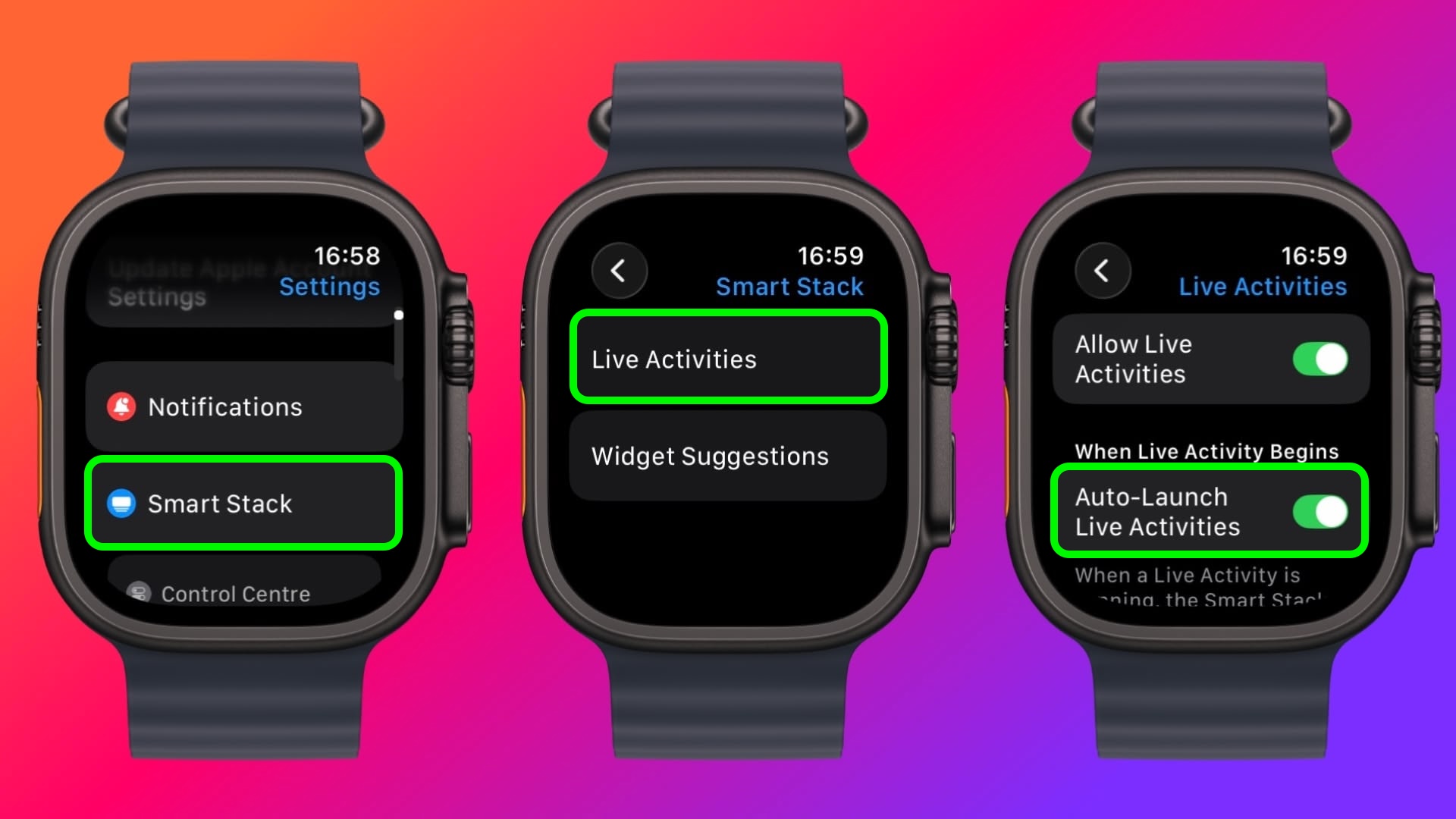
After you disable auto-launch, Live Activities will still be available within your Smart Stack when you want them. The key difference is that they will no longer automatically pop up and take over your watch face. Instead, you'll need to manually scroll the Digital Crown to access your Smart Stack, and then scroll within the stack to find the Live Activity you're interested in. This puts you firmly back in charge, allowing you to choose when and if you want to view these real-time updates.
Beyond Auto-Launch: Granular Control for a Tailored Experience
For those who desire even more precise control over which Live Activities appear on their wrist, you're in luck. Apple understands that not all Live Activities are created equal, and you might find some useful while others are simply clutter. From the very same settings screen on your Apple Watch, you can exercise more specific control over Live Activities generated by Apple's own applications. This means you can decide, for instance, if you want the Timer app to display a Live Activity, but perhaps not the Music app.
But the customization doesn't stop there. For Live Activities generated by third-party apps, you can manage their settings using the Watch app on your paired iPhone. This offers an unparalleled level of personalization, ensuring that only the notifications and real-time updates you truly value make it to your wrist. Here’s how to access these deeper controls:
Controlling Apple Apps' Live Activities (On Apple Watch):
While on your Apple Watch, navigate to Settings > Smart Stack > Live Activities. Below the "Auto-Launch Live Activities" toggle, you'll often see a list of Apple apps that are capable of generating Live Activities (e.g., Timer, Music, Workout, Podcasts). For each app, you can typically find an individual toggle switch. By selectively turning these off, you can prevent specific Apple apps from contributing their Live Activities to your Smart Stack, or at least from appearing prominently within it. This is ideal if, for example, you love the Workout Live Activity but never want to see a Live Activity from the Podcasts app.
Managing Third-Party App Live Activities (On iPhone via Watch App):
To manage Live Activities from applications you've downloaded from the App Store, you’ll need to use your iPhone:
- Open the Watch app on your iPhone. This is the central hub for all your Apple Watch settings and customizations.
- Ensure you are on the "My Watch" tab. This tab, usually found at the bottom of the screen, contains all the settings for your paired Apple Watch.
- Scroll down to the "Installed on Apple Watch" section. Here, you will see a list of all the third-party apps that are installed on your Apple Watch.
- Tap on a specific app. Select the app for which you want to adjust Live Activity settings. For example, if you use a third-party sports app or a delivery tracking app.
- Look for a "Live Activities" or "Notifications" setting. Within the app’s settings on the Watch app, you should find an option related to Live Activities or how notifications are handled for that app. Toggle off the specific setting if you wish to prevent that app from displaying Live Activities on your watch. Not all third-party apps will have an explicit "Live Activities" toggle, but many will have granular notification controls that can achieve a similar effect by disabling real-time alerts or specific types of notifications.
This comprehensive control over both Apple and third-party apps allows you to precisely curate your Apple Watch experience. It lets you keep the notifications and glanceable information that you find genuinely useful and relevant, while effectively preventing the less important or more intrusive ones from interrupting your chosen watch face and overall interaction with your device.
Pro Tip: Taming Those Persistent Media Controls
As mentioned earlier, persistent media controls are a common source of frustration for many Apple Watch users. If it’s specifically those media playback Live Activities that bug you the most, there’s a dedicated setting to address this, offering even more focused control than the general "Auto-Launch Live Activities" toggle. This ensures your watch face remains clear unless you explicitly choose to engage with media controls.
Here’s how to fine-tune your media control experience:
- Open Settings on your Apple Watch.
- Tap Smart Stack.
- Scroll down and tap Media Apps. This is a separate section designed to manage how media-related activities behave.
- You'll likely see a couple of options here:
- Live Activities: You can choose to turn off "Live Activities" completely for media apps. This is the most drastic option and means you will not see media controls as a Live Activity at all, even within the Smart Stack. This is perfect if you never want media controls popping up automatically or even when scrolling through widgets.
- Auto-Launch: Alternatively, under "Auto-Launch" (within the Media Apps settings), you can select either "Off" or "Smart Stack."
- Choosing "Off" means media Live Activities will never automatically appear on your watch face.
- Choosing "Smart Stack" means media Live Activities will still be available, but only when you manually scroll into the Smart Stack. They will not automatically commandeer your primary watch face. This offers a good balance, making media controls accessible if you want them, but keeping them hidden otherwise.
By utilizing these specific "Media Apps" settings, you can achieve a much more focused and less interrupted watch face experience. Whether you want to completely disable media Live Activities or simply relegate them to the Smart Stack, these options empower you to customize your Apple Watch exactly to your preferences.
Why Customization Matters: Crafting Your Ideal Apple Watch Experience
The ability to customize features like Live Activities and the Smart Stack is more than just a convenience; it's fundamental to getting the most out of your Apple Watch. Your Apple Watch is an extension of you, a personal assistant on your wrist. If it’s constantly showing you information you don’t need or actively distracting you, it diminishes its utility and enjoyment.
The Power of Your Watch Face:
Your watch face is your primary interface. It’s the first thing you see when you raise your wrist, and it sets the tone for your interaction with the device. Many users spend considerable time selecting a watch face that suits their style, choosing complications that display essential information like heart rate, weather, calendar appointments, or activity goals. When an uninvited Live Activity takes over, it negates all that personalization and can be genuinely frustrating. By taking control, you ensure your chosen watch face remains prominent, serving its intended purpose.
Reduced Distraction and Improved Focus:
In a world increasingly filled with notifications and digital interruptions, any opportunity to reduce unnecessary noise is valuable. By preventing Live Activities from automatically launching, you gain a calmer, more focused interaction with your Apple Watch. You decide when to engage with updates, rather than having them thrust upon you. This can contribute to better concentration during work, more mindful moments, and generally a less overwhelming digital life.
Optimized Glanceability:
The Apple Watch excels at delivering information at a glance. But if that glance reveals media controls for a TV show you're not even watching, it defeats the purpose. By customizing Live Activity behavior, your glances will always deliver the information you expect and need, whether it's the time, your next appointment, or your current fitness metrics.
Better Battery Management (Potentially):
While the impact might be subtle, constantly refreshing and displaying Live Activities, especially those with frequently changing data (like sports scores or delivery tracking), can consume more power than a static watch face. By limiting when and how these activities appear, you might inadvertently contribute to slightly better battery life for your device, ensuring it lasts longer between charges.
Training Your Digital Assistant:
Think of your Apple Watch as a sophisticated digital assistant. Like any good assistant, it needs to learn your preferences and follow your instructions. By delving into these settings and making deliberate choices about Live Activities, you are effectively "training" your Apple Watch to serve you better, making it a more intuitive and helpful companion rather than an occasionally intrusive one.
The Evolving Landscape of watchOS and User Control
The introduction of features like the Smart Stack and Live Activities reflects Apple's ongoing commitment to making its devices more proactive and intelligent. They aim to anticipate your needs and present information before you even know you need it. However, the balance between helpful automation and unwanted intrusion is a delicate one, especially on a device as personal and intimate as the Apple Watch.
As watchOS continues to evolve (and we look forward to future versions beyond watchOS 26!), we can expect Apple to refine these features further. User feedback regarding auto-launching Live Activities has been instrumental in providing the granular controls we've discussed. It's a testament to the idea that while technology strives for seamlessness, ultimate control and personalization must always remain in the hands of the user.
The continuous development of watchOS indicates a trend towards even smarter contextual awareness, potentially making Live Activities even more relevant and less intrusive in the future. Perhaps future iterations will offer more sophisticated machine learning to understand when a Live Activity is truly critical and when it can simply reside within the Smart Stack without demanding immediate attention. Until then, the current settings provide robust tools for you to tailor your watch’s behavior to your exact preferences.
Conclusion: Reclaim Your Wrist, Personalize Your Power
Your Apple Watch is designed to simplify your life, not complicate it with unwanted interruptions. The Smart Stack and Live Activities are powerful features in watchOS 26, offering incredible convenience and real-time information. However, when these activities automatically take over your watch face, they can disrupt your personalized experience and hide the information you truly want to see.
By following the simple steps outlined in this guide, you can easily disable the "Auto-Launch Live Activities" feature. This immediate change ensures that your custom watch face remains front and center, allowing you to choose when and if you want to engage with Live Activities by manually scrolling through your Smart Stack. Furthermore, by diving into the granular controls for both Apple and third-party apps, and by specifically addressing media controls, you gain a comprehensive command over what appears on your wrist.
Taking a few moments to adjust these settings can significantly enhance your daily interaction with your Apple Watch. It transforms your device from one that occasionally dictates what you see, into a truly personalized tool that prioritizes your preferences and delivers information on your terms. Reclaim your watch face, eliminate unnecessary distractions, and make your Apple Watch work smarter for you. Try these adjustments today and experience the difference a truly personalized Apple Watch can make!
This article, "Live Activities Taking Over Your Apple Watch? Here's the Fix" first appeared on MacRumors.com
Discuss this article in our forums
from MacRumors
-via DynaSage
