
Prevent Siri and Search From Accessing Specific iPhone Apps
If you want to prevent Siri and Search from accessing specific iPhone apps, Apple has introduced a streamlined solution in iOS 27.2 that puts total privacy control in one central location. This new system replaces fragmented toggles with a consolidated Excluded Apps menu, making it easier than ever to manage device privacy and keep sensitive application data private.
Managing privacy on your iPhone has long been an essential task for users who want total control over their personal data. In previous software releases, stopping Apple's virtual assistant and system search from reading application data required navigating through multiple menus. With the release of iOS 27.2, Apple has redesigned these controls into a single multi-select dashboard called Excluded Apps.
In this guide, you will learn how the new iOS 27.2 privacy system works, how to prevent Siri and Search from accessing specific iPhone apps, and what functional trade-offs you should keep in mind before excluding your favorite applications.

What Changed in iOS 27.2 for Siri and Search Privacy?
In iOS 27.2, Apple replaced its older App Access controls with a revamped menu known as Excluded Apps. This feature makes it much simpler to keep specific apps away from Siri, system search, and contextual suggestions across your device.
While this might sound like a minor user interface tweak at first glance, it is actually a significant improvement in user privacy management. Previously, excluding an app meant adjusting several independent settings scattered across different parts of the Settings app. Finding every single switch was often tedious and confusing for average users.
The new Excluded Apps menu brings all of these fragmented controls into one centralized list. Instead of adjusting multiple switches for every application on your device, you can now add an app to the excluded list once to revoke its access completely across Siri, Spotlight search, and widgets.
Why the Old App Access Toggles Were So Confusing
To appreciate the efficiency of the new system, it helps to look at how iPhone users had to manage app privacy prior to iOS 27.2. Under the legacy system, stopping Siri and Search from indexing an application required a multi-step journey through nested setting screens.
Previously, excluding an app required you to open the Settings app, navigate to Apple Intelligence & Siri, select Apps, and then manually adjust each individual app's toggles one by one. Inside those sub-menus, you were presented with several separate options, including a toggle that permitted Siri to Learn from this App along with various suggestion switches that controlled how content appeared in Search results and home screen widgets.
What made this legacy approach particularly confusing was that some toggles only controlled on-device personalization, while others controlled whether the app's internal content could be accessed by system features. The distinction between learning from user habits and indexing raw content was not always clear.
Furthermore, fully keeping an app's content out of search results required an additional step. Users had to toggle off a completely separate switch labeled Show Content in Search, which was buried inside each individual app menu located under Settings ➝ Apps. If you forgot this extra step, content from your app could still pop up in search queries despite disabling Siri settings.
Thankfully, the release of iOS 27.2 solves this fragmentation. The new Excluded Apps interface consolidates all of these separate switches into a single multi-select list. When you add an application to this list once, it immediately becomes unavailable to Siri, system search, and suggestions across the board.
How to Prevent Siri and Search From Accessing Specific iPhone Apps
If you want to prevent Siri and Search from accessing specific iPhone apps on your device running iOS 27.2, the process is now straightforward. Follow these simple steps to manage your privacy using the new Excluded Apps list:
- Open the Settings app on your iPhone.
- Scroll down and tap Siri.
- Select Excluded Apps from the list of options.
- Tap Add Apps, pick the applications you want to exclude, and then confirm your selection.
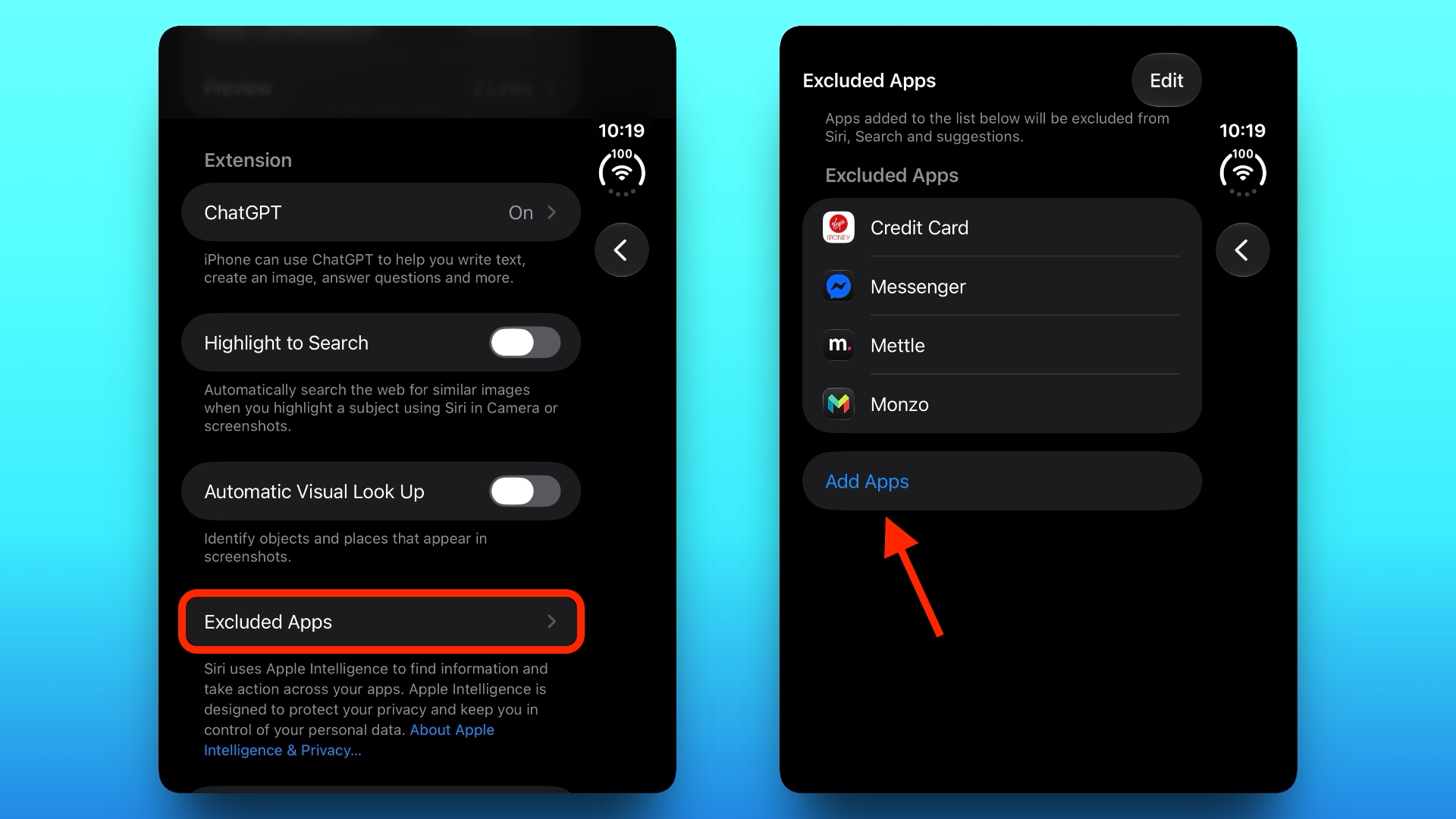
Once you complete these steps, the selected applications are immediately isolated from Apple's assistant and system-wide indexing. The process takes only a few seconds, eliminating the need to inspect every individual app menu manually.
Important Trade-Offs: What Happens When You Exclude an App?
Before you add all your applications to the Excluded Apps list, it is crucial to understand that restricting access will disable certain built-in iOS capabilities. Siri relies on access to app data to perform contextual actions and provide intelligent assistance.
When you exclude an app, Siri loses the ability to read data from inside that application, present proactive suggestions based on your daily usage, or show content from that app in system-wide search results. Depending on the app in question, this can significantly alter your day-to-day user experience.
For example, practical testing conducted by the Electronic Freedom Foundation found that excluding the Messages app prevents Siri AI from reading your incoming texts or drafting outgoing message replies. If you rely heavily on voice commands while driving or using hands-free modes, excluding communication tools like Messages can limit functionality.
Another major feature affected by this privacy setting is onscreen awareness. Onscreen awareness is the intelligence feature that allows you to activate Siri and ask questions about whatever content you are currently viewing on your display. If you invoke Siri while inside an excluded app, the assistant will no longer be able to analyze or answer questions regarding the information visible on your screen.
Key Features Affected by the Excluded Apps Setting
To help you decide which applications to exclude, here is a summary of the system features that are restricted when an app is placed on the exclusion list:
- Proactive Siri Suggestions: Siri will no longer suggest shortcuts, actions, or widget content derived from the excluded app.
- Spotlight Search Indexing: Items, documents, messages, or files contained within the app will not appear when performing a system search.
- Siri AI Interaction: Artificial intelligence features powered by Siri will be unable to process, summarize, or compose content for that application.
- Onscreen Awareness: Siri cannot read or contextualize the text, images, or interface elements visible when the app is active on screen.
- Learning Capabilities: On-device machine learning algorithms will stop studying your habits within the excluded app to build personalized recommendations.
How to Let an App Back Into Siri and Search
If you later decide that you want to restore full smart functionality to an application you previously restricted, Apple makes it easy to reverse your choice. You can remove any application from your restriction list in just a few taps.
To return individual app access to Siri and Search, open the Settings app and navigate back to the Siri menu. Tap on Excluded Apps to view your current list of restricted software.
Next, simply tap the Edit button in the top corner of the Excluded Apps menu. Tap the minus button next to the application you want to unblock, and then hit the checkmark at the top of the screen to confirm your decision. The app will immediately regain access to Siri capabilities, search indexing, and recommendations.
Why iOS 27.2 Excluded Apps Is a Great Privacy Upgrade
The addition of the unified Excluded Apps dashboard in iOS 27.2 demonstrates Apple's ongoing commitment to user privacy and control over personal device data. Privacy settings are only effective if users can find and manage them easily without getting lost in complicated settings hierarchies.
By bringing every control related to Siri learning, search indexing, and contextual recommendations into a single multi-select list, Apple has made iPhone privacy settings far more accessible to non-technical users. You no longer need to worry about missing hidden switches buried deep within sub-menus.
Whether you want to keep sensitive banking data out of search results, prevent confidential work communications from being read by digital assistants, or simply minimize personalized suggestions, the updated Excluded Apps menu provides a clean and reliable way to manage device data.
Knowing how to prevent Siri and Search from accessing specific iPhone apps ensures that your personal information remains strictly under your control. Take a moment to review your settings in iOS 27.2 to tailor your assistant access according to your exact privacy preferences.
Tag: Siri
This article, "Prevent Siri and Search From Accessing Specific iPhone Apps" first appeared on MacRumors.com
Discuss this article in our forums
from MacRumors
-via DynaSage
