
What's Gone in macOS Golden Gate and What's Next in macOS 28
With the release of macOS Golden Gate, Apple has officially phased out several legacy services, hardware capabilities, and software tools. Understanding the main macOS Golden Gate features removed is essential for anyone managing older hardware, network backups, or legacy applications.
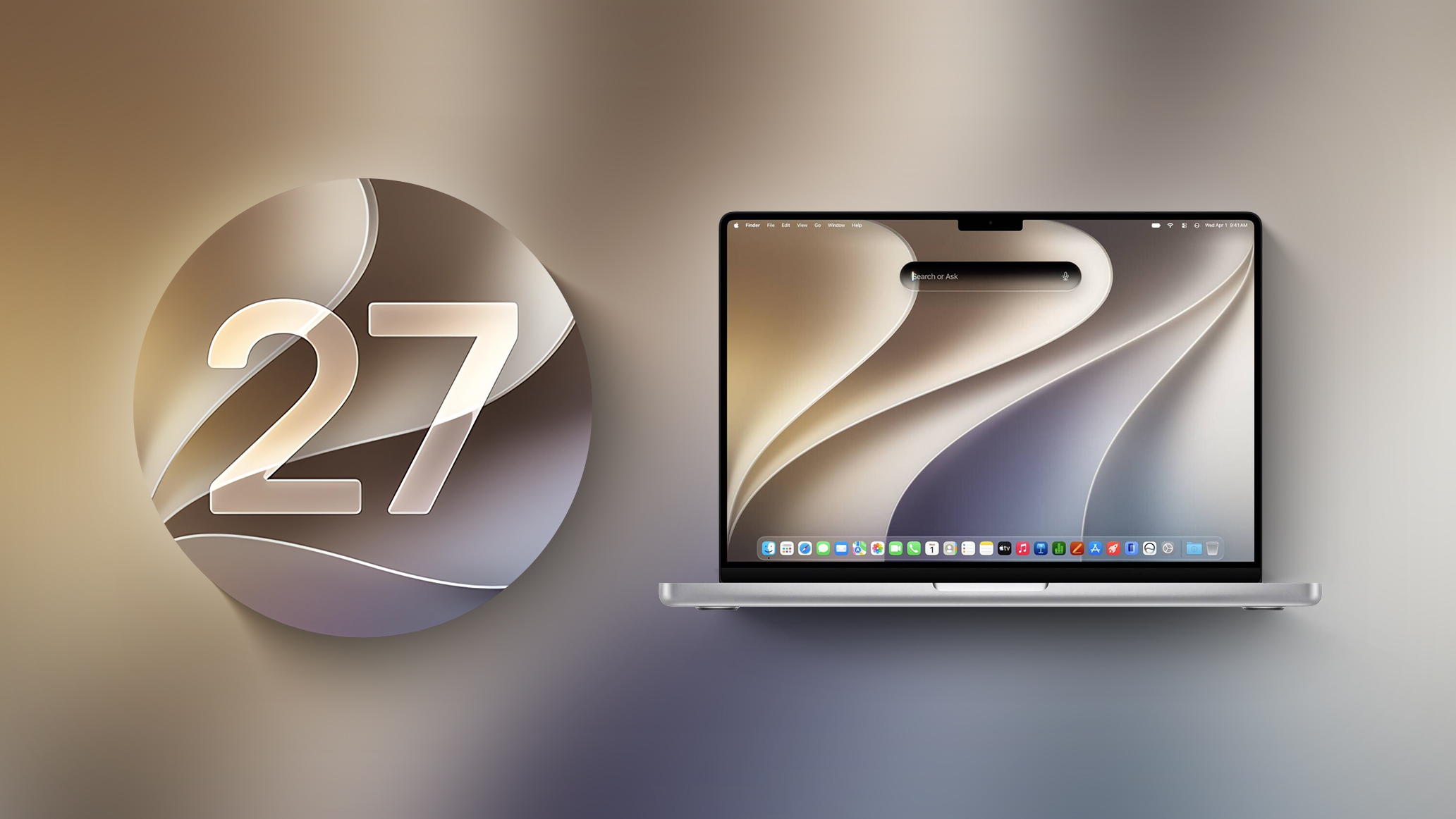
As Apple continues to modernize its operating system, the transition away from older architecture has reached a major milestone. Cutting legacy code allows the operating system to perform more efficiently on modern devices, but it also means older tools and protocols are being permanently retired.
Many of these changes specifically target technologies that relied on older Intel architectures or outdated networking standards. If you rely on legacy software, classic network storage, or older hardware, reviewing these updates will help you plan your next moves effectively.
Key macOS Golden Gate Features Removed by Apple
Apple has systematically removed several long-standing software capabilities in this operating system release. Below is a detailed look at each retired service, why it was removed, and what alternatives exist for Mac users.
1. Complete Drop of Support for Intel Macs
The headline change in this operating system release is the official end of support for Intel-powered computers. This release is the very first version of the operating system that runs exclusively on Apple silicon Macs.
If you currently own an older Mac powered by an Intel processor, your system will not be able to upgrade to this release. Intel devices are officially limited to running macOS Tahoe as their final major operating system version.
Despite dropping feature support for older machines, Apple is not abandoning security for existing owners immediately. The company still plans to offer security updates and patches for Intel machines running older system versions through fall 2028.
2. Removal of Boot Camp Assistant
Because the new operating system completely drops support for Intel chips, Boot Camp Assistant is no longer available. Boot Camp originally allowed Mac owners to partition their hard drives and run Windows natively on x86 hardware.
On modern Apple silicon hardware, native dual-booting into x86 Windows is not supported by the underlying architecture. As a result, the Boot Camp utility has been fully removed from the operating system.
Users who still need to run Windows applications on their computers must rely on software virtualization solutions instead. Popular third-party virtualization utilities like Parallels Desktop or VMware Fusion allow users to run Windows within a virtual machine inside the active desktop environment.
3. Temporary Removal and Deprecation of Rosetta 2
The translation layer that allowed Intel-compiled software to run on modern chips is entering its final phase. Upgrading your computer to this release automatically removes the translation layer software from your system drive.
However, if you attempt to launch an application that still requires the translation engine, the system will allow you to reinstall it on demand. This makes this release the absolute last version of the operating system that will offer full translation support for legacy software.
To prepare users for future updates, the system now displays explicit warnings whenever you launch an application relying on translation. These pop-up alerts notify you that the program will not remain operational in future system updates unless the software developer releases a native update.
4. Total Removal of Apple Filing Protocol (AFP)
Apple Filing Protocol, commonly known as AFP, was the primary file-sharing protocol for Mac networks for decades. Apple began the deprecation process for AFP back during the release of macOS Sequoia 15.5.
In this latest software release, the AFP client has been removed from the file system entirely. Users can no longer connect to remote servers or network shares that exclusively use the legacy AFP standard.
Modern network file sharing on the platform now relies entirely on Server Message Block (SMB) protocols. Networks and local storage drives must be configured to use SMB to maintain network connectivity across modern systems.
5. End of AirPort Time Capsule Backup Support
The removal of network protocols has direct consequences for legacy hardware accessories. Because AFP client support has been stripped away, original Time Capsule hardware no longer works with computers running this update.
Time Capsule hardware historically required either AFP or the outdated SMBv1 protocol to accept incoming network backups. Because modern system backups via Time Machine now mandate SMBv2 or SMBv3 protocols, connections to older Time Capsule drives fail.
Users who rely on wireless Time Machine backups must now upgrade to modern network-attached storage (NAS) devices or direct-attached USB storage formatted with supported modern file protocols.
6. AirPort Utility Omitted from Default Installs
In another move away from legacy networking gear, AirPort Utility is no longer included when you perform a clean installation of the operating system.
If you upgraded your machine from a previous version where AirPort Utility was already present, the application will remain in your Utilities folder. However, Apple offers no guarantees or ongoing software support to ensure the app continues functioning properly.
AirPort Utility was originally designed to let users manage wireless routers such as the AirPort Extreme and AirPort Express. Since those hardware lines were discontinued years ago, the management tool is now considered legacy software.
Summary of macOS Golden Gate Features Removed
To help you track all the major deprecations in one place, here is a quick overview of the key macOS Golden Gate features removed or altered in this system update:
- Intel Mac Compatibility: Operating system support is completely dropped for Intel processors; systems remain capped at previous software releases with security patches guaranteed through fall 2028.
- Boot Camp Assistant: Removed completely due to hardware architecture changes; virtualization software like Parallels or VMware Fusion is now required for Windows.
- Rosetta 2 Translation: Removed upon initial operating system upgrade, though manually reinstallable for a limited time before complete sunset.
- Apple Filing Protocol (AFP): Client software completely excised from the system after initial deprecation in earlier builds.
- Time Capsule Wireless Backups: Hardware rendered incompatible due to mandatory upgrades to SMBv2 and SMBv3 protocols for system backups.
- AirPort Utility App: Excluded from clean installations, leaving existing installations unsupported for managing older router hardware.
How to Check Which Apps Still Rely on Intel Translation
Because full translation support is nearing its end, identifying which of your installed applications still depend on legacy architecture is an important maintenance task.
When using your Mac, any application relying on translation will trigger a system notification upon launch. This warning serves as an early notice so you can search for updated native versions or suitable software alternatives.
You can also review a complete list of affected applications on your computer by following these simple navigation steps:
- Open the system settings menu on your computer.
- Navigate to the General section.
- Click on the About menu option.
- Select the Intel-Based Apps category.
- Click on Details to inspect every installed application that relies on legacy translation code.
What Changes Are Coming Next in macOS 28?
Understanding the current batch of macOS Golden Gate features removed is only half the story. Apple is already laying the groundwork for further platform cleanups in its next major release cycle.
The next iteration, macOS 28, is expected to launch in fall 2027. This upcoming release will complete the retirement of the Rosetta 2 translation system for nearly all desktop software.
When upgrading to that future release, most software applications that have not been updated to run natively on modern chips will fail to open entirely. The operating system will simply refuse to launch unconverted executable files.
Apple does plan to make a small exception for classic software preservation. The company is maintaining limited translation functionality specifically for unmaintained legacy video games, allowing older gaming titles to remain playable even as commercial production software transitions completely.
Preparing Your Mac Workflow for Future Updates
The ongoing retirement of legacy technologies signals a clear direction for the entire Mac ecosystem. Taking proactive steps today will prevent unexpected software issues when future updates arrive.
If you rely on network storage, ensure your server configurations are running updated SMB protocols rather than legacy sharing systems. Upgrading network attachments now prevents sudden backup disruptions.
For software dependencies, reach out to developers who have not yet updated their software to native architecture. Moving away from translation-dependent tools ensures smooth performance without unexpected system lockouts in upcoming operating system cycles.
By understanding every single macOS Golden Gate feature removed by Apple, you can maintain a fast, secure, and fully supported setup across all your hardware and software tools.
Related Roundup: macOS Golden Gate
Related Forum: macOS Golden Gate
This article, "What's Gone in macOS Golden Gate and What's Next in macOS 28" first appeared on MacRumors.com
Discuss this article in our forums
from MacRumors
-via DynaSage
