
watchOS 27.2 Code Hints at iPhone-Style Screenshot Previews
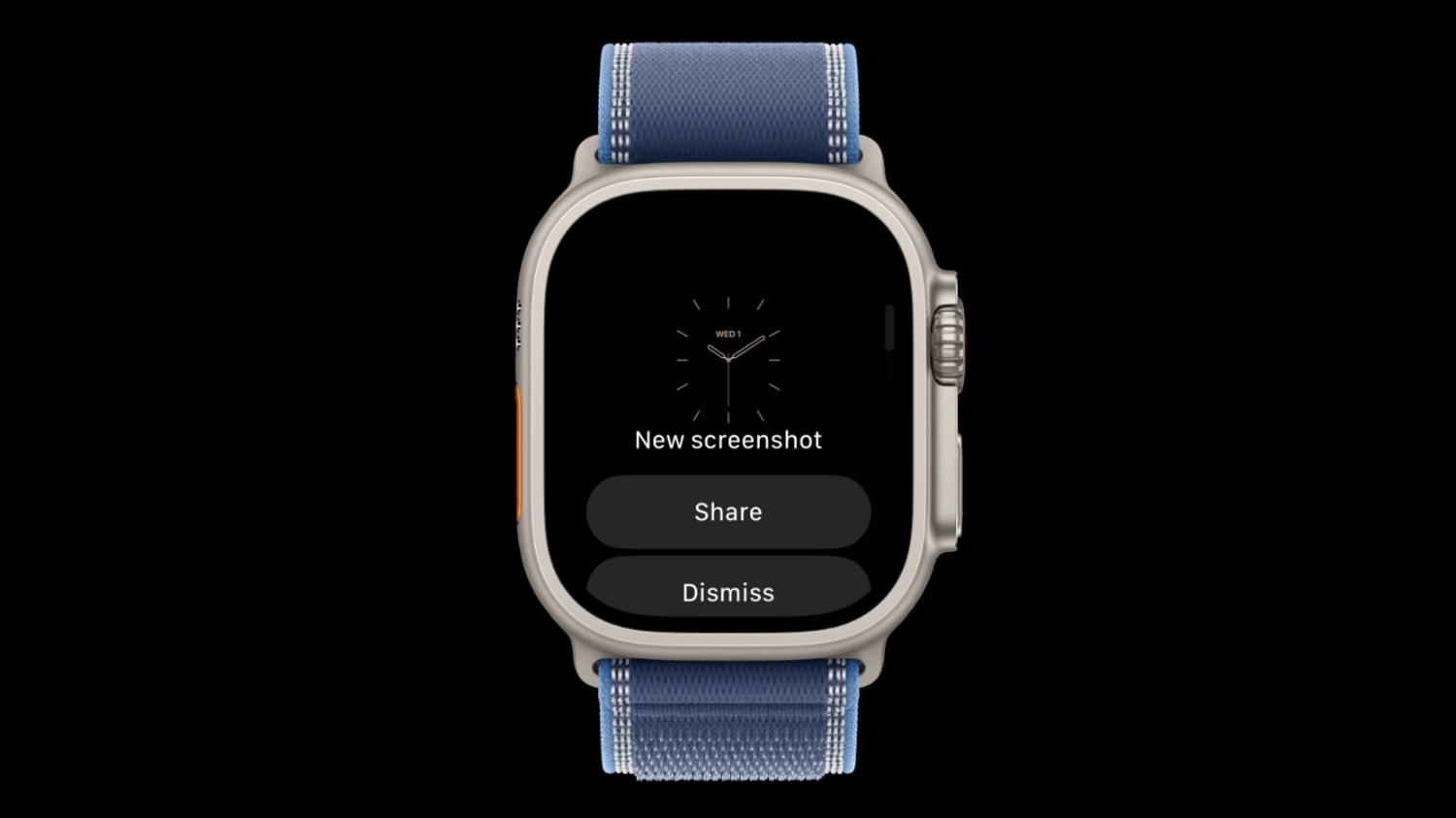
Upcoming changes in watchOS 27.2 screenshot previews could soon bring an iPhone-style management workflow to your wrist, allowing users to preview, share, or delete images immediately after capture. Recent code discoveries reveal that Apple is testing a new system designed to prevent unwanted images from instantly cluttering your device photo library.
Taking a quick capture on wearable devices has historically been a double-edged sword. While it allows you to quickly save vital information from your wrist display, it often leads to accidental triggers that unnecessarily fill up your photo storage.
What Are watchOS 27.2 Screenshot Previews?
The system code inside watchOS 27.2 indicates that Apple is developing an interactive preview interface that mimics the familiar iOS environment. Rather than silently capturing the watch display and sending the file away, the wearable operating system will show a temporary visual confirmation on your screen.
Signs of this new interface were uncovered deep within the software system by code explorer pdfu. According to the findings, the code is currently hidden behind an internal feature flag that remains disabled in standard system builds.
A new screenshot experience is coming to Apple Watch, inspired by iPhone.
-- pdfu (September 24, 2026)
Hidden behind a feature flag in watchOS 27.2, it lets you preview, share, or delete a screenshot right after taking it. pic.twitter.com/MT5wmDjRnq
Although the feature is currently inactive in the initial system files, Apple could enable it in a later watchOS 27.2 beta release. Once activated, taking a capture on the watch will no longer be an invisible background process.
Instead of relying on complete guesswork, users will immediately see what was captured. This allows for quick management actions directly from the small display without needing to open other devices first.
How Apple Watch Screenshots Currently Work vs. iPhone
Understanding why this update matters requires taking a quick look at how the wrist-based software handles screen captures today compared to smartphones. The two platforms have handled image capture management very differently over the years.
The Current Apple Watch Screenshot Experience
Right now, taking a capture on the Apple Watch requires pressing the Digital Crown and side button at the exact same time. When triggered, the watch display flashes white, and the device provides haptic feedback to confirm the press.
However, the process ends instantly right after that brief flash. The captured image is immediately sent directly to the iPhone Photos app with no confirmation screen or preview window provided on the watch itself.
- Press the Digital Crown and side button simultaneously.
- The screen flashes and the device vibrates slightly.
- The image transfers silently to connected photo storage.
- No preview thumbnail appears for immediate review.
- No delete button is available on the watch face.
Because there is no prompt or confirmation overlay, you cannot stop an unintended image from saving to your photo stream. If your wrist flexes during a workout or while lifting heavy objects, you might capture dozens of accidental images without noticing until later.
The iPhone Screenshot Experience
On the iPhone, taking a screen capture triggers an entirely different, highly customizable interactive workflow. Depending on your current system configuration, pressing the side button and volume button generates either a full-screen preview or a thumbnail preview in the lower corner of the display.
This smartphone interface gives users direct, immediate control over the saved content. Tapping the preview opens editing tools, markup options, quick share menus, and a prominent trash icon for instant removal.
- A small thumbnail preview appears instantly in the corner of your screen.
- Tapping the thumbnail opens full annotation tools and quick crop handles.
- You can tap the share button to send the image via Messages, Mail, or AirDrop.
- A trash icon allows you to delete accidental captures instantly before saving.
- If left alone, the thumbnail dismisses itself and saves automatically to your library.
Bringing this level of control to watchOS 27.2 screenshot previews brings uniform feature parity between Apple ecosystem devices. Users can expect identical management tools optimized specifically for smaller touch surfaces.
Why Accidental Apple Watch Screenshots Are Such a Problem
It is surprisingly easy to accidentally take a capture on your wrist device. Because the required action only involves pressing the Digital Crown and side button at the same time, normal everyday movements can easily trigger the mechanism unintended.
Many active users frequently trigger screen captures during regular exercise routines or physical labor. Bending your wrist back while pushing up, wearing thick workout gloves, or pressing against tight jacket sleeves often pushes both physical buttons simultaneously.
Over time, these accidental presses accumulate silently in your image library. Users often open their photo application days later only to discover dozens of blurry pictures of their current watch face, activity rings, or incoming notification banners.
Cleaning up these accidental images takes unnecessary time and effort. Because current watch software offers no instant confirmation interface, users are forced to manually locate and delete unwanted wrist captures inside their primary photo library on another device.
More Control Beyond a Simple On/Off Toggle
Currently, wrist capture functionality is disabled by default across modern wearable device setups. Users who want the ability to save watch screens must go out of their way to enable the setting inside system preferences.
Under the existing system, your options are strictly binary. You either keep the feature completely disabled to prevent accidental captures, or leave it enabled and accept the extra photo library clutter that comes with unintended button presses.
The proposed watchOS 27.2 screenshot previews feature fixes this issue by adding nuanced management control directly at the point of capture. Instead of choosing between total feature disabling or constant photo cleanup, users gain granular choice every single time a capture occurs.
If you take an intentional screen capture, you can quickly share it or save it to your library. If your wrist accidentally compresses the physical buttons during exercise, a simple tap on the screen preview lets you delete the image instantly before it ever syncs across your cloud account.
How to Enable or Disable Apple Watch Screenshots Right Now
While we await the official launch of watchOS 27.2 screenshot previews in a public beta or final software build, you can manage your current screen capture settings using two simple methods. You can adjust this feature directly from your wrist or through your connected smartphone application.
Method 1: Enabling or Disabling via Apple Watch Settings
If you want to turn capture capabilities on or off directly on your wearable hardware, follow these quick steps using the main system preferences menu:
- Press the Digital Crown once to open your main app grid or list view.
- Tap the Settings app icon (gear icon).
- Scroll down through the menu list and select General.
- Scroll down further until you locate the Screenshots menu option.
- Tap the toggle switch next to Enable Screenshots to turn the feature on or off.
When turned off, pressing the physical hardware buttons simultaneously will produce no reaction. The display will not flash, and no image files will be generated or transferred.
Method 2: Enabling or Disabling via iPhone Watch App
Alternatively, you can adjust these same control options using the paired software application on your mobile device. Managing preferences from your phone screen is often faster and easier for standard navigation:
- Open the Watch application on your connected iPhone.
- Ensure you are viewing the primary My Watch navigation tab.
- Scroll down the main list and select General.
- Scroll down until you find the Enable Screenshots menu option.
- Toggle the switch to your preferred active or inactive state.
Changes made on your phone update instantly across your connected wearable device. If you routinely experience accidental button triggers while working out, turning this toggle off remains the best temporary solution until new software features arrive.
Understanding Feature Flags and Beta Test Cycles
The discovery of watchOS 27.2 screenshot previews offers an interesting peak into how modern operating software is developed and tested before public release. Tech platforms frequently hide experimental features deep inside system code during preliminary testing phases.
A feature flag is an internal software mechanism that allows developers to enable or disable specific functionality without shipping entirely separate code builds. This lets engineers build complete user interface elements in secret while controlling exactly who gets to access them.
Because code explorer pdfu located these specific preview interface elements locked behind an internal feature flag in watchOS 27.2, we know that software development is actively underway. However, its presence in early code does not guarantee immediate availability for all users.
Apple often includes incomplete software frameworks in early developer previews to conduct internal stability checks. If evaluation goes smoothly, the company can remotely toggle the feature flag on in subsequent beta updates, allowing public beta testers to evaluate the feature before a final public release.
Comparing Watch Capture Workflows Across Software Generations
As wearable platforms mature, basic utility features evolve from simplistic background utilities into sophisticated user-controlled tools. The evolution of watch capture handling highlights this shift clearly:
- Early watchOS Releases: Basic capture toggles with automatic background syncing to connected phone libraries. No confirmation feedback beyond a screen flash.
- Middle watchOS Generations: Off-by-default feature toggles added to prevent widespread accidental activation during daily wear.
- watchOS 27.2 Update: Interactive preview windows offering real-time action options including instant preview, direct sharing, and one-tap deletion.
By moving toward full feature consistency across phone and wrist operating systems, managing screen captures becomes far more intuitive regardless of which device you happen to be holding or wearing at the time.
Related Roundups and Apple Watch Community Discussions
For more detailed updates, system breakdowns, and ongoing news regarding wearable platform software releases, check out these related resource hubs and discussion boards:
Related Roundups: watchOS 26, watchOS 27
Related Forum: Apple Watch
This article, "watchOS 27.2 Code Hints at iPhone-Style Screenshot Previews" first appeared on MacRumors.com
Discuss this article in our forums to share your thoughts on whether you plan to enable screen capture tools once preview management options officially roll out to the public.
Final Thoughts on Incoming watchOS 27.2 Changes
The potential addition of watchOS 27.2 screenshot previews represents a small but highly impactful quality-of-life update for wearable device users. By adopting the intuitive management interface proven on smartphones, Apple is making it significantly easier to manage image capture choices right from your wrist. Whether you regularly document software bugs or simply want to eliminate accidental image clutter in your photo library, having instant preview, share, and delete controls will make taking Apple Watch screenshots a far more refined and user-friendly experience.
from MacRumors
-via DynaSage
