
iOS 27: Use Visual Intelligence in the Camera App
Discover how to use Visual Intelligence in the Camera App on iOS 27 to identify real-world objects, track food calories, translate text instantly, and interact directly with Siri in real time. This comprehensive guide walks you through every new camera feature, shooting mode option, and interface layout update available on supported iPhone models today.
Overview of Visual Intelligence in the Camera App
With the official release of iOS 27, Apple has introduced important feature additions and user interface changes to the iPhone's stock Camera app. Among these updates, the most notable highlight is an innovative camera mode powered directly by Visual Intelligence technology.
Rather than requiring users to take static photographs first and process them later through third-party apps, this new camera mode brings real-time artificial intelligence and computer vision straight into your live camera viewfinder. Users can now point their iPhone lens at physical items in their surrounding environment to extract instant context, search online databases, or execute useful everyday task shortcuts on the spot.
Whether you need to identify unfamiliar plants during an outdoor walk, manage event schedules from printed paper flyers, translate foreign language signs while traveling, or calculate individual check shares when splitting a bill, the stock Camera app in iOS 27 provides immediate context for whatever your lens sees.
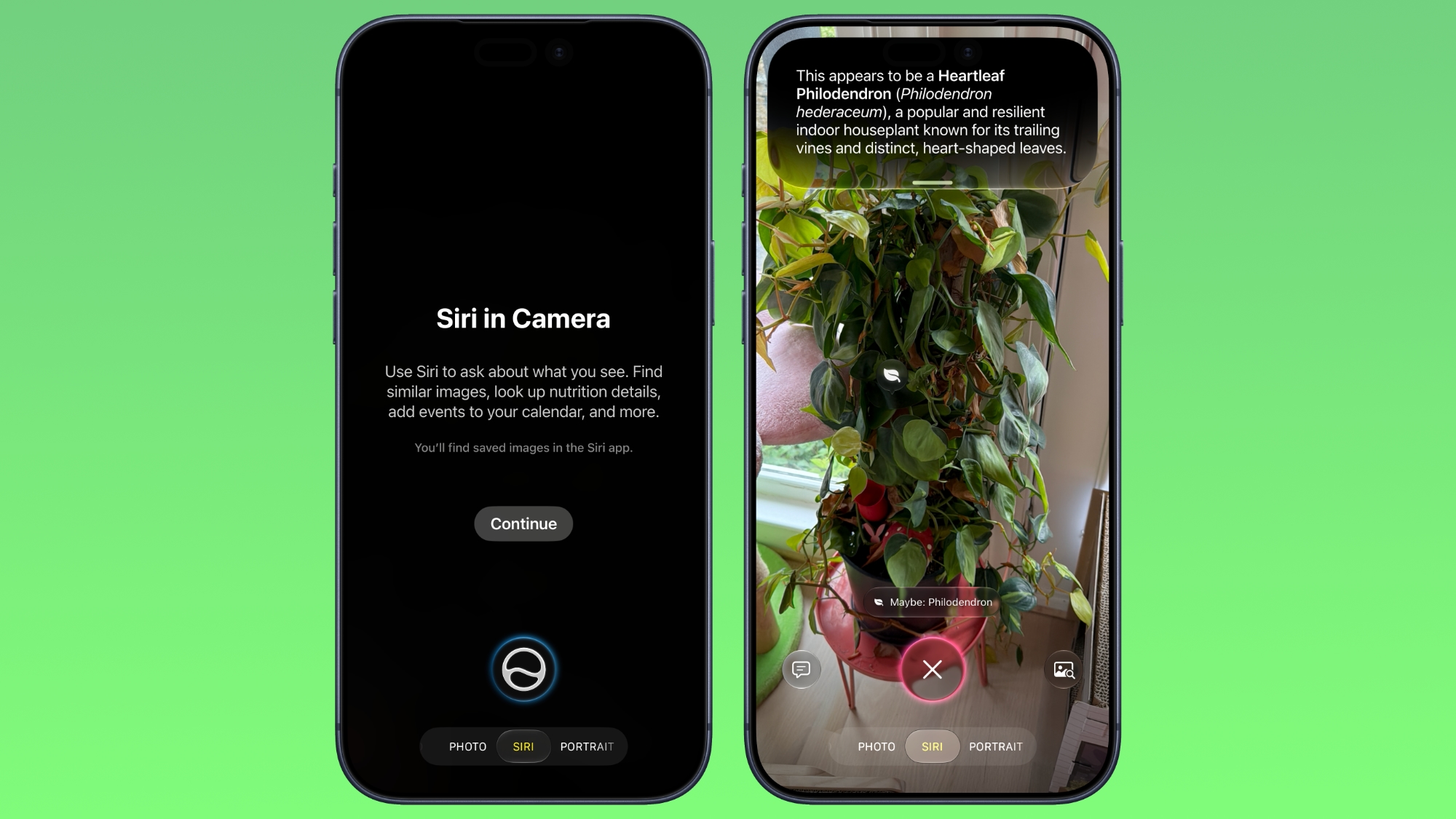
Understanding the New Siri Mode in the iOS 27 Camera App
The headline feature added to the updated iPhone camera experience is official Siri mode. Located directly alongside traditional shooting options such as Video, Photo, Portrait, and Pano, Siri mode introduces an interactive visual analysis utility built straight into the main mode carousel at the bottom of the screen.
When you switch into Siri mode, your iPhone uses Visual Intelligence to evaluate every object, document, meal, or surface shown in your active camera frame. The operating system actively parses this visual data without forcing you to save permanent picture files or clutter your device's photo library with temporary photos.
By bringing Siri machine learning directly into the camera viewfinder, Apple creates an efficient bridge between physical real-world objects and digital iPhone actions. Instead of taking a photo and jumping between separate apps, you receive immediate contextual information, web image search tools, and direct query buttons right inside your live camera display.
This mode completely redefines how users interact with their physical surroundings using Apple hardware. By turning the active camera stream into an intelligent analytical window, Siri mode allows you to obtain immediate answers and trigger system actions without interrupting your workflow or opening separate software applications.
How to Access Siri Mode in iOS 27
Accessing the new Siri mode in iOS 27 is simple and fully integrated into the standard layout of the stock Camera app. You do not need to install additional software tools, adjust system permissions, or enable hidden settings menus to begin using Visual Intelligence features.
To navigate to Siri mode on your supported iPhone, follow these clear step-by-step instructions:
- Open the native Camera app on your iPhone from the Home Screen, Lock Screen, or Control Center.
- Look at the mode selection carousel located along the bottom region of the camera viewfinder screen.
- Swipe horizontally across the mode carousel where familiar options like Photo and Video are displayed.
- Select Siri mode to launch the live Visual Intelligence analysis display.
As soon as you toggle to Siri mode, your iPhone camera immediately begins evaluating subjects within the viewfinder frame, offering relevant visual information and interactive context buttons on screen.
The mode carousel transition is smooth and instant, allowing you to alternate between standard photography options and intelligent visual analysis in seconds whenever you need quick information about an item in view.
Practical Everyday Use Cases for Visual Intelligence
Visual Intelligence inside the iOS 27 Camera app delivers a wide selection of practical capabilities designed to solve everyday tasks. By interpreting live context through your camera lens, your iPhone becomes an active assistant for rapid information retrieval and task management.
Here is a detailed breakdown of what you can accomplish using Visual Intelligence in Siri mode:
- Plant and Animal Recognition: Instantly recognize various species of plants, flowers, trees, outdoor wildlife, and house pets.
- Food Identification and Calorie Tracking: Identify specific dishes or ingredients and calculate estimated calorie counts automatically.
- Event Flyer Scanning and Calendar Syncing: Extract dates and details from physical flyers to create new events in the Calendar app.
- Real-Time Wording Translation: Translate written foreign text across signs, menus, documents, and packaging on screen.
- Receipt Processing and Bill Splitting: Scan physical dining receipts to calculate individual bill shares quickly.
- Reverse Google Images Lookups: Tap a dedicated right-side button to search for visually similar items on Google Images.
- Asking Siri Specific Questions: Tap a dedicated left-side button to ask Siri tailored questions about items in your frame.
Plant and Animal Recognition
Identifying objects in nature is one of the most useful applications of Siri mode. When you come across an unfamiliar flower in a garden or an unknown animal outdoors, simply position the subject in your camera frame to view instant details regarding its classification and background information.
This automated identification process removes the hassle of trying to describe unknown plants or animals in web text searches. The system evaluates physical characteristics directly through the lens to deliver accurate identification details straight to your display screen.
Food Identification and Calorie Counting Capabilities
When analyzing food items, Visual Intelligence offers deeper details beyond basic dish identification. Pointing your camera lens at a meal tells you what the food item is and provides useful nutritional information, including how many calories are in it, making meal tracking far more convenient.
Whether you are dining out at a restaurant or reviewing ingredients in your kitchen, Siri mode provides an immediate nutritional overview of the food items placed in front of your camera lens without requiring manual entry.
Scanning Event Flyers to Add Dates directly to the Calendar App
Managing your upcoming schedule is effortless when dealing with physical advertisements or paper flyers. If you capture a photo of an event flyer inside Siri mode, Visual Intelligence reads the poster's date and time details automatically.
Rather than manually typing event titles, street addresses, and times into your phone, the system allows you to capture the photo and instantly add a corresponding event date into your native Calendar app with minimal effort.
Real-Time Text Translation
Reading signs, instructions, or dining menus written in foreign languages is simplified through built-in text translation tools. Aiming your iPhone camera at written foreign words displays immediate target translations overlaid directly on your screen display.
This live translation functionality is ideal for international travel or reading foreign packaging materials, offering clear language conversion directly within the native camera view without copying and pasting text into separate translation software.
Receipt Scanning and Bill Splitting
Managing group dining expenses and shared bills is equally fast. In Siri mode, you can point your camera at physical payment receipts to split a bill accurately among dining companions, avoiding manual arithmetic or launching dedicated calculator utilities.
The system automatically parses receipt subtotals, taxes, and items, helping you calculate individual shares quickly and accurately right at the dining table.
How the Dual Interaction Buttons Work in Siri Mode
To give users granular control while using Siri mode, Apple has positioned two specialized interactive buttons directly on the camera interface screen. These controls allow you to take immediate visual search actions based on whatever is framed in your viewfinder.
Right-Side Button: Searching Google Images
Positioned on the right side of the Siri mode viewfinder screen, a dedicated button lets you perform an instant reverse visual lookup through Google Images. Tapping this right-hand button queries Google Images using your active frame, making it easy to find matching online photos, web references, or retail purchasing options across the web.
This button is particularly useful when shopping or researching physical items, as it connects what your camera sees directly to Google's massive visual web index in a single tap.
Left-Side Button: Asking Siri Specific Questions
Positioned on the left side of the Siri mode viewfinder screen, a secondary button enables you to ask Siri a specific, custom question about the exact object currently visible inside your frame.
For example, if you aim your camera lens at fresh ingredients or a specific food dish, you can tap the left button to ask Siri for recipe recommendations or custom culinary assistance, such as asking for help to cook the food in the frame. Siri will analyze the visual context and respond with precise cooking steps.
This hands-free conversational integration ensures that you can ask follow-up questions tailored precisely to the exact object, document, or meal you are framing with your camera.
General iPhone Camera App Interface Redesign in iOS 27
Beyond introducing Siri mode and Visual Intelligence, Apple has modernized several core layout elements across the stock Camera app interface in iOS 27. These design tweaks prioritize single-handed ergonomics and easier control access.
Top-Center Layout for Quick Access Tools
Essential camera controls have been repositioned to increase visibility during daily photography. Quick access tools for controlling the camera flash, toggling Live Photo parameters, and managing Night mode settings are now located neatly at the top-center of the Camera user interface.
This centralized placement ensures that critical shooting toggles are easily visible and accessible at a glance before capturing pictures in various lighting environments.
Relocating Full Camera Tools to the Bottom-Right Corner
In earlier iOS versions, reaching the full suite of camera controls required tapping options located in the top-right corner of the display. In iOS 27, Apple has relocated the complete set of camera tools down to the bottom-right portion of the screen, making manual adjustments far easier to tap when using larger iPhone displays with one hand.
Moving these comprehensive settings controls closer to the user's thumb improves single-handed operation and reduces accidental drops when adjusting shooting parameters on modern, large-format devices.
Customizing Displayed Controls at the Top of the Screen
To provide personal flexibility over your shooting layout, iOS 27 lets you tailor which tool shortcuts remain visible. It is completely straightforward to customize which controls are displayed at the top of the screen according to your unique photography habits and preferences.
This layout customization feature allows photographers to keep their most frequently accessed shortcuts ready at hand while hiding settings they rarely use, creating a clean, personalized shooting interface.
iOS 27 Software Release Date and Device Compatibility Details
Apple officially launched iOS 27 for public download on September 14. This major software distribution arrived just a few days ahead of the official store availability and retail launch of the new iPhone 18 Pro models on September 18.
The updated software release delivers Visual Intelligence features and camera interface updates to a vast audience of iPhone users. The operating system update is fully compatible with all supported iPhone models spanning from the iPhone 11 series up through the newest hardware lineups.
Whether you are using an older device or upgrading to the latest Pro hardware, iOS 27 ensures that modern computer vision capabilities and streamlined camera controls are available across generations of supported hardware.
Related Guides, Roundups, and Community Discussions
If you wish to explore complete feature breakdowns across Apple's newest software updates or join ongoing user discussions, visit the following community links and resource guides:
Check out our detailed platform roundups for iOS 27 and iPadOS 27 to discover all operating system enhancements, software features, and ecosystem news.
To learn more about Apple's ongoing advances in computer vision and machine learning, visit our dedicated topic hub on Visual Intelligence technology.
Engage with fellow iPhone owners in the official iOS 27 community forum to post feedback, share user tips, and discuss device performance.
Original source reference: This article, "iOS 27: Use Visual Intelligence in the Camera App" first appeared on MacRumors.com.
Join the conversation today: Discuss this article in our community forums to share your thoughts and experiences using Siri mode.
Conclusion
The introduction of Siri mode and Visual Intelligence in the Camera App on iOS 27 transforms how iPhone users interact with physical objects around them. By combining real-time object analysis, customizable top camera controls, and quick buttons for Google Images and Siri questions, Apple's updated Camera app delivers an exceptionally powerful shooting and scanning tool for everyday use.
from MacRumors
-via DynaSage
