
iOS 26: Use Live Translation in Messages
iOS 26: Effortlessly Translate Messages in Real-Time
iOS 26 introduces a game-changing feature for multilingual communication: Live Translation in Messages. This groundbreaking functionality allows you to seamlessly chat with friends and colleagues who speak different languages, all without leaving the Messages app. Instant translations appear directly within your conversation, maintaining the natural flow of your communication. No more frustrating language barriers – just smooth, easy chatting.
Device Compatibility and Supported Languages
Live Translation is powered by Apple Intelligence, meaning it requires a compatible device. Currently, it's available on the iPhone 15 Pro, iPhone 16, iPhone Air, and iPhone 17. This advanced feature is designed to provide a truly seamless multilingual experience.
The feature supports a wide range of languages, simplifying communication across various cultures. Currently, Live Translation works with the following nine languages: Chinese (Mandarin, Simplified), French, German, Italian, English, Japanese, Korean, Portuguese (Brazil), and Spanish (Spain). Your messages are displayed in both your language and the translated language on your device. For recipients using iOS 26, iPadOS 26, or macOS Tahoe, the messages will appear in their preferred language.
Setting Up Live Translation: A Step-by-Step Guide
Enabling automatic translation is quick and intuitive. Follow these simple steps to begin translating your conversations:
- Open the Messages app: Launch the Messages application on your iPhone.
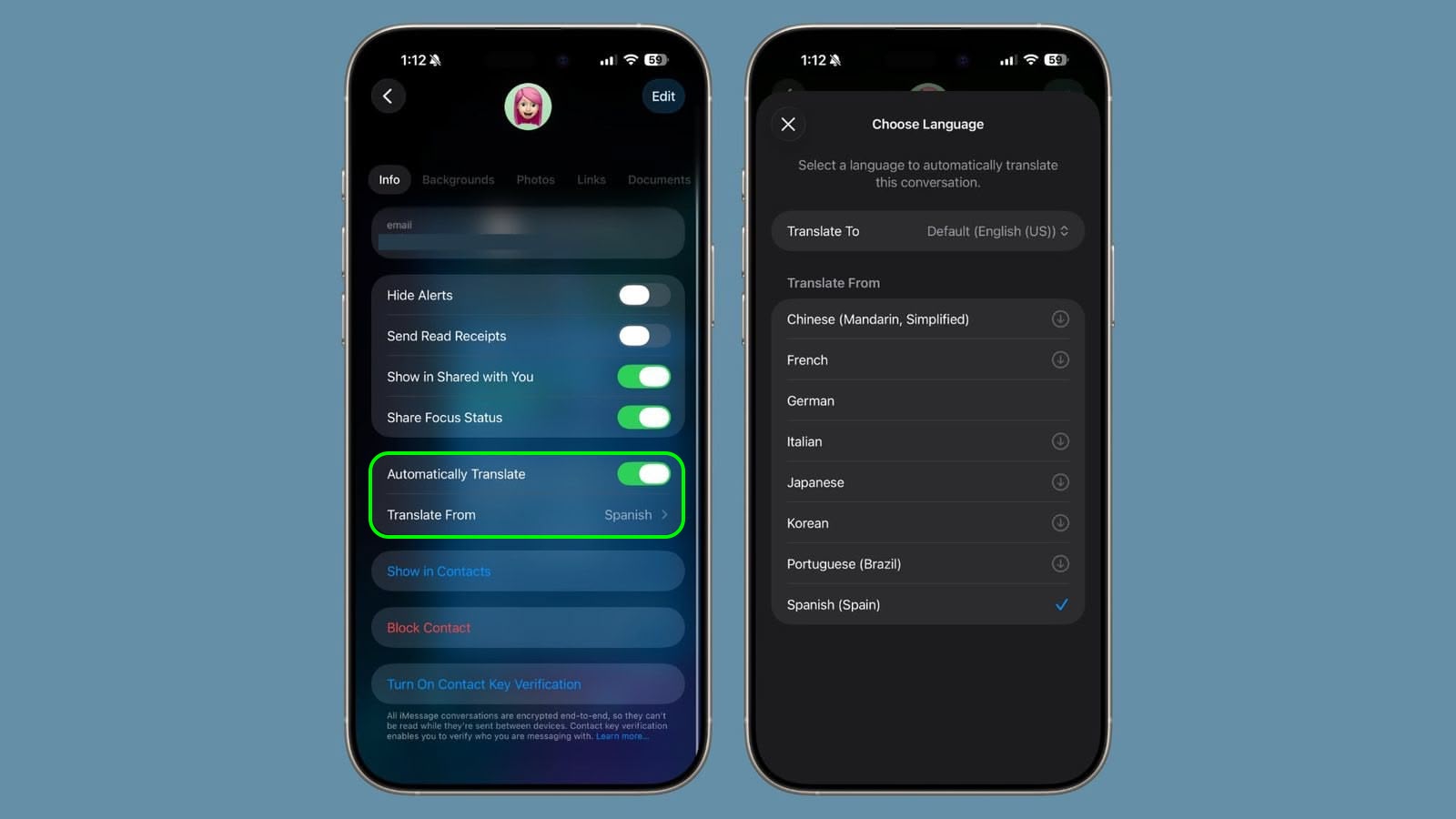
- Access Conversation Details: Tap on the contact's name at the top of the conversation you wish to translate.
- Enable Automatic Translation: Locate the "Automatically Translate" toggle switch and turn it on.
- Select Languages: Tap on "Translate From" to choose the language of the incoming messages. You might need to select the language of your outgoing messages as well, depending on your settings.
- Download the Language Pack (if necessary): If prompted, download the necessary language pack. This typically requires approximately 900MB of storage space.
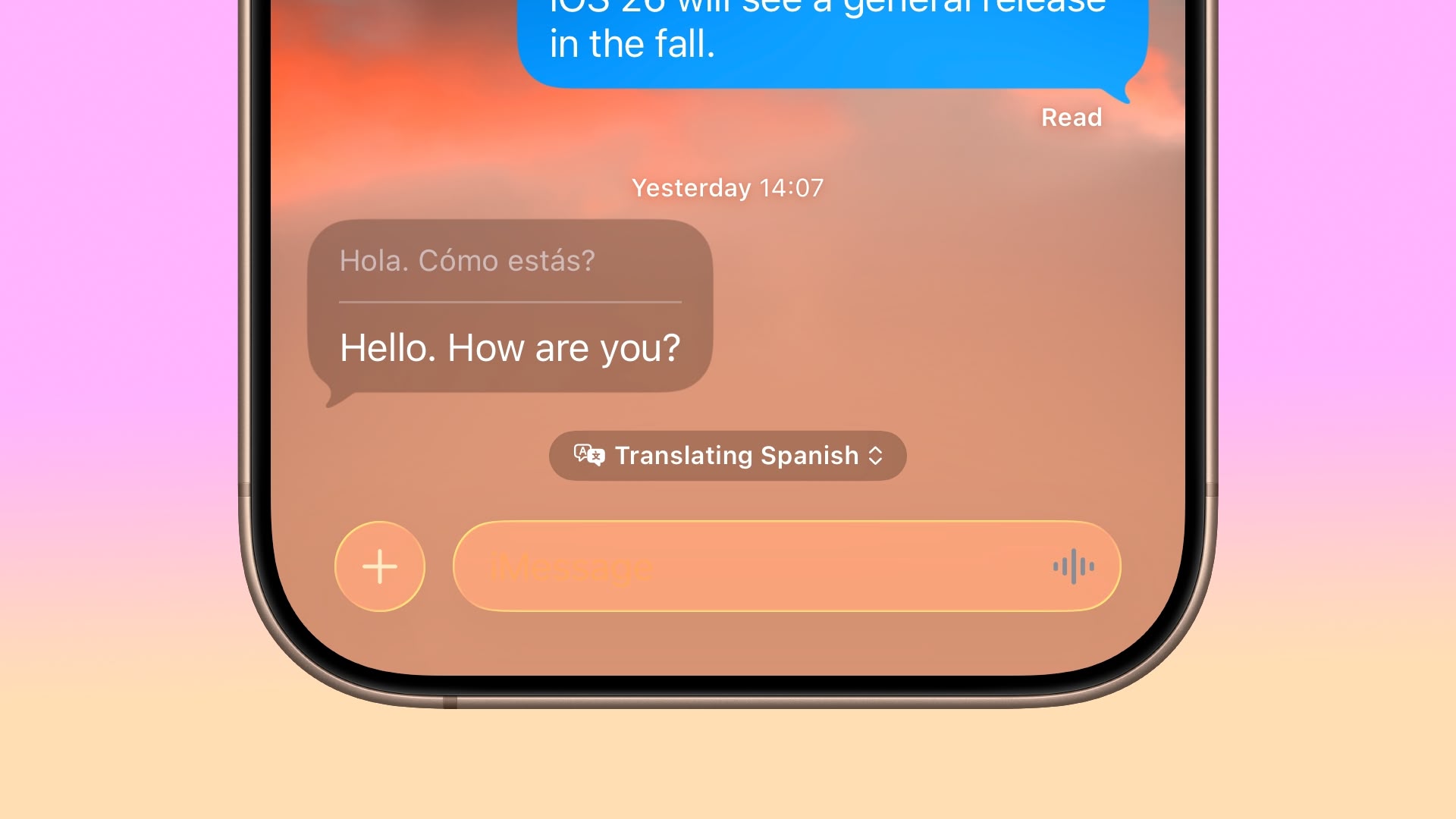
Once the language pack is downloaded, the Live Translation feature will work seamlessly. Your outgoing messages will be displayed in both your original language and the translated version. Incoming messages will show the original text with the translation displayed conveniently below.
Using Quick Translation Controls for On-the-Fly Adjustments
While actively using Live Translation, convenient controls are readily available. At the bottom of your conversation, you'll see a "Translating [language]" tab. Tapping this allows you to easily adjust your viewing preferences:
- Show Both Languages: Select the option to view both the original and translated messages simultaneously. For example, you might choose "Spanish & English" to see both languages.
- Show Only Your Language: To hide the translated text and only see your preferred language, choose the "English Only" option (or the equivalent for your language).
- Stop Translation Temporarily: If you need to temporarily disable the translation feature, simply tap "Stop Translation." You can easily re-enable it whenever you want.

Live Translation on Older Devices and Android Phones
While Live Translation works best when both participants are using iOS 26, iPadOS 26, or macOS Tahoe, you can still use it with older devices or even Android phones. The feature will translate incoming messages from these devices. However, keep in mind that your responses won't be automatically translated for those users on older systems or different operating systems.
This article, "iOS 26: Use Live Translation in Messages" first appeared on MacRumors.com
Discuss this article in our forums
from MacRumors
-via DynaSage
