Disable Touch on MacBook Pro PROLED XDR and When Using Sidecar
Learn how to easily disable touch on MacBook Pro models equipped with PROLED XDR displays, as well as connected iPads using Sidecar. Whether you want to turn off touchscreen functionality entirely or fine-tune specific touch gestures in macOS, this complete guide covers step-by-step instructions and accessibility settings.
Apple's History and Shift on Touchscreen Macs
For over a decade, Apple publicly pushed back against bringing touch functionality to the Mac line. Steve Jobs famously addressed the concept in 2010, explaining why touch screens made little sense on traditional desktop and laptop form factors. He argued that touch surfaces simply do not want to be vertical due to the physical strain involved. Jobs pointed out that while direct touch feels natural on handheld devices, repeatedly reaching up to touch a vertical computer display inevitably leads to severe arm fatigue.
That design philosophy remained deeply embedded within Apple's engineering team for many years. As recently as 2021, Apple's hardware engineering chief, John Ternus, reaffirmed that the Mac was engineered purely for indirect input methods like trackpads and mice. During an interview with Joanna Stern, Ternus emphasized Apple's strategic separation between product lines, stating:
"We make the world's best touch computer on an iPad. It's totally optimized for that. And the Mac is totally optimized for indirect input. We haven't really felt a reason to change that."
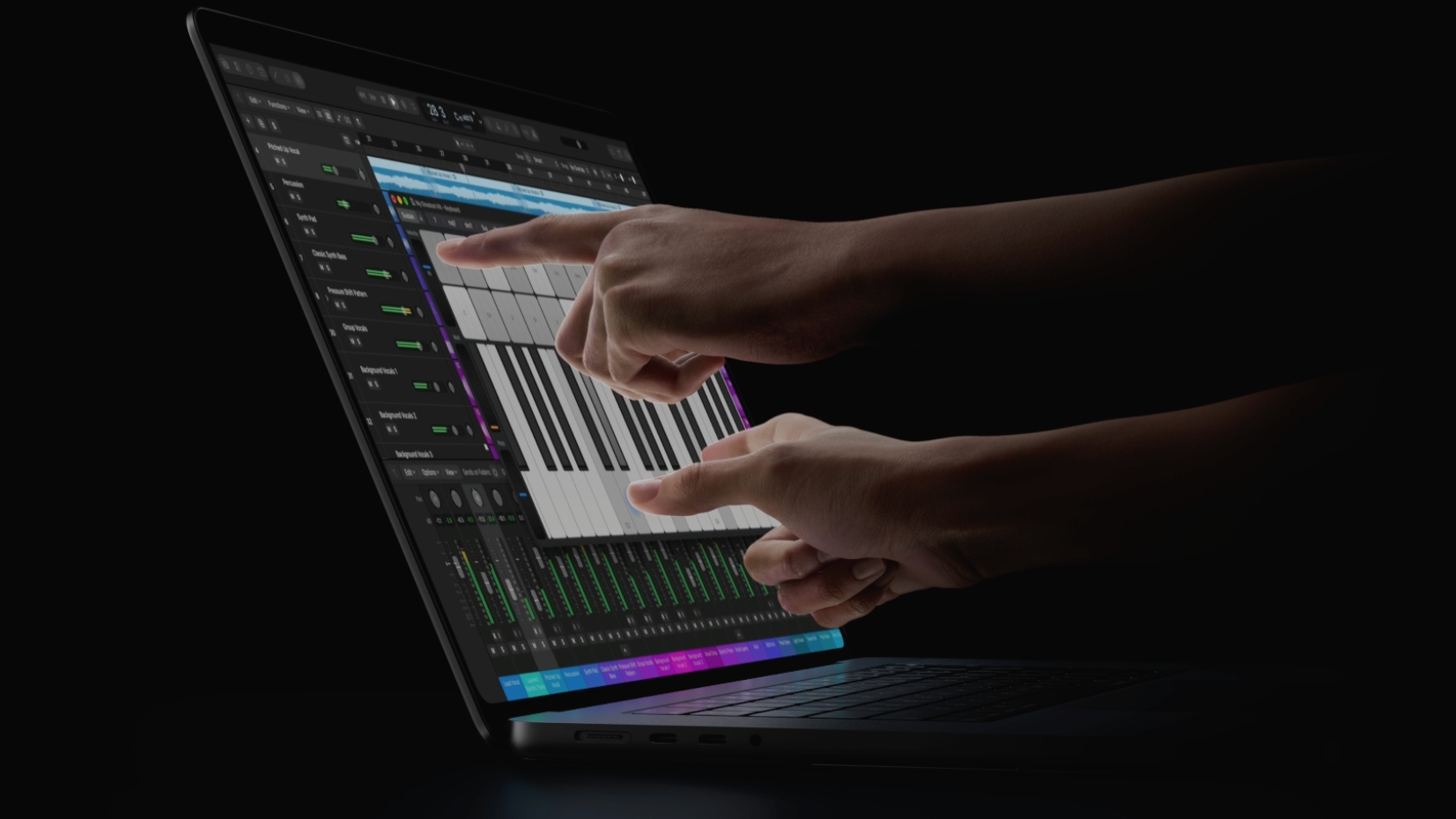
Some would call this sacrilege...
Touch Arrives on the MacBook Pro with PROLED XDR
Fast forward to 2026, and Apple has officially pivoted from its long-held philosophy. The introduction of the new MacBook Pro with PROLED XDR marks the arrival of the first Mac featuring built-in touchscreen technology. A primary factor driving this major shift is changing user habits. A generation of users who grew up relying entirely on smartphones and tablets naturally expect to touch and tap their computer screens in the exact same manner.
That shifting user expectation ultimately swayed Apple's design approach. However, Apple recognized that traditional Mac users might prefer the classic, indirect workflow. If you buy a new touchscreen MacBook Pro, you are not forced to interact with the display by hand. If you prefer to rely strictly on the trackpad or keyboard, you can easily turn off the touchscreen feature and operate your laptop as if direct touch input does not exist.
Furthermore, if you frequently use an iPad as an external display via Sidecar on another Mac, macOS uses the exact same unified system settings to handle touch controls across both screens.
How to Disable Touch on MacBook Pro and Sidecar Displays
If you want to disable touch on MacBook Pro hardware or prevent touch gestures from working while using Sidecar, the setup process is identical. Follow these simple steps in macOS System Settings:
- Click the Apple logo located in the top-left corner of the macOS menu bar and choose System Settings....
- Scroll down the left-hand sidebar and select Accessibility.
- Under the "Physical and Motor" section, click on Touch.
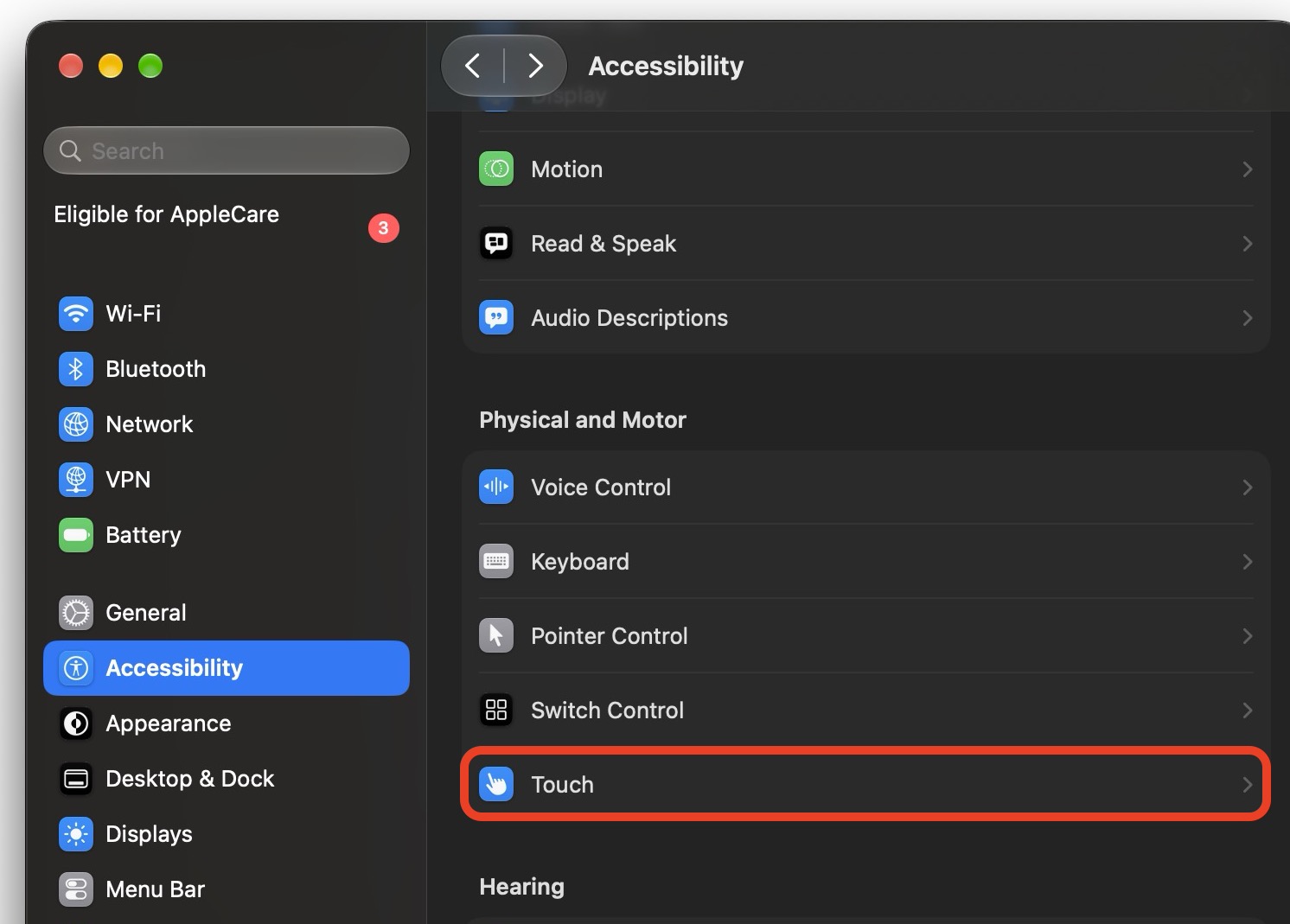
- Toggle on the switch located next to Ignore Touch Gestures.
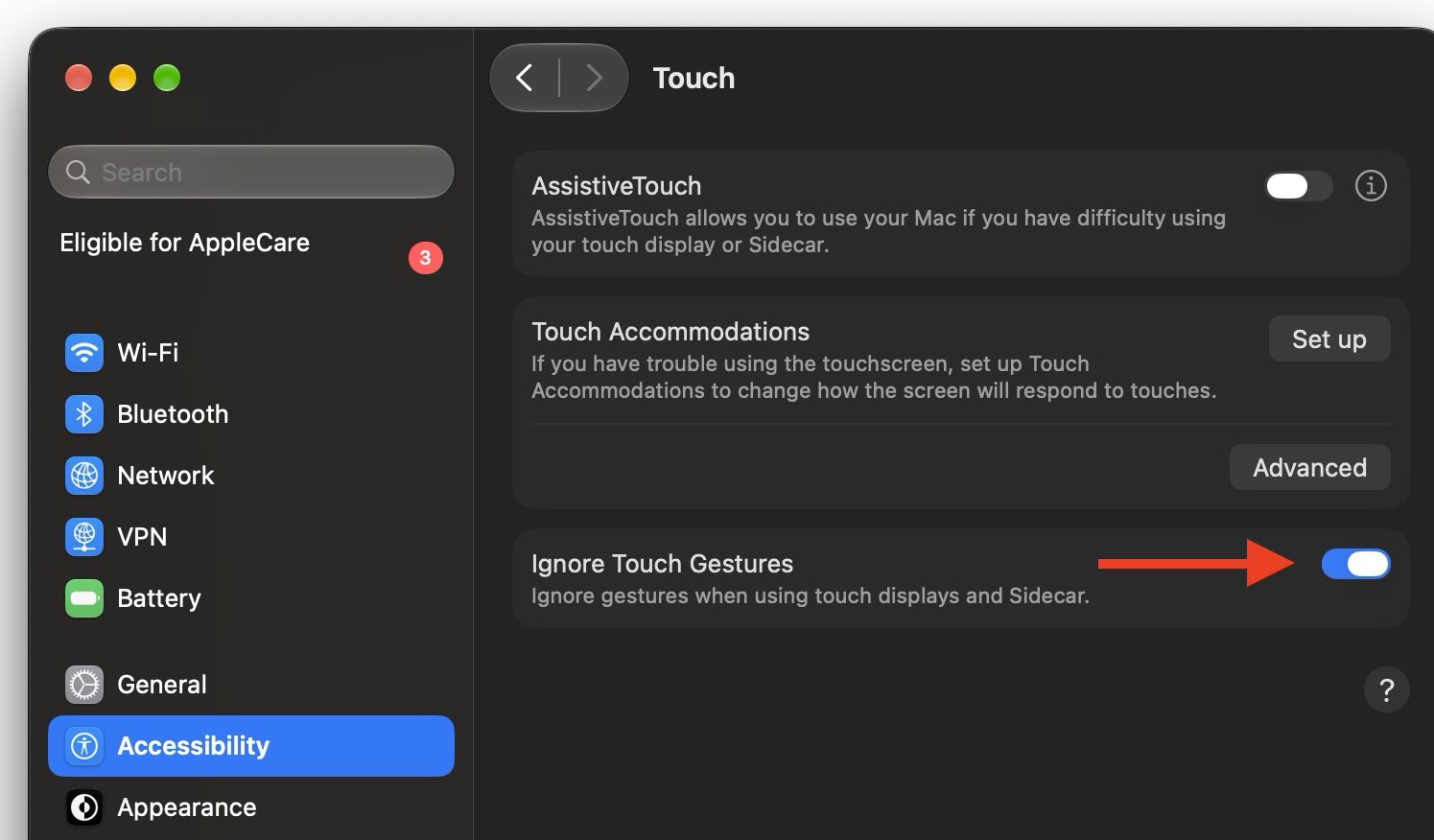
Once you switch on Ignore Touch Gestures, your Mac will immediately stop responding to direct touches on its PROLED XDR display. Because this setting applies universally across input configurations, any iPad connected as a secondary display through Sidecar will also ignore physical touch inputs. Should you ever decide to re-enable touch controls in the future, simply navigate back to this menu and toggle off Ignore Touch Gestures.
Customizing Touch Display Settings and Gestures
You do not necessarily have to turn off touchscreen controls completely if only a few specific movements bother you. If accidental screen touches trigger unwanted system actions while working, macOS allows you to disable or reconfigure individual touch gestures rather than turning off the entire touch engine.
To customize specific gesture behaviors, open System Settings and choose Touch Display from the sidebar. Inside this panel, you can individually switch off specific gestures or modify how system shortcuts behave:
- Swipe between spaces: Adjust or disable multi-finger swipe shortcuts used to switch between desktop spaces.
- Mission Control: Change the direct touch trigger for opening Mission Control.
- App Exposé: Configure how App Exposé activates using screen gestures.
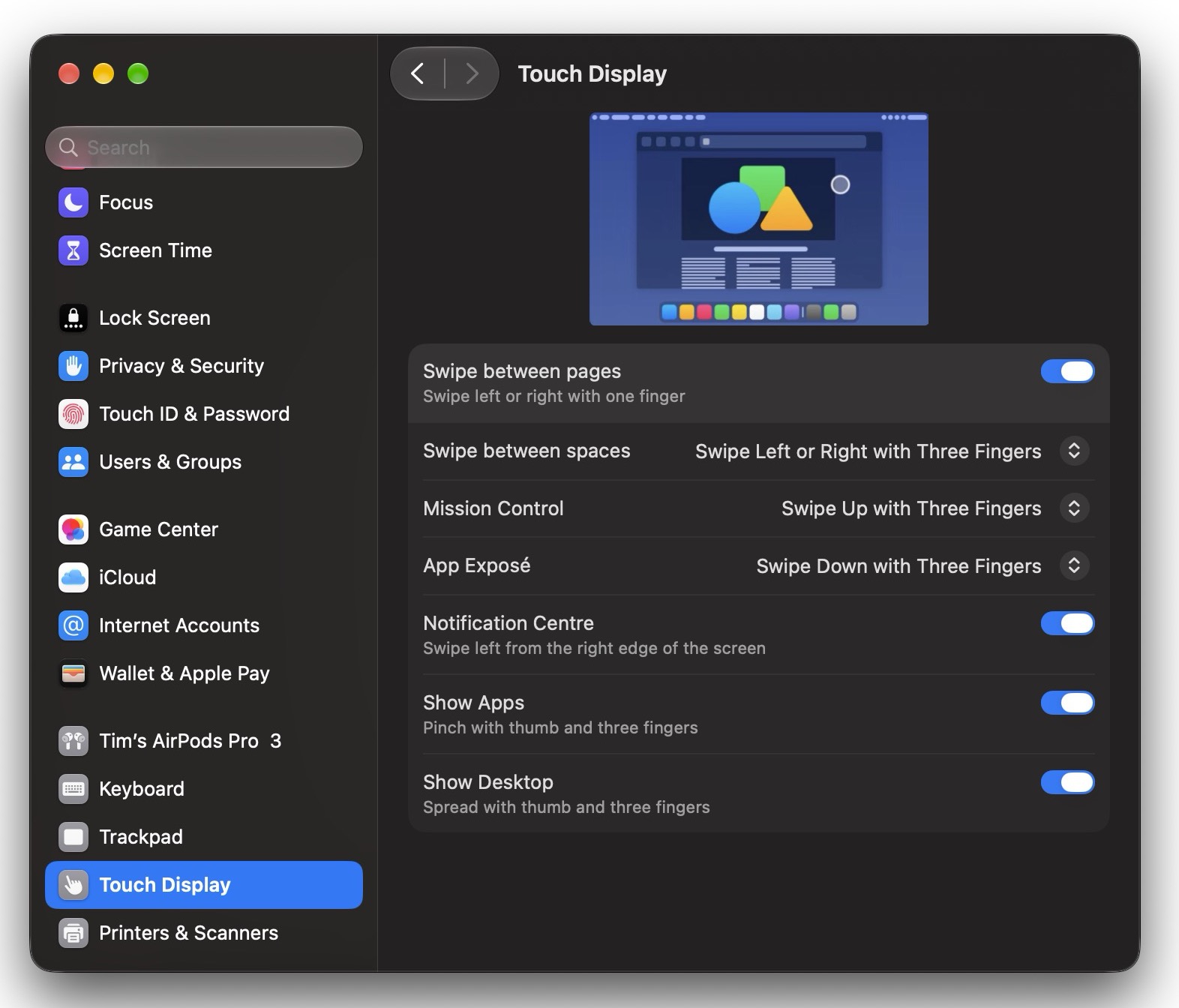
Each of these options includes drop-down menus so you can adjust how gestures are performed to prevent accidental triggers while working.
Exploring Advanced Accessibility Options for Touch Controls
Beyond simply toggling touch capabilities on or off, the Accessibility menu in macOS offers granular controls for users who need refined touch responses. Located within the Accessibility ➝ Touch settings panel alongside the primary ignore toggle are several helpful fine-tuning tools:
- Touch Accommodations: Lets you alter how the touch panel reacts to taps, swipe motions, and hold durations. This is particularly helpful if you find yourself accidentally tapping items or if standard touch responses feel too sensitive.
- AssistiveTouch: Provides customizable, on-screen menu controls for users who require alternative ways to navigate the display without using traditional trackpads or complex hand gestures.
- Accessibility Zoom: Located under Accessibility ➝ Zoom, this option enables high-magnification controls directly through the touch display or connected Sidecar iPad.
Why Developers May Want to Keep Touch Enabled
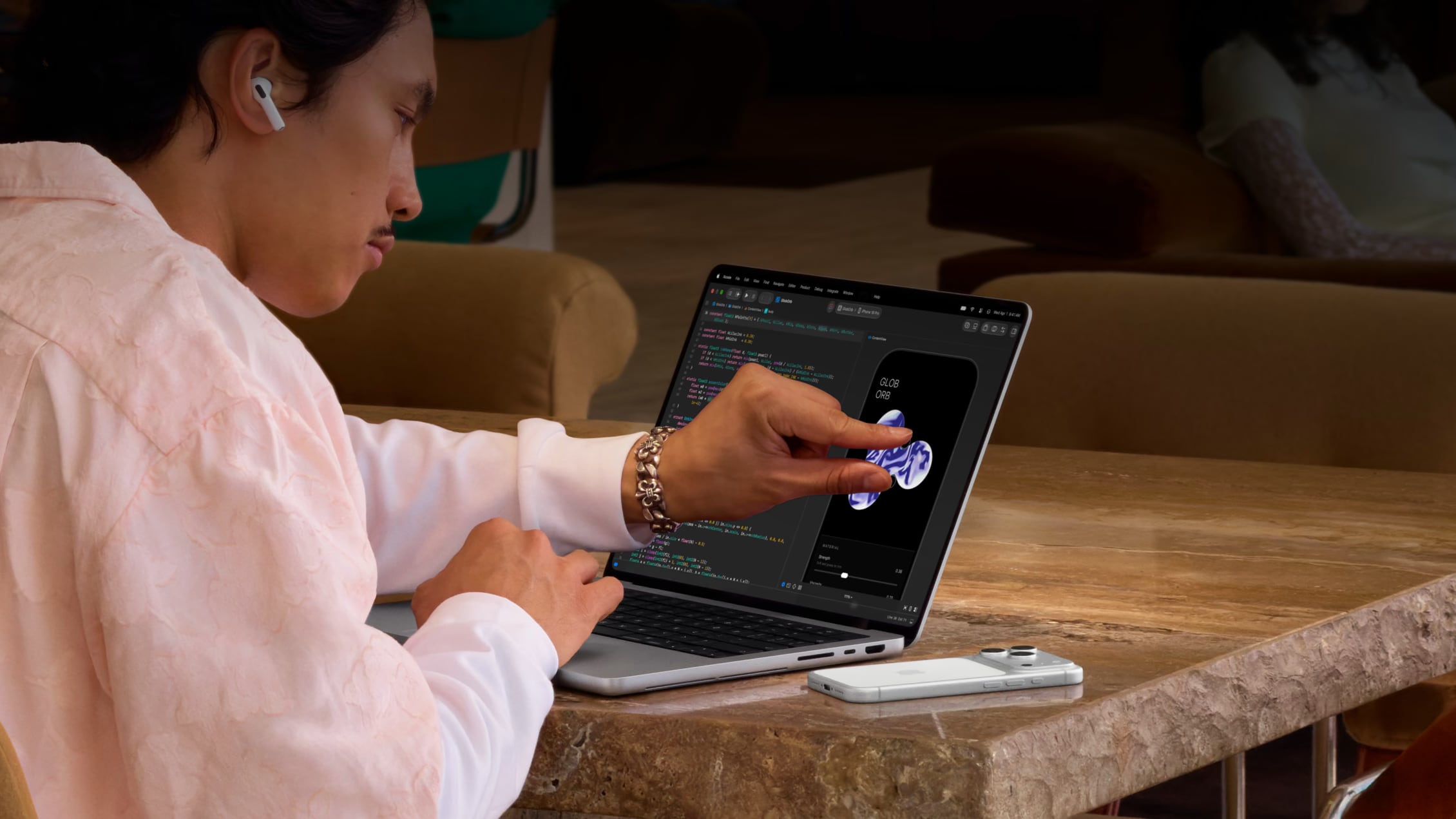
While some Mac owners prefer turning off screen touch, app developers have a compelling reason to leave touch input active. Software developers working in Xcode can leverage the direct touchscreen display to improve their workflow when running the iOS Simulator.
Instead of relying on trackpad clicks and keyboard modifier keys to mimic pinch, swipe, or multi-tap motions, developers can interact directly with simulated iPhone and iPad interfaces directly on the MacBook Pro screen. Testing direct tap targets and real-time physical gestures directly on the display makes mobile software testing noticeably smoother and more accurate.
Whether you choose to embrace direct touch, adjust individual gestures, or completely disable touch on MacBook Pro laptops and Sidecar displays, macOS gives you full control over how you interact with your device.
Related Roundup: MacBook Pro
Tag: Sidecar
Buyer's Guide: MacBook Pro (Buy Now)
Related Forum: MacBook Pro
This article, "Disable Touch on MacBook Pro PROLED XDR and When Using Sidecar" first appeared on MacRumors.com
Discuss this article in our forums
from MacRumors
-via DynaSage

Post a Comment