You Can Easily Install the iOS 27 Beta For Free Right Now, Here's How
Unlock the Future: How to Install the iOS 27 Developer Beta for Free Right Now
For a while, there was a common belief that getting your hands on Apple's latest iOS beta software meant shelling out $99 annually for an Apple Developer Program membership. However, that perception is now outdated. In a move that significantly broadens accessibility, Apple has made it possible for anyone, without any cost, to install the iOS 27 developer beta on their iPhone. This guide will walk you through the surprisingly straightforward process, ensuring you can experience the cutting-edge features of iOS 27 well before its official public release.
This shift began a few years ago, democratizing access to early software builds. Whether you're a seasoned app developer, an aspiring tech enthusiast, or simply curious about the next big thing in mobile operating systems, you're now invited to participate in shaping the future of iOS. The barriers have been removed, making innovation and feedback a community-wide effort.
Even if your plans don't include designing the next hit app for the App Store, and your career path doesn't involve intricate coding, you are still fully capable of installing the iOS 27 developer beta. This means you can be among the first to explore new functionalities, interface tweaks, and performance enhancements that Apple is preparing for its global user base. It’s an exciting opportunity for anyone with an interest in technology.
However, if diving into potentially unstable software gives you pause, there's good news for you too. Apple has confirmed that the first public beta of iOS 27 is slated for release sometime in July. The public beta versions are generally more refined and stable than the initial developer betas, making them a more comfortable entry point for those who prefer a smoother, albeit slightly later, preview of the new operating system. This staggered release allows Apple to gather critical feedback from developers first, addressing major issues before opening it up to a wider audience.
Understanding the Different Beta Types: Developer vs. Public
Before we delve into the installation steps, it's crucial to understand the distinction between a developer beta and a public beta. A "developer beta" is the earliest release of an operating system update. It's primarily intended for app developers to start testing their applications against the new OS, ensuring compatibility and leveraging new APIs (Application Programming Interfaces). These builds are often raw, containing numerous bugs, performance glitches, and sometimes even critical issues that can affect daily usage.
The decision by Apple to make developer betas freely accessible reflects a strategic move. By widening the pool of testers, Apple gathers a broader range of feedback and identifies potential problems much faster. This crowdsourced testing helps refine the software more efficiently, leading to a more robust and polished final release. For you, the user, it means an unprecedented chance to be at the forefront of Apple's innovation cycle, offering your insights and observations directly back to the company.
On the other hand, a "public beta" typically arrives a few weeks after the initial developer beta. By this point, many of the glaring issues found in the developer builds have usually been identified and patched. Public betas are designed for a broader audience of non-developers who are willing to test pre-release software but require a higher level of stability than the earliest developer versions. They still carry risks, but generally fewer than their developer counterparts. The choice between the two depends largely on your comfort level with potential software instabilities and your eagerness to experience the absolute latest features.
Why Install the iOS 27 Developer Beta? The Excitement and the Benefits
So, beyond just being able to, why would someone want to install a developer beta? The primary allure is early access to groundbreaking features. iOS 27 is poised to introduce significant enhancements, and by installing the beta, you get to experience these innovations weeks, if not months, before the general public. This allows you to explore new user interface changes, productivity tools, and entertainment options that define the next generation of Apple's mobile operating system.
One of the most anticipated aspects of iOS 27, as hinted by Apple, is the further integration and evolution of Apple Intelligence, particularly centered around Siri AI. Imagine a smarter, more proactive personal assistant that understands context better, streamlines your tasks, and provides insights that are truly personalized. By running the beta, you'll be among the first to interact with these advanced capabilities, witnessing firsthand how artificial intelligence is being woven more deeply into the fabric of your daily iPhone usage.
For tech enthusiasts, the developer beta is also an opportunity to satisfy curiosity and stay ahead of the curve. It's a chance to dive into the intricate details of a new OS, to see how existing apps behave, and to anticipate future trends in mobile technology. It’s an engaging way to deepen your understanding of the Apple ecosystem and contribute to its evolution by providing feedback on what works well and what needs improvement.
Warning: Proceed with Caution - The Nature of Beta Software
While the prospect of early access to iOS 27 is exciting, it's paramount to approach beta software with a clear understanding of its inherent risks. Beta versions, especially the initial developer releases, are incomplete and experimental. They are not intended for mission-critical devices and should not be treated as final, stable software. Ignoring these warnings can lead to frustrating experiences and potentially even data loss.
Here’s a breakdown of the key issues you might encounter:
- Bugs and Glitches: Expect unexpected behavior. Apps might crash frequently, certain features might not work as intended, or the user interface might exhibit visual anomalies. You might find yourself unable to complete simple tasks or navigate your device smoothly.
- Performance Issues: Your iPhone might feel slower, apps might take longer to load, and animations could be choppy. Battery life is also a common casualty in early betas, as optimizations are still ongoing. Your device might also run warmer than usual due due to unoptimized processes.
- App Compatibility: This is a major concern. Many third-party apps, especially those not yet updated by their developers to support iOS 27, may not function correctly or might crash upon launch. If you rely on specific apps for work, communication, or daily routines (e.g., banking apps, messaging apps, health trackers), they might become unusable.
- CarPlay Issues: If you regularly use CarPlay in your vehicle, be aware that the beta software can introduce instability. You might experience disconnections, audio playback problems, or general unresponsiveness, which can be particularly inconvenient and distracting while driving.
- Potential for Data Loss: Although rare with proper precautions, installing beta software always carries a slight risk of data corruption or loss during the installation process or subsequent usage. This underscores the absolute necessity of backing up your device.
Crucial Recommendations Before Installation:
- Backup Your iPhone Religiously: Before you even think about installing the beta, perform a complete backup of your iPhone. This is your safety net. You can do this via iCloud (Settings > Your Name > iCloud > iCloud Backup > Back Up Now) or by connecting your iPhone to a Mac (using Finder) or a Windows PC (using iTunes) and creating an encrypted local backup. An encrypted backup is crucial as it saves your passwords, Wi-Fi settings, and Health data. Without a backup, reverting to a stable iOS version usually means losing all your data.
- Consider a Secondary iPhone: The absolute best practice for beta testing is to use a secondary iPhone that you don't rely on for daily tasks. This way, if the beta introduces significant problems, your primary device remains unaffected and fully functional. If you only have one iPhone, make sure your backup strategy is robust and you are prepared for potential disruptions to your daily routine.
How to Install the iOS 27 Developer Beta: A Step-by-Step Guide
If you've weighed the pros and cons and are ready to proceed, the process for installing the iOS 27 developer beta is surprisingly simple. Just remember the warnings about backing up your device.
Pre-Installation Checklist:
- Backup Your iPhone: As emphasized, ensure you have a recent, complete, and preferably encrypted backup.
- Adequate Storage Space: Beta updates can be large, often several gigabytes. Make sure your iPhone has enough free storage for the download and installation.
- Sufficient Battery Life: Ensure your iPhone is at least 50% charged, or better yet, connected to a power source throughout the process to prevent interruptions.
- Stable Wi-Fi Connection: A reliable internet connection is vital for downloading the large beta file without interruptions or data charges.
Detailed Steps for Developer Beta Installation:
- Become a Free Registered Apple Developer:
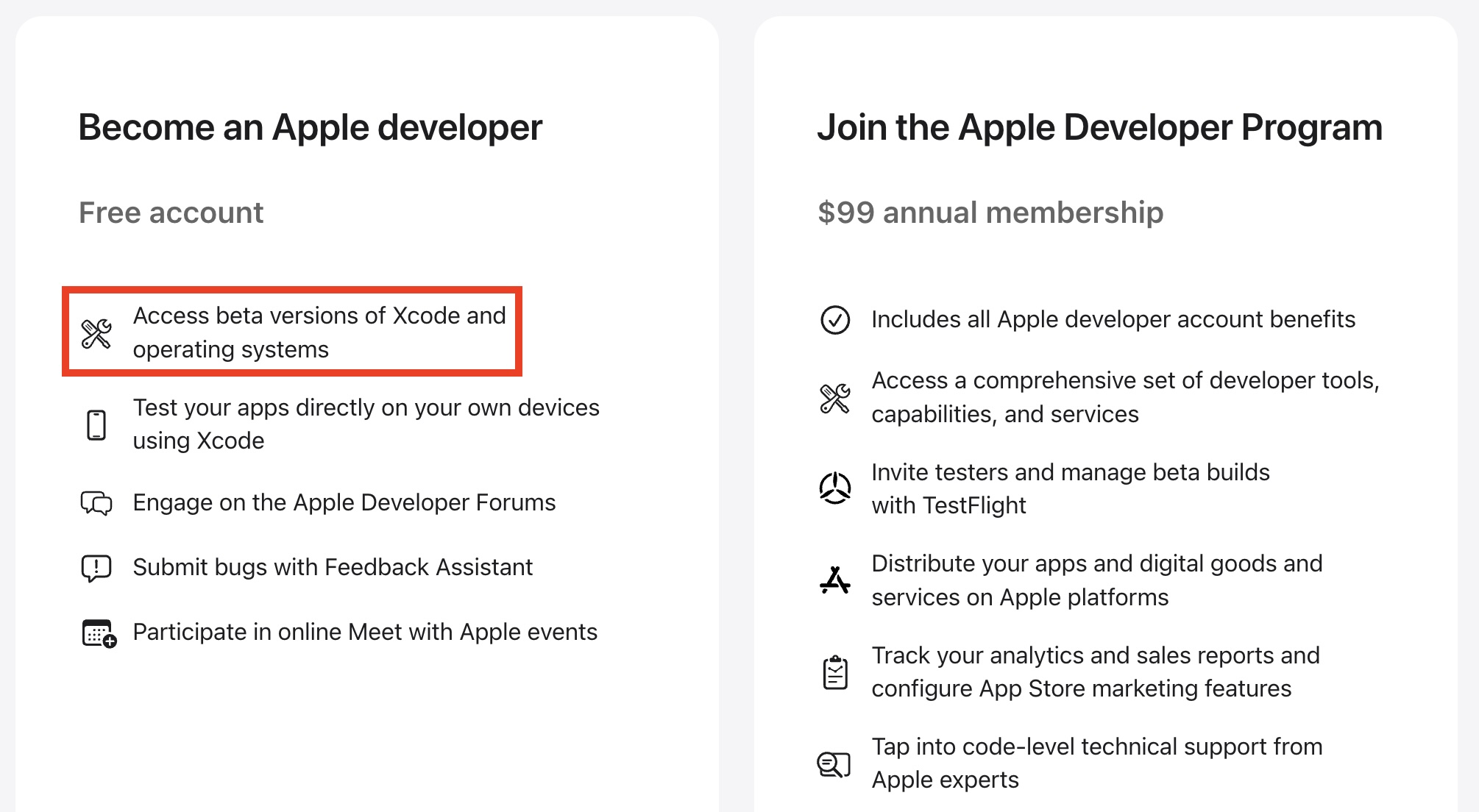
This is the first and most important step. You do NOT need to pay for the Apple Developer Program. Simply visit the official Apple Developer registration page. Click here to sign into your Apple Account. Once there, you'll be prompted to sign in with your existing Apple ID (the same one you use for App Store, iCloud, etc.). After signing in, you will need to review and accept the Apple Developer Agreement. This agreement outlines the terms and conditions for accessing developer resources, including beta software. There are no fees associated with this registration; it simply grants you access to the developer portal and beta profiles.
Once you accept the agreement, you've successfully registered as a free Apple Developer. There's no further action needed on the website beyond this, and you won't receive a developer membership fee bill.
- Open the Settings App and Navigate to Beta Updates:
On your iPhone, unlock your device and open the Settings app (the gear icon). Scroll down and tap on General. Within the General settings, you'll find Software Update. Tap on this. On the Software Update screen, you should now see a new option labeled Beta Updates. Tap on it.
- Select the iOS 27 Developer Beta Option:
Inside the Beta Updates menu, you will be presented with a choice. Select the iOS 27 Developer Beta option. If you don't immediately see this option, don't panic. Sometimes, your iPhone needs a moment to register your newly acquired free developer status. A simple restart of your iPhone often resolves this. After restarting, repeat step 2, and the iOS 27 Developer Beta option should appear.
Once selected, your iPhone will check for the update, begin downloading the beta software, and then prompt you to install it. Follow the on-screen instructions carefully, which will include agreeing to terms and conditions, and then the installation process will begin. Your iPhone will restart multiple times during the installation. Be patient, as this process can take a significant amount of time, depending on your internet speed and device model.
How to Install the iOS 27 Public Beta (When Available in July)
For those who prefer a slightly more stable testing environment or missed the initial developer beta window, the iOS 27 public beta will be your gateway to the new OS. Apple plans to release the first public beta sometime in July. The steps are very similar to the developer beta, but with a different registration process.
Pre-Installation Checklist:
The same essential precautions apply:
- Backup Your iPhone: Always, always backup.
- Adequate Storage Space: Ensure sufficient free space.
- Sufficient Battery Life: Charge your iPhone or keep it plugged in.
- Stable Wi-Fi Connection: For a smooth download.
Detailed Steps for Public Beta Installation (in July):
- Sign Up for the Apple Beta Software Program:
Instead of the developer portal, you will need to enroll in Apple's public beta program. Visit beta.apple.com from your iPhone or computer. Sign in with your Apple ID and follow the enrollment instructions. This process is straightforward and free, designed to allow general users to participate in testing. You'll typically be asked to register your device to receive beta updates.
- Open the Settings App and Navigate to Beta Updates:
Once you've successfully enrolled your device in the public beta program, open the Settings app on your iPhone. Tap on General, then select Software Update. Just like with the developer beta, you will then see the Beta Updates option. Tap on it.
- Select the iOS 27 Public Beta Option:
In the Beta Updates menu, you will now see and be able to select the iOS 27 Public Beta option. If it doesn't appear immediately after enrollment, restart your iPhone and check again. After selection, your iPhone will proceed to download and install the public beta, following the familiar on-screen prompts. The installation process is identical to the developer beta, involving multiple restarts.
iOS 27 Compatibility and Exciting New Features
As with every major iOS update, there are always questions about device compatibility. For iOS 27, Apple has confirmed that the operating system will be compatible with the iPhone 11 and newer models. This means if you own an iPhone 11, iPhone 12, iPhone 13, iPhone 14, or any model within the iPhone 15 series (including Pro, Mini, Plus, and Pro Max variants), your device will be able to run iOS 27. Older models, unfortunately, will no longer receive the update, primarily due to hardware limitations that prevent them from fully supporting the new features and performance demands of the latest OS.
Spotlight on Apple Intelligence and Siri AI:
While iOS 27 brings a host of general improvements, a standout feature, particularly for those with newer hardware, is the significant advancement in Apple Intelligence, spearheaded by a revamped Siri AI. This next-generation AI promises a more intuitive, powerful, and deeply integrated experience across your device. Expect Siri to understand context better, perform more complex multi-step commands, and assist you in ways that feel genuinely personalized and proactive.
Hardware Requirements for Siri AI:
It's important to note a key limitation: many of the most advanced Apple Intelligence features, including the full capabilities of the new Siri AI, will be exclusive to the iPhone 15 Pro and newer models. This is because these features leverage the sophisticated neural engine and advanced processing power found only in Apple's latest flagship A-series chips. If you have an iPhone 11, 12, 13, or 14 series device, you'll still get iOS 27, but might not experience the full breadth of the AI-driven enhancements.
Joining the Siri AI Waitlist:
Apple has indicated that the revamped version of Siri will have a waitlist. This controlled rollout strategy is likely implemented to manage server load, gather targeted feedback, and ensure a smooth user experience as these advanced AI capabilities are deployed. To join this waitlist, you'll need to have iOS 27 installed on a compatible device (iPhone 15 Pro or newer). Once updated, open the Settings app, scroll down and tap on Siri, and you should find an option to join the waitlist there.
Patience will be key after joining the waitlist. Access to the full Siri AI and its dedicated app might not be immediate. Apple advises that it can take anywhere from a few hours to many days to receive access. This staggered approach ensures that the infrastructure can handle the demand and that initial bugs are ironed out before a widespread rollout.
Managing Your Beta Experience and Providing Feedback
Once you've installed the iOS 27 beta, your journey with pre-release software doesn't end. In fact, it's just beginning. As a beta tester, you play an important role in helping Apple refine the operating system. Here’s how you can manage your beta experience:
Reporting Bugs with Feedback Assistant:
Apple provides a dedicated app called Feedback Assistant, which is automatically installed on your iPhone when you run beta software. This app is your direct line to Apple's engineering teams. If you encounter a bug, a performance issue, or have a suggestion for an improvement, use Feedback Assistant to report it. Be as detailed as possible, including screenshots or screen recordings if applicable, as this helps Apple diagnose and fix problems more efficiently. This is the core of beta testing – your feedback directly contributes to the quality of the final release.
Staying Updated with New Beta Builds:
Apple will periodically release new beta builds (e.g., Developer Beta 2, Public Beta 2, etc.) that include bug fixes, performance improvements, and sometimes new features. Your iPhone will automatically notify you of these updates, or you can manually check by going to Settings > General > Software Update. It's generally a good idea to install these updates as they become available, as they usually address critical issues found in previous builds.
Leaving the Beta Program:
If at any point you decide the beta experience isn't for you, or you need to revert to a stable version of iOS, you can leave the beta program. This usually involves removing the beta profile from your device (found in Settings > General > VPN & Device Management > Beta Software Profile, then tapping "Remove Profile"). Once removed, your device will no longer receive beta updates. To go back to a stable, publicly released version of iOS, you typically need to connect your iPhone to a computer and restore it using Finder or iTunes. Be aware that restoring will erase your device, so a complete backup (preferably one made while still on the stable OS) is absolutely essential if you want to restore your data.
Conclusion: Embrace the Future, But Be Prepared
The ability for anyone to install the iOS 27 developer beta for free marks a significant evolution in how Apple engages with its user base. It's an exciting time to be an iPhone user, offering an unprecedented opportunity to preview and contribute to the development of the next generation of iOS. From the foundational improvements to the revolutionary Apple Intelligence features and the smarter Siri AI, there's a lot to explore.
However, this access comes with a responsibility to understand and mitigate the risks associated with beta software. Always prioritize backing up your iPhone, and if possible, use a secondary device for testing. If the potential for bugs and instability gives you pause, patiently waiting for the iOS 27 public beta in July remains a perfectly valid and often more comfortable option.
Whether you choose to dive into the developer beta now or opt for the public beta later, you're taking a step into the future of mobile computing. Enjoy the journey, provide your valuable feedback, and help Apple shape an even better iOS for everyone.
This article, "You Can Easily Install the iOS 27 Beta For Free Right Now, Here's How" first appeared on MacRumors.com
Discuss this article in our forums
from MacRumors
-via DynaSage

Post a Comment