Satechi CubeDock Review: A Thunderbolt 5 Dock That Doubles as an SSD Enclosure
Satechi CubeDock Review: Your Ultimate Thunderbolt 5 Hub with Built-in Storage
In the world of technology, having a powerful and versatile hub is essential, especially for those working with high-performance computers like Apple's Mac lineup. Satechi, a well-known maker of tech accessories, recently introduced its first Thunderbolt 5 dock, called the $400 Thunderbolt 5 CubeDock. This innovative dock stands out by offering not only the latest Thunderbolt 5 connectivity but also all the essential ports you'd expect from a premium dock, plus a unique bonus: an integrated enclosure for an SSD, allowing you to easily add extra storage to your setup.
The CubeDock is designed to streamline your workspace, providing a single point of connection for all your devices, displays, and peripherals. It's especially appealing for users who need to expand their Mac's capabilities, whether for professional video editing, graphic design, or simply creating a tidier, more efficient desk setup. Let's dive deeper into what makes this dock a compelling choice for modern Mac users.
Design That Blends In: The Mac Mini Aesthetic
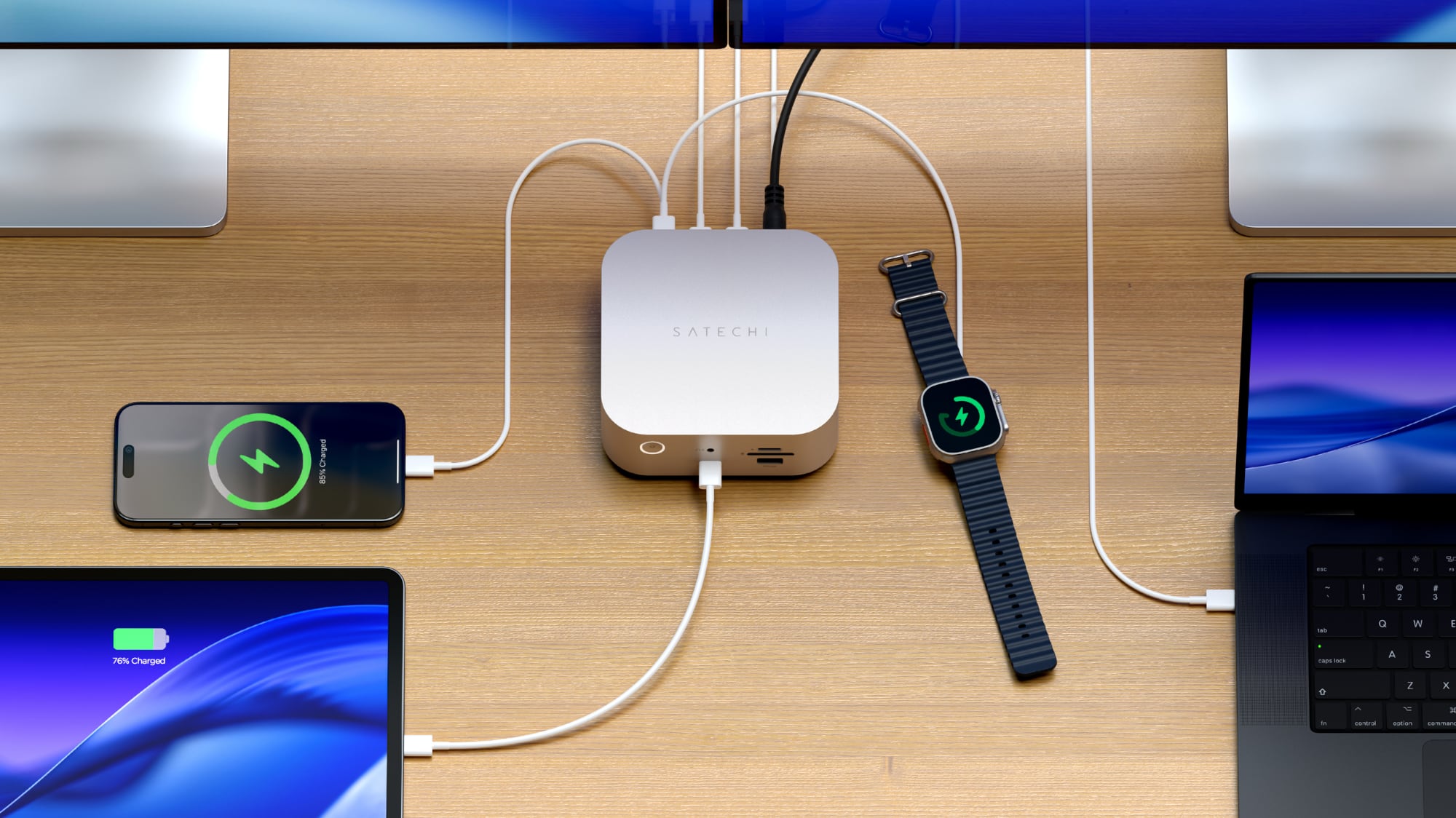
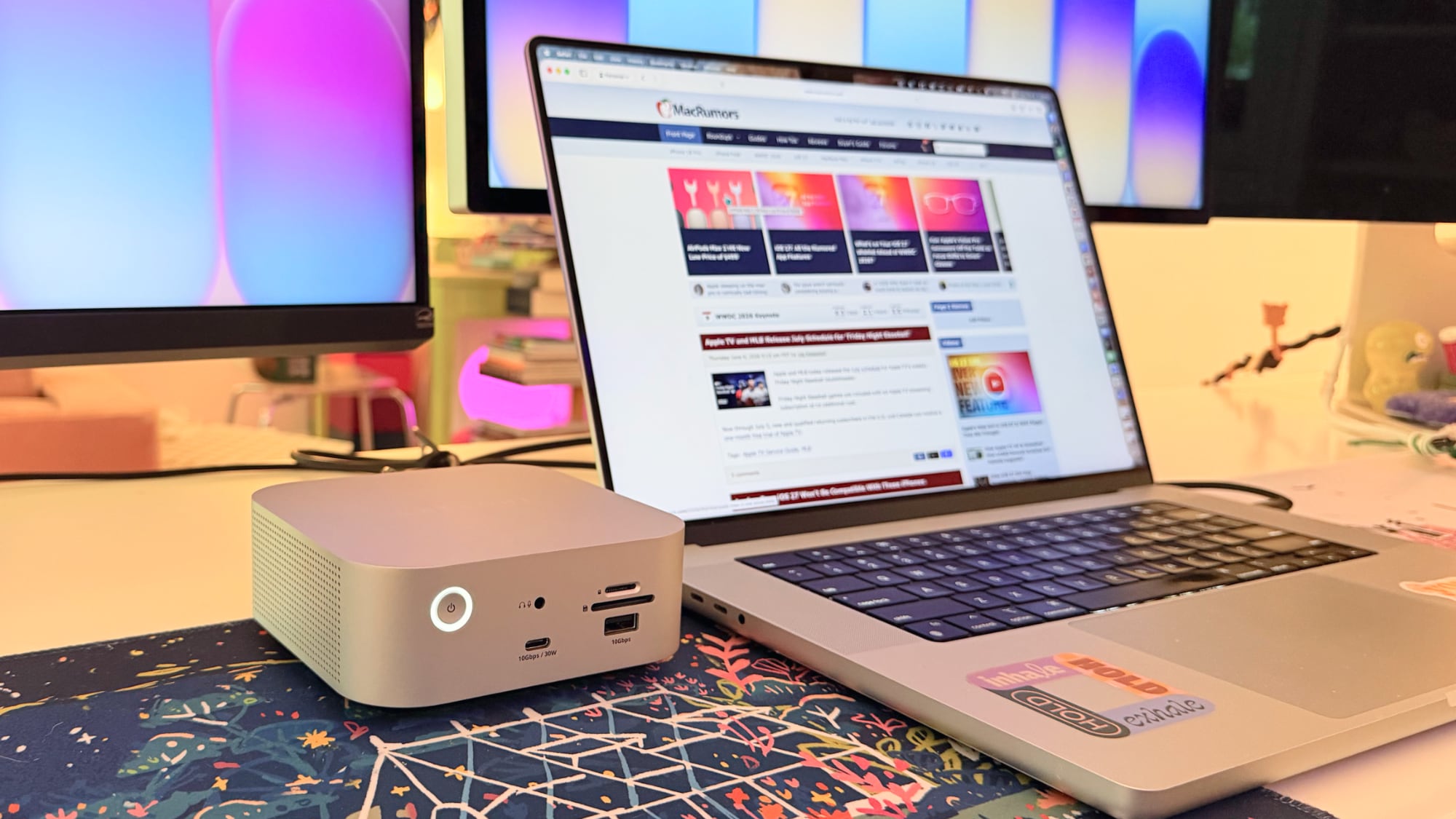
Satechi has a reputation for crafting accessories that complement Apple's minimalist design philosophy, and the CubeDock is no exception. Its design takes clear inspiration from the iconic Mac mini, giving it a familiar and appealing look. Measuring five inches by five inches, and two inches thick, the CubeDock matches the exact footprint of the Mac mini. This thoughtful sizing means it can sit perfectly beneath or beside a Mac mini, creating a cohesive and space-saving setup.
The dock features a sleek silver finish, which seamlessly matches other silver-toned Apple hardware. This attention to aesthetic detail ensures that the CubeDock doesn't just function well but also looks great on your desk, integrating smoothly into any Apple-centric workspace. Its compact, cube-like form factor not only saves valuable desk space but also makes cable management easier, as you can often tuck it away discreetly, routing cables out of sight.
Front Ports: Convenience at Your Fingertips
One of the CubeDock's strengths is its intelligent port layout, placing frequently accessed connections right on the front for maximum convenience. This thoughtful design saves you from fumbling around the back of your desk to plug in temporary devices.
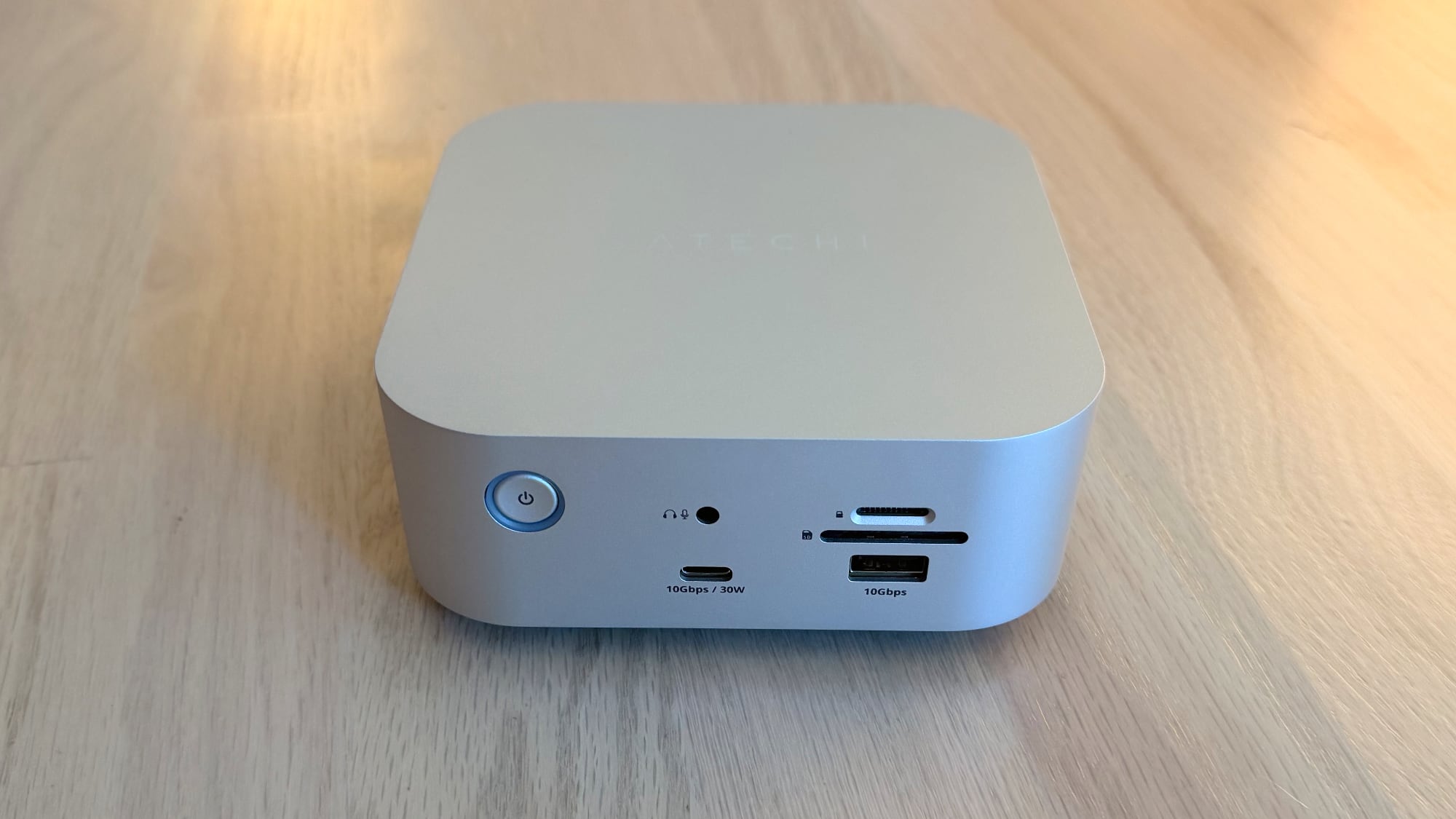
- USB-C Port (30W/10Gbps): This powerful front-facing USB-C port is incredibly useful. It offers 30 watts (W) of power delivery, which is enough to fast charge an iPhone, quickly power up an iPad, or even provide charging for a MacBook Air. Beyond charging, it supports data transfer speeds of up to 10 Gigabits per second (Gbps), making it ideal for connecting fast external drives, flash drives, or other high-speed peripherals.
- USB-A Port (7.5W/10Gbps): For those who still use traditional USB-A accessories, this port offers 7.5W of power and 10Gbps data transfer. It's perfect for connecting older external hard drives, keyboards, mice, or other legacy devices, ensuring compatibility with your existing gear.
- 3.5mm Audio Jack: While many users have switched to wireless headphones, a dedicated front-facing audio jack is a welcome addition for anyone who prefers wired headphones, speakers, or needs to connect a microphone. It provides easy access for quick audio connections without reaching around your computer.
- SD and microSD Card Slots: These slots are a godsend for photographers, videographers, and anyone who regularly transfers files from cameras, drones, or other devices. The front placement means you can effortlessly insert and remove memory cards, speeding up your workflow considerably. No more searching for a dongle or reaching around to the back of your computer.
The combination of these easily accessible front ports truly enhances the day-to-day usability of the CubeDock, making it a central hub for all your immediate connectivity needs.
Rear Ports: Powering Your Workspace
While the front of the CubeDock is designed for quick access, the rear panel houses the more permanent connections, allowing you to keep your desk tidy by routing cables out of sight. These ports are crucial for building a powerful and comprehensive workstation.
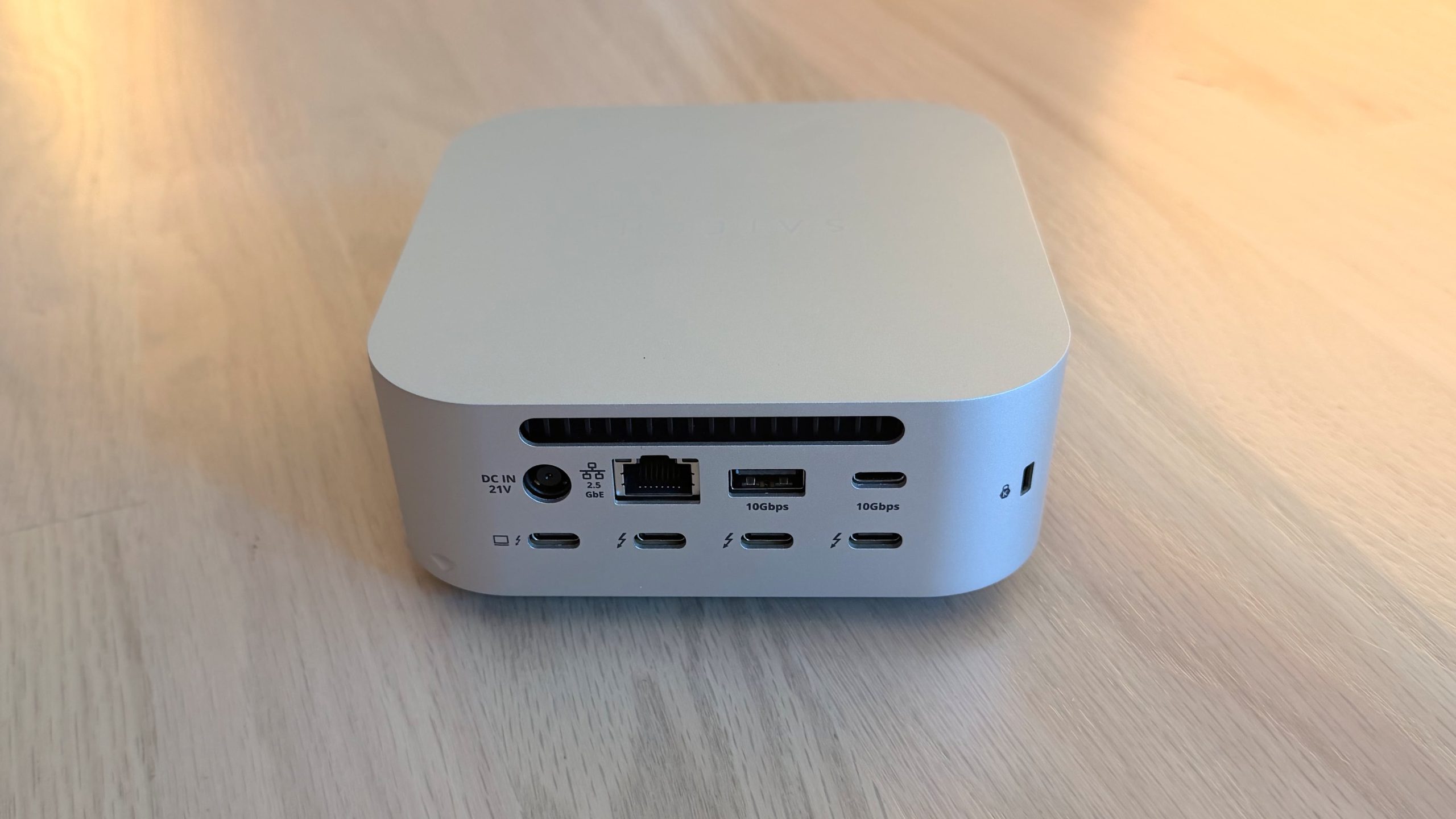
- 2.5Gb Ethernet Port: For users who demand fast, stable, and reliable internet connections, the 2.5 Gigabit Ethernet port is a significant upgrade over standard Gigabit Ethernet. This means faster downloads, smoother streaming, and more responsive online gaming or large file transfers, especially in environments where Wi-Fi might be inconsistent.
- Thunderbolt 5 Host Port (80/120Gbps): This is the heart of the dock, the port that connects directly to your Mac. Utilizing the groundbreaking Thunderbolt 5 standard, it offers an incredible 80 Gigabits per second (Gbps) of bandwidth for data and display, with the ability to dynamically boost display bandwidth up to 120Gbps for display-heavy tasks. This single cable connection handles all data, video, and power between your Mac and the dock.
- Three Additional Thunderbolt 5 Ports (80Gbps, 15W each): These three extra Thunderbolt 5 ports are a standout feature. Each port provides a full 80Gbps of bandwidth and 15W of power for connected accessories. This allows you to daisy-chain multiple Thunderbolt devices, connect high-resolution external monitors, link up external GPU enclosures, or plug in other demanding peripherals without sacrificing speed or performance. The 15W power delivery ensures that many bus-powered accessories can operate without needing their own power adapter.
- USB-A Port (10Gbps 4.5W): Another USB-A port is located at the back, offering 10Gbps data transfer speeds and 4.5W of power. This is useful for connecting more permanent USB-A peripherals like external hard drives, printers, or scanners that don't require high power.
- USB-C Port (10Gbps 7.5W): Similarly, an additional USB-C port at the back provides 10Gbps data and 7.5W power, ideal for connecting various USB-C peripherals like webcams, microphones, or external storage drives.
- DC Port for Power Supply: This port is where you connect the included external 180W power supply. This robust power supply is critical for delivering up to 140W of power directly to your connected MacBook. This high power output means the CubeDock can charge even the most demanding laptops, like the 16-inch MacBook Pro, at its fastest possible speed, ensuring your laptop stays powered even under heavy workloads.
The comprehensive array of rear ports makes the CubeDock a powerful command center for any workstation, effortlessly managing a multitude of connections with exceptional speed and efficiency.
Built-in Storage: The SSD Enclosure Feature
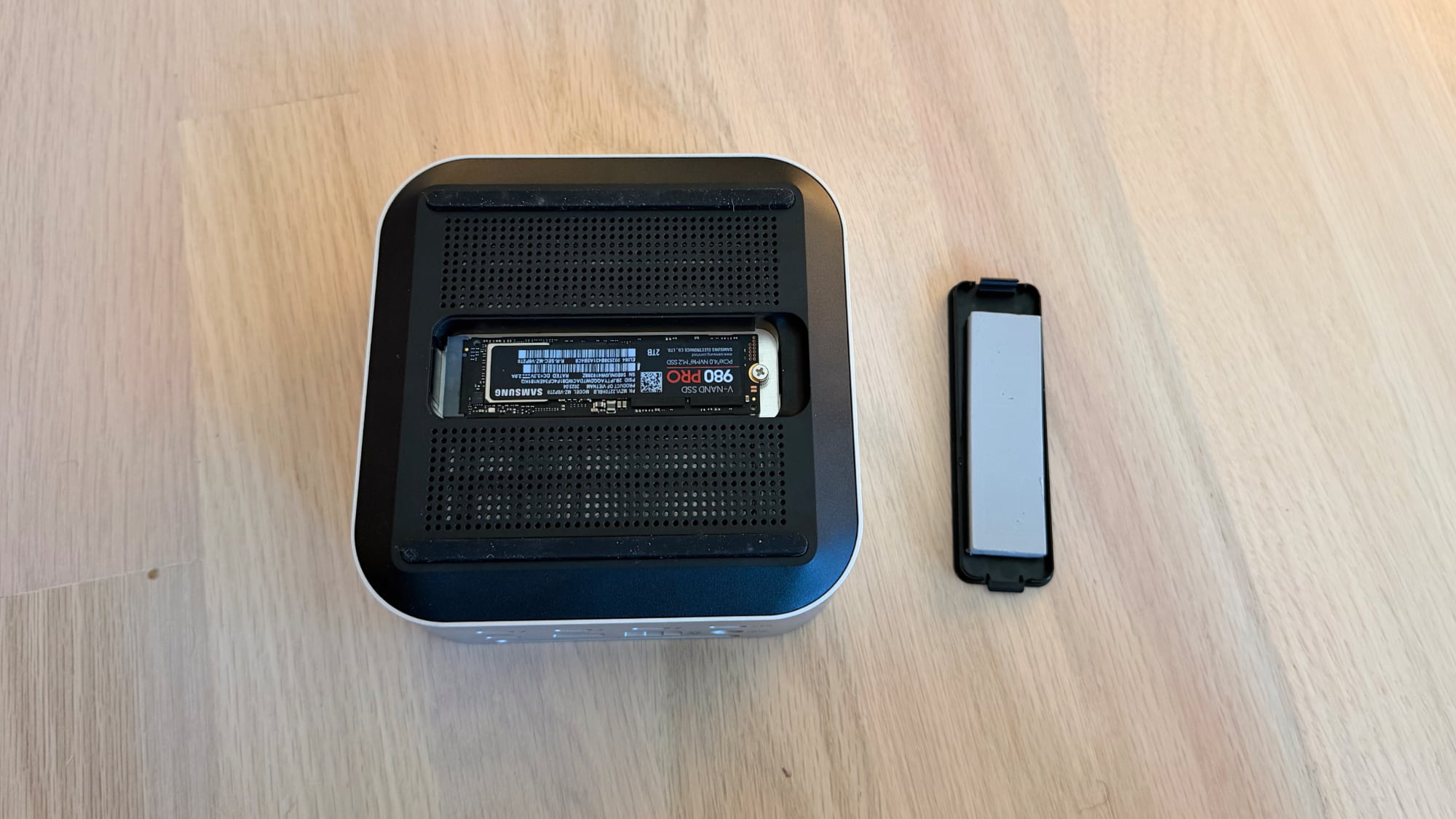
What truly sets the Satechi CubeDock apart from many other Thunderbolt docks is its integrated SSD enclosure. At the bottom of the CubeDock, there’s a cleverly designed panel that can be easily opened to install an NVMe SSD. This feature allows you to expand your storage by adding up to an 8 terabyte (TB) NVMe SSD directly into the dock itself.
The enclosure is versatile, supporting common NVMe SSD sizes including 2230, 2242, 2260, and 2280. When paired with a compatible high-speed NVMe SSD, you can achieve impressive data transfer speeds of up to 6000 megabytes per second (MB/s). This speed is more than enough for quickly transferring large files, running demanding applications, or even storing and editing high-resolution video directly from the dock. It essentially turns your dock into a high-speed external drive, but without the clutter of another separate device on your desk.
It’s important to note that while the CubeDock includes the SSD enclosure, it does not come with an SSD pre-installed. You will need to purchase an internal NVMe SSD separately if you wish to utilize this feature. Considering the current market prices for SSDs, this can be an additional investment, but the convenience and integration of having storage built directly into your dock can be well worth it.
Easy Installation, With a Small Nudge
Installing an SSD in the CubeDock is a straightforward process, though it requires a small amount of attention to detail. After removing a plastic cover at the bottom, the SSD plugs into a slot. It's secured with a screw, which you'll need to position correctly before fully inserting the SSD. Satechi thoughtfully includes a thermal pad, which should be placed over the SSD before you close the cover. This pad helps dissipate heat, ensuring the SSD performs optimally and maintains its longevity. Once installed, your Mac will recognize the SSD within the CubeDock just like any other external drive, ready for use.
Performance and User Experience
Beyond its impressive connectivity and storage features, the overall user experience of the CubeDock is shaped by factors like its cooling system, power, and any operational sounds.
Cooling System and Fan Noise
To manage the heat generated by high-speed Thunderbolt 5 components and potentially an internal SSD, the CubeDock features an internal fan system along with ventilation holes on its sides. This active cooling helps keep the device's temperature in check during intensive use. However, some users, including myself, might notice a subtle electronic whine from the fan. This high-pitched noise, while low in volume, can be distracting in a very quiet room, akin to a minor annoyance like a pebble in your shoe. It's a sound that some people are more sensitive to than others.
Fortunately, the fan noise tends to blend into the background when there's other ambient sound, such as music playing, a TV on, or air conditioning running. It's a common trade-off for performance; docks without fans, like the CalDigit TS5 Plus, are silent but might run hotter. Similarly, the Anker Thunderbolt 5 Dock also includes fans and has been noted to produce a similar subtle hum.
Temperature Management
Thanks to its active cooling system, the CubeDock manages its temperature effectively. It doesn't get excessively hot; rather, it remains warm to the touch, similar to a hand warmer on a cool day, rather than scorching. This consistent temperature was observed both with and without an SSD installed, indicating that the cooling system is robust enough to handle the additional heat from internal storage.
Power Supply and Setup
The CubeDock is powered by an included 180W external power brick, which is quite standard for high-performance docks. This external power supply is essential for delivering the considerable power needed for the dock's many ports and for charging a connected MacBook at high speeds. Satechi also includes a high-quality Thunderbolt 5 cable, ensuring you have everything you need to connect the dock to your Mac right out of the box.
Display Support: Visual Fidelity for Every Setup
One of the most powerful features of a Thunderbolt dock is its ability to drive multiple high-resolution displays, and the Satechi CubeDock excels in this area. It supports up to three 8K displays running at a smooth 60Hz refresh rate. However, Satechi specifies that 8K display support is currently limited to Windows machines, likely due to specific driver or hardware optimizations on the Windows side that are not yet fully enabled or common on Macs.
Real-World Mac Display Performance
For Mac users, the CubeDock still offers exceptional display capabilities. In testing, the dock flawlessly handled a 5K Studio Display and a 32-inch 4K 120Hz OLED display simultaneously. This demonstrates its robust performance for demanding visual setups, providing crisp images and smooth motion for both creative professionals and everyday users.
The exact number of external displays the CubeDock can drive over a single Thunderbolt connection depends on the Apple silicon chip in your Mac:
- M5 Pro and M5 Max Macs: These powerful chips can drive up to three external displays at resolutions up to 6K/60Hz when connected to the Satechi CubeDock. This makes them ideal for professional multi-monitor setups.
- M4 Max, M4 Pro, and Earlier Pro/Max Chips (M1 Pro/Max, M2 Pro/Max): Macs equipped with these chips support up to two external displays with the CubeDock, also at resolutions up to 6K/60Hz. While these chips can often support more than two external displays directly, doing so typically requires using more than one Thunderbolt port on the Mac itself. For example, if you have an M1 Max Mac, you could connect two displays through the CubeDock and a third display directly to another Thunderbolt port on your Mac.
- Base M4 and M5 Macs: These newer base-model Macs have improved display support and can drive two external displays through the CubeDock.
- Base M1 and M2 Macs: These earlier base-model Macs typically support only a single external display over Thunderbolt.
- M3 Macs: The M3 chip has specific nuances. For instance, an M3 MacBook Air can support two displays, but often only when the laptop is in "clamshell mode" (closed with an external display, keyboard, and mouse).
Given these variations, it's always recommended to check Satechi's official website for the most up-to-date and specific compatibility information for your particular Mac model and display setup. This ensures you can connect exactly what you need without any surprises.
Real-World Usage: Streamlining Your Workflow
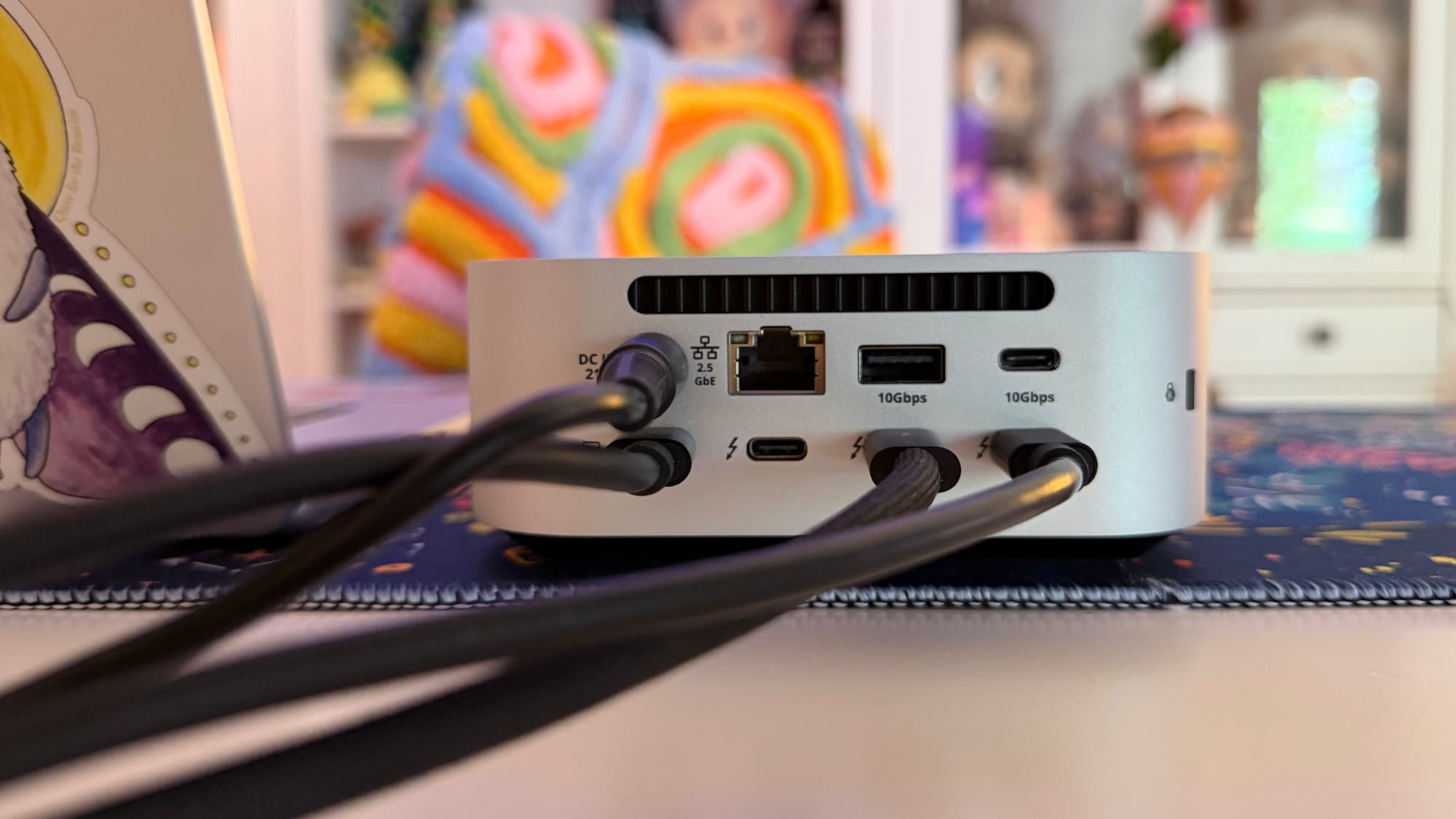
The primary benefit of a high-quality dock like the Satechi CubeDock is its ability to transform your workspace into a more organized and efficient environment. With just a single Thunderbolt cable connected to your Mac, you can instantly access multiple displays, various peripherals, and all your essential accessories.
In extensive testing, the CubeDock performed flawlessly under various loads. It effortlessly handled simultaneous tasks such as charging two iPhones, reading an SD card, connecting two external SSDs, and transferring large files. Daily use also revealed no hiccups; everything worked seamlessly, providing a smooth and reliable experience.
The CubeDock empowers you to tuck away the dock itself (perhaps under a display, thanks to its Mac mini-like dimensions) and route all the connected cables neatly out the back. This significantly reduces cable clutter on your desk, creating a cleaner, more professional, and less distracting workspace. For most users, the CubeDock offers a very good number of ports for everyday use, ensuring that you likely won't be missing any essential connections. While it may offer fewer USB-C and USB-A ports than some competing docks, the overall selection is well-balanced for the majority of modern workflows. For those with fewer legacy USB-A devices, even two USB-A ports might feel like more than enough, further simplifying the setup.
The Thunderbolt 5 Advantage: Why Upgrade?
With new Macs increasingly featuring Thunderbolt 5, there's a strong case for choosing a Thunderbolt 5 dock over an older Thunderbolt 4 model. The key advantage lies in its significantly increased bandwidth. Thunderbolt 5 offers double the bandwidth of Thunderbolt 4, boasting 80 Gigabits per second (Gbps) compared to Thunderbolt 4's 40Gbps. For setups that rely heavily on multiple high-resolution displays, Thunderbolt 5 can even dynamically provide up to 120Gbps of bandwidth, ensuring ultra-smooth performance and incredible visual clarity without compromise.
If you own a newer Mac that already supports Thunderbolt 5, then investing in a Thunderbolt 5 dock like the CubeDock is the most logical choice. It allows you to harness the full potential of your Mac's advanced connectivity, future-proofing your setup for years to come.
Even if you currently have an older Mac that might not yet have Thunderbolt 5, but you anticipate upgrading within the next few years, opting for a Thunderbolt 5 dock now can be a smart decision. It ensures that your dock will be fully compatible and ready to deliver peak performance with your next-generation Mac, making it a valuable long-term investment for your digital workflow.
Bottom Line
Satechi's Thunderbolt 5 CubeDock is a highly capable and well-designed peripheral that streamlines your workspace and dramatically expands your Mac's connectivity. With its easy plug-and-play functionality, you can connect multiple displays, various peripherals, and essential accessories to your Mac using just one cable, reducing clutter and simplifying your setup.
A standout feature is the integrated SSD enclosure, which sets the CubeDock apart from many competitors. This allows you to add fast, convenient storage directly into your dock, further enhancing its utility. The dock’s thoughtful port layout, with frequently used connections placed at the front, significantly improves daily convenience, while less-used ports are neatly tucked away at the back for better desk organization.
From an aesthetic perspective, the CubeDock is one of the more attractive options on the market, thanks to its design that perfectly complements Apple's hardware. Its active cooling system ensures it doesn't run excessively hot, a common issue with some fanless docks. However, it's worth noting that the subtle fan noise might be a minor distraction for users who are particularly sensitive to high-pitched electronic sounds in quiet environments.
With the increasing availability of Macs supporting Thunderbolt 5, there’s a compelling reason to choose this advanced standard over older Thunderbolt 4 docks. Thunderbolt 5’s double bandwidth (80Gbps, with up to 120Gbps for display-heavy tasks) means superior performance for demanding setups.
Ultimately, if you have a modern Mac equipped with Thunderbolt 5 and are looking for extensive connectivity, fast charging, and the added benefit of integrated high-speed storage, the Satechi Thunderbolt 5 CubeDock offers a powerful and elegant solution.
How to Buy
The Satechi Thunderbolt 5 CubeDock with SSD Enclosure is available for purchase for $399.99. You can buy it directly from the Satechi website or conveniently from Amazon.com.
Note: Satechi provided MacRumors with a CubeDock for the purpose of this review. No other compensation was received. MacRumors is an affiliate partner with Satechi and may earn commissions on purchases made through links in this article.
This article, "Satechi CubeDock Review: A Thunderbolt 5 Dock That Doubles as an SSD Enclosure" first appeared on MacRumors.com
Discuss this article in our forums
from MacRumors
-via DynaSage

Post a Comment