
Stop Your iPhone Suppressing Background Audio in Videos
Mastering Your iPhone's Sound: A Deep Dive into Audio Zoom and Its New Control Toggle
In the world of mobile videography, your iPhone has become an incredibly powerful tool, capable of capturing stunning visuals and, increasingly, impressive audio. One of Apple's clever innovations designed to enhance your video recordings is a feature called Audio Zoom. This smart technology automatically directs your iPhone's microphones to focus intently on whatever you've zoomed in on while filming. For many scenarios, it's a game-changer, helping to isolate a specific subject's sound even in the midst of a noisy, bustling environment.
However, as with any powerful tool, there's a flip side. While Audio Zoom excels at spotlighting your main subject, it can sometimes strip away the rich, ambient sounds that give your footage its broader context, its sense of place, and its overall atmosphere. Imagine filming a breathtaking sunset at the beach, only to find the soothing sounds of crashing waves are almost entirely absent from your video's audio track because your iPhone focused solely on a distant boat. This is where the balance comes in.
Fortunately, with the release of iOS 26.4, Apple has listened to user feedback and introduced a much-anticipated dedicated toggle for Audio Zoom. This small but significant addition puts the power squarely back in your hands, allowing you to decide precisely when this intelligent focusing feature is truly required for your creative vision. No longer are you forced to accept the automatic suppression of background sounds; now, you can consciously choose to embrace or mute the world around your subject.
This comprehensive guide will explore everything you need to know about Audio Zoom, from how it works to when it's best to use it – or turn it off. We'll walk you through the simple steps to access this new setting in iOS 26.4 and help you understand the nuances of capturing audio that truly brings your iPhone videos to life.
What Exactly Is Audio Zoom? Unpacking the Technology
To truly appreciate the new toggle, it's helpful to understand what Audio Zoom is doing behind the scenes. Your iPhone, especially newer models, is equipped with an array of sophisticated microphones – not just one. When you activate your camera's zoom feature during video recording, Audio Zoom kicks in. It uses advanced computational audio techniques, often referred to as "beamforming," to intelligently analyze the soundscape.
Think of it like an invisible spotlight for sound. As you pinch to zoom in on a person across a crowded room or a performer on a distant stage, Audio Zoom processes the audio signals from multiple microphones. It then prioritizes and enhances the sounds originating from the direction your camera is pointing, and concurrently reduces or attempts to cancel out sounds coming from other directions. This creates a focused audio experience that aims to match your visual focus, making the sound of your zoomed-in subject stand out.
The Brilliance of Isolation: When Audio Zoom Shines
There are countless scenarios where Audio Zoom proves to be incredibly useful, almost magical in its ability to clarify sound. It's likely to be most beneficial in situations where a specific sound source needs to be heard above a cacophony of competing noises:
- Concerts and Live Events: Imagine you're at a loud music festival, wanting to record your favorite band. With Audio Zoom enabled, your iPhone will concentrate on the stage audio, helping to make the vocals and instruments clearer, rather than being drowned out by the chatter of the crowd around you.
- Sporting Events: If you're zooming in on a specific player making a crucial move, Audio Zoom can help you capture the distinct sound of a bat hitting a ball, a player's shout, or the squeak of shoes on a court, isolating it from the general stadium roar.
- Interviews in Noisy Environments: Conducting a quick interview at a busy conference or a bustling coffee shop? Audio Zoom can help ensure your subject's voice is front and center, minimizing the distraction of background conversations and clatter.
- Wildlife Videography: When trying to capture a particular bird call or the rustle of leaves from a specific animal in a forest, Audio Zoom can help narrow the sound field to pick up these subtle noises more effectively.
In these instances, the primary goal is clear audio of a specific subject, and Audio Zoom delivers by cutting through the noise, providing a focused, cleaner sound that aligns perfectly with your zoomed-in video frame.
The Downside: Sacrificing Immersion and Context
However, the very strength of Audio Zoom – its ability to isolate – can also be its weakness. What if you're not just interested in the subject, but the entire experience? What if the background sounds aren't "noise" but crucial elements of the scene?
In those situations, the audio narrowing effect of Audio Zoom could risk making your video sound flat, sterile, and unnatural. It can strip away the ambient sound that provides context, depth, and a sense of "being there." For example:
- Travel Vlogs and Scenic Shots: When filming a vibrant street market, you might want the sounds of vendors, music, and general chatter to convey the atmosphere. Audio Zoom might suppress these, leaving your video feeling lifeless.
- Nature Scenes: Recording a majestic waterfall needs the roaring sound of the water. If you zoom in on a bird nearby, Audio Zoom might minimize the waterfall's presence in the audio, even if visually it's a dominant feature.
- Home Videos: Capturing a family gathering might involve zooming in on a child playing. But the distant laughter, the murmur of adult conversations, and background music are all part of the memory you want to preserve.
When the background is an essential character in your story, or when you desire a full, rich acoustic experience, Audio Zoom's selective focus becomes a hindrance. The loss of these ambient details can detach the viewer from the scene, making the footage less immersive and less engaging.
The Crucial Role of Ambient Sound in Storytelling
Often overlooked, ambient sound plays an incredibly vital role in how we perceive and connect with video content. It’s not just "noise" to be eliminated; it’s an integral component of storytelling, setting the mood, establishing location, and enhancing emotional impact. Think about watching a movie: the subtle hum of a city street, the chirping of crickets at night, or the gentle lapping of waves on a shore are all meticulously placed to draw you into the narrative. Your iPhone videos can benefit from this same principle.
Ambient sounds provide context, immediately informing your audience about the environment without needing explicit visual cues or narration. A video of someone walking through a forest gains immense depth when you can hear the rustling leaves, distant bird calls, and the crunch of footsteps. Without these sounds, the visual might feel disconnected, almost as if filmed in a vacuum. The silence where natural sounds should be can be jarring and unnatural, taking away from the authenticity of the moment.
Moreover, background audio evokes emotions and creates a sense of realism. The sound of children playing in the distance adds a feeling of joy and life to a park scene. The distant rumble of thunder foreshadows a change in weather and can create a sense of tension. By preserving these atmospheric elements, you allow your viewers to truly immerse themselves in the scene, making your videos more engaging, more memorable, and ultimately, more powerful.
This is why having the choice to enable or disable Audio Zoom is so significant. It acknowledges that sometimes, the "noise" is precisely what you want to capture, as it contributes meaningfully to the overall narrative and sensory experience of your video.
The Game-Changing Toggle: Taking Control with iOS 26.4
Apple's decision to add a dedicated toggle for Audio Zoom in iOS 26.4 is a testament to their commitment to providing users with greater creative control. It recognizes that "smart" features are most effective when they can be overridden by personal intent. This update empowers you to make a conscious choice about how your iPhone records audio, tailored specifically to the type of video you're creating.
Preparing for the Update: Ensuring You Have iOS 26.4
Before you can access this new setting, you'll need to make sure your iPhone is running iOS 26.4 or a newer version. Keeping your device updated not only gives you access to new features like this but also ensures you have the latest security patches and performance improvements. If you haven't updated yet, it's a straightforward process:
Head to Settings ➝ General ➝ Software Update on your iPhone to download and install the latest version. Make sure you have a stable Wi-Fi connection and sufficient battery life (or keep your iPhone plugged in) before starting the update.
Finding the New Audio Zoom Setting: A Step-by-Step Guide
Once your iPhone is updated and running iOS 26.4, you're ready to find and adjust the Audio Zoom setting. It's tucked away in the Camera settings, a logical place for controls that directly impact your video recording experience. Here’s a detailed walkthrough:
- Open Settings on your iPhone.
This is your central hub for customizing almost every aspect of your device. Look for the gray gear icon on your Home screen. Tap it to open.
- Scroll down and tap Camera.
As you scroll through the lengthy list of apps and system settings, you'll find "Camera." Tap on it. This section contains all the granular controls related to your iPhone's camera hardware and software, including video recording quality, photo formats, and, of course, audio settings.
- Tap Record Sound.
Within the Camera settings, you'll see various options related to photo and video capture. Look for the "Record Sound" option. This sub-menu is dedicated to how your iPhone handles audio during video recording, making it the perfect place for the Audio Zoom toggle.
- Toggle Audio Zoom on or off.
Finally, you'll see the "Audio Zoom" option. By default in iOS 26.4, Audio Zoom is turned on. You'll see a green switch next to it if it's active. Simply tap the switch to turn it off (the switch will turn gray), or tap it again to re-enable it. This is your moment to decide whether your iPhone's microphones should focus intensely on your visual subject or capture a broader soundscape.
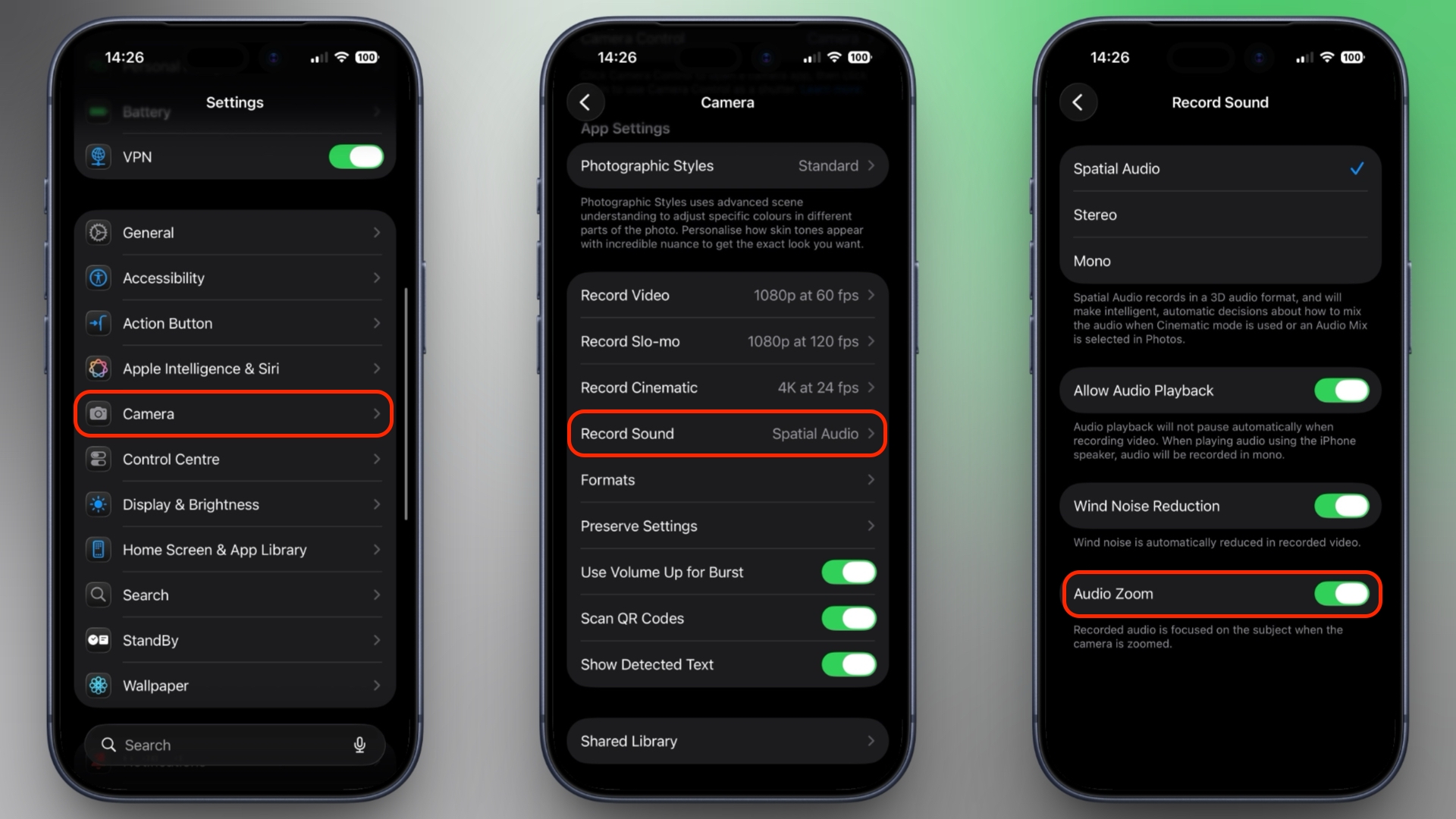
It's that simple! Once you've made your selection, it will remain active for all subsequent video recordings until you decide to change it again. This level of persistent control ensures that your audio preferences are remembered, allowing you to focus on capturing the perfect shot without having to readjust settings every single time.
Understanding Audio Formats: Spatial, Stereo, and Mono
While the Audio Zoom toggle gives you great control, it's also important to understand how it interacts with different audio recording formats available on your iPhone. The option to enable or disable Audio Zoom is not always available; it depends on the chosen sound recording format. Specifically, Audio Zoom only works when Spatial Audio or Stereo is selected as your recording format. If you've switched to Mono, the Audio Zoom option will be grayed out and unavailable.
Spatial Audio: Immersive Soundscapes
Spatial Audio is Apple's advanced audio technology designed to create an immersive, three-dimensional sound experience. When you record video with Spatial Audio enabled, your iPhone captures sound in a way that allows listeners to perceive sounds coming from different directions around them, just like in real life. This enhances the sense of presence and realism in your videos, making viewers feel more deeply connected to the scene.
When combined with Audio Zoom, Spatial Audio still provides that directional focus on your subject, but it can maintain a better sense of the surrounding space. The "zoom" effect will still prioritize your subject, but the overall soundscape, even if attenuated, retains its multi-directional qualities, contributing to a more nuanced and engaging audio track.
Stereo Recording: Classic Two-Channel Sound
Stereo recording is a more traditional method where sound is captured across two distinct channels (left and right). This format creates a sense of width and directionality, allowing you to hear sounds coming from the left or right side of the frame. Most music and movie soundtracks are produced in stereo.
Audio Zoom works seamlessly with stereo recording. When you zoom in, the feature intelligently processes the left and right channels to narrow the focus, ensuring that the sound of your subject is clear and prominent within the stereo soundstage. It still provides a good balance between subject clarity and some level of environmental awareness, depending on how aggressively the ambient sound is suppressed.
Mono Recording: The Single-Channel Exception
Mono recording, in contrast to Spatial or Stereo, captures all sound into a single channel. This means there's no distinction between left and right, and no directional information is preserved. All audio is simply mixed together into one track.
This is why Audio Zoom is unavailable and grayed out when you're recording in Mono. Audio Zoom relies on analyzing and manipulating directional sound information from multiple microphones to achieve its focusing effect. Since Mono consolidates all audio into one flat stream, there's no directional data for Audio Zoom to work with. It simply wouldn't be able to "zoom" into a specific sound source because it wouldn't know where that source is coming from.
When to use Mono: While less common for general video recording, Mono can be useful for very specific purposes, such as recording a voice memo where only clarity of speech matters, or when you're using a single external microphone that only outputs a mono signal. It also typically results in smaller file sizes, which can be a consideration if storage is extremely limited, though the audio quality will be less rich.
You can usually find options to change your default audio recording format within the iPhone's Camera settings, often under 'Record Video' or 'Record Cinematic'. If you find Audio Zoom grayed out, check your chosen audio format first.
Making the Smart Choice: When to Enable or Disable Audio Zoom
The beauty of the new toggle in iOS 26.4 is the freedom it grants you. Now, instead of being a passive recipient of Apple's audio processing, you become the director of your sound. The decision to enable or disable Audio Zoom should always be guided by your creative intent and the specific goals for your video.
Leave It On When Clarity Is King
If your primary objective is to highlight a specific sound source and ensure its absolute clarity, even at the expense of background atmosphere, then keeping Audio Zoom enabled is your best bet. Consider these scenarios:
- Close-Up Interviews or Monologues: When filming a person speaking directly to the camera or being interviewed, especially in a bustling environment, you want their voice to be crystal clear. Audio Zoom will ensure their words are easily understood without distracting background noise.
- Demonstrations or Tutorials: If you're showing how to use a product or performing a specific action that has distinct sounds (e.g., the click of a button, the whir of a machine), Audio Zoom will help isolate those critical sounds.
- Performances with a Single Focus: Recording a solo musician, a speaker at a podium, or a specific player in a team sport where their individual actions and sounds are paramount.
- Any Time You Need to Suppress Distractions: If there's an intrusive, unwanted noise in the background that truly detracts from your subject, Audio Zoom acts as a helpful filter.
In essence, if you want your audience to *hear* what your camera is *seeing* with precision, Audio Zoom is an invaluable ally.
Turn It Off When Immersion Is Paramount
Conversely, if you want to capture the full, rich sonic tapestry of a scene, allowing the ambient sounds to contribute to the atmosphere and context, then you should disable Audio Zoom. This is crucial for videos where the environment itself is a character or where the broader soundscape enhances the emotional impact. Think about:
- Travel Videos and Vlogs: Capturing the bustling energy of a foreign market, the calming sounds of waves on a beach, the chirping of cicadas in a summer evening, or the distinct accents and chatter of people in a new city. These sounds are integral to transporting your viewer to that location.
- Nature and Wildlife Footage: Whether it's the rustle of leaves, the distant roar of a waterfall, the singing of birds, or the subtle sounds of rain, turning off Audio Zoom allows you to capture the complete auditory experience of the natural world.
- Scenic Landscapes: If you're filming a wide shot of a valley, a forest, or a city skyline, the accompanying sounds (wind, distant traffic, church bells) provide a sense of scale and reality that silent footage cannot.
- Home Videos and Candid Moments: Capturing the authentic chaos and joy of family life often means embracing all the sounds – laughter, background music, conversations, the clatter of dinner preparation. Suppressing these can make a cherished memory feel less alive.
- Artistic or Cinematic Shots: Filmmakers often use ambient sound to build tension, create mood, or provide subtle cues. Disabling Audio Zoom ensures that you have all the raw sound data to work with in post-production if you desire more control.
When the background is an essential part of your video's story, turning off Audio Zoom allows your iPhone's microphones to capture the world as it truly sounds, providing a richer, more authentic, and more immersive experience for your audience. Experimentation is key; record the same scene with Audio Zoom on and off to hear the difference and decide which aligns better with your creative vision.
Beyond Audio Zoom: General Tips for Elevating Your iPhone Video Audio
While mastering the Audio Zoom toggle is a significant step, there are other fundamental practices you can adopt to ensure your iPhone videos always sound their best, regardless of the feature's setting. Think of these as universal best practices for mobile videography audio:
Keep Your Microphones Clean
Your iPhone has multiple tiny microphones, often located at the bottom, top, and near the camera lenses. These can easily get clogged with lint, dust, or debris from pockets and bags. A clogged microphone will severely degrade audio quality. Regularly inspect them and gently clean them with a soft, dry brush or a puff of compressed air (used carefully from a distance) to ensure they're unobstructed.
Proximity Is Your Friend
The closer your iPhone is to your subject, the better the audio quality will generally be. Sound dissipates rapidly over distance. Even with Audio Zoom, being closer means the sound source is stronger relative to background noise, leading to clearer, richer audio. If possible, try to move closer to what you want to record, or ask your subject to move closer to you.
Minimize Wind Noise
Wind is the arch-nemesis of clear audio. Even a gentle breeze can create disruptive buffeting sounds on your iPhone's microphones. While iPhones have some built-in wind noise reduction, it's not foolproof. When filming outdoors on a windy day, try to:
- Position yourself with your back to the wind.
- Use your hand or body as a shield for the iPhone.
- Consider investing in a small, external "dead cat" windscreen if you frequently film in windy conditions.
Consider External Microphones for Professional Results
For serious videographers or those needing broadcast-quality audio, even the best built-in iPhone microphones have limitations. An external microphone can dramatically improve your sound. Options include:
- Lavalier (lapel) Microphones: Great for interviews, these clip onto a person's clothing and capture clear voice audio.
- Shotgun Microphones: These directional mics are excellent for focusing on a subject from a distance and rejecting off-axis sounds, similar in principle to Audio Zoom but with superior hardware.
- Wireless Systems: Provide freedom of movement for your subject and very clean audio.
Many high-quality external microphones can connect directly to your iPhone via the Lightning port or USB-C, offering a significant upgrade for critical recordings.
Monitor Your Audio If Possible
If you're using an external microphone or shooting something crucial, consider monitoring your audio with headphones while recording. This allows you to catch any issues – unexpected background noise, wind interference, or microphone malfunctions – in real-time, giving you the chance to fix them before it's too late.
Post-Production Sweetening
Even with great recording practices, sometimes a little post-production can make a big difference. Basic video editing apps on your iPhone or desktop software allow you to:
- Adjust Volume Levels: Balance your subject's voice with background sounds.
- Apply Noise Reduction: Carefully reduce unwanted hums or hisses (use sparingly to avoid making audio sound artificial).
- Equalization (EQ): Tweak frequencies to make voices clearer or enhance certain ambient sounds.
By combining smart use of the Audio Zoom toggle with these general best practices, you'll elevate the audio quality of your iPhone videos to a professional level, making them more enjoyable and engaging for your audience.
The Future of iPhone Audio Recording
Apple continues to push the boundaries of mobile technology, and audio capture is no exception. We can anticipate even more sophisticated computational audio features in future iOS updates and iPhone hardware. Imagine AI-powered adaptive audio that intelligently learns your recording environment and suggests optimal settings, or even more precise spatial audio capture that allows for truly professional-grade immersive sound with minimal effort.
The introduction of the Audio Zoom toggle in iOS 26.4 is a clear indication that Apple understands the value of user control and the diverse needs of its videography community. As iPhones become even more capable, the ability to fine-tune every aspect of recording – both visual and auditory – will become increasingly important for creators of all levels.
The quality of your video isn't just about sharp images; it's equally about compelling sound. As we become more accustomed to high-fidelity audio in our media consumption, the demand for excellent sound in user-generated content will only grow. Apple's ongoing innovations in this area ensure that the iPhone remains at the forefront of mobile content creation.
Conclusion: You Are the Director of Your Sound
Apple's Audio Zoom feature is a powerful piece of technology, designed to give your iPhone videos a focused and professional edge by isolating your main subject's sound. It excels in noisy environments where clarity is paramount, cutting through distractions to bring your subject's audio to the forefront. However, creativity often thrives on nuance, and sometimes the rich tapestry of ambient sound is just as important as the subject itself, providing context, atmosphere, and emotional depth that can truly elevate your footage.
The addition of a dedicated toggle for Audio Zoom in iOS 26.4 is a significant improvement, granting you the power to choose. No longer are you bound by an automatic decision; you now have the ultimate control over whether your iPhone's microphones zero in on your subject or embrace the full acoustic experience of your scene. This ability to easily switch between focused and expansive audio capture ensures that your videos can always match your creative vision, whether you're documenting a lively concert, a serene natural landscape, or a heartfelt interview.
Remember, the best video isn't just seen; it's felt and heard. By understanding Audio Zoom, its interaction with different audio formats like Spatial and Stereo (and why it's off in Mono), and by making an informed choice based on your specific recording scenario, you can dramatically improve the overall quality and impact of your iPhone videos. So, go ahead, update to iOS 26.4, experiment with the new toggle, and start directing your sound like a true professional. Your audience will thank you for the richer, more immersive experience.
This article, "Stop Your iPhone Suppressing Background Audio in Videos" first appeared on MacRumors.com
Discuss this article in our forums
from MacRumors
-via DynaSage
