Cut Apple Music iPhone Storage Usage in Minutes – Here's How
Keep Your iPhone Storage Happy: Master Apple Music Downloads with Optimized Storage
Are you an Apple Music subscriber who loves to download songs, playlists, and albums to your iPhone or iPad for offline listening? It's a fantastic feature, letting you enjoy your favorite tunes without an internet connection, saving mobile data, and ensuring uninterrupted playback. However, this convenience comes with a common challenge: those downloaded songs can quickly gobble up your device's precious storage space. Over time, gigabytes of music can accumulate, leaving you with little room for new photos, videos, apps, or even essential system updates.
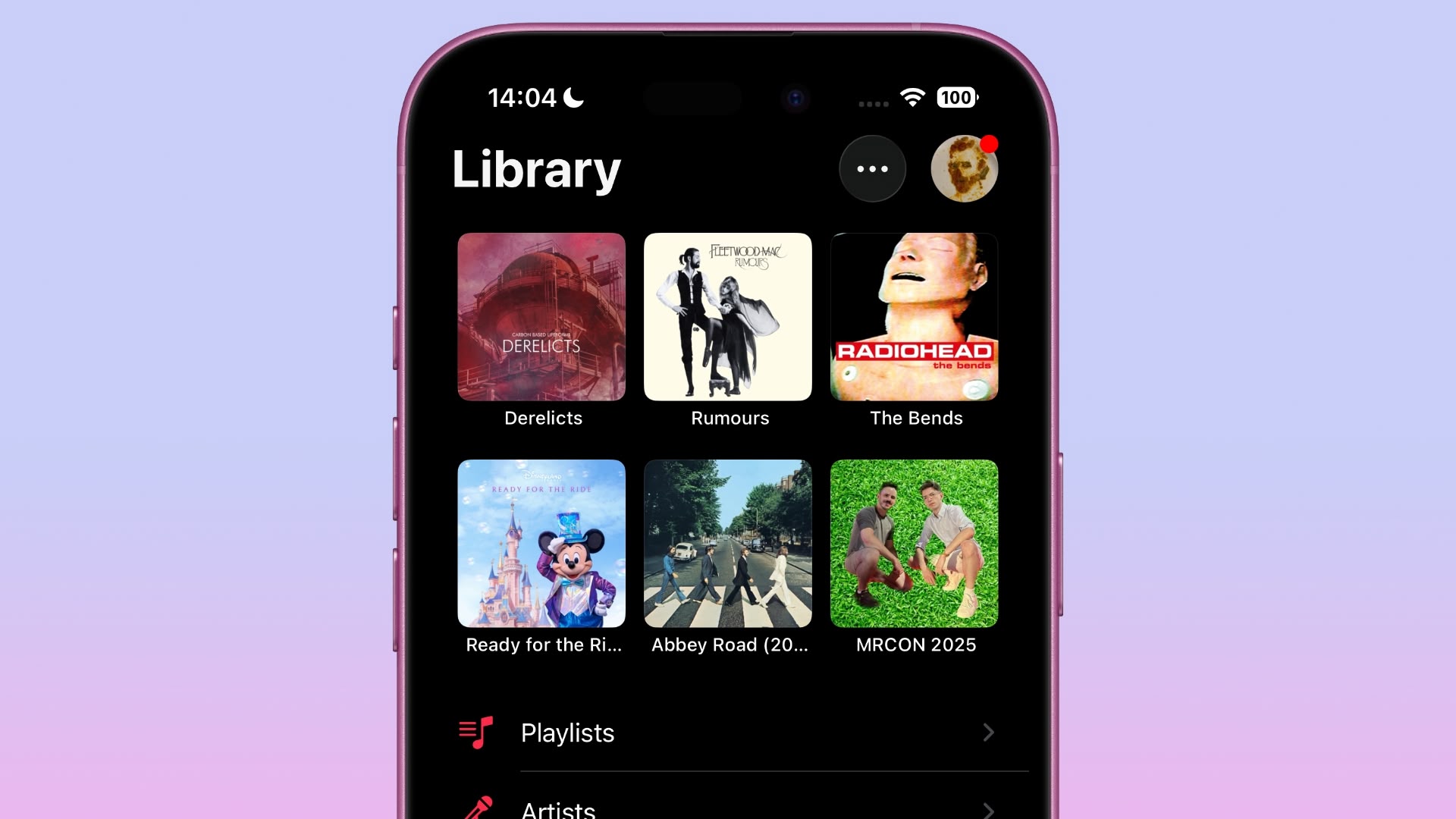
The good news is that Apple understands this dilemma. The Music app on your iPhone or iPad comes equipped with a clever feature designed to automatically manage your downloaded music. This intelligent tool can spring into action when your device's storage starts to run low, identifying and removing songs you haven't played in a while to free up space. This way, you always have room for newer music, essential apps, and cherished memories without constant manual intervention.
This ingenious feature is called Optimized Storage, and it's a game-changer for anyone who struggles with limited device space. Instead of constantly worrying about deleting old tracks or avoiding new downloads, Optimized Storage works quietly in the background, ensuring your music library and device storage remain in harmony. Let's dive into how you can enable it and take control of your Apple Music downloads.
Why Does iPhone Storage Fill Up So Quickly?
Before we explore the solution, let's understand why managing your device's storage is so important. Your iPhone or iPad has a finite amount of storage, ranging from 64GB on some older or entry-level models to over 1TB on high-end devices. This space is shared by everything on your device: the operating system itself, all your apps, photos, videos, messages, emails, and, of course, your downloaded music.
When your storage fills up, your device's performance can suffer. Apps might slow down or crash, you might be unable to take new photos or videos, and critically, you might not be able to install important iOS updates, which often require several gigabytes of free space. For music lovers, downloaded songs are a primary culprit for storage woes. A single high-quality song can be several megabytes, and an entire album can easily exceed 100MB. If you download hundreds or thousands of songs, these numbers quickly add up to many gigabytes.
The Impact of High-Quality Audio on Storage
With the introduction of Lossless Audio and Spatial Audio in Apple Music, the file sizes for downloaded songs have become even larger. While these features offer an incredible listening experience, they also demand significantly more storage:
- Standard High Quality (AAC 256 kbps): A 3-minute song is typically around 6 MB.
- Lossless Audio (ALAC up to 24-bit/48 kHz): A 3-minute song can be around 36 MB.
- High-Resolution Lossless (ALAC up to 24-bit/192 kHz): A 3-minute song can be up to 145 MB.
Imagine downloading a few hundred songs in Lossless quality – you could easily consume tens of gigabytes! This makes smart storage management, like using Optimized Storage, more critical than ever.
Introducing Optimized Storage: Your Smart Music Manager
Optimized Storage is Apple's clever solution to prevent your downloaded music from monopolizing your device's storage. Instead of you having to manually track and delete songs, this feature automates the process. It's designed to be proactive, helping your device maintain a healthy balance between having enough music for offline listening and sufficient free space for everything else.
How Optimized Storage Works Its Magic
At its core, Optimized Storage intelligently monitors your device's overall storage. When the available space drops to a low level, and you have downloaded music from Apple Music, the feature kicks in. It then identifies songs that you haven't played in a while and automatically removes them from your device. The goal is to free up space while trying to keep the music you frequently listen to readily available.
It's important to understand that Optimized Storage doesn't permanently delete the music from your Apple Music library; it only removes the downloaded files from your device. You can always stream these songs again when online or re-download them if you wish. This ensures that your entire music collection remains accessible, even if only a portion of it is stored locally.
Step-by-Step Guide: Enabling Optimized Storage
Enabling Optimized Storage is a straightforward process that takes just a few moments. Once set up, you can largely forget about it, as it works diligently in the background to manage your music downloads. Here's how to activate this helpful feature:
- Launch the Settings app on your iPhone or iPad.
This is the central hub for customizing all aspects of your device. You can usually find the gray gear icon on your Home screen or in your App Library. Tap it to open. - Scroll down to the apps list and select Music.
As you scroll down the main Settings menu, you'll see a list of all the apps installed on your device, along with system settings like Wi-Fi, Bluetooth, and General. Look for "Music" (the one with the familiar pink icon) and tap on it. This will open the specific settings related to how your Music app behaves and manages content. - Under the "Downloads" section, tap Optimized Storage.
Within the Music settings, you'll find various categories. Locate the "Downloads" section. Here, you'll see "Optimized Storage" as an option. Tap on it to proceed to the feature's specific controls. - Toggle the Optimized Storage switch to the "on" position so that it shows green.
When you first enter the Optimized Storage menu, the switch might be gray, indicating it's off. Tap the switch to turn it on. It will slide to the right and turn green, confirming that the feature is now active. This tells your device that you want it to start intelligently managing your music downloads. - Choose a minimum storage amount that you want to keep for music before downloaded songs start being removed from your device.
This is a crucial step that allows you to customize how aggressively Optimized Storage works. Below the toggle switch, you'll see options like "2 GB," "4 GB," "8 GB," "16 GB," "32 GB," and "None." These numbers represent the minimum amount of downloaded music (in gigabytes) that your device will always try to keep on hand, even when overall storage is low.- What does this mean? If you select "4 GB," your iPhone will aim to always keep at least 4 GB of your most frequently played or recently downloaded music on your device. If your overall device storage gets low, and your downloaded music library exceeds 4 GB, Optimized Storage will start deleting the oldest and least played songs until the total downloaded music size is reduced to approximately 4 GB (or less, depending on how much space is needed).
- Which amount should you choose?
- Smaller amounts (e.g., 2 GB, 4 GB): Ideal for users with limited device storage (e.g., 64 GB or 128 GB iPhones) or those who mostly stream music but want a small selection available offline. This option frees up the most space.
- Medium amounts (e.g., 8 GB, 16 GB): A good balance for many users. It ensures a decent amount of music is always available offline without consuming excessive storage. Suitable for 256 GB or 512 GB devices.
- Larger amounts (e.g., 32 GB): Best for users with very ample storage (e.g., 1 TB iPhones) who want a vast offline library but still appreciate the automated cleanup for rarely played tracks.
- "None": If you select "None," it means the feature will not enforce a minimum amount of music to keep. It will simply start removing older, unplayed music as needed to free up overall device storage. This option is effectively the most aggressive in freeing up space.
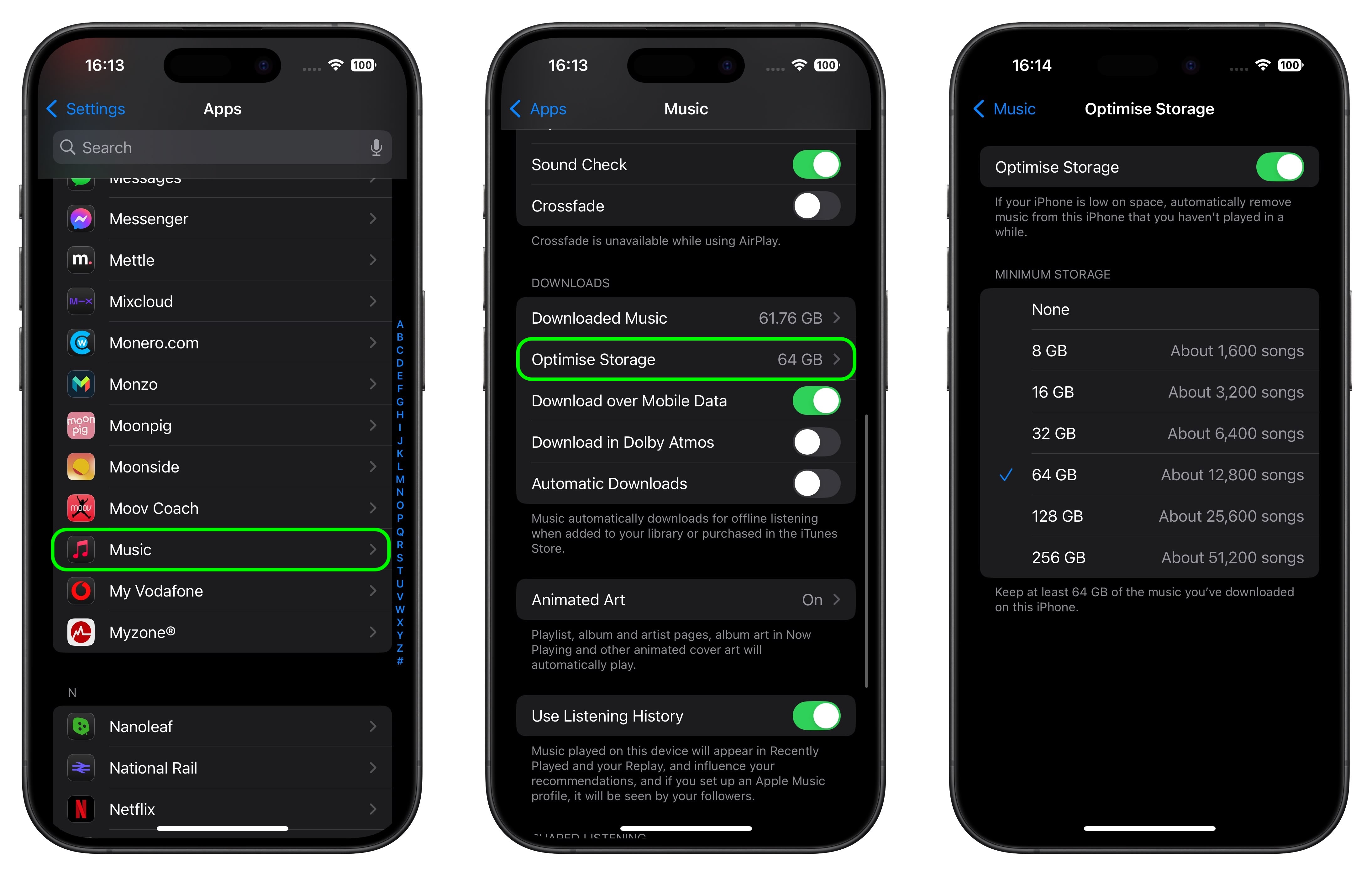
Once you've completed these steps, Optimized Storage will be active and will begin working silently in the background. You might not notice it immediately, but over time, it will help prevent your device from running out of space due to music downloads.
Beyond Optimized Storage: Additional Tips for Managing Music Downloads
While Optimized Storage is incredibly convenient, it's not the only way to manage your Apple Music downloads and free up space. Sometimes, you might want more direct control, or you might need to make space immediately. Here are some other valuable tips:
1. Take Control with Manual Downloads
Optimized Storage is great for passive management, but if you prefer to be fully in charge of every song that gets downloaded, you can turn off automatic downloads. This ensures that music is only downloaded when you explicitly tell it to be.
- How to turn off automatic downloads:
- Go to Settings > Music.
- Under the "Downloads" section, toggle off Automatic Downloads.
- How to download new songs manually: Once automatic downloads are off, you can manually download individual songs, albums, or playlists directly from the Music app. Just look for the cloud icon with a downward arrow next to the item you want to download and tap it. For a more detailed guide, you can refer to our article on how to download songs for offline playback in Apple Music.
This method gives you precise control, allowing you to only keep the music you truly want offline, which can be particularly useful if you have a vast library but only a handful of favorites you want downloaded.
2. Removing Downloaded Songs One by One
Sometimes, you might want to remove a specific album or playlist that you no longer listen to without affecting the rest of your downloaded music. The Music app allows you to do this directly:
- How to remove individual songs/albums/playlists:
- Open the Music app.
- Go to the Library tab.
- Tap Downloaded Music to see only what's on your device.
- Find the song, album, or playlist you want to remove.
- Press and hold on the item, then select Remove... from the pop-up menu.
- Choose Remove Downloads to delete the local files but keep the item in your library, or Delete from Library to remove it entirely from your Apple Music library (and thus, from downloads).
This method is perfect when you have a few specific items you want to clear out, offering more granular control than relying solely on Optimized Storage. You can learn more about this process in our guide on how to remove downloaded Apple Music songs.
3. Deleting All Downloaded Music
For a more drastic cleanup, if you need a large amount of space quickly, you can delete all your downloaded music at once. Be aware that this will remove *all* offline music, and you'll need to re-download anything you want to listen to offline again.
- How to delete all downloaded music:
- Go to Settings > Music.
- Tap on Downloaded Music.
- Tap Edit in the top right corner.
- You will see a red minus icon next to "All Songs." Tap it, then tap Delete.
This is a powerful option for a quick reset of your music storage, perhaps before a big trip where you plan to download a fresh selection of tunes.
4. Adjusting Audio Quality for Downloads
As mentioned earlier, high-quality audio files consume significantly more storage. If you're constantly running low on space but still want some music offline, consider adjusting the download quality:
- How to change download quality:
- Go to Settings > Music.
- Under the "Audio" section, tap Audio Quality.
- Under "Downloads," you can choose your preferred quality:
- High Quality (256 kbps AAC): Good balance of quality and file size.
- Lossless: Higher quality, larger files.
- High-Resolution Lossless: Highest quality, largest files, requires compatible equipment.
Selecting "High Quality" for downloads instead of Lossless can save a considerable amount of space without a noticeable difference for most listeners, especially on smaller device speakers or standard headphones.
General Device Storage Management Beyond Music
While music downloads can be a significant storage hog, they're often not the only culprit. To truly keep your iPhone or iPad lean and fast, it's wise to manage other forms of content as well:
- Photos and Videos: These are often the biggest storage consumers. Consider enabling iCloud Photos to store full-resolution originals in the cloud while keeping optimized versions on your device, or regularly review and delete unnecessary photos and videos.
- Apps: Some apps can grow quite large, especially games. iOS has an "Offload Unused Apps" feature (Settings > General > iPhone/iPad Storage) that automatically removes the app but keeps its data, allowing you to reinstall it later without losing your progress.
- Messages: Over time, message conversations, especially those with many photos, videos, or attachments, can take up considerable space. You can set Messages to automatically delete old messages (Settings > Messages > Message History > Keep Messages) or manually delete large attachments.
- Browser Data: Safari and other web browsers store cache and website data. Periodically clearing this (Settings > Safari > Clear History and Website Data) can free up a small amount of space.
Why Smart Storage Management Matters for Your Daily Experience
Taking a few minutes to set up Optimized Storage and understand other storage management techniques can significantly enhance your daily experience with your iPhone or iPad. Here's why it matters:
- Smoother Performance: A device with ample free space tends to run faster and more smoothly, preventing frustrating lags and app crashes.
- Never Miss a Moment: You won't miss capturing that perfect photo or video because your device storage is full.
- Seamless Updates: You'll always have enough room for crucial iOS updates, ensuring your device has the latest features and security patches.
- Uninterrupted Music: Optimized Storage ensures you have a healthy library of offline music without having to constantly manage it yourself.
- Peace of Mind: Knowing your device is efficiently managing its resources allows you to enjoy your technology without constant worry about technical limitations.
Conclusion: Take Control of Your Apple Music Downloads Today!
Managing your iPhone or iPad storage doesn't have to be a constant struggle, especially when it comes to your Apple Music downloads. Optimized Storage is a powerful, set-it-and-forget-it feature that intelligently cleans up your music library, making room for new content and ensuring your device runs smoothly.
By combining Optimized Storage with other proactive strategies, such as managing automatic downloads, choosing appropriate audio quality, and occasionally performing manual cleanups, you can ensure a balanced and enjoyable experience. No more "Storage Full" warnings when you're trying to take a picture, and always a healthy selection of your favorite tunes ready for offline listening. Take control today and let your Apple Music experience be truly seamless!
This article, "Cut Apple Music iPhone Storage Usage in Minutes – Here's How" first appeared on MacRumors.com
Discuss this article in our forums
from MacRumors
-via DynaSage

Post a Comment