Use ChatGPT as Your iPhone's Action Button Assistant
How to Use ChatGPT as Your iPhone's Action Button Assistant
In the world of smartphones, the quest for the perfect digital assistant is never-ending. For years, iPhone users have relied on Siri for quick tasks, setting alarms, and making calls. But as artificial intelligence evolves, many are looking for a more powerful, conversational, and knowledgeable companion. While Apple doesn't currently let you replace Siri on the Side button with a third-party alternative, a fantastic solution exists for owners of the iPhone 15 Pro and newer models: the Action button.
This small, customizable button is your gateway to a much smarter AI experience. By linking it to OpenAI's ChatGPT, you can summon a powerful language model with a single press, ready to answer complex questions, brainstorm ideas, draft emails, and engage in natural, spoken conversations. This guide will walk you through everything you need to know to transform your Action button into a dedicated ChatGPT assistant, effectively giving you the best of both worlds: Siri for system tasks and ChatGPT for everything else.
Why Choose ChatGPT Over Siri? A Tale of Two Assistants
Before we dive into the "how," let's explore the "why." Siri, first introduced in 2011, was revolutionary. It understood natural language and was deeply integrated into the iPhone's operating system. It remains the undisputed champion for device-specific commands. Asking Siri to "Set a timer for 10 minutes," "Call Mom on speaker," or "Turn off the living room lights" results in instant, reliable action. It's a taskmaster, a digital butler for your device.
However, when it comes to complex queries, creative tasks, or nuanced conversations, Siri's limitations can become apparent. It often defaults to web search results for questions that require deeper understanding or context. This is where ChatGPT shines. Developed by OpenAI, ChatGPT is a Large Language Model (LLM) trained on a vast dataset of text and code. It excels at:
- Deep Knowledge and Explanation: Ask it to "Explain the concept of quantum entanglement like I'm five years old" or "Summarize the key plot points of 'War and Peace'," and you'll get a detailed, coherent response, not just a list of links.
- Creativity and Brainstorming: ChatGPT can act as a creative partner. You can ask it to "Write a short poem about autumn," "Brainstorm five a-la-carte menu names for a new vegan restaurant," or "Help me come up with a catchy tagline for my tech startup."
- Content Creation: It can draft emails, write social media captions, generate code snippets, or even help you structure a blog post. This makes it an incredibly powerful productivity tool.
- Conversational Context: ChatGPT remembers the previous turns in your conversation, allowing for natural follow-up questions. You can ask a question and then say, "Tell me more about the second point you made," and it will understand the context.
By assigning ChatGPT to the Action button, you aren't replacing Siri. Instead, you are augmenting your iPhone with a second, specialized assistant. You retain Siri for quick device controls while gaining a dedicated, one-press shortcut to a world of advanced knowledge and creativity.
Understanding the Action Button: Your iPhone's Customizable Superpower
For those new to the latest Pro models, the Action button is a physical button on the upper-left side of the iPhone 15 Pro, iPhone 15 Pro Max, and subsequent Pro models. It replaced the traditional ring/silent switch that had been an iPhone staple for years. While its default function is to toggle Silent mode, its true power lies in its customizability.
Within your iPhone's Settings, you can program the Action button to perform a variety of tasks with a simple press-and-hold gesture. These options include:
- Silent Mode: The classic function, toggling between ring and silent.
- Focus: Activate a specific Focus mode, like Do Not Disturb or Work.
- Camera: Instantly launch the Camera app to a mode of your choice (Photo, Video, Portrait, etc.).
- Flashlight: Quickly turn your iPhone's flashlight on or off.
- Voice Memo: Start and stop a voice recording instantly.
- Magnifier: Turn your iPhone into a digital magnifying glass.
- Accessibility: Trigger a chosen accessibility feature.
- Shortcut: The most powerful option, allowing you to run any shortcut you've created in the Shortcuts app.
It is this "Shortcut" capability that we will leverage to create our instant-access ChatGPT assistant. By connecting the Action button to a specific function within the ChatGPT app, we create a seamless physical link to a powerful AI.
Step-by-Step Guide: Link ChatGPT Voice to Your Action Button
Ready to supercharge your iPhone? The process is surprisingly simple and only takes a few minutes. Follow these detailed steps to get everything set up perfectly.
Step 1: Install the Official ChatGPT App and Sign In
First and foremost, you need the official ChatGPT application from OpenAI. There are many imitators on the App Store, so it's crucial to get the correct one.
- On your iPhone, open the App Store.
- Search for "ChatGPT."
- Look for the app developed by "OpenAI." It has a distinctive black-and-white, circular logo.
- Install the ChatGPT app to your device.
- Once installed, open the app. You will be prompted to either sign in with an existing OpenAI account or create a new one. The free version of ChatGPT is more than powerful enough for this purpose, so there's no need to subscribe to a paid plan unless you want access to the latest models and features.
Step 2: Navigate to Action Button Settings
Next, you'll tell your iPhone what you want the Action button to do. This is done in the main Settings app.
- Open the Settings app on your iPhone (the gray gear icon on your home screen).
- Scroll down the main list of settings until you find the Action Button menu option. It will be located between "Sounds & Haptics" and "Emergency SOS."
- Tap on Action Button to open the customization screen.
Step 3: Select the ChatGPT Voice Shortcut
Here, you'll see a carousel of different actions you can assign to the button. You'll swipe through these options to find the "Shortcut" setting and then select the specific ChatGPT function.
- Swipe horizontally through the icons until you land on the Shortcut option.
- Below the icon, you'll see a button that displays the currently selected shortcut (or "Choose a Shortcut..." if you haven't set one up). Tap this button.
- A new screen will appear, listing available shortcuts from your apps. You can either scroll through the list or, for a faster method, use the search bar at the top.
- In the search field, type "ChatGPT."
- You will see a few options appear from the ChatGPT app. The one you want for a seamless voice assistant experience is Start Voice Conversation. Select it.
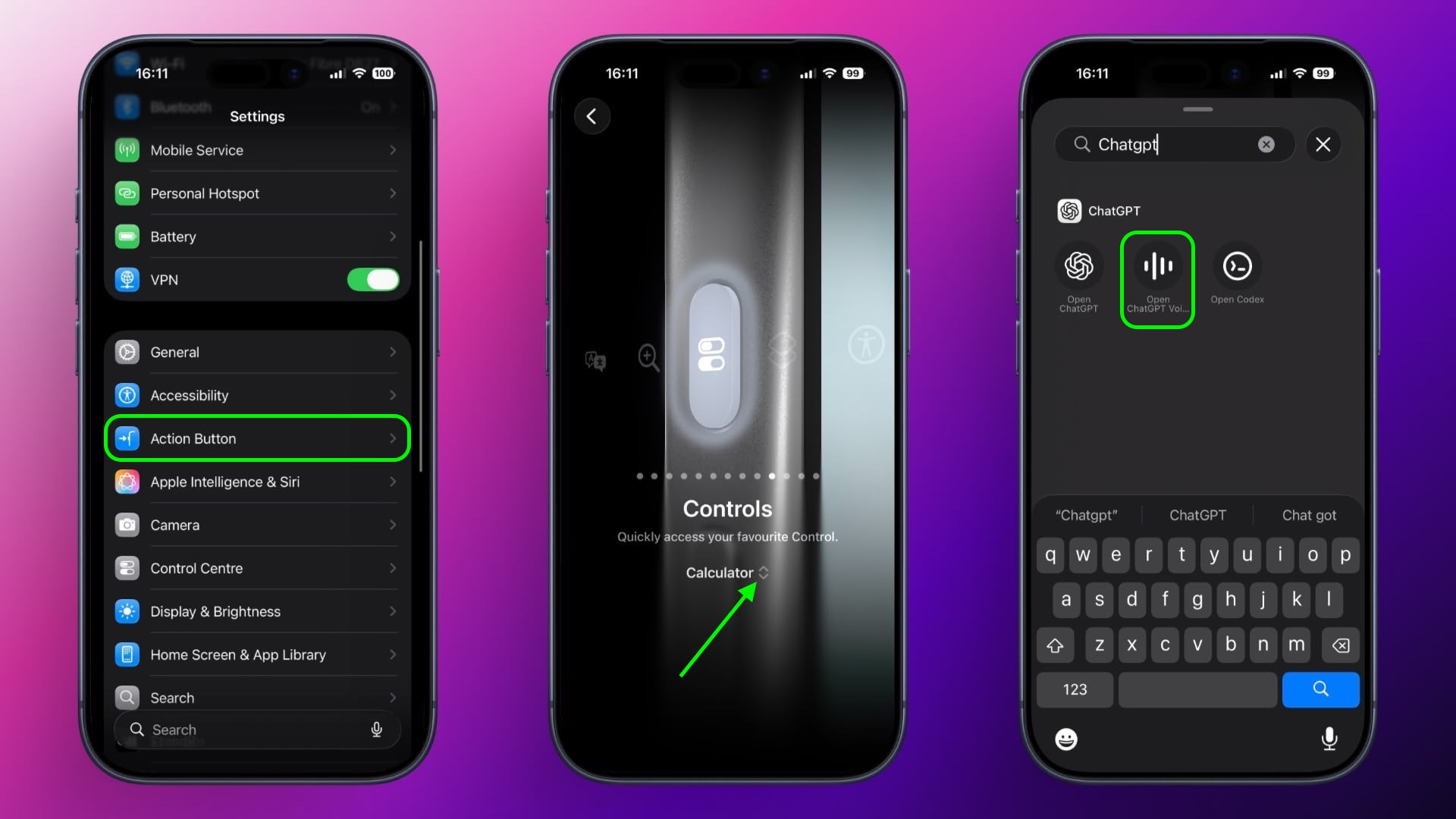
That's it! The setup is complete. You have now successfully linked your iPhone's Action button directly to ChatGPT's voice mode. A long press of the Action button will now instantly launch you into a spoken conversation with the AI.
The very first time you activate it, the ChatGPT app will likely ask for permission to access your iPhone's microphone. Be sure to tap Allow to grant this permission, otherwise the feature won't work. After that initial setup, you can simply press and hold the button and begin speaking your query immediately.
The Modern Voice Experience: What to Expect
Using ChatGPT's voice mode via the Action button feels futuristic. Thanks to a recent update from OpenAI, the experience is incredibly polished and intuitive. Here's what makes it so special:
A Unified Conversation
Previously, voice conversations in the ChatGPT app happened in a separate, dedicated interface. Now, everything is unified. When you start a voice session, it takes place within the same chat window as your text-based prompts. This means your voice queries and the AI's spoken responses are transcribed and saved right alongside any text chats, keeping the entire context of your interaction in one place. This makes it effortless to switch between typing and speaking depending on your situation.
Real-Time On-Screen Responses
As ChatGPT speaks its response to you, you'll also see the words appear on your screen in real time. This is a fantastic feature for several reasons. It helps with clarity, especially in noisy environments. It also allows you to easily copy and paste information, such as a recipe, a code snippet, or a mailing address, without having to ask the AI to repeat itself.
Continue the Conversation Anywhere with the Dynamic Island
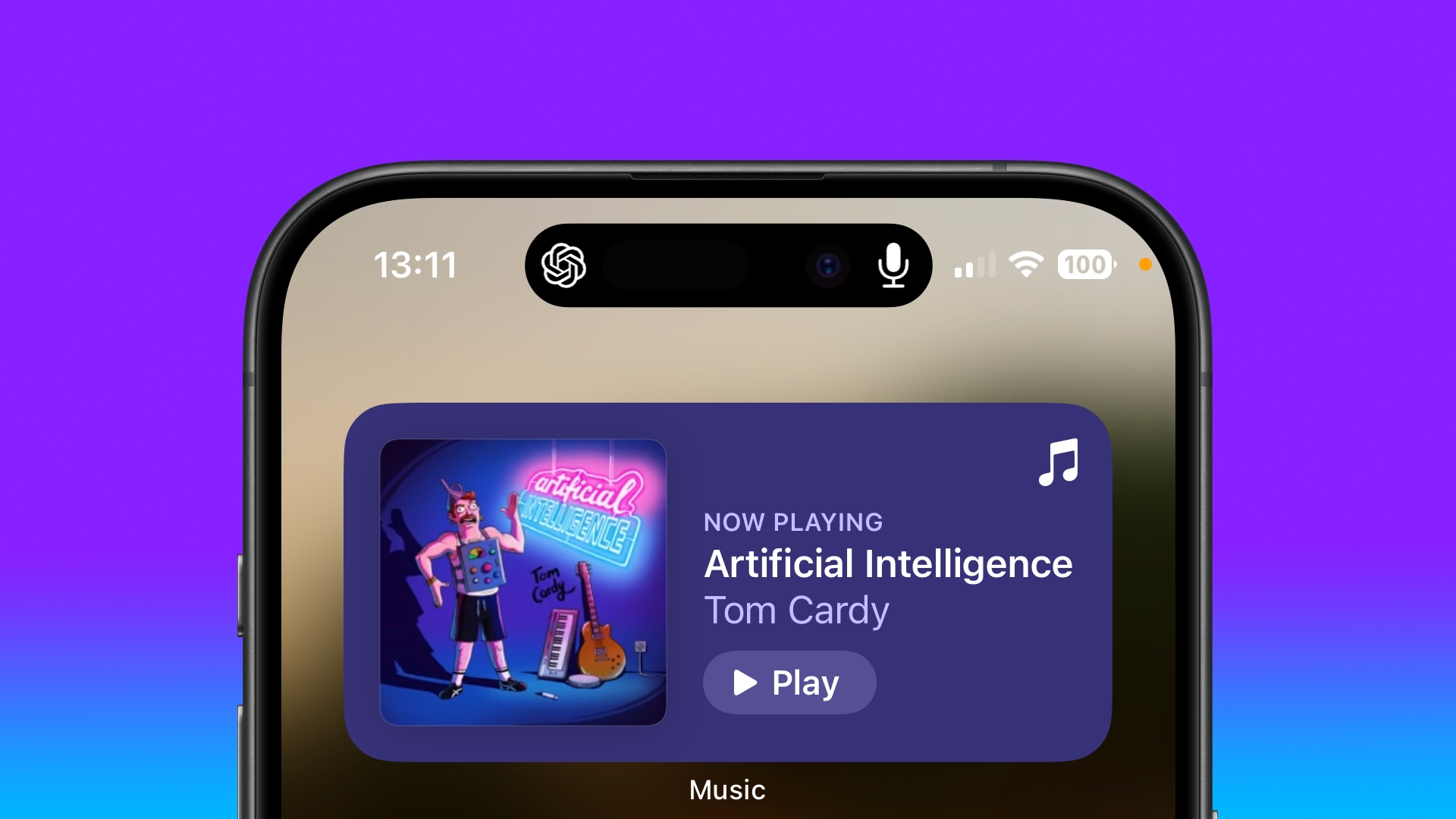
Perhaps the most impressive feature is the integration with the iPhone's Dynamic Island. You can start a voice conversation with ChatGPT and then swipe up to go back to your home screen or open another app. The session doesn't end. Instead, it minimizes neatly into the Dynamic Island at the top of your screen.
You'll see a beautiful waveform animation, indicating that ChatGPT is still actively listening or processing your request. You can continue browsing the web, checking your email, or navigating a map while the AI formulates and delivers its spoken response. This enables true hands-free multitasking. To end the conversation, simply tap on the Dynamic Island to return to the full-screen app view, then tap the "End" button.
Practical Use Cases: When to Press the Action Button
So, when would you use this new superpower? Here are just a few real-world scenarios where ChatGPT on the Action button outshines a traditional assistant:
- On-the-Go Research: While walking or driving, you can ask complex questions like, "What were the main economic factors leading to the fall of the Roman Empire?" or "Give me a quick biography of Marie Curie, focusing on her major scientific contributions." - Creative Brainstorming: Stuck for an idea? Press the button and say, "Help me brainstorm some unique gift ideas for my friend who loves hiking and technology," or "I'm writing a fantasy story. Give me ten cool names for a magical sword."
- Drafting Communications: Need to send a quick message? Try, "Draft a polite and professional email to a client explaining that the project will be delayed by two days due to unforeseen circumstances." You can then edit the draft before sending.
- Learning and Translation: Instantly get help with language. "How do I properly pronounce 'croissant' in French, and can you use it in a sentence?" or "Explain the difference between a metaphor and a simile."
- Interactive Cooking Assistant: In the kitchen with your hands full? "Find me a simple recipe for vegetarian chili. Now, read me the ingredients list. Okay, what's the first step?"
Understanding the Limitations: What ChatGPT Can't Do
It's crucial to remember that while this setup gives you a fast, physical shortcut to a richer, more context-aware assistant, ChatGPT is not a replacement for Siri's system-level control. Because it's a third-party app, it doesn't have deep integration with iOS. This means ChatGPT cannot perform Siri-like system actions.
You cannot use it to:
- Set alarms or timers.
- Make phone calls or send text messages through iMessage or SMS.
- Access your personal data like your calendar, reminders, or contacts.
- Control smart home devices connected via HomeKit.
- Open apps or change system settings on your iPhone.
Think of it this way: Siri is the doer, the manager of your device. ChatGPT is the thinker, the expert consultant you call upon for knowledge and creativity. They serve two different but complementary roles, and with this setup, you have dedicated, one-press access to both.
Conclusion: The Best of Both Worlds
By customizing your iPhone's Action button to launch ChatGPT's voice mode, you are fundamentally enhancing your device's capabilities. You're not just adding a shortcut; you're creating a dedicated portal to one of the most powerful AI tools available today. It provides instant, hands-free access to a vast repository of knowledge, a creative partner for brainstorming, and a powerful assistant for drafting and communication.
You get to keep Siri for all the things it does best—managing your device with quick, simple commands—while adding a new layer of intelligence that can handle the complex, creative, and conversational tasks that were once the domain of a desktop computer. Follow the steps in this guide, and in just a few minutes, you can unlock a new era of AI assistance, all accessible with a single press of a button.
This article, "Use ChatGPT as Your iPhone's Action Button Assistant" first appeared on MacRumors.com
Discuss this article in our forums
from MacRumors
-via DynaSage

Post a Comment