iOS 26.2 Adds New CarPlay Setting
Take Control of Your CarPlay Messages: A Guide to Hiding Pinned Conversations in iOS 26.2
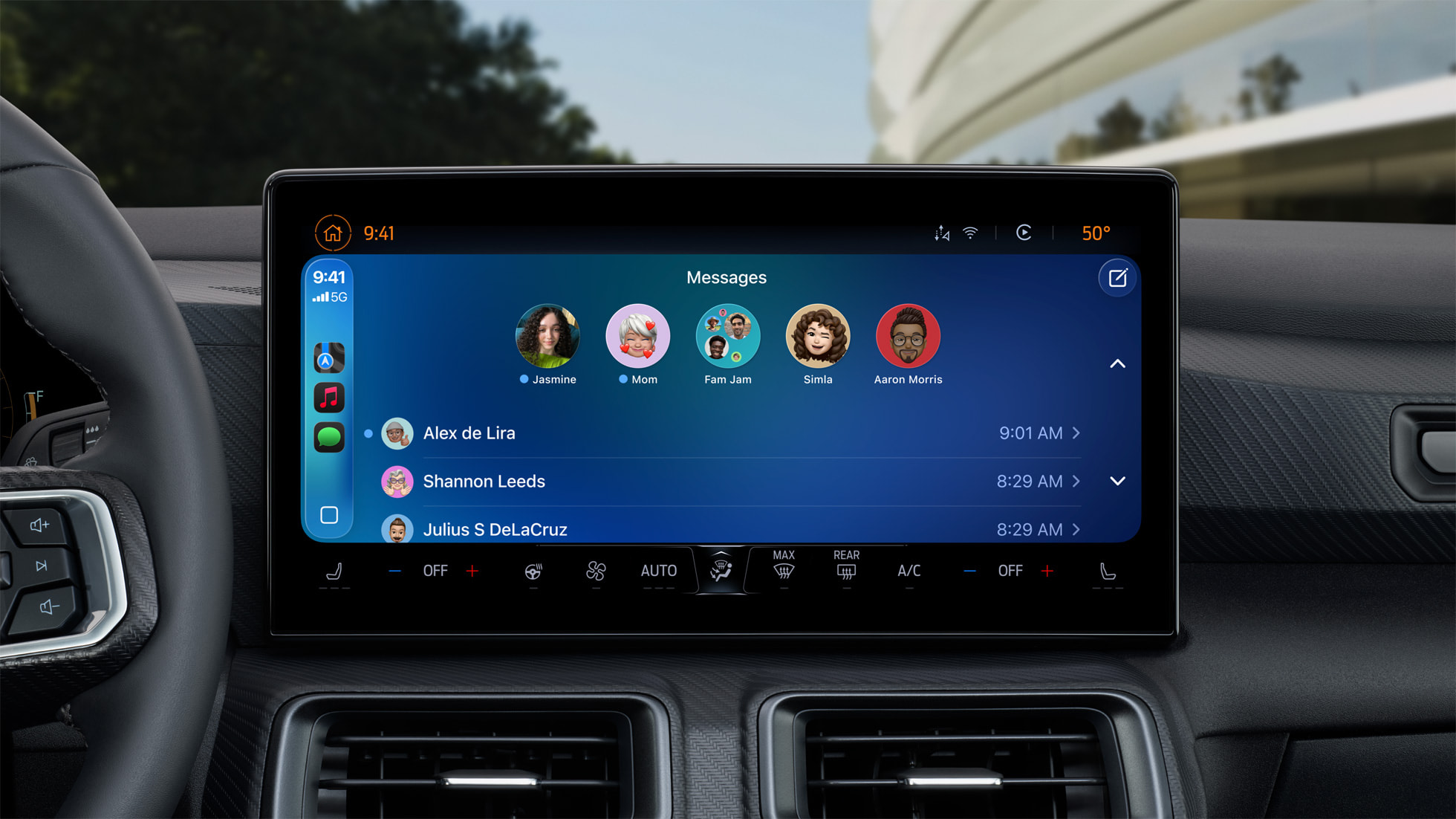
Staying connected while on the road is a modern necessity, and Apple's CarPlay has transformed how we interact with our iPhones in the car. One of the most-used features is the Messages app, which allows for safe, voice-controlled communication. With the release of iOS 26, Apple introduced a helpful feature from the iPhone to the car dashboard: pinned conversations. This lets you keep your most important chats—with a spouse, a best friend, or a family group—right at the top of your Messages list for quick and easy access.
While this is a fantastic tool for many, not everyone enjoys having conversations permanently anchored to the top of their screen. For some drivers, this can create visual clutter or simply go against their preference for a clean, chronologically ordered list of recent messages. Recognizing that customization is key to a great user experience, Apple is now giving users the power to choose. The upcoming iOS 26.2 update introduces a simple setting that allows you to turn off pinned conversations in CarPlay, restoring the classic, streamlined view. In this comprehensive guide, we'll walk you through why you might want to make this change, how to do it, and what other exciting new features are coming to your CarPlay experience.
Why You Might Want a Cleaner Messages View in Your Car
The concept of "pinning" is designed for efficiency. By keeping your most frequent contacts at the top, you save a few seconds you might otherwise spend scrolling. On a phone, this is almost always a benefit. However, the in-car environment is fundamentally different. The primary goal is to minimize distraction and maximize focus on the road. Here are a few reasons why some drivers might prefer to disable pinned conversations in CarPlay:
- Reduced Clutter: The car's infotainment screen is valuable real estate. For users who prefer a minimalist interface, having a persistent section of pinned contacts can feel like unnecessary clutter. A simple list of the most recent messages can feel cleaner and more organized.
- Focus on What's New: The primary function of checking messages in the car is to see what’s new. A chronological list puts the latest incoming message at the very top, making it the most prominent item. This can be more intuitive for drivers who are only interested in the most recent updates.
- Privacy Concerns: If you frequently share your car with family members, friends, or co-workers, you might not want your most-messaged contacts displayed prominently on the screen for everyone to see. Disabling pins provides an extra layer of privacy.
- Personal Preference: Ultimately, it often comes down to personal taste. Some people are meticulous organizers who love features like pinning, while others prefer simplicity and automation. Having the option to choose which style you prefer is a significant improvement.
Apple's decision to add a toggle for this feature demonstrates a keen understanding of its user base. It’s a small change, but it’s one that acknowledges the unique context of using an interface while driving and empowers users to tailor the experience to their own needs and comfort levels.
Your Step-by-Step Guide to Disabling Pinned Conversations
Apple has made this new setting incredibly easy to find and use. Once your iPhone is updated to iOS 26.2 (which is expected for a public release in December), you can change this setting directly from your car's screen in just a few taps. Here’s exactly how to do it.
Prerequisites:
Before you begin, ensure your iPhone is running iOS 26.2 or a later version. This feature was introduced in the second beta of iOS 26.2, so it will be included in the final public release.
Step 1: Connect Your iPhone and Launch CarPlay
Start by connecting your iPhone to your vehicle's infotainment system, either through a USB cable or a wireless connection. CarPlay should launch automatically on your car’s display. If it doesn't, you may need to select it manually from your car's menu.
Step 2: Navigate to the Settings App
On your CarPlay home screen, find and tap on the Settings app. It uses the same familiar gear icon as the Settings app on your iPhone. This is the central hub for customizing your CarPlay-specific options.
Step 3: Find the "Pinned Conversations" Toggle
Once you are in the Settings app, you should see a list of customizable options for various CarPlay apps. In the main menu, look for an option related to the Messages app. Apple has added a new toggle switch labeled "Pinned Conversations". It's designed to be straightforward and easy to spot.
Step 4: Turn It Off and Enjoy the Classic View
Simply tap the toggle switch to turn it off. The change is instant. The next time you open the Messages app in CarPlay, the dedicated "Pinned" section at the top will be gone. Your conversations will now be displayed in a single, simple list, sorted chronologically with the most recent message at the top. If you ever change your mind, you can just as easily return to Settings and toggle the feature back on.
Beyond Messages: A Deep Dive into iOS 26's CarPlay Enhancements
The ability to customize pinned messages is just one small part of a much larger effort by Apple to modernize and improve the CarPlay experience. The release of iOS 26 brought a wave of significant upgrades that make the platform more powerful, visually appealing, and deeply integrated with the iPhone's best features. If you're just catching up, here are some of the other major enhancements that arrived with iOS 26:
A Fresh New Look with "Liquid Glass" Design
Apple has refreshed the entire CarPlay interface with a design philosophy they call "Liquid Glass." This new aesthetic introduces more fluid animations, modern icons, and a cleaner, more cohesive look across all apps. The design uses subtle transparency and layering effects that make the interface feel less static and more dynamic, enhancing the premium feel of the system without adding distraction.
Stay in the Know with Live Activities
Live Activities, the popular iPhone feature that shows real-time information on the Lock Screen and in the Dynamic Island, is now fully integrated into CarPlay. This is a game-changer for staying informed at a glance. For example, you can now see:
- The real-time progress of your food delivery order.
- The live score of a sports game you're following.
- The estimated arrival time of your ride-sharing service.
- A flight's status and gate information.
This information appears in a clear, easy-to-read format on the CarPlay dashboard, so you don't have to pick up your phone to stay updated on time-sensitive events.
Personalize Your Dashboard with Widgets
Taking a cue from the iPhone home screen, iOS 26 brought widget support to CarPlay. You can now add small widgets to your main CarPlay screen to display bite-sized information from your favorite apps. This allows for a new level of personalization, letting you see your upcoming calendar appointments, the current weather, or quick controls for your smart home devices right alongside your map and music controls.
Less Interruption with a Compact Call View
Previously, an incoming phone call would take over the entire CarPlay screen, obscuring your navigation and other important information. This could be frustrating, especially if you were in the middle of a complex turn. In iOS 26, Apple introduced a compact view for phone calls. Now, incoming calls appear as a less intrusive banner at the bottom of the screen, similar to how they appear on the iPhone. This allows you to see who is calling and interact with the call without losing sight of your map or other critical apps.
These are just a few of the many improvements Apple has made. For a complete list of all the new capabilities, you can read more here: iOS 26 Adds These 10 New Features to CarPlay.
What Else is Coming in iOS 26.2?
While the new CarPlay setting is a welcome addition, iOS 26.2 is shaping up to be a notable "dot" release with a variety of other refinements and new features. Based on the beta versions released to developers and public testers, the update is expected to include a range of improvements across the system. While the full list of changes will only be confirmed at the public launch, the beta cycle gives us a good idea of what to expect.
The iOS 26.2 update will likely focus on bug fixes, security patches, and performance enhancements to further stabilize the iOS 26 platform. Often, these mid-cycle updates also introduce smaller quality-of-life features that respond to user feedback gathered since the major fall release. The toggle for pinned conversations is a perfect example of this. As the beta process continues, more details may emerge about other new additions.
To follow the development and discover everything new as it's announced, you can explore these detailed resources from the beta testing period:
Conclusion: Small Changes, Big Impact
The introduction of a simple toggle to hide pinned conversations in CarPlay may seem like a minor detail in the grand scheme of a major iOS update. However, it represents something much more important: Apple's commitment to user choice and its recognition that the in-car experience requires a special focus on simplicity and personalization. By giving drivers the power to declutter their interface and tailor it to their preferences, Apple is making CarPlay an even safer, more intuitive, and more enjoyable co-pilot for the road.
So, when iOS 26.2 arrives this December, take a moment to explore the new setting. Whether you choose to keep your favorite conversations pinned or opt for the classic chronological list, the power to decide is now in your hands.
This article, "iOS 26.2 Adds New CarPlay Setting," first appeared on MacRumors.com.
Discuss this article in our forums.
from MacRumors
-via DynaSage

Post a Comment