iOS 26.1: Bring Back the Tap-to-Stop Alarm Button
Hate the New iPhone Alarm? Here's How to Get the Old 'Stop' Button Back in iOS 26.1
That jarring sound cuts through the silence of your bedroom. It’s your iPhone alarm, signaling the start of a new day. You reach over, eyes still half-closed, fumbling to silence it. But wait—something’s different. Where the familiar, friendly “Stop” button used to be, there’s now a new instruction: “Slide to Stop.” Your morning muscle memory fails you, and in that groggy, confused state, you might find yourself more awake from frustration than from the alarm itself.
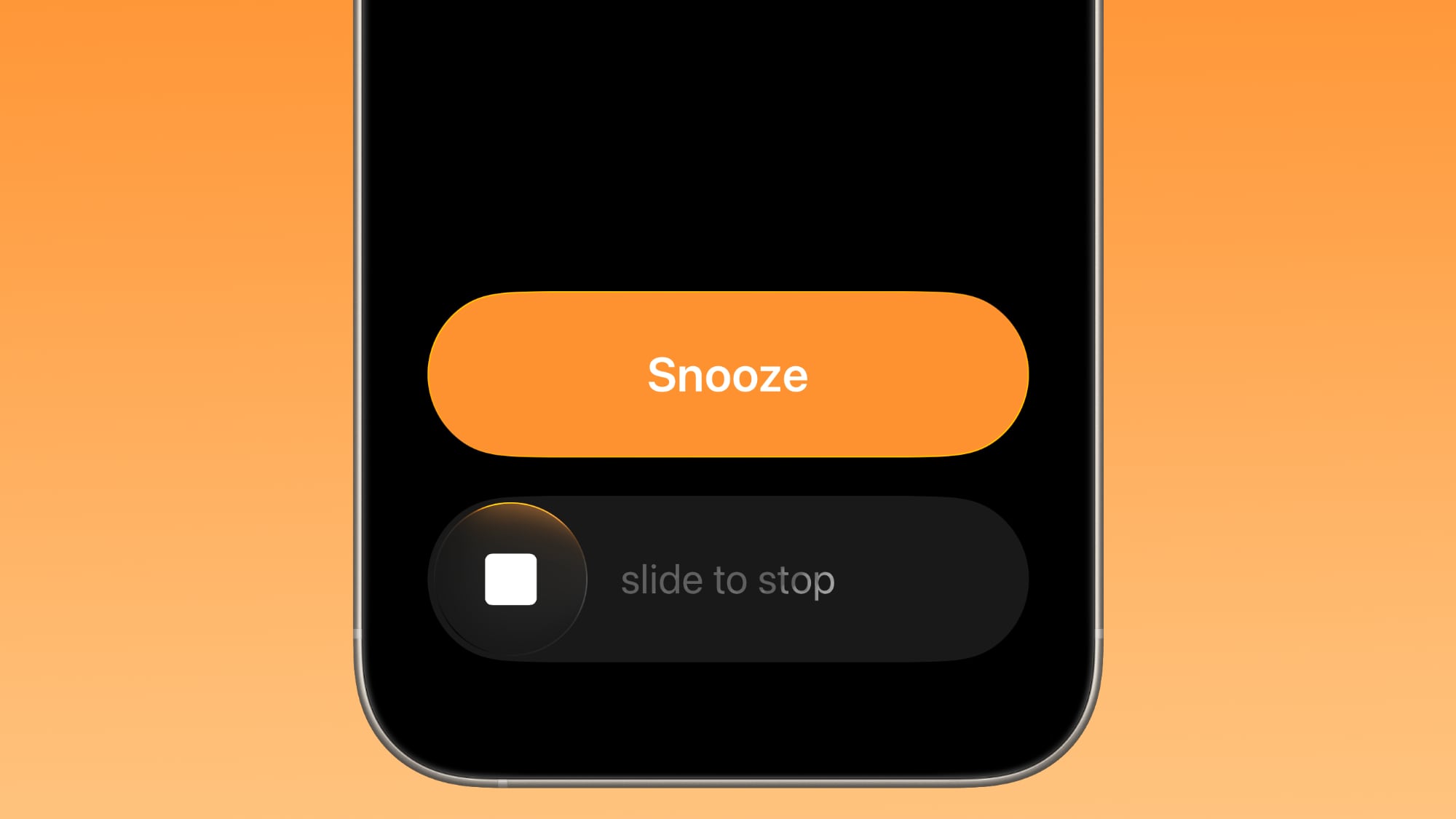
If this scenario sounds familiar, you’re not alone. With the release of iOS 26.1, Apple made a subtle but significant change to the Lock Screen alarm interface, and it has thrown many long-time iPhone users for a loop. The simple tap that once silenced your alarm has been replaced by a more deliberate slide gesture. While snoozing remains a quick tap away, completely turning off your wake-up call now requires an extra bit of effort.
This change wasn't a bug or an oversight; it was an intentional design choice aimed at solving a very common problem: accidentally turning off your alarm when you meant to hit snooze. We’ve all been there. However, for those who prefer the old, quicker way, the good news is that you are not stuck with the new slide gesture. Apple has built in a simple way to revert this change. In this comprehensive guide, we’ll walk you through exactly what changed, why it changed, and how you can easily bring back the classic tap-to-stop alarm button on your iPhone.
What Exactly Changed with the iPhone Alarm in iOS 26.1?
To truly understand the solution, it’s important to first grasp the problem. For years, the iPhone alarm screen has been a model of simplicity. When an alarm went off, you were presented with two clear options: a large orange "Snooze" button and a "Stop" button. A single tap on either would do the trick. This design was straightforward and effective, but it had a hidden flaw for the sleep-deprived: the "Snooze" and "Stop" buttons were often close enough that a clumsy, half-asleep tap could easily hit the wrong one.
In an earlier update, iOS 26, Apple redesigned the alarm screen, making the "Snooze" function a large, tappable button in the center and relegating the "Stop" function to smaller text at the bottom. This was the first step toward reducing accidental dismissals. However, with iOS 26.1, Apple took it a step further. The "Stop" text at the bottom is no longer a button you can tap. Instead, it’s now a slider. You must consciously place your finger on it and swipe to the side to turn off the alarm.
This fundamentally alters the physical action required to end your alarm:
- The Old Way (Pre-iOS 26.1): A simple, low-effort tap on the "Stop" text. This could be done in a fraction of a second, often without even looking at the screen.
- The New Way (iOS 26.1 Default): A deliberate slide gesture. This requires more focus and a more precise physical motion, forcing you to interact with your phone more consciously.
The "Snooze" function, thankfully, remains unchanged. It's still a large, easy-to-tap button, making it the default, low-effort action. This is a clear signal of Apple's intent: they want to make snoozing easy and stopping your alarm a more considered choice.
Why Did Apple Make This Change? The Quest to End Accidental Oversleeping
At first glance, this change might seem like an unnecessary complication. Why fix what wasn’t broken? The answer lies in human behavior and user experience design. Apple’s engineers and designers likely analyzed a common user pain point: the dreaded accidental alarm dismissal. It’s a story as old as the smartphone itself. You set your alarm for a crucial meeting or an early flight. When it goes off, you’re in a deep state of sleep. You reach for your phone, intending to hit the glorious snooze button for just a few more minutes of peace, but your tired finger misses its mark. You’ve hit "Stop" instead.
Without the recurring alarm, you drift back to sleep, only to wake up an hour later in a panic. This single, tiny mistake can throw your entire day into chaos. By introducing the "Slide to Stop" gesture, Apple is implementing a form of "cognitive lock." It acts as a safety mechanism that requires a higher level of intention. You can’t accidentally swipe to stop your alarm in the same way you can accidentally tap a button. The physical motion of sliding is distinct and requires more motor control and brainpower—more than most of us have in the first few seconds of consciousness.
This design philosophy is not new to iOS. Think about other critical actions on your iPhone. To turn your phone off, you have to "Slide to Power Off." To answer an incoming call, you "Slide to Answer." These slide gestures are reserved for actions that are significant and often irreversible. By placing the "Stop Alarm" function in this category, Apple is acknowledging that turning off your final wake-up call is a critical action that deserves a more deliberate confirmation. The goal is to save you from your sleepy self.
Your Step-by-Step Guide to Bringing Back the Tap-to-Stop Alarm Button
While Apple’s intentions may be good, user preference is king. For many, the risk of oversleeping is less of a concern than the daily annoyance of a clunky new gesture. If you are a light sleeper, a creature of habit, or simply someone who trusts themselves to hit the right button, you can easily switch back to the classic tap-to-stop method. The solution is tucked away in your iPhone’s Accessibility settings. Follow these simple steps to restore your alarm to its former glory.
Open the Settings App on Your iPhone
Your journey begins in the central hub for all iPhone customization: the Settings app. Locate the gray gear icon on your Home Screen and tap it to open it. This is where you can control everything from your Wi-Fi connection to your notification preferences.
Tap on 'Accessibility'
Scroll down the main Settings menu until you find the "Accessibility" option. It’s typically located a few groups down, below "General" and "Control Center." Don’t be mistaken by the name; the Accessibility section isn't just for users with specific physical or sensory needs. It's a powerhouse of customization options that can help anyone tailor their iPhone's behavior to their personal preferences.
Under "Physical and Motor," Tap 'Touch'
Once inside the Accessibility menu, you'll see a variety of categories. Look for the "Physical and Motor" heading. Underneath it, you will find the "Touch" menu. Tap on it. This section contains all the settings related to how your iPhone interprets and responds to physical interactions with the screen, such as taps, swipes, and other gestures.
Swipe to the Bottom and Toggle on 'Prefer Single-Touch Actions'
Scroll all the way to the bottom of the "Touch" menu. There, you will find a toggle switch labeled "Prefer Single-Touch Actions." By default, this option is turned off. Tap the toggle to switch it on. The switch will turn green, indicating that the feature is now active.
That’s it! The change takes effect immediately. You don't need to restart your phone or do anything else. The next time you set an alarm in the Clock app, you will notice that the "Slide to Stop" prompt on the Lock Screen has been replaced with the classic "Stop" button. A simple tap is all you’ll need to silence it. If you ever change your mind and decide you want the added security of the slide gesture, you can simply return to this same menu (Settings > Accessibility > Touch) and toggle "Prefer Single-Touch Actions" back off.
The Best of Both Worlds: When to Use Slide vs. Tap
Now that you know how to control the behavior of your alarm, you're faced with a choice. Which method is right for you? There’s no single correct answer, as it depends entirely on your personal habits and preferences. Let's break down the pros and cons of each.
The Case for the New Default: Slide to Stop
- Pro: It's a Failsafe. This is the number one reason to stick with the slide gesture. If you're a heavy sleeper or have a history of accidentally turning off your alarm, this feature could be a lifesaver. It forces a moment of clarity and prevents you from making a sleepy mistake.
- Pro: It Promotes Wakefulness. The small amount of extra physical and mental effort required to perform a slide can be just enough to pull you out of your groggy state and start the process of waking up.
- Con: It Breaks Muscle Memory. For long-time users, the change can be jarring and frustrating. It requires you to consciously unlearn a habit you've had for years.
- Con: It Can Be Inconvenient. When you just want the noise to stop, having to perform a precise gesture can feel like an unnecessary hurdle.
The Case for the Classic: Tap to Stop
- Pro: It's Fast and Effortless. A single tap is the quickest and easiest way to silence an alarm. It's simple, efficient, and gets the job done with minimal fuss.
- Pro: It's Familiar. For those who have used an iPhone for years, the tap-to-stop method feels natural and intuitive. There’s no learning curve.
- Con: It's Prone to Error. This is the very problem Apple was trying to solve. The simplicity of the tap makes it incredibly easy to hit by accident, leading to potential oversleeping.
Our recommendation? Give the new "Slide to Stop" gesture an honest try for a week. It can take a few days for a new habit to form, and you might find that the initial annoyance gives way to an appreciation for the added security. If, after a week, you still find it frustrating, you now have the knowledge and the power to switch it back in just a few taps.
Your iPhone, Your Rules
The beauty of modern software is the ability to customize it to fit your life, and this alarm setting is a perfect example. Apple’s decision to change the default alarm gesture in iOS 26.1 was a thoughtful one, aimed at preventing a common and frustrating problem. However, they also recognized that one size doesn't fit all, which is why they provided a simple way for users to opt out.
By diving into the Accessibility settings, you’ve not only solved your alarm issue but also unlocked a deeper level of control over your device. You are now in charge of your morning routine. Whether you prefer the deliberate safety of a slide or the quick convenience of a tap, the choice is yours. Your iPhone should work for you, not the other way around, and now you know how to make sure it does, starting with the very first interaction you have with it each day.
This article, "iOS 26.1: Bring Back the Tap-to-Stop Alarm Button" first appeared on MacRumors.com
Discuss this article in our forums
from MacRumors
-via DynaSage

Post a Comment