What's New in iOS 26.1 Beta 4
iOS 26.1 Beta 4 Has Arrived: Discover the Exciting New Features for Your iPhone
Apple's development cycle for iOS is always a source of excitement, and even as we approach the final release of iOS 26.1, the surprises keep coming. The fourth beta has just been released to developers, and it's not just a minor bug-fix update. In fact, this latest version introduces some of the most significant and user-requested changes we've seen in the entire beta process. These new features focus on customization, control, and refining the user experience, giving us a clearer picture of the polished operating system that will soon be available to everyone.
From visual tweaks in the design language to powerful new settings that give you more control over your device's core functions, iOS 26.1 Beta 4 is packed with notable improvements. Let's take a deep dive into everything that's new and explore how these changes will impact the way you use your iPhone when the update is officially released later this month.

A New Level of Customization: The Liquid Glass Transparency Toggle
One of the most talked-about visual elements of iOS 26 has been "Liquid Glass," Apple's term for the beautiful, translucent effect seen in interface elements like menu bars, buttons, and notification backgrounds. This design choice creates a sense of depth by subtly revealing the colors of your wallpaper or the content behind the active window. While aesthetically pleasing, user feedback has shown that one size doesn't fit all when it to transparency. In a welcome move, Apple has listened and introduced a powerful new customization option in iOS 26.1 Beta 4.
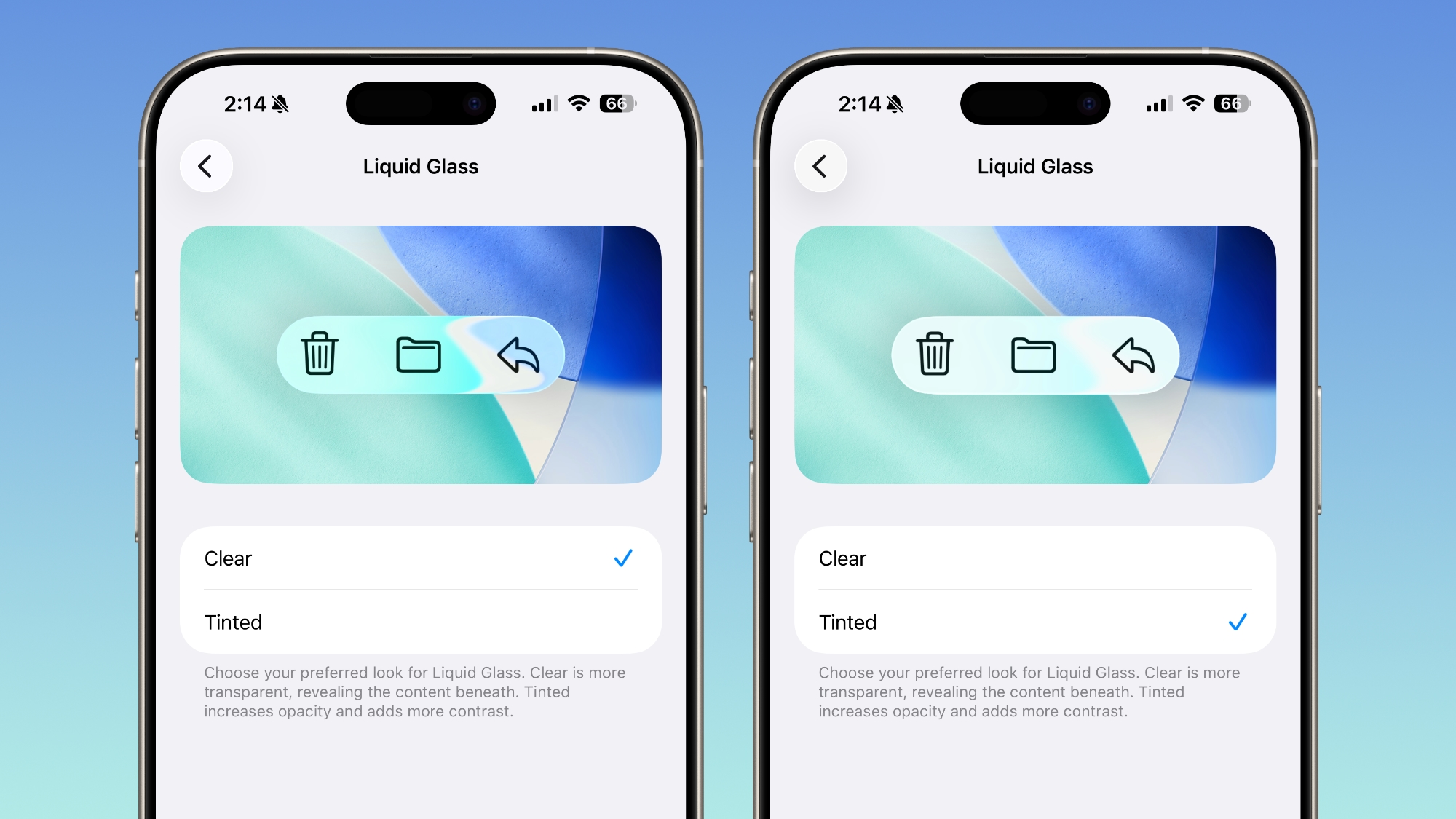
Located in the Settings app under Display & Brightness, you will now find a new "Liquid Glass" section with a toggle that lets you choose between two distinct visual styles: "Clear" or "Tinted."
Understanding Your Options: Clear vs. Tinted
So, what's the difference between these two settings? It all comes down to personal preference and visual clarity.
- Clear: This is the default Liquid Glass experience that users have seen in previous versions of iOS 26. It offers a high degree of transparency, allowing your wallpaper to shine through and creating an airy, modern, and layered look. If you love a sense of depth and enjoy seeing your background image integrated into the user interface, the "Clear" setting is for you.
- Tinted: Selecting this option significantly increases the opacity of the Liquid Glass elements. While still slightly translucent, the effect is much more subtle. The backgrounds of menus and buttons become more solid and defined, which dramatically increases contrast. This is an excellent accessibility feature for users who find highly transparent interfaces difficult to read. It's also perfect for anyone who simply prefers a more grounded, less distracting design where on-screen text and icons stand out more sharply against their background.
This new toggle is a fantastic example of Apple empowering users to tailor their device's appearance to their specific needs and tastes. It's a small change in the Settings app, but it has a big impact on the day-to-day feel of using your iPhone, making the interface more comfortable and personal for everyone.
Take Back Control: Disable the Lock Screen Camera Swipe
For years, one of the hallmark features of the iPhone has been the ability to instantly access the camera by swiping left on the Lock Screen. This shortcut is incredibly convenient for capturing a fleeting moment without having to unlock your phone and navigate to the Camera app. However, this convenience has always come with a downside: it's incredibly easy to activate by accident. Many users have found their photo libraries cluttered with unintentional pictures of the inside of their pockets or blurry shots of the floor. Furthermore, it presents a minor privacy concern, as anyone who picks up your phone can easily open the camera and take photos, even if they can't access the rest of the device.
Until now, the only way to prevent this was to disable the Camera app entirely using Screen Time, a solution that was far too drastic for most people. In iOS 26.1 Beta 4, Apple finally provides a simple, direct solution to this long-standing issue.
How to Disable the Camera Swipe
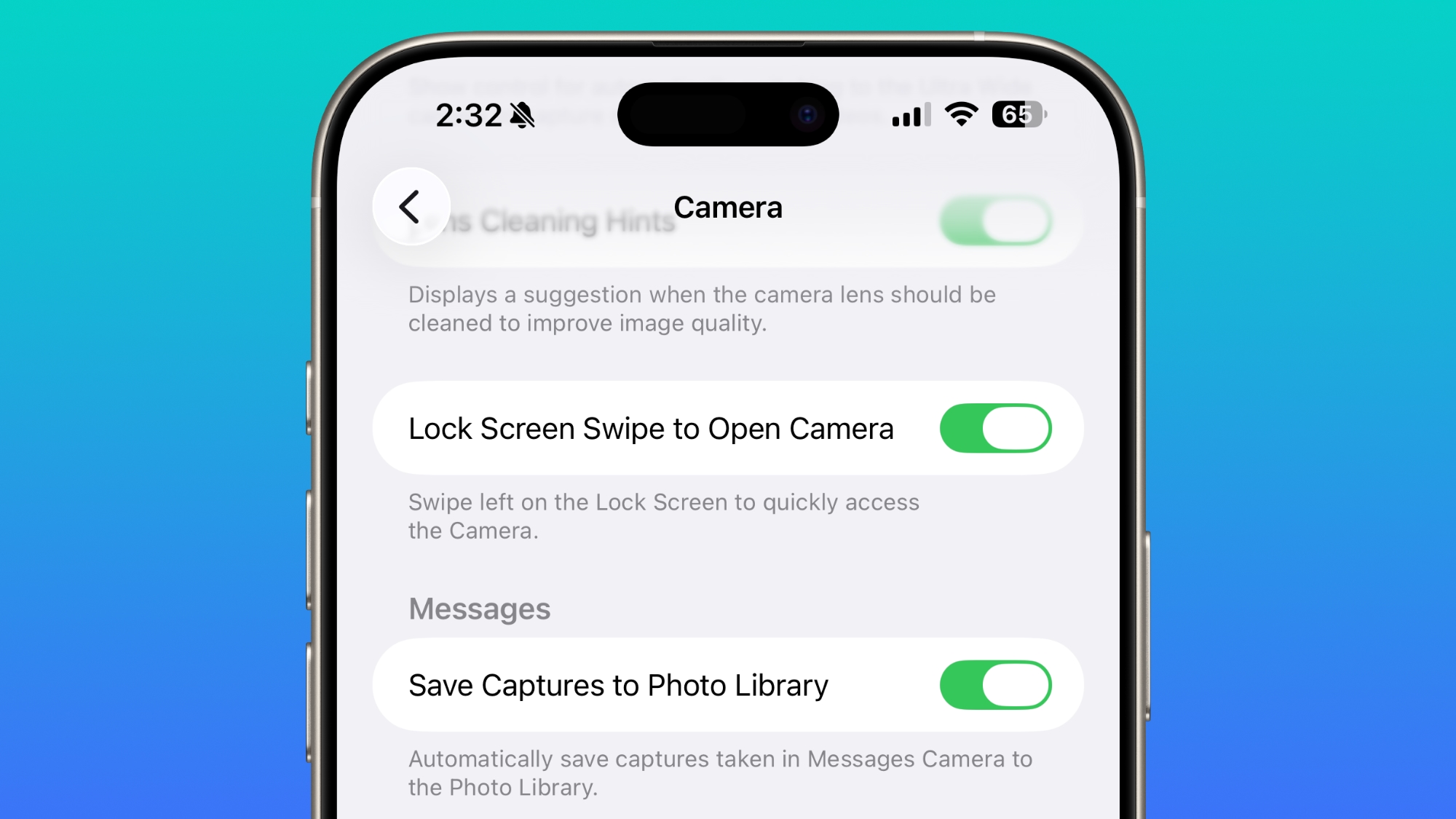
A new toggle has been added within the main Settings app. To find it, navigate to Settings > Camera. There, you'll see a new option labeled "Lock Screen Swipe to Open Camera." By simply turning this toggle off, you will completely disable the left-swipe gesture for the camera on your Lock Screen. The camera icon button will remain on the Lock Screen, so you still have quick access if you need it, but you'll no longer have to worry about accidental activations.
This is a quality-of-life improvement that many users have been requesting for years. It gives you the power to choose how you want to interact with your Lock Screen, opting for a more streamlined and deliberate experience if you prefer. Whether you're tired of pocket photos or simply want to secure your device's camera from casual use, this new setting offers a perfect, long-awaited solution.
Fine-Tuning Your Calls: The New Phone Haptics Toggle
Haptic feedback—the subtle vibrations and taps your iPhone uses to simulate physical buttons and provide feedback—is a key part of the modern iOS experience. It makes interactions feel more tangible and responsive. In the Phone app, haptics are used to give you a small vibration when a call successfully connects and another when the call is disconnected. This is helpful for knowing a call has gone through without having to look at the screen.
However, not everyone enjoys these specific haptic alerts. For some, they can be distracting or simply unnecessary. Recognizing this, Apple has added another granular control in iOS 26.1 Beta 4, allowing users to disable these specific vibrations within the Phone app.
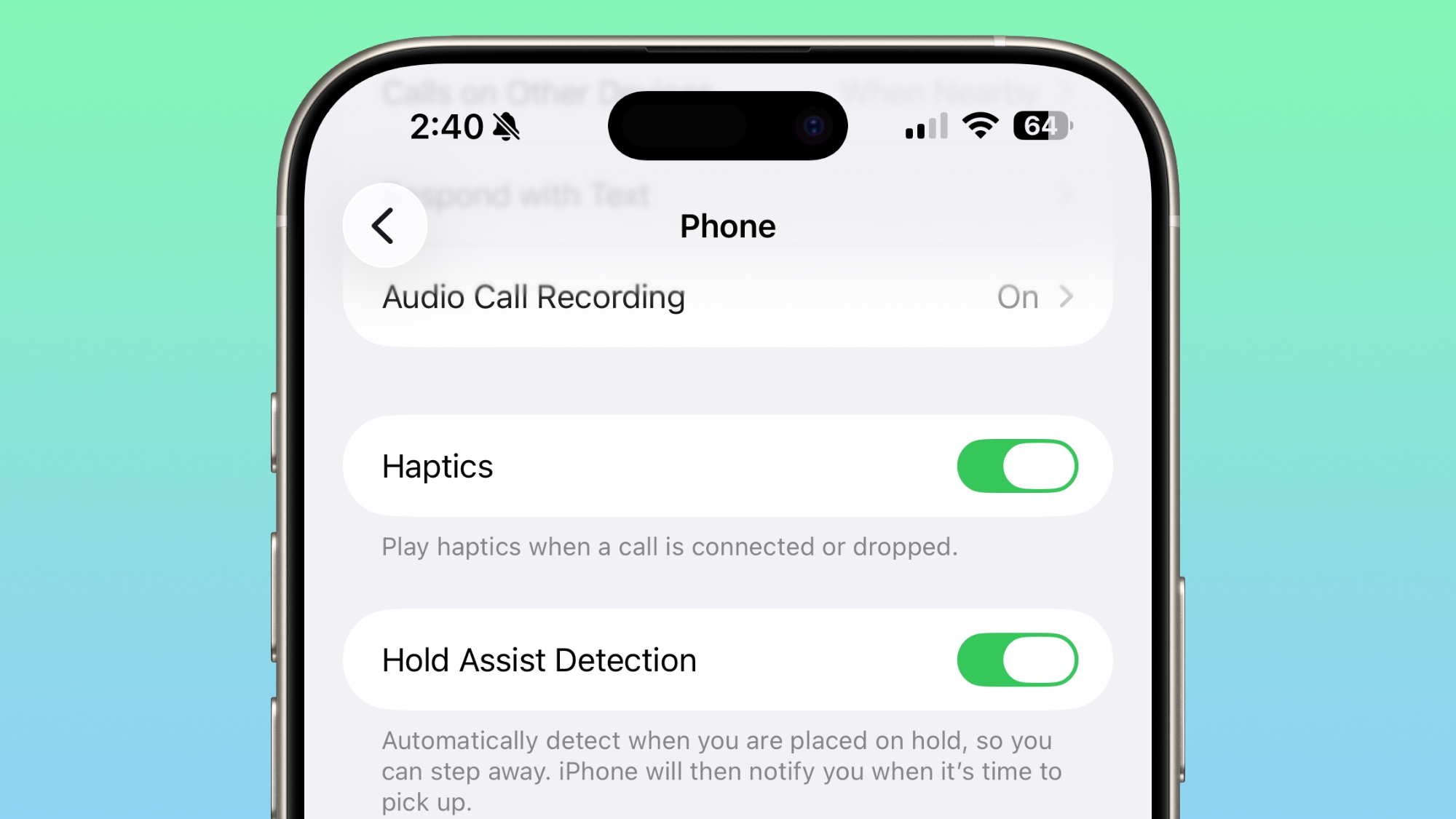
Inside the settings for the Phone app, a new toggle now lets you turn off the haptic feedback associated with calls connecting or dropping. This change won't affect other system-wide haptics; it exclusively targets the Phone app's call status alerts. This is another small but meaningful step toward making the iPhone experience fully customizable, allowing users to silence notifications and feedback that they personally find unhelpful.
Refinements for Apple Intelligence: A New Look and a Status Change
Apple Intelligence is the company's ambitious suite of on-device and cloud-based artificial intelligence features, and it's a central pillar of the iOS 26 update. As Apple continues to refine these powerful tools, it's also polishing the user interface that controls them. In Beta 4, the Apple Intelligence section within the Settings app has received two notable updates.
A More Consistent Design
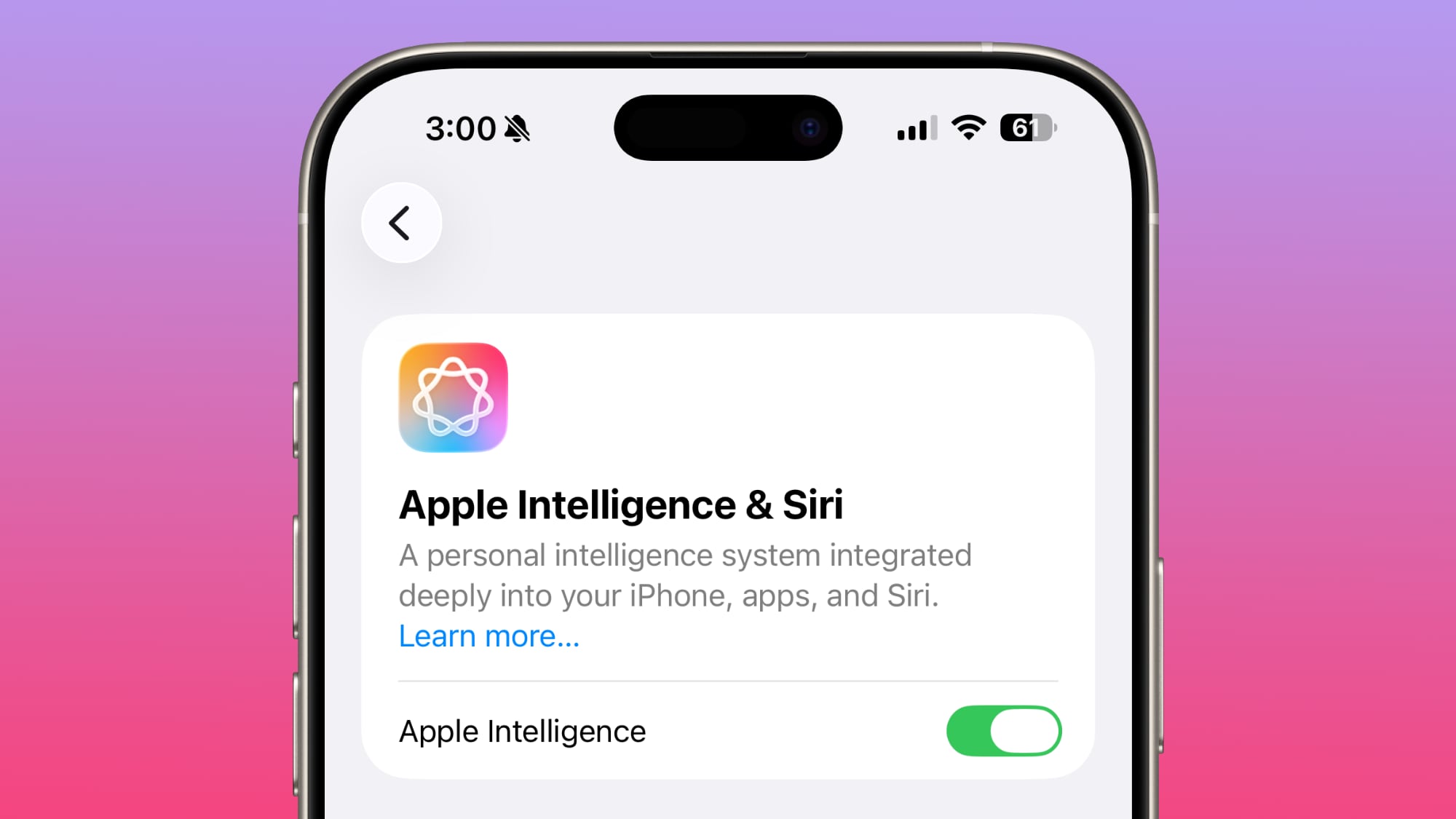
First, there's a cosmetic but important change to its layout. The content within the Apple Intelligence settings page is now left-aligned. In previous betas, this section was one of the few remaining that used a centered layout. Apple has been progressively updating the Settings app across the board to use a consistent, left-aligned format for better readability and a more uniform look. This change brings Apple Intelligence in line with the rest of the operating system's design language, creating a more cohesive and polished feel.
Is It Still a Beta?
The second, and perhaps more intriguing, change is the removal of the "Beta" label from the Apple Intelligence heading in the Settings app. Since its introduction, Apple has been clear that its new AI features are a work in progress, and the beta tag has reflected that. Its removal in this latest iOS beta has sparked some speculation.
What could this mean? There are a few possibilities. It could signal that Apple now considers some of the core Apple Intelligence features to be stable and mature enough to graduate from beta status ahead of the public launch. Alternatively, it might simply be a cosmetic change to clean up the interface, with the features still technically being in a beta phase behind the scenes. Adding to the mystery, the corresponding beta for macOS, macOS Tahoe 26.1 beta 4, has not removed the beta label from its Apple Intelligence section. This discrepancy could suggest it was an intentional change for iOS or, possibly, just an oversight in this build. We will likely learn more as we get closer to the official release.
What Else Is New?
These are the most significant changes we've uncovered in iOS 26.1 Beta 4 so far, but with every new build, there are often smaller tweaks and bug fixes hidden under the surface. This update continues the trend of iOS 26.1 being an update focused on refinement, performance improvements, and, most importantly, giving users more direct control over their experience.
Have you installed the latest beta and discovered a new feature or a subtle change that we haven't covered here? We'd love to hear about it! Share your findings in the comments below to help the community get a complete picture of what's coming.
And if you want to catch up on all the features introduced in the previous beta versions of this update, be sure to check out our comprehensive iOS 26.1 feature guide for a complete rundown.
This article, "What's New in iOS 26.1 Beta 4" first appeared on MacRumors.com
Discuss this article in our forums
from MacRumors
-via DynaSage

Post a Comment