iOS 26.1 Beta 4 Adds Toggle to Turn Off Lock Screen Camera Swipe
Finally! Apple Lets You Disable the iPhone Lock Screen Camera Swipe in iOS 26.1
For years, iPhone users have shared a common, often frustrating, experience: pulling their phone out of their pocket only to find the camera app open, the device warm, and the battery significantly drained. This happens because of the Lock Screen's quick-access camera feature, which is activated by a simple swipe from right to left. While designed for capturing fleeting moments, this gesture is notoriously easy to trigger accidentally. It can lead to a gallery cluttered with blurry "pocket photos," wasted battery life, and even privacy concerns.
Countless users have voiced their desire for a simple way to turn this feature off, a request that has echoed through forums and social media with every new iOS release. Until now, the only "solution" was a drastic one: disabling the camera app entirely through Screen Time settings, a cumbersome workaround that rendered the camera useless for intentional photos. But the wait is finally over. With the latest beta release of iOS 26.1, Apple is introducing a simple, elegant solution that puts control back in the hands of the user.
The fourth beta of iOS 26.1 includes a dedicated toggle switch in the Settings app that allows you to completely disable the Lock Screen swipe gesture for the camera. This small change represents a massive quality-of-life improvement, addressing one of the longest-standing annoyances in the iOS ecosystem. Let's dive deep into why this feature is so important, how it works, and what it signals about Apple's evolving design philosophy.
The Long-Standing Problem: Accidental Camera Activation
The swipe-to-open-camera feature was born from a noble idea: never miss a perfect shot. In a world of instant social media updates and spontaneous moments, being able to access your camera in a fraction of a second, without even unlocking your phone, is undeniably convenient. Apple's design philosophy has always prioritized ease of use and seamless interaction, and this feature is a prime example of that principle in action.
However, this convenience came with a significant trade-off. The gesture—a simple swipe left from anywhere on the Lock Screen—is so sensitive that it often activates without the user's knowledge. Consider these common scenarios:
- The Pocket Photo Phenomenon: Placing your iPhone in a pocket or a purse often results in the screen rubbing against fabric or other items. This friction can easily be registered as a swipe, launching the camera app. The camera then remains active, searching for focus and exposing the sensor, which consumes a considerable amount of battery and generates heat. The result is often a dead battery and a camera roll filled with dozens of black or blurry images.
- Privacy and Security Concerns: While the Lock Screen camera doesn't grant access to your existing photo library, it does allow anyone holding your phone to take new photos and videos. This poses a potential privacy risk. A child could accidentally take and save hundreds of photos, or worse, a stranger or a mischievous friend who gets ahold of your locked phone could use the camera without your permission.
- The Ineffective Workaround: Frustrated users seeking a solution would often discover the only available method was to use Screen Time. This involved navigating deep into Settings, enabling Content & Privacy Restrictions, and completely disabling the Camera app. This was an "all-or-nothing" approach. While it did remove the camera from the Lock Screen, it also removed it from the Home Screen, Control Center, and every other part of iOS. To take a simple photo, you would have to reverse the entire process, making it an impractical solution for anyone who uses their camera regularly.
The lack of a simple toggle switch has been a persistent point of contention, making this new feature in iOS 26.1 not just a minor update, but a direct and welcome response to years of user feedback.
The Solution Arrives: How to Disable the Camera Swipe in iOS 26.1
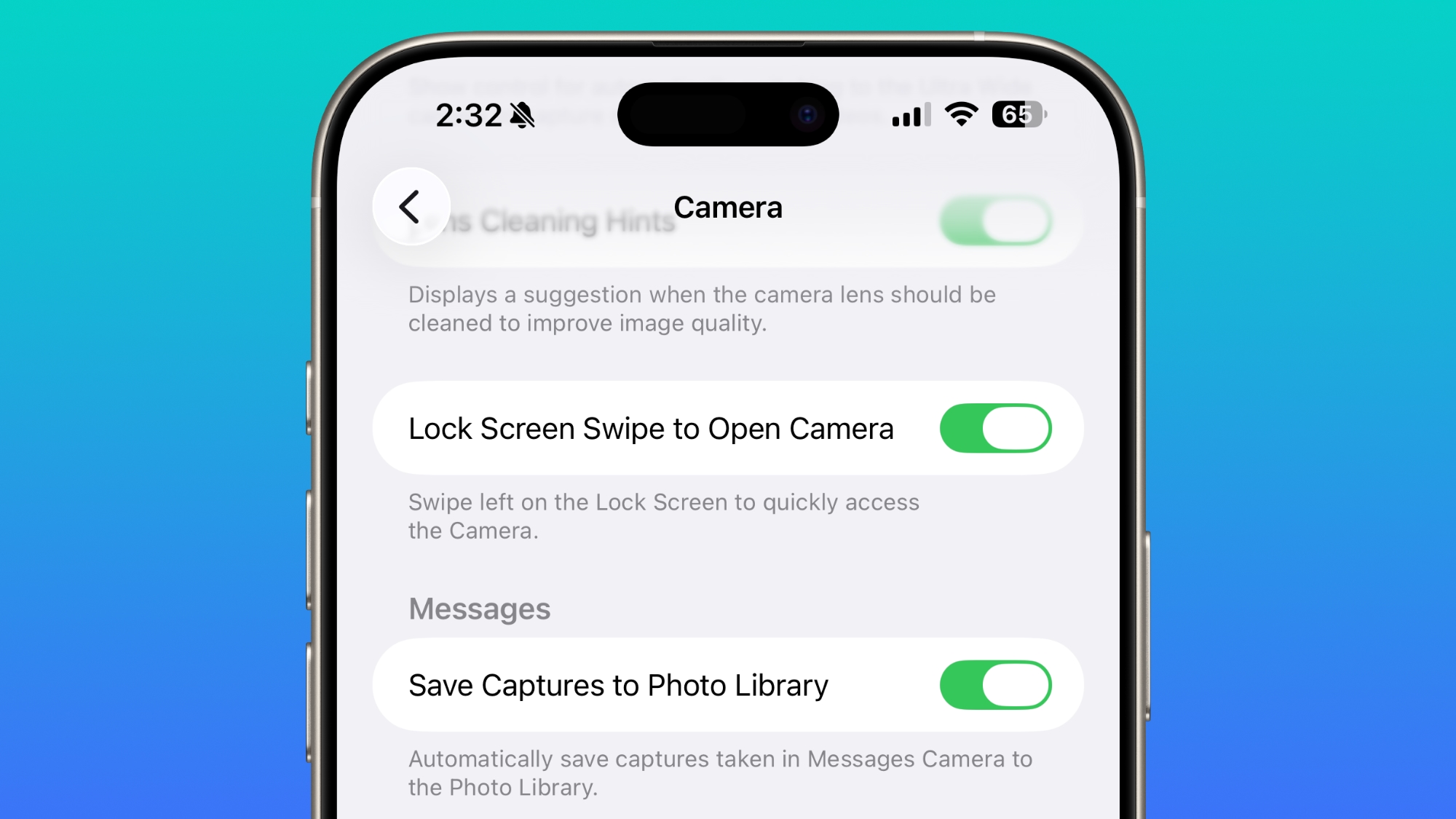
With the fourth beta of iOS 26.1, disabling the camera swipe is now incredibly straightforward. Apple has placed the new control exactly where you would expect to find it: in the Camera's settings menu. Here is the step-by-step guide to reclaiming your Lock Screen:
- Update Your iPhone: First, ensure your device is running iOS 26.1 Beta 4 or a later version. This feature will likely be available to everyone once iOS 26.1 is released to the public.
- Open the Settings App: Tap the familiar grey gear icon on your Home Screen.
- Scroll to Camera Settings: Navigate down the main list of settings and tap on "Camera."
- Find the New Toggle: Inside the Camera settings, you will find a new option labeled "Lock Screen Swipe to Open Camera."
- Turn It Off: Simply tap the toggle switch. When it turns from green to grey, the feature is disabled.
That's it. With just five simple steps, the left-swipe gesture on your Lock Screen will no longer activate the camera. The screen will simply provide a subtle bounce, indicating the gesture is no longer active. It's a clean, simple, and reversible solution.
It's important to note that this only disables the swipe gesture. The small camera icon that resides in the bottom-right corner of the Lock Screen remains fully functional. You can still press and hold that icon to quickly launch the camera. This provides a perfect compromise: quick camera access is still available, but it now requires a much more deliberate and intentional action, effectively eliminating accidental activations.
Who Benefits From This New Feature?
This update, while small, will be a game-changer for a wide range of iPhone users. Here’s a look at who stands to benefit the most:
- Parents of Young Children: Anyone who has handed their phone to a child knows how quickly the camera roll can fill up with random, blurry photos. Kids can easily and accidentally swipe open the camera, leading to storage issues and a cluttered Photos app. This toggle allows parents to child-proof the Lock Screen more effectively.
- The Battery-Conscious User: If you're someone who meticulously manages your battery life to get through a long day, preventing the camera from running in your pocket for hours is a huge win. This feature directly contributes to better battery performance and a cooler-running device.
- Minimalists and Power Users: Some users prefer a streamlined, non-interactive Lock Screen that serves purely as a gateway to their unlocked device. Disabling the swipe gesture contributes to this minimalist ideal. It removes an interactive element that they may not use, reducing the potential for accidental inputs.
- Anyone Concerned with Privacy: For those who prioritize security, this feature adds another layer of control. It prevents unauthorized individuals from using any part of the phone's camera hardware without first authenticating through Face ID, Touch ID, or a passcode.
- People in Active Professions: Individuals who work in physically demanding jobs or enjoy active hobbies often find their phones jostled around, leading to frequent accidental camera launches. This toggle provides a robust solution to keep their device secure and their battery full while on the move.
A Sign of a More Customizable iOS?
For a long time, Apple's approach to software design was famously rigid. The company dictated the user experience with the belief that it knew what was best for the majority of its users. Customization was limited, and options to change core system behaviors were few and far between. However, in recent years, we've seen a gradual but significant shift in this philosophy.
The introduction of Home Screen widgets, the comprehensive Lock Screen redesign in iOS 16, and the ability to change default browser and email apps all point to a new, more flexible Apple. The company seems to be increasingly acknowledging that user control and personalization are just as important as a streamlined, out-of-the-box experience.
This new camera toggle, though a minor feature in the grand scheme of an entire OS, fits perfectly within this modern narrative. It shows that Apple is listening to long-term user feedback and is willing to add settings for features that were previously non-negotiable. It's a move that respects user intelligence and preference, allowing individuals to tailor their device's behavior to their specific needs. This trend is encouraging, as it suggests that we may see even more user-requested customization options in future versions of iOS.
Getting Ready for iOS 26.1
Currently, this feature is only available in the beta version of iOS 26.1. If you're eager to try it out, you can join the Apple Beta Software Program to install the public beta. However, it's crucial to remember that beta software is pre-release software. It can contain bugs, cause unexpected app behavior, and potentially lead to worse battery life than the stable public version.
If you decide to proceed, always back up your iPhone completely to a computer or iCloud before installing a beta profile. This ensures you can restore your data if anything goes wrong. For most users, however, the best course of action is to simply wait. The iOS 26.1 update will likely be released to the general public in a few weeks or months, at which point everyone can enjoy this new feature along with other stability improvements and bug fixes.
A Small Toggle, A Big Impact
In conclusion, the addition of a toggle to turn off the Lock Screen camera swipe is a perfect example of a small change that makes a huge difference in the daily user experience. It directly addresses a problem that has plagued iPhone owners for nearly a decade, providing a simple, effective, and long-overdue solution.
It's a testament to the power of user feedback and a promising indicator of Apple's continued move towards a more customizable and user-centric iOS. The days of a hot phone and a camera roll full of pocket-lint portraits are finally coming to an end, and for that, millions of iPhone users will be grateful.
This article, "iOS 26.1 Beta 4 Adds Toggle to Turn Off Lock Screen Camera Swipe" first appeared on MacRumors.com
Discuss this article in our forums
from MacRumors
-via DynaSage

Post a Comment