WhatsApp: How to Set a Message Reminder
WhatsApp's New Message Reminder Feature: Never Miss an Important Message Again
WhatsApp, the popular messaging app, has introduced a handy new feature for iPhone users: message reminders. This allows you to set reminders for specific messages, ensuring you don't overlook crucial information buried within busy chats. This feature is available in WhatsApp version 25.25.74 and above.

Imagine this: you're in the middle of a lively group chat, and someone mentions an important detail – a meeting time, a deadline, or a crucial piece of information. Instead of risking forgetting this amid the flurry of messages, you can now set a reminder to revisit it later. This new function avoids the need for manual workarounds like starring messages or taking screenshots – a much more streamlined and reliable approach.
How to Set a Message Reminder in WhatsApp
Setting a reminder for a message is incredibly straightforward. Follow these simple steps:
- Locate the Message: Open the WhatsApp conversation containing the message you want to be reminded about. Long-press on the message bubble.
- Access the Menu: A popup menu will appear. Tap on the "More..." option.
- Select "Remind Me": From the expanded menu, choose the "Remind Me" option.
- Choose Your Reminder Time: You'll be presented with several pre-set options: "in 2 hours," "in 8 hours," and "in 24 hours." Alternatively, select "Custom" to set a specific date and time for your reminder.
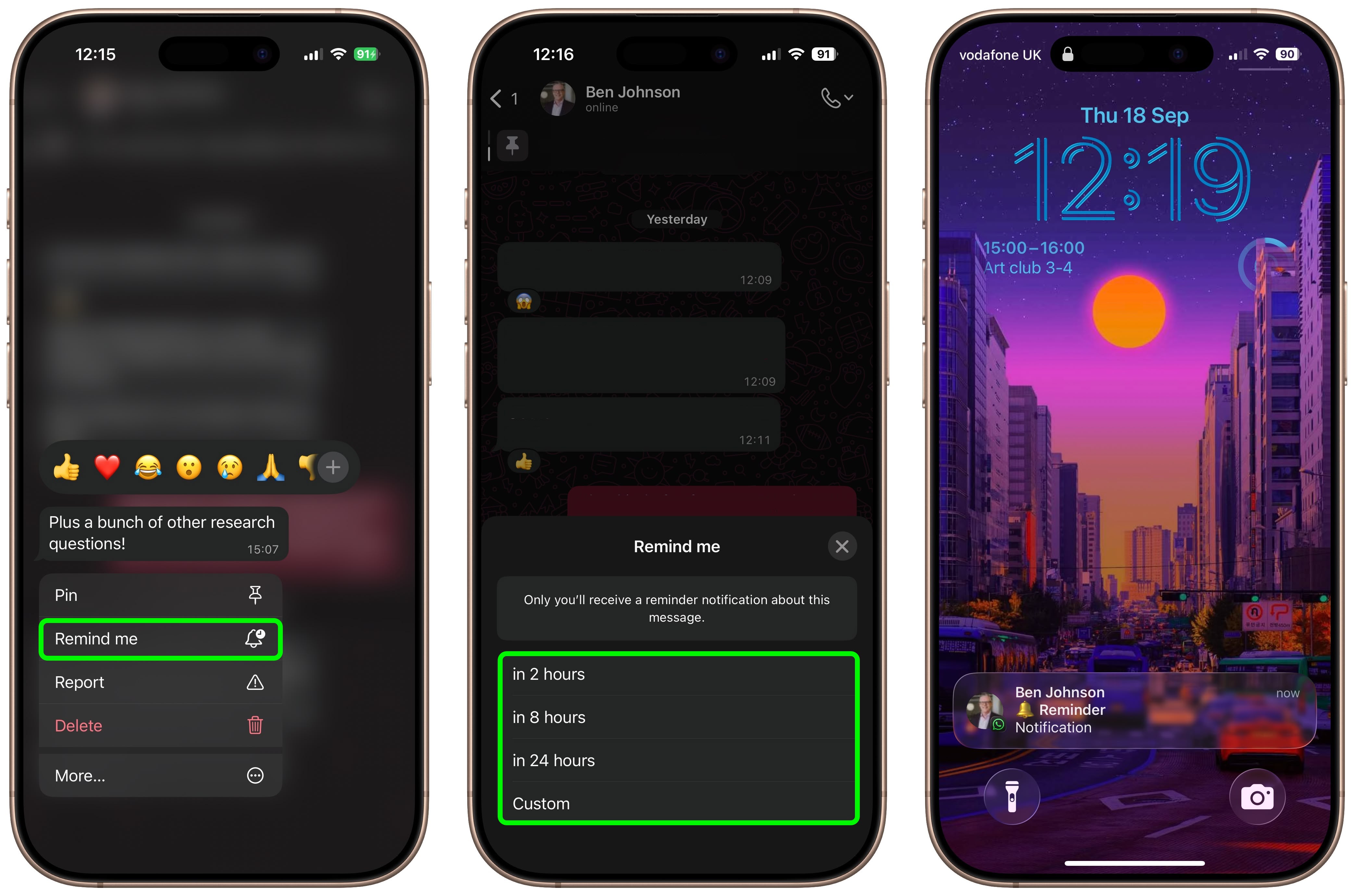
Once you've set the reminder, a small bell icon will appear in the corner of the message bubble, visually indicating that a reminder is active. When the reminder time arrives, you'll receive a notification. The notification will display the message content (depending on your notification settings), the conversation it's from, and any included media such as images or videos. This ensures you have all the necessary context when you see the reminder.
This feature greatly simplifies the process of remembering important messages. No more hunting through endless conversations or relying on your memory. It's a far superior method to less reliable alternatives like starring messages, which can easily be overlooked amidst a growing list of starred items. Or, consider the inconvenience of taking screenshots – a cumbersome process prone to clutter and lacking a convenient time-based reminder system.
How to Cancel a WhatsApp Message Reminder
Need to cancel a reminder before it triggers? No problem. This process is just as easy as setting one:
- Locate the Reminded Message: Find the message with the bell icon indicating an active reminder.
- Access the Menu: Long-press on the message bubble and tap "More..." from the popup menu.
- Cancel the Reminder: Select the "Cancel Reminder" option to deactivate the alert.
By canceling the reminder, the bell icon will disappear from the message, confirming that the reminder is no longer active. This allows for greater control over your notifications and prevents unwanted alerts from cluttering your notification center.
Benefits of Using WhatsApp Message Reminders
The introduction of message reminders in WhatsApp offers several key advantages:
- Improved Organization: Keeps important messages easily accessible without cluttering your chat interface with stars or other markings.
- Enhanced Productivity: Allows you to address important messages at a more convenient time without risking forgetting them.
- Reduced Stress: Eliminates the worry of missing critical information amidst numerous messages.
- Increased Efficiency: Streamlines communication by providing a clear and efficient method for prioritizing and returning to significant messages.
- Better Memory Management: Acts as a reliable external memory system, removing the burden of remembering to check back on important details.
In conclusion, WhatsApp's new message reminder feature represents a significant enhancement to the app's functionality. It provides a simple, effective, and intuitive way to manage important messages, ensuring nothing slips through the cracks. It's a valuable addition that enhances both organization and communication efficiency.
This article, "WhatsApp: How to Set a Message Reminder" first appeared on MacRumors.com
Discuss this article in our forums
from MacRumors
-via DynaSage

Post a Comment