iPhone 17: Using the New Center Stage Front Camera
Unlocking the Power of Center Stage: Your Guide to the iPhone 17's Revolutionary Front Camera
The iPhone 17 series and the iPhone Air boast a game-changing 18MP Center Stage front camera. This isn't your average selfie camera; it features a square sensor and intelligent auto-adjustment, offering a completely new mobile photography experience. Forget about awkwardly repositioning your phone – Center Stage automatically rotates and zooms to keep you perfectly framed, no matter what.
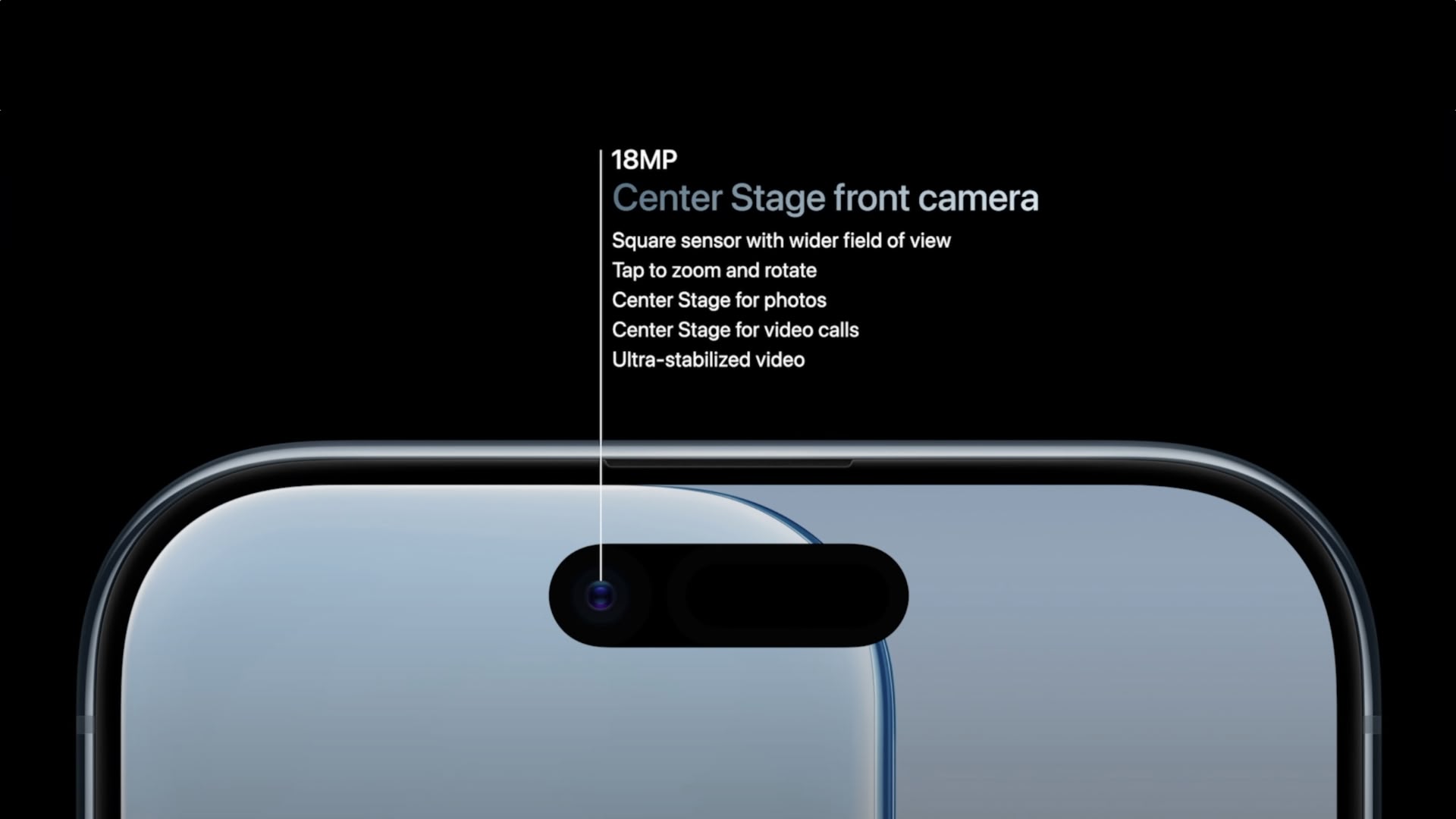
The square sensor design is key. Unlike traditional rectangular sensors, it captures significantly more image data. This translates to greater flexibility in composing your shots without compromising image quality. You have more room to creatively frame your selfies and group photos.
Understanding Auto-Rotate and Auto-Zoom: The Magic Behind Center Stage
Center Stage's brilliance lies in its automatic adjustments. It seamlessly switches between portrait (vertical) and landscape (horizontal) orientations as you move your phone. No more fiddling to get the perfect angle! The camera intelligently adapts to the scene before it, dynamically adjusting the field of view.
Taking a solo selfie? Center Stage keeps the focus tight on you for an intimate feel. Suddenly, friends join the picture? The camera cleverly expands the view to include everyone, ensuring no one gets cut out. It's like having a personal director for your selfies.
Taking Photos with Center Stage: A Step-by-Step Guide

- Launch the Camera App: Open the Camera app on your iPhone.
- Switch to Selfie Mode: Tap the circular arrows icon (usually located at the bottom right) to activate the front-facing camera.
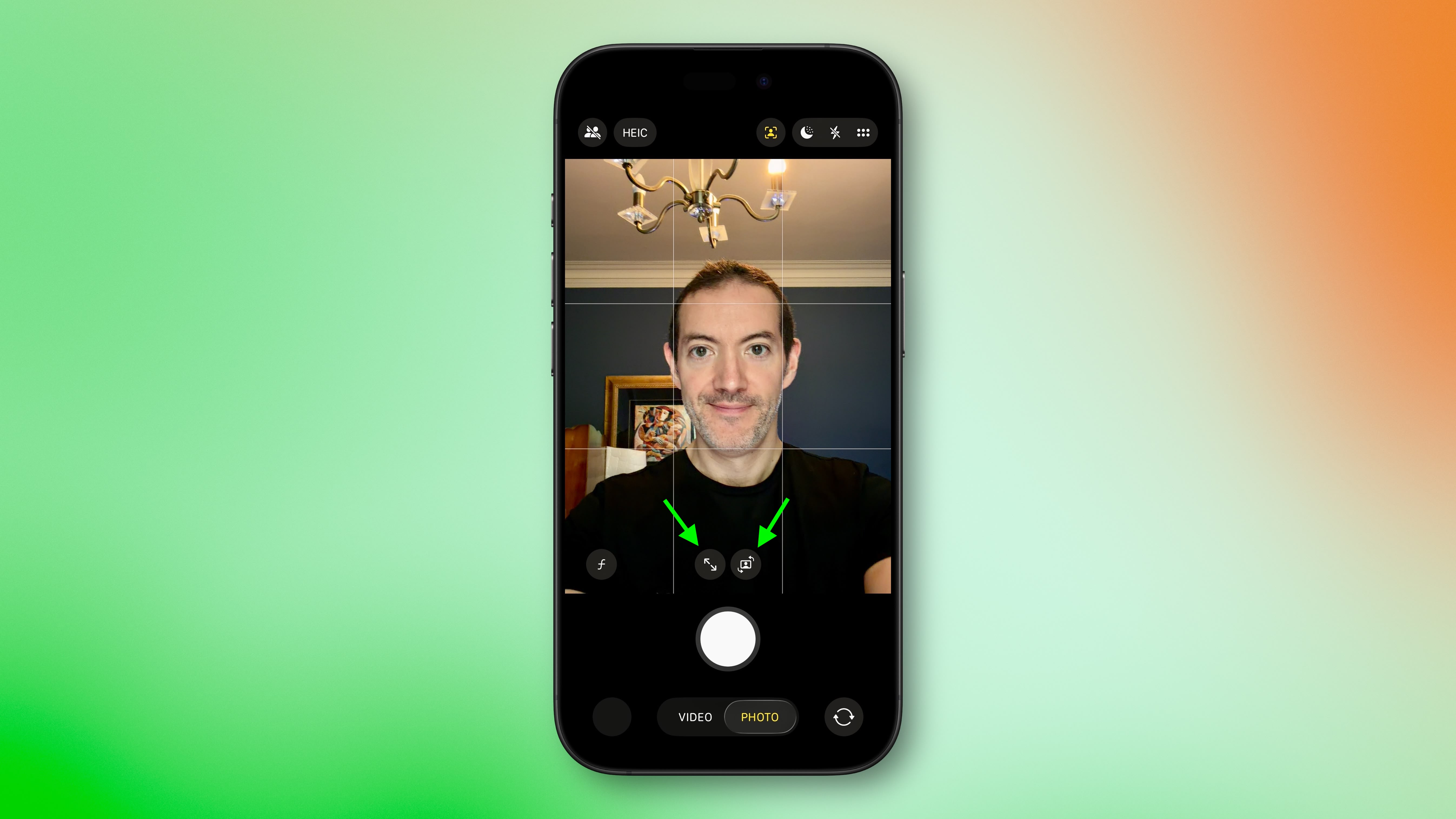
- Check Center Stage Status: Look for the Center Stage button (often a person's profile icon within a frame) above the viewfinder. A yellow highlight indicates it's active and ready to go.
- Compose Your Shot: Position yourself and your subjects. Center Stage will automatically handle the orientation and zoom.
- Capture Your Moment: Press the shutter button to take your photo or video.

Taking Control: Manual Camera Controls for Precise Framing
While Center Stage's automation is impressive, you might occasionally want more precise control. Fortunately, the iPhone 17 gives you that option:
- Manual Rotation: Tap the orientation icon (often a small icon depicting a phone rotating) within the viewfinder to switch between portrait and landscape modes manually, overriding the automatic rotation feature.
- Manual Zoom: Use the zoom control (typically arrows pointing inwards and outwards) in the viewfinder to adjust the zoom level yourself, instead of relying on Center Stage's automatic adjustments.
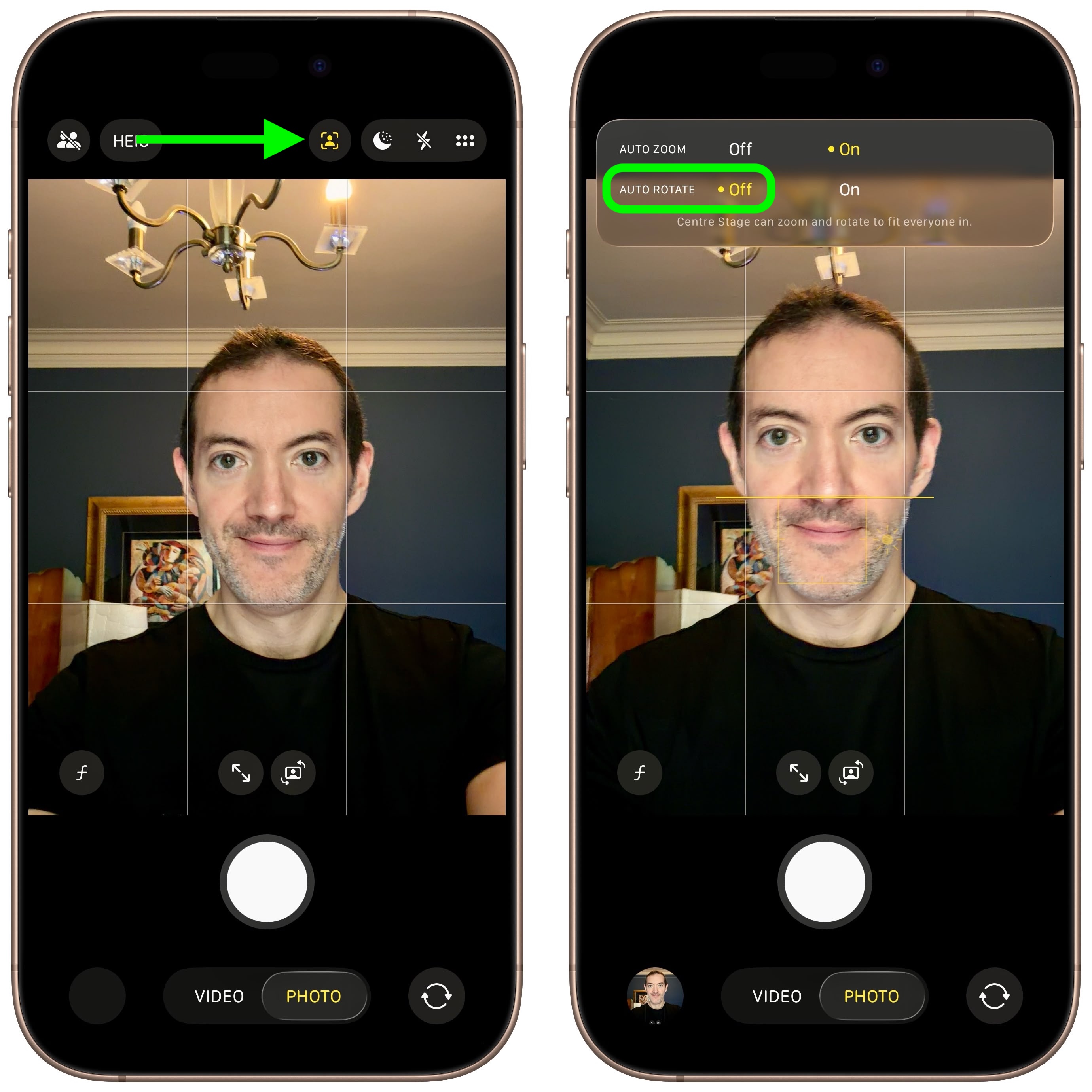
Disabling Auto-Rotate: Perfecting Your Personal Selfies

If Center Stage keeps including people in the background when you just want a solo selfie, you can easily disable the auto-rotate feature:
- Access Center Stage Settings: Tap the yellow Center Stage button.
- Turn Off Auto-Rotate: Locate the "Auto Rotate" setting and tap "Off".
- Capture Your Shot: Take your photo. The camera will now remain in the orientation you set. You can still manually change the orientation using the viewfinder's orientation control if needed.
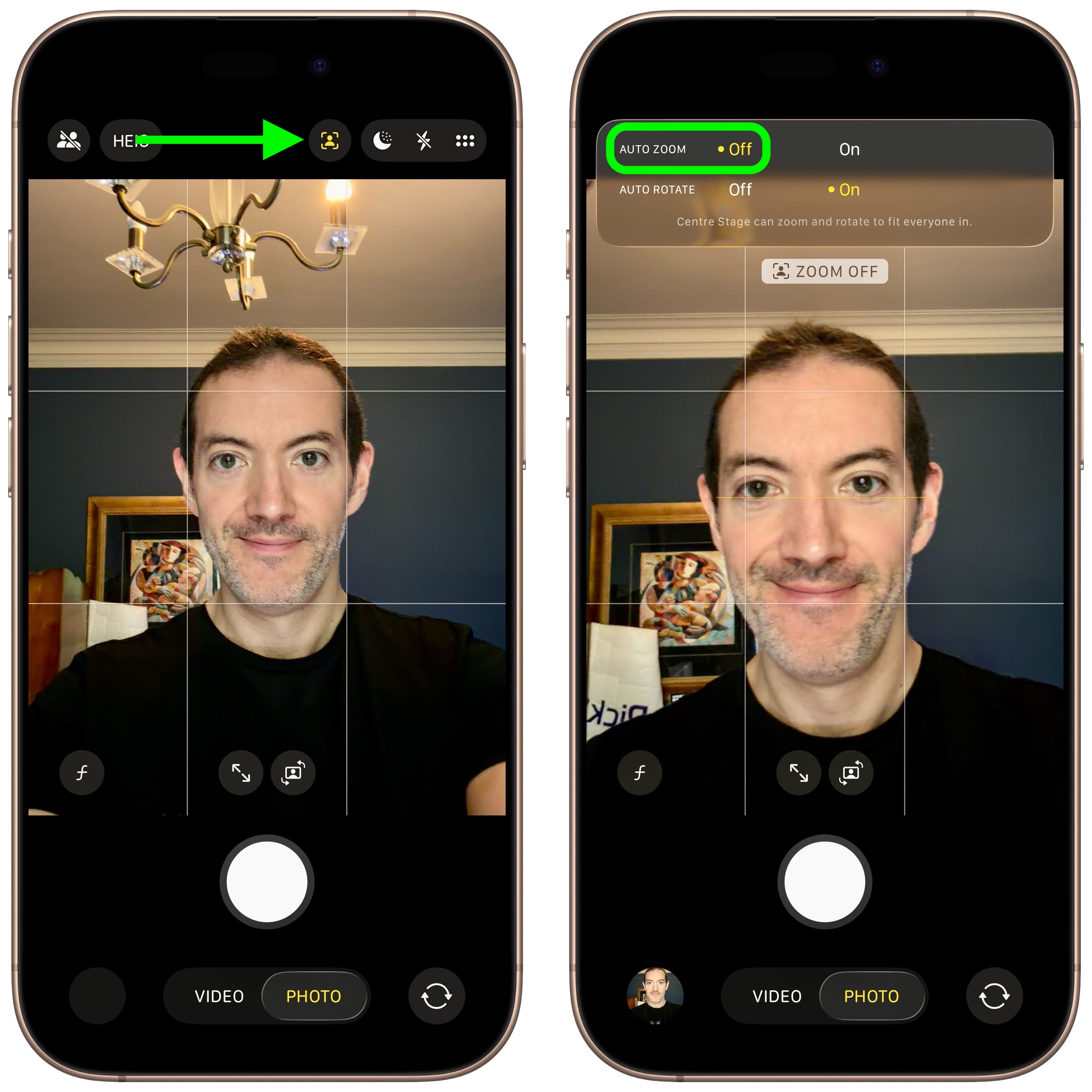
Disabling Auto-Zoom: Fine-Tuning Your Framing

Sometimes, Center Stage's auto-zoom might not perfectly match your vision. Here's how to take control:
- Access Center Stage Settings: Tap the yellow Center Stage button.
- Turn Off Auto-Zoom: Find the "Auto Zoom" setting and tap "Off".
- Manual Zoom Control: Use the manual zoom control (the arrows) in the viewfinder to precisely frame your shot.
Center Stage's capabilities extend beyond still photos. It also works wonderfully during FaceTime calls, keeping your face centered in the frame. This consistent framing is similar to how Center Stage functions on iPads and MacBooks.
Want to learn more about the iPhone 17's advanced video recording features? Check out our guide on dual capture video recording: iPhone 17 Dual Capture Video How-To.
Related Forum:
iPhoneThis article, "iPhone 17: Using the New Center Stage Front Camera" first appeared on MacRumors.com
Discuss this article in our forums
from MacRumors
-via DynaSage

Post a Comment