Five Ways iOS 26 Improves Your iPhone's Battery
iOS 26: Five Major Battery Improvements for Your iPhone
Apple's iOS 26 introduces several exciting changes designed to improve your iPhone's battery life and provide more detailed insights into your battery usage. This update offers a more user-friendly experience, making it easier than ever to understand what's draining your battery and take steps to conserve power.

Revamped Battery Settings
The Battery section within the Settings app has received a complete overhaul. Now, you get a much more detailed look at how your iPhone usage affects battery life and which apps are the biggest power consumers. At the top, you'll find a clear overview of your current battery level, the last charging time, and – if your iPhone is currently charging – an estimate of the remaining charging time.
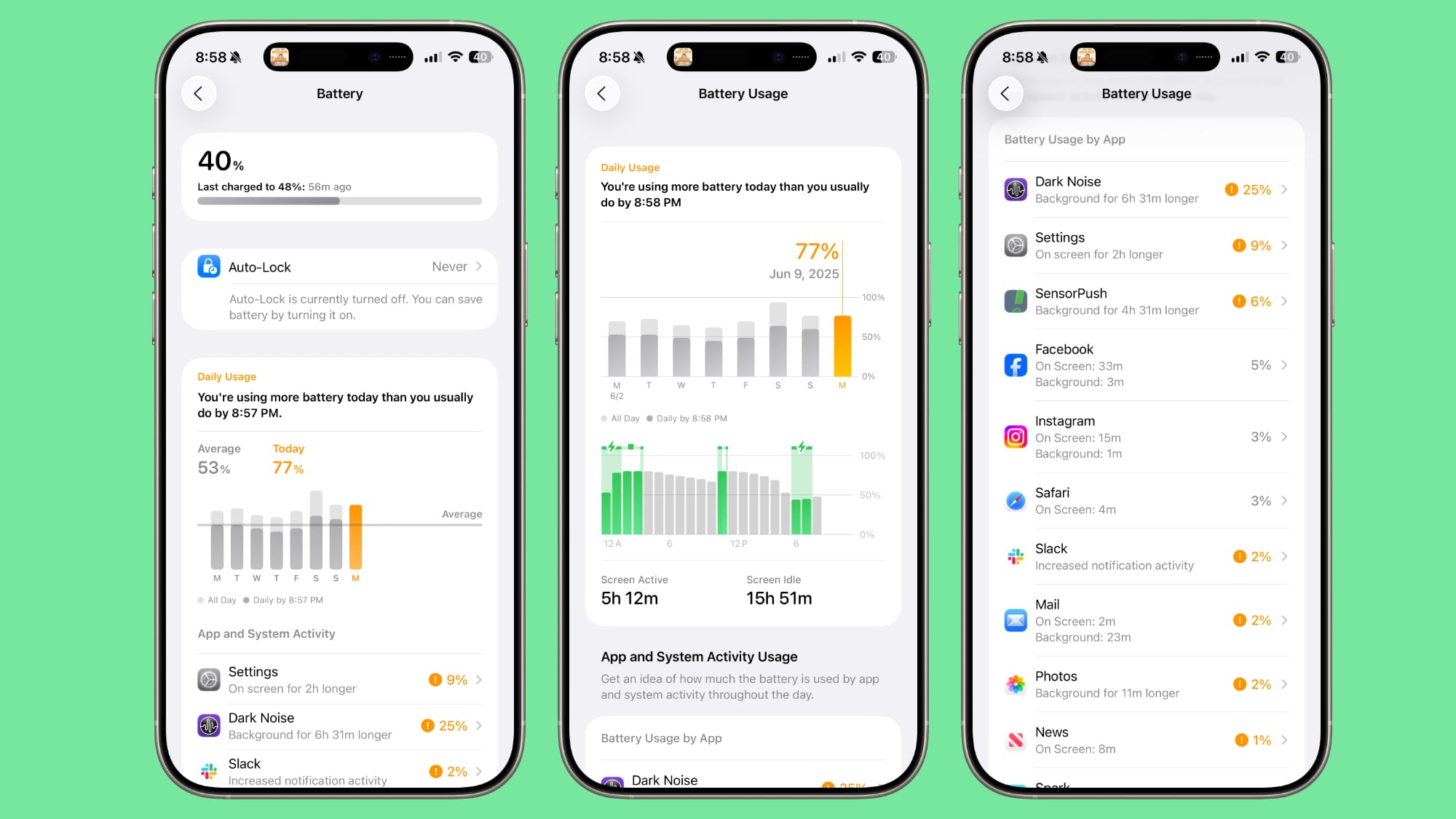
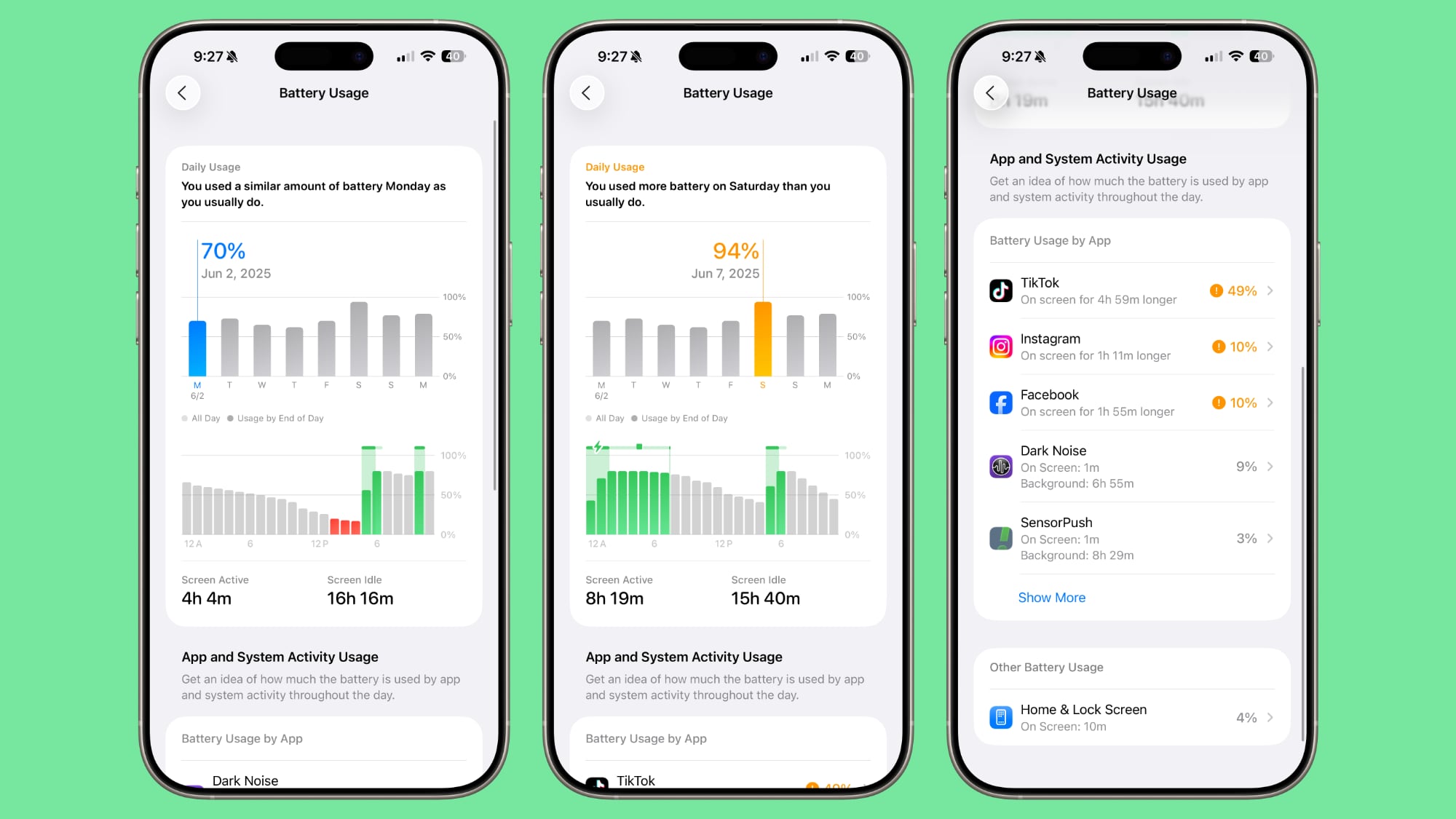
Instead of only showing 24-hour and 10-day battery usage summaries, iOS 26 presents a weekly average. This allows for better understanding of your typical battery consumption patterns. Even more helpful is the comparison feature, showing whether your current battery usage is higher, lower, or similar to your weekly average. This instantly highlights days where you might be using more power than usual.
The app-specific battery usage details are significantly improved. You'll now see exactly why an app consumed so much power: extended background activity, prolonged screen-on time, or an unusually high number of notifications. Apps that are heavy battery drainers are highlighted in orange for easy identification.
You can easily delve into the past seven days of battery usage. For each day, you'll see a detailed breakdown of active use and screen idle use, along with precise charging times and durations. This granular level of detail empowers you to identify and address specific power-consuming habits.
The familiar Battery Health section, showing charging cycles and maximum capacity, remains. The Charge Limit feature, allowing you to restrict charging to 80%, is also still available. A significant addition is the new Power Mode options, including the standard Low Power Mode and the innovative Adaptive Power Mode.
Adaptive Power Mode: Intelligent Battery Management
Adaptive Power Mode is a new power-saving option designed to work alongside Low Power Mode. It intelligently makes subtle performance adjustments to extend battery life when your usage exceeds your typical average. This is different from Low Power Mode, which makes more drastic changes.
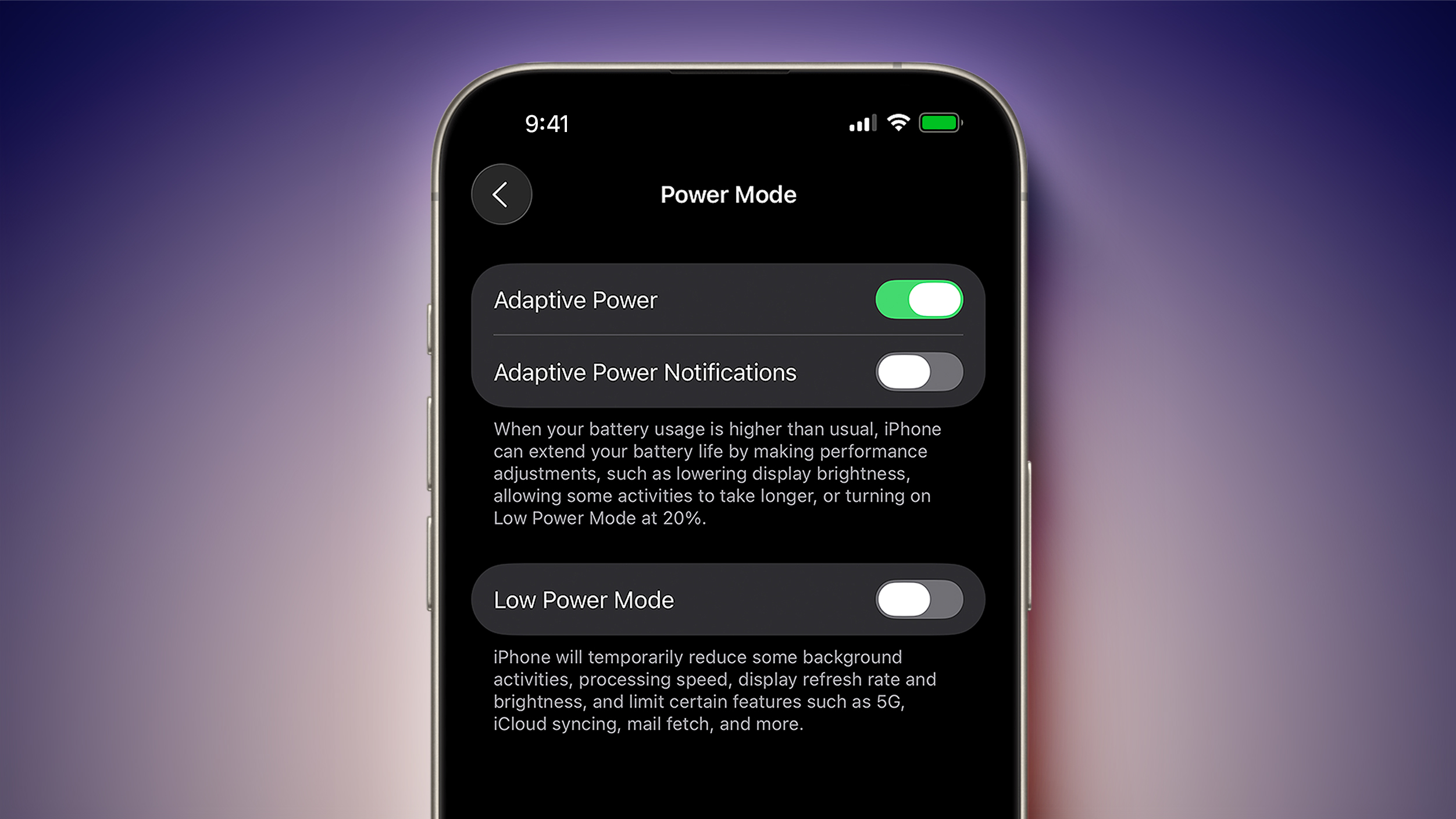
When you need your iPhone to last longer, simply enable Adaptive Power Mode. Apple states that this feature will intelligently reduce display brightness, slow down certain background processes, and even automatically activate Low Power Mode when your battery level reaches 20%. These adjustments happen seamlessly in the background.
Adaptive Power Mode is an opt-in feature, easily accessible within the Battery settings. Once enabled, it automatically adjusts based on detected high battery usage. It leverages Apple Intelligence, which is why it requires an iPhone 15 Pro or a later model.
Adaptive Power Notifications: Stay Informed
You can choose to receive notifications whenever Adaptive Power Mode is activated due to high battery usage. This keeps you informed about the power-saving measures being implemented. If you prefer a hands-off approach, you can disable notifications, allowing Adaptive Power Mode to work silently in the background.
Real-time Charging Time Display
A simple yet useful addition is the real-time charging time display. Now, when your iPhone is plugged into a charger (wired or wireless), you can simply tap the screen to wake it and see exactly how much time is left until a full charge (or until it reaches your pre-set charge limit).
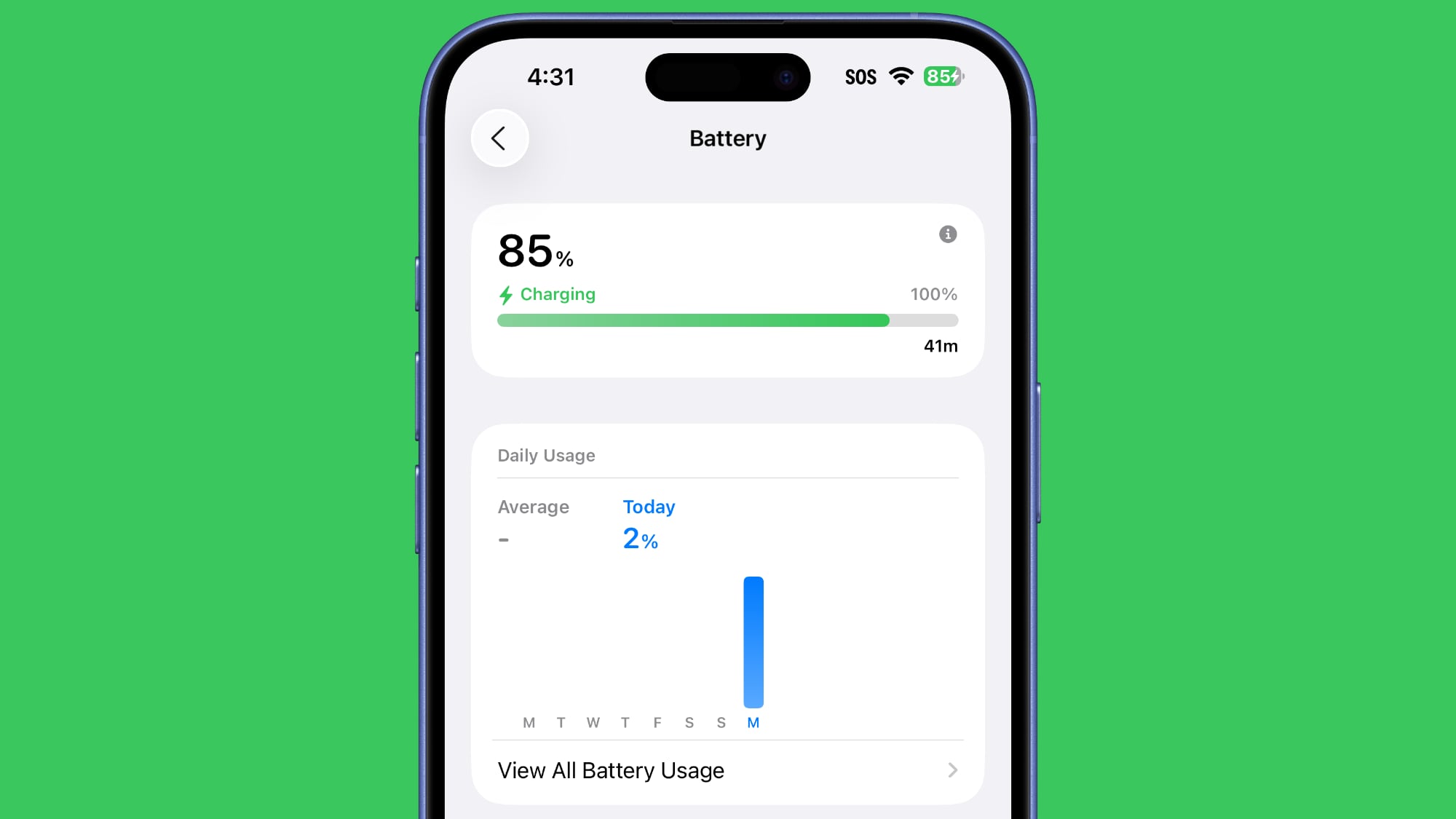
This information is conveniently displayed above the clock. Alternatively, you can always access this information through the Battery section in the Settings app.
Low Power Mode Quick Access via Dynamic Island
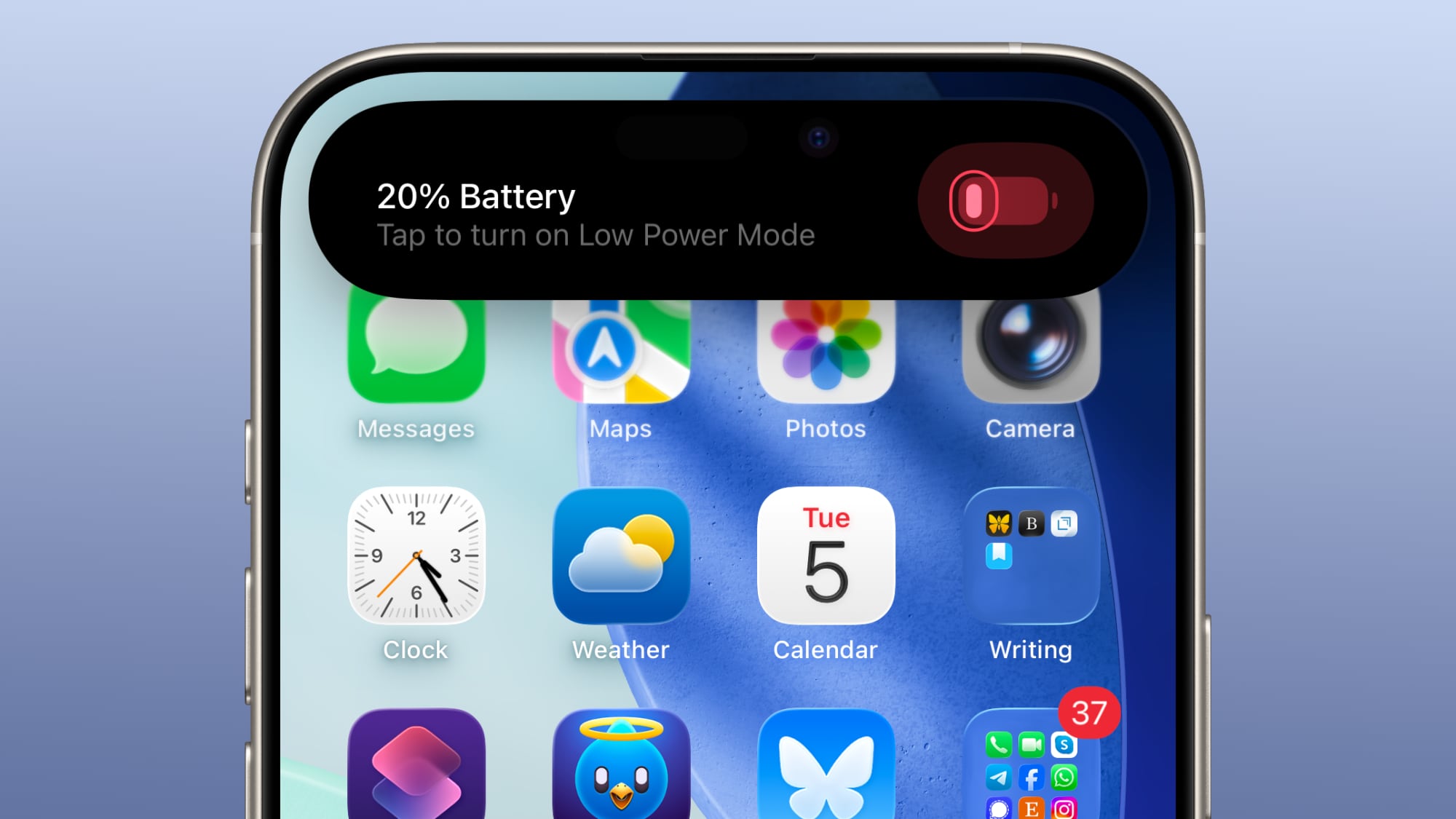
When your battery level drops to 20%, a low battery warning appears in the Dynamic Island. A simple tap on this warning allows you to quickly activate Low Power Mode, eliminating the need to navigate to the settings menu.
More Informative Battery Icon
The battery icon in the top right corner of the screen now provides even clearer visual cues about your charging status. If charging is paused due to optimized charging settings or temperature limitations, the icon will turn gray instead of green, clearly indicating that charging is temporarily suspended.
Learn More About iOS 26
iOS 26 boasts many other improvements beyond these battery-related enhancements. For a comprehensive overview of all the new features, we recommend checking out our dedicated iOS 26 roundup.
This article, "Five Ways iOS 26 Improves Your iPhone's Battery" first appeared on MacRumors.com
Discuss this article in our forums
from MacRumors
-via DynaSage

Post a Comment