iOS 26: Save Physical Card Details in Wallet App
Revolutionizing Card Management: Storing Physical Card Details in Apple Wallet (iOS 26)
Apple's iOS 26 introduces a game-changing feature to its Wallet app: the ability to store complete physical card information alongside your digital payment cards. This means you can conveniently access your card numbers, expiration dates, and security codes directly within the app, eliminating the need to carry your physical cards or constantly search for them in your wallet.
This seemingly small addition significantly enhances the Wallet app's functionality, transforming it into a comprehensive card management tool. Previously, users often relied on third-party password managers like 1Password to store this type of information. Now, Apple offers this vital feature directly within its native app, improving convenience and security.
Imagine needing to verify your card's expiration date for a subscription service or providing your card details over the phone. With this new feature, you can easily access this information without rummaging through your physical wallet or straining your memory trying to recall long numbers. You also won't need to navigate through Safari's autofill settings.
Adding Physical Card Information to Apple Wallet
Adding your physical card details is straightforward. Follow these steps:
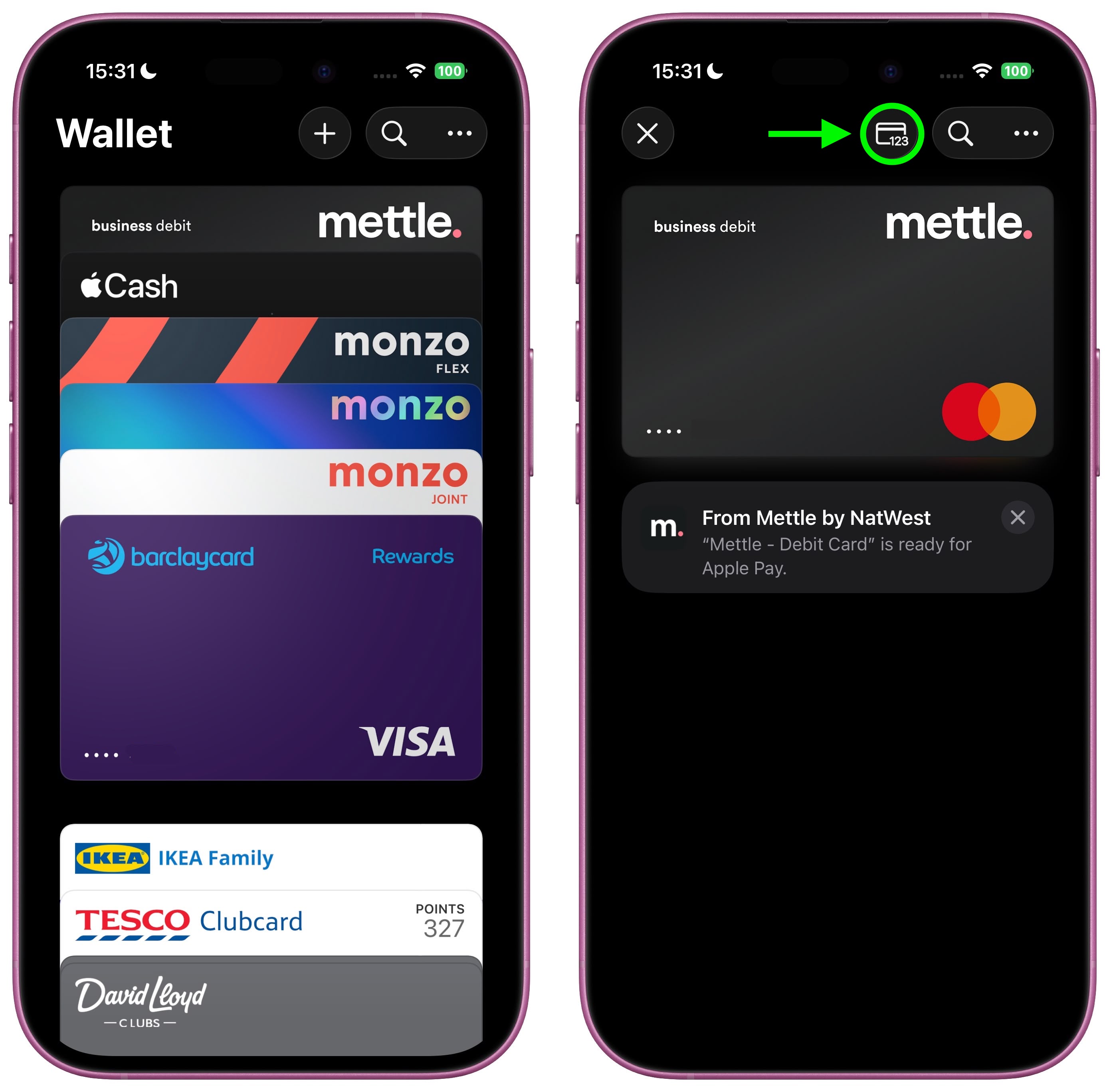
- Open the Wallet app on your iPhone. Then, either tap on one of your existing cards or add a new card using the "+" button and select it.
- Tap the "123" card symbol located at the top of the card screen. You'll then be prompted to authenticate using Face ID or your passcode.
- Select "Add Physical Card Information."
- Enter your card details, including your full name as it appears on the card, the card number, expiration date (optional), and the security code (CVV). Accuracy is crucial here.
- Add a description to help you quickly identify the card later. For example, you might add "Work Credit Card" or "Amazon Prime Card."
- Tap "Done" to save your card details.
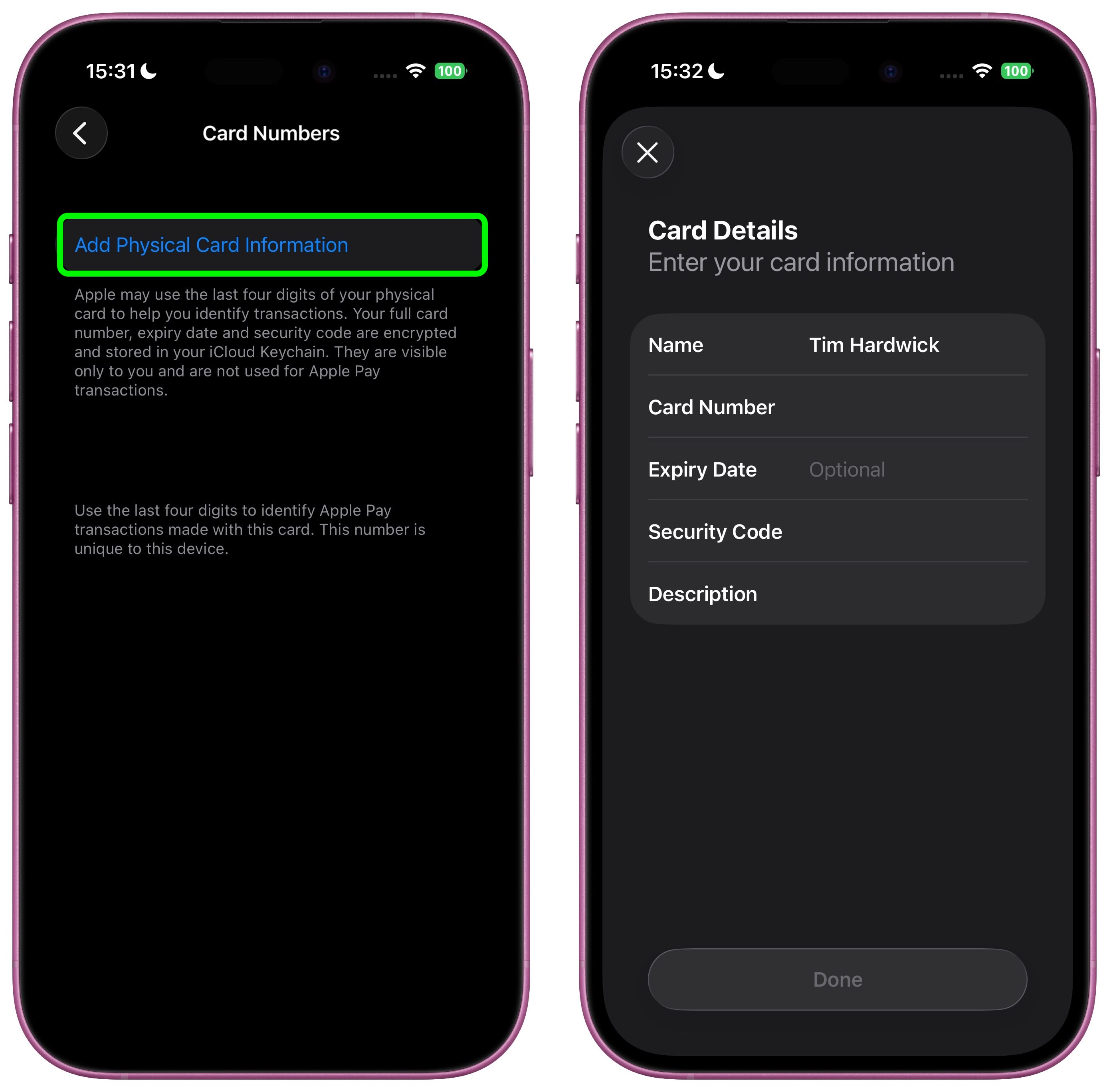
Apple employs robust encryption and securely stores this information within your iCloud Keychain. This ensures that only you can access your sensitive card data. Importantly, this feature is separate from Apple Pay; the stored information is not used for Apple Pay transactions.
Accessing Your Stored Card Information
To view the details of a stored physical card, simply open the Wallet app, tap on the card you need, and then tap the "123" symbol at the top. Again, you'll be asked to authenticate using Face ID or your passcode for an extra layer of security before the card information is displayed.
This added security measure ensures that unauthorized individuals cannot access your sensitive card information, even if they gain access to your iPhone.
Security and Privacy Considerations
Apple prioritizes user security and privacy. The data you store within the Wallet app is protected by industry-standard encryption and is only accessible to you through authentication with Face ID or your passcode. This helps protect your information from potential threats and unauthorized access.
Remember, this feature is a part of iOS 26, currently in beta testing. Apple is expected to release the public version of iOS 26 sometime in September. This is exciting news for those who are eager to utilize this new and enhanced card management functionality.
Once iOS 26 is publicly available, users can fully integrate this feature into their daily lives, making card management easier, more efficient, and safer.
This article, "iOS 26: Save Physical Card Details in Wallet App" first appeared on MacRumors.com
Discuss this article in our forums
from MacRumors
-via DynaSage

Post a Comment