iOS 26: Restore Safari's Old Layout From iOS 18
Get Your Classic Safari Layout Back in iOS 26
iOS 26 introduces a new "Compact" Safari design, but many users found it wasn't as intuitive as the previous layouts. Fortunately, Apple listened to feedback and provided options to restore the familiar iOS 18 experience. This guide will show you how to quickly switch back to either a bottom or top tab bar layout in just a few simple steps. No more fumbling with hidden menus!
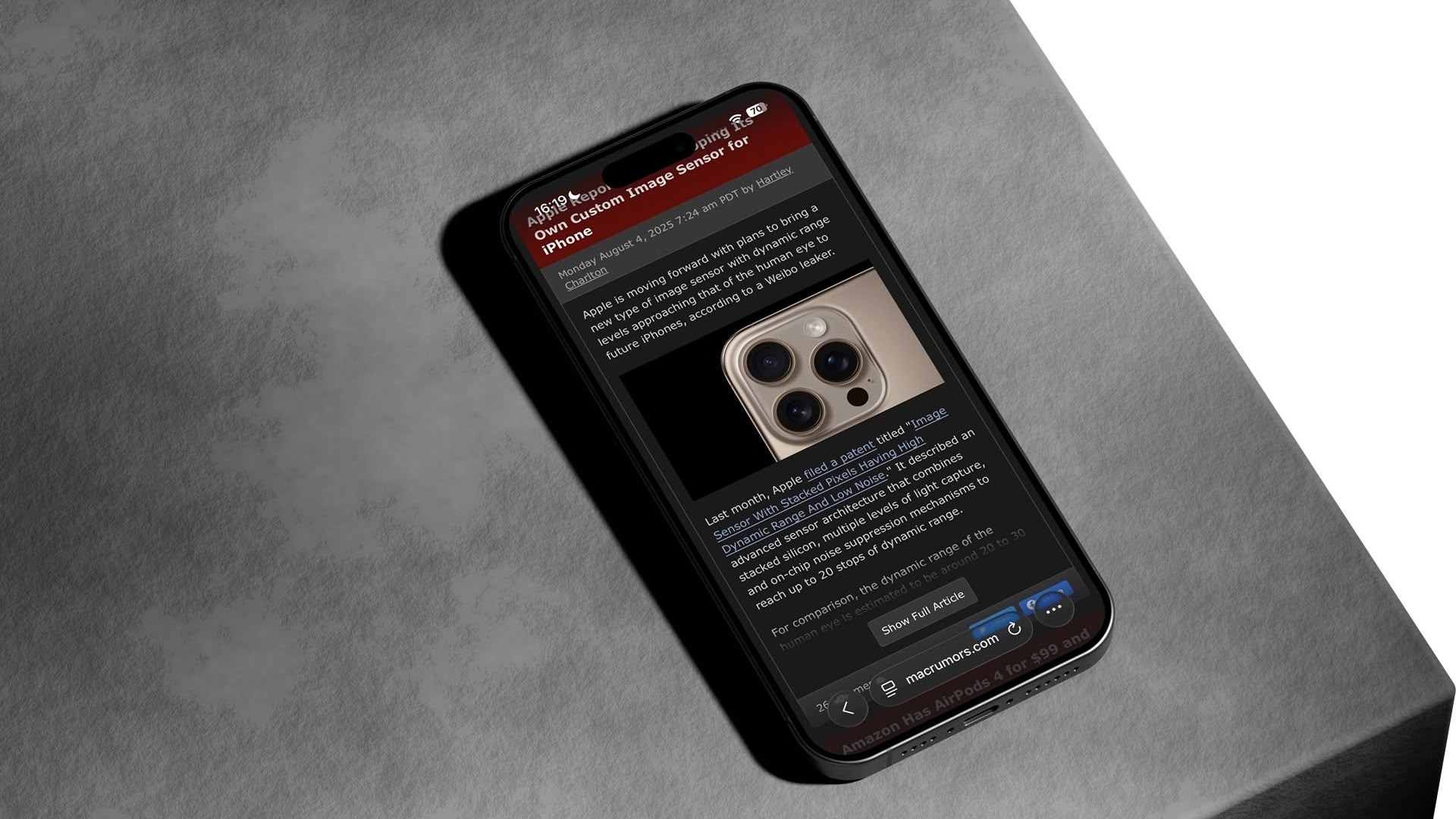
Switching to the iOS 18 Safari Layouts
Restoring your preferred layout is straightforward. Follow these steps:
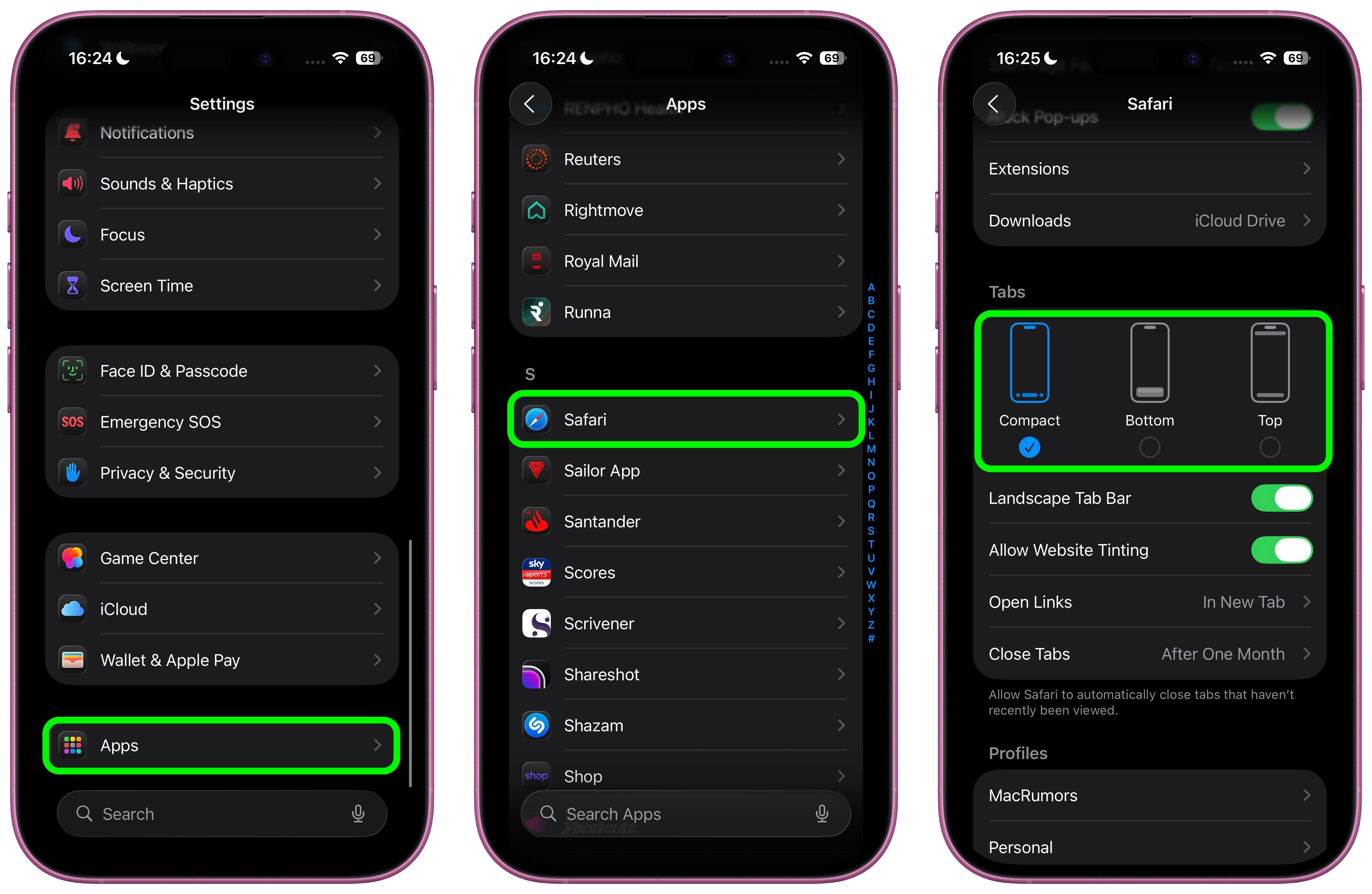
- Open Settings: Locate the "Settings" app on your iPhone home screen and tap to open it.
- Find Safari: Scroll down the Settings menu until you find "Apps" and tap it. Then, locate and tap "Safari" within the alphabetical app list.
- Locate the Tabs Section: Scroll down the Safari settings until you find the section labeled "Tabs."
- Choose Your Layout: You'll see three options: "Compact," "Bottom," and "Top." Select either "Bottom" or "Top" to revert to the familiar iOS 18 style. "Compact" is the new default.
Both the "Bottom" and "Top" options behave identically to the Safari tab bar layouts found in iOS 18. You'll find navigating between tabs and accessing bookmarks is just as easy as before. No need to relearn anything!
Understanding the Different Safari Layouts
Let's break down the differences between the three available layouts:
- Compact Layout (Default): This layout prioritizes screen space by hiding the share, bookmark, and tab settings behind a three-dot menu button located to the right of the URL bar. While space-saving, it requires an extra tap to access these common features, potentially slowing down your workflow.
- Bottom Layout: This layout places all the Safari controls at the bottom of the screen, making them easily reachable with your thumb. This is particularly convenient for one-handed use.
- Top Layout: This is the classic desktop-style layout, keeping all controls at the top of the browser window. It mirrors the traditional browser interface many users are accustomed to.
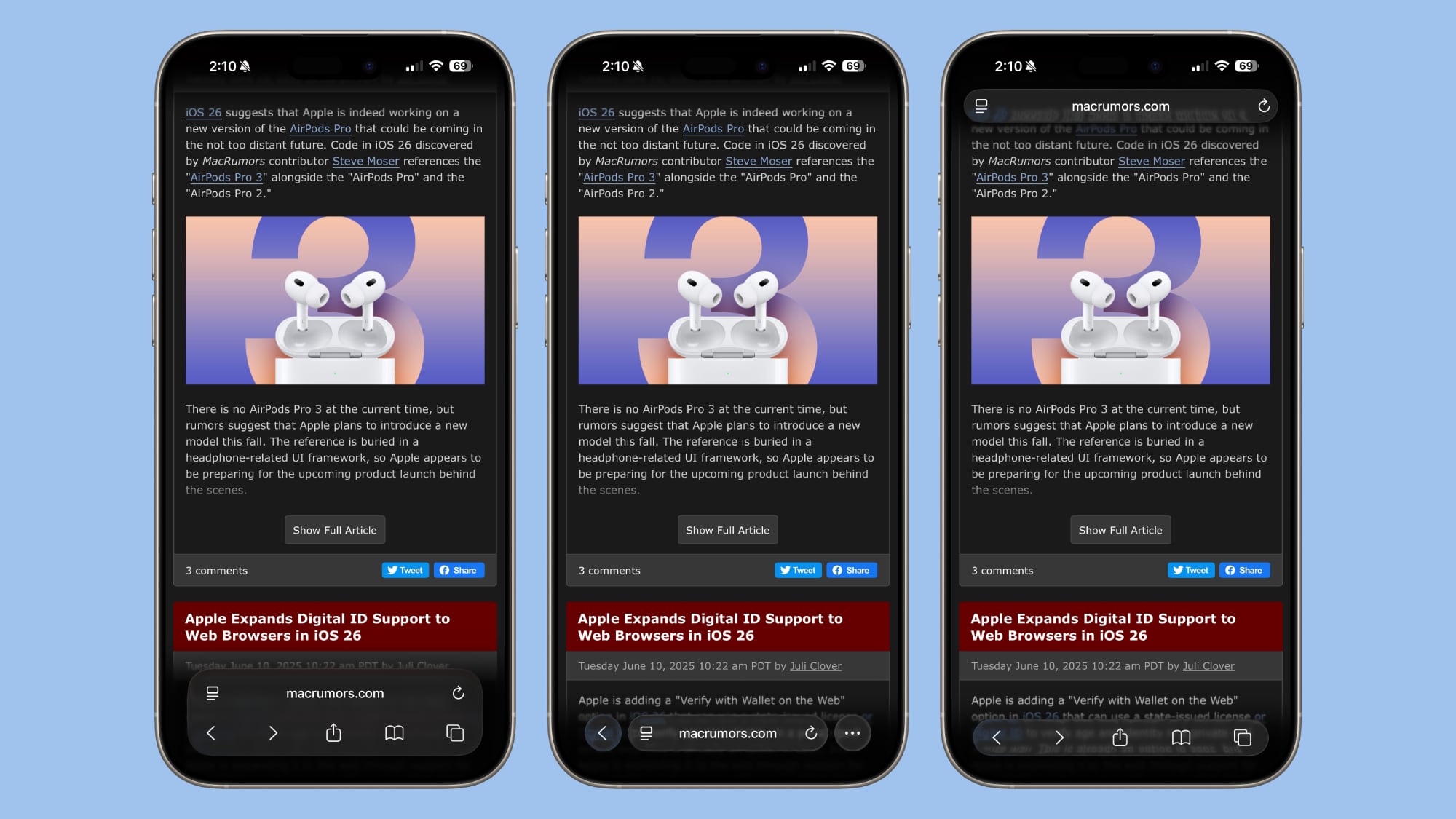
An important note: All three layouts now incorporate Apple's new Liquid Glass translucent design. This visually appealing feature blends the URL bar and buttons subtly into the background of the webpage you are viewing. This translucent effect works seamlessly in both Light and Dark Mode, and it automatically adjusts to complement the webpage's color scheme for a consistent and visually pleasing browsing experience.
Apple's Response to User Feedback
This isn't the first time Apple has revisited Safari's design based on user feedback. During the iOS 15 beta testing phase, a significant design change was met with considerable negative reaction. The lack of alternative layout options at the time led to widespread user dissatisfaction. In response, Apple added options to revert to the previous design. This time around, Apple has proactively incorporated multiple choices within iOS 26 to prevent similar complaints. This forward-thinking approach demonstrates a commitment to user experience and is a welcome change.
The general release of iOS 26 is scheduled for September 2025, so you’ll have plenty of time to try out the new options and choose the Safari layout that works best for you. The availability of both bottom and top options shows a clear understanding and responsiveness to previous user feedback. The flexibility to customize the interface ensures a personalized experience for each user.
This article, "iOS 26: Restore Safari's Old Layout From iOS 18" first appeared on MacRumors.com
Discuss this article in our forums
from MacRumors
-via DynaSage

Post a Comment