iOS 26: Add New Reminders Faster Than Ever
iOS 26: Supercharge Your Reminders with the New "New Reminder" Control
iOS 26, currently in beta, introduces a game-changing feature for Apple's Reminders app: the "New Reminder" control. This simple addition dramatically speeds up the task creation process, letting you add reminders without ever opening the app itself. Imagine adding a grocery item or meeting note in a single tap!
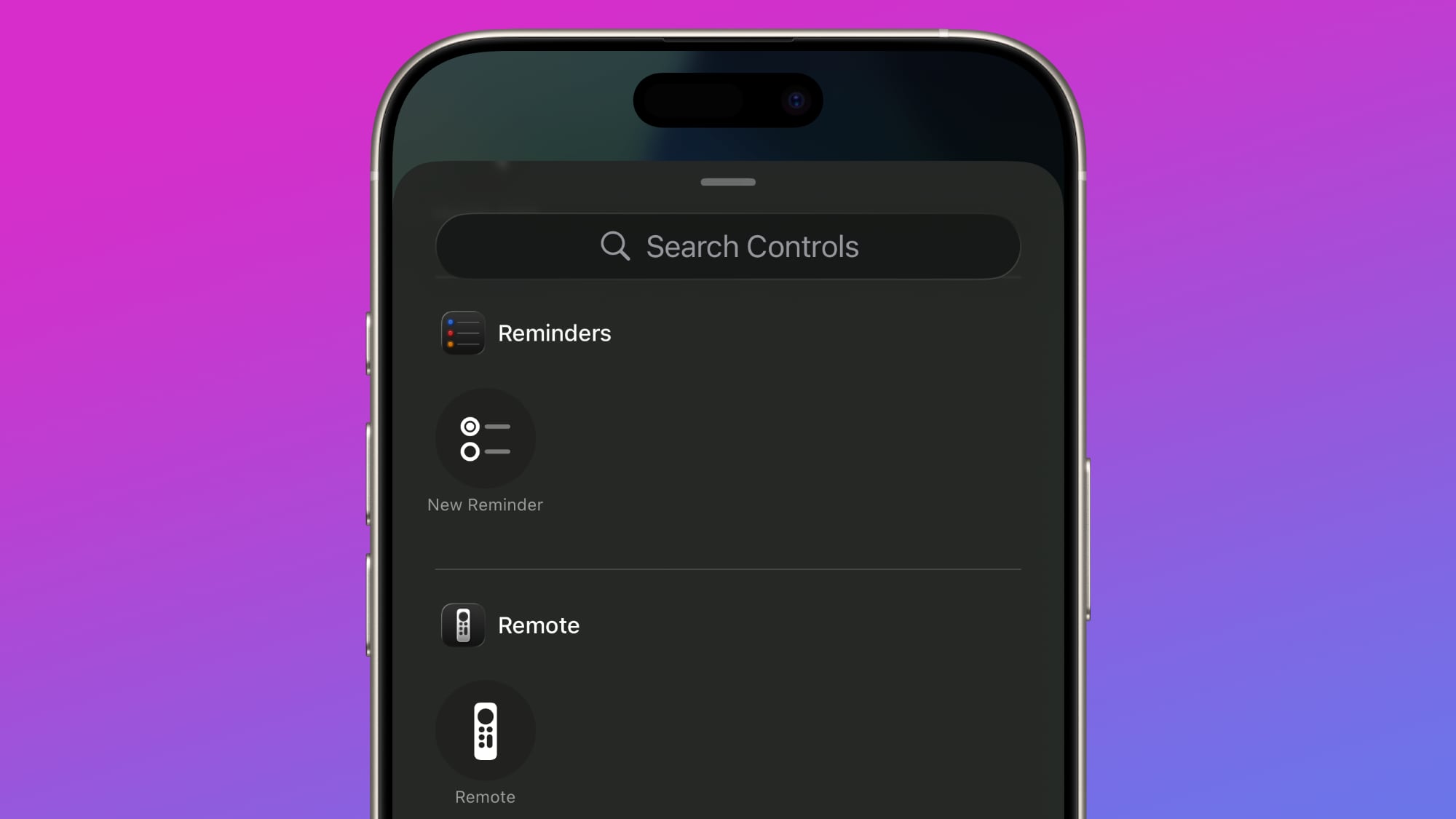
You can conveniently access this new control from several locations: Control Center, your Lock Screen, or the Action button (on iPhone 15 Pro and later models). This enhanced accessibility makes managing your daily tasks significantly easier.
How the "New Reminder" Control Works
Activating the "New Reminder" control doesn't launch the full Reminders app. Instead, a streamlined popup panel appears, providing all the essential tools for creating a reminder. This compact interface allows you to specify details such as:
- Reminders List: Choose the appropriate list for your reminder (e.g., "Work," "Personal," "Shopping").
- Note: Add a detailed description of your reminder.
- Date and Time: Set a due date and time for your reminder.
- Location: Attach a location to your reminder (e.g., "Grocery Store," "Doctor's Office").
- Flag: Mark a reminder as important or requiring immediate attention.
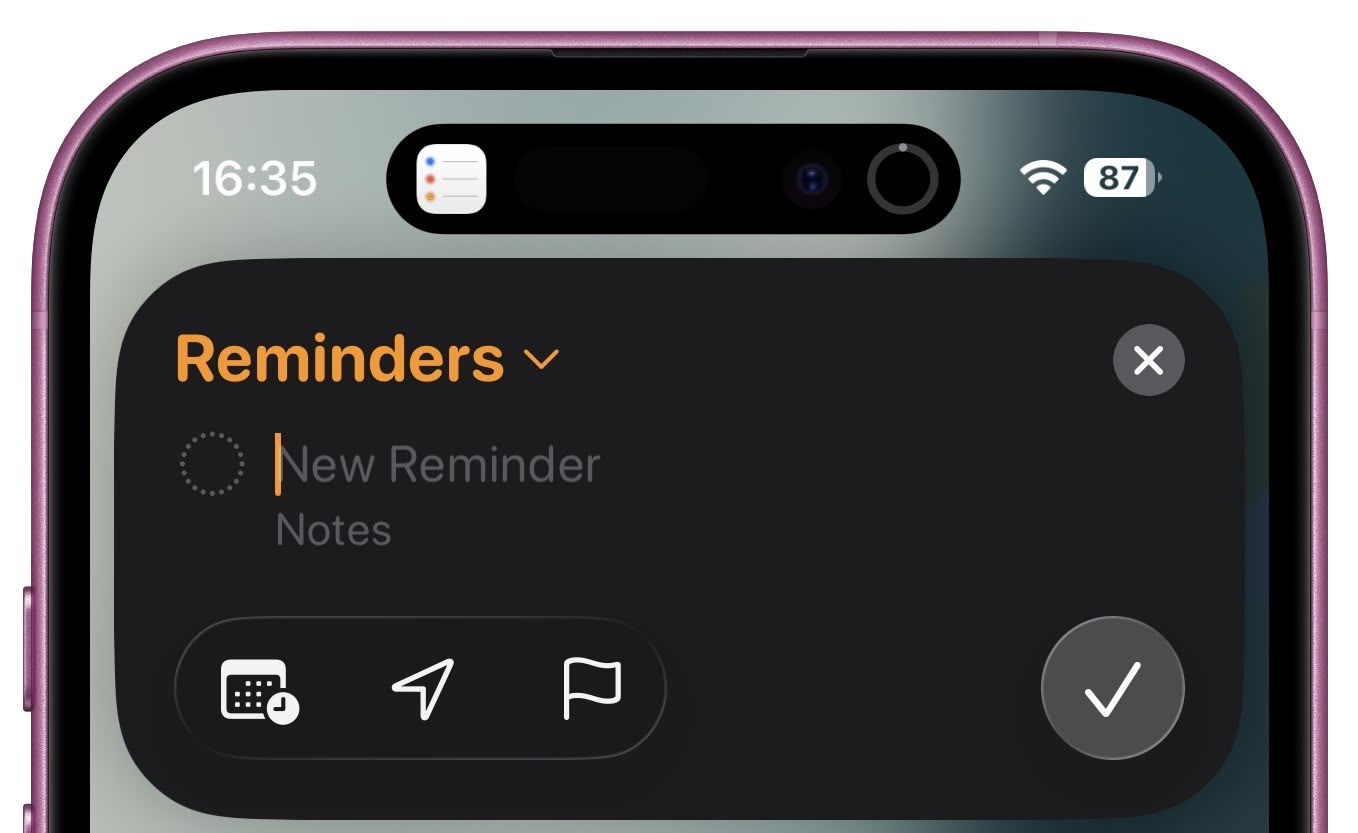
The interface intelligently understands natural language for setting due dates. For instance, typing "Pick up dry cleaning tomorrow at 3pm" will automatically populate the appropriate date and time in the Siri suggestions bar above the keyboard, making it incredibly intuitive.
In essence, this control allows you to create comprehensive reminders with all the necessary information without navigating through multiple screens within the main Reminders app. This streamlined approach significantly reduces the time and effort required for task management.
Adding the "New Reminder" Control to Control Center
Adding the "New Reminder" control to your Control Center is straightforward:
- Swipe down from the top-right corner of your screen to access Control Center.
- Long-press on an empty area of the Control Center.
- Tap "Add Control."
- Locate the "New Reminder" control in the Reminders section (it's the only control listed there) and add it.
Setting Up Lock Screen Access for New Reminders
For quick access directly from your Lock Screen:
- Touch and hold your Lock Screen to enter customization mode.
- Tap "Customize."
- Remove one of the existing Lock Screen controls by tapping it.
- Tap the "+" button that appears in its place.
- Select "New Reminder" from the available controls.
Assigning "New Reminder" to the Action Button (iPhone 15 Pro and later)
The Action button on iPhone 15 Pro and newer models offers the fastest way to create new reminders. Here's how to configure it:
- Open the Settings app.
- Tap Action Button.
- Scroll down to the Controls section.
- Select New Reminder from the list of available actions.
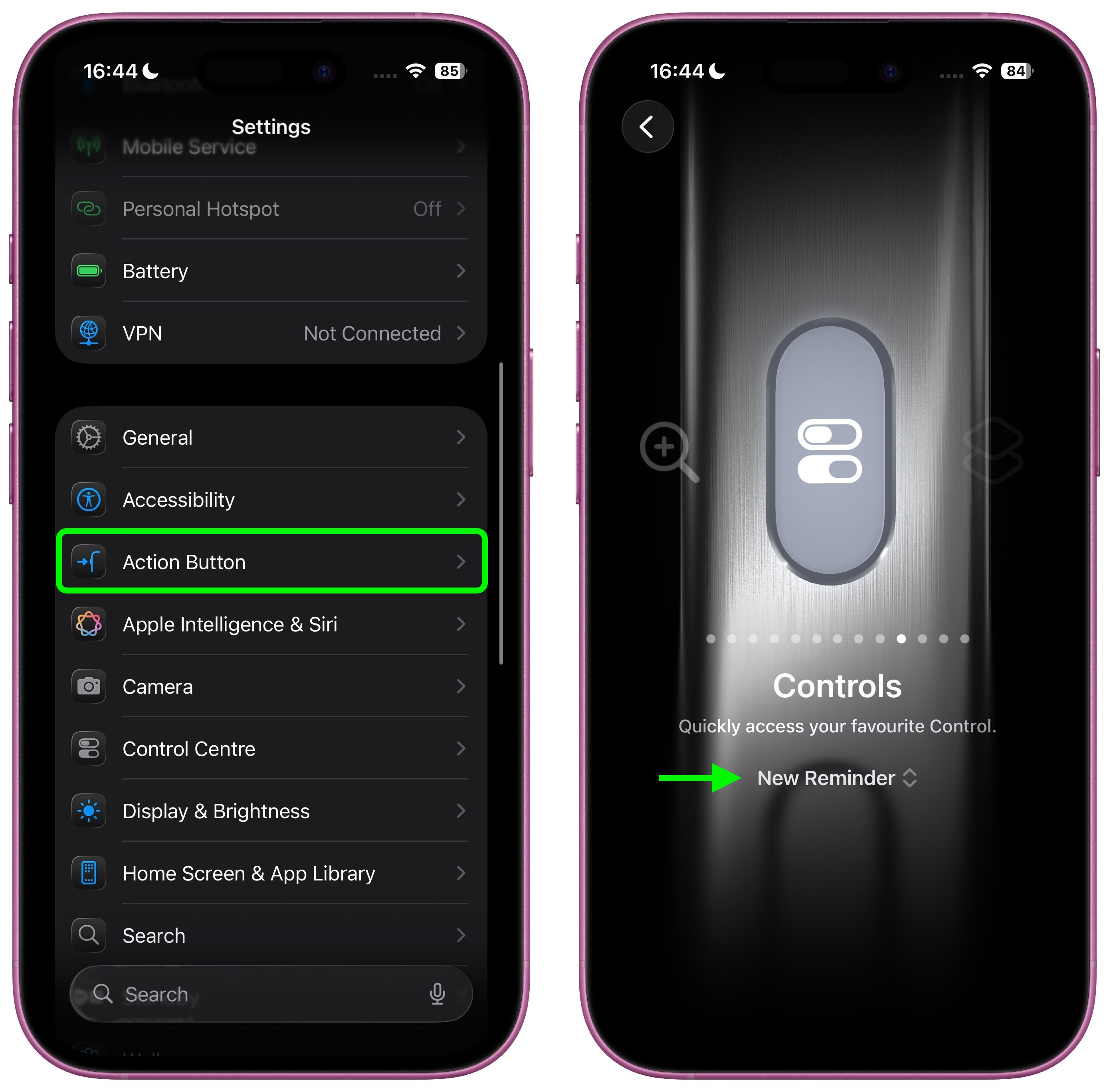
Once configured, a simple press of the Action button will instantly bring up the "New Reminder" popup, allowing for immediate task creation.
Conclusion
The "New Reminder" control in iOS 26 is a small but incredibly impactful addition. It dramatically simplifies the process of adding reminders, saving you valuable time and effort. This enhancement significantly improves the overall user experience of the Reminders app, making it more efficient and intuitive than ever before. Apple is expected to release iOS 26 to compatible iPhones in September.
This article, "iOS 26: Add New Reminders Faster Than Ever" first appeared on MacRumors.com
Discuss this article in our forums
from MacRumors
-via DynaSage

Post a Comment