iOS 26: Set a Custom iPhone Ringtone in Seconds
Setting Custom Ringtones on Your iPhone: A Simple Guide (iOS 26)
Setting a custom ringtone on your iPhone has become significantly easier with the arrival of iOS 26. Gone are the days of complicated workarounds involving GarageBand exports. Apple has streamlined the process, making it incredibly simple to create personalized ringtones directly from the Files app. This guide will walk you through the straightforward steps.

The Easy Four-Step Process
You can now transform any MP3 or M4A audio file under 30 seconds into a unique ringtone with just a few taps. This applies to song snippets, voice memos, downloaded sound effects – virtually any audio file you choose. The process is now as intuitive as sharing a picture.
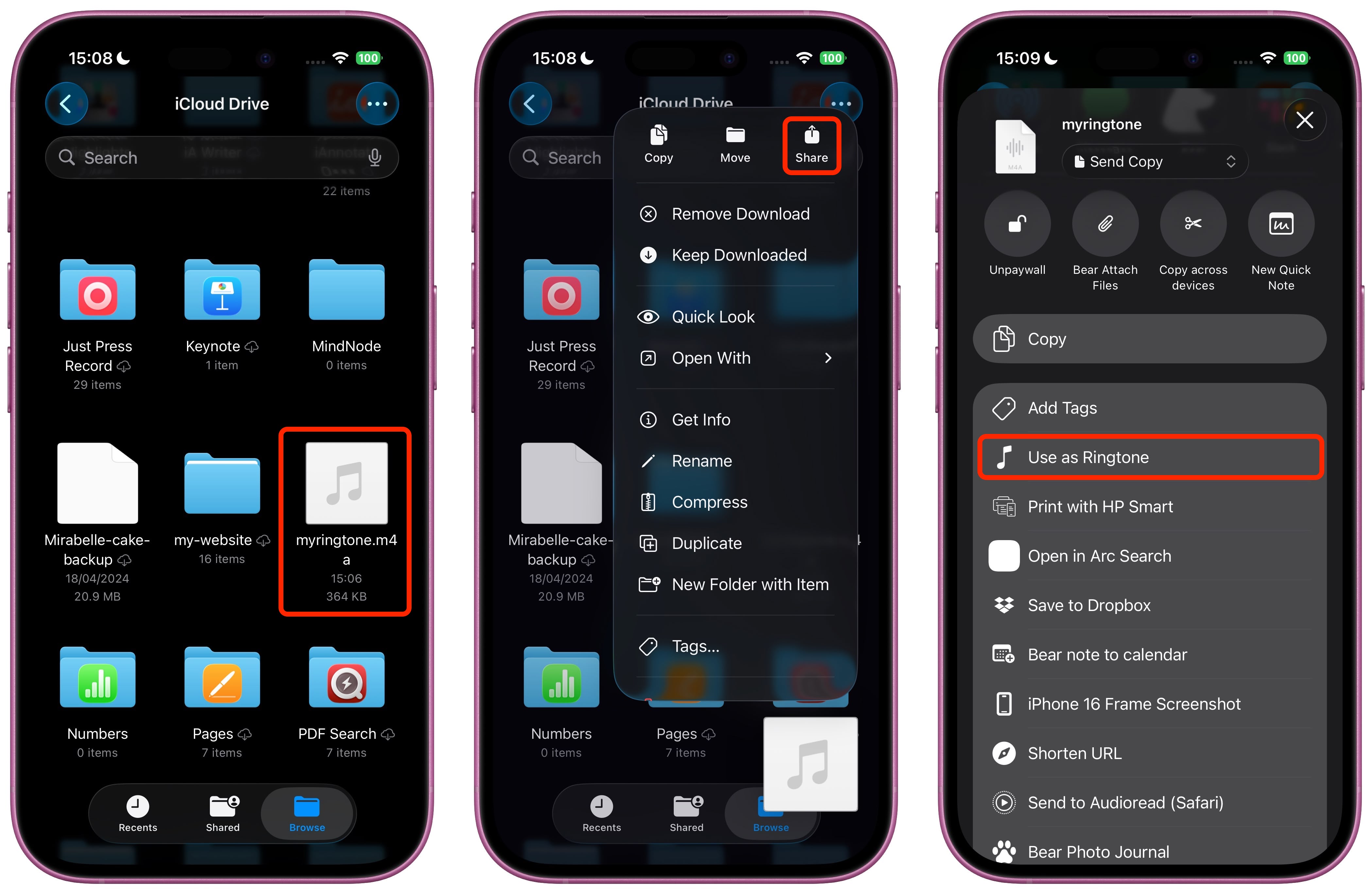
Here's how to create and set your custom ringtone using only the Files app in iOS 26 (currently in beta):
- Open the Files app: Locate and open the Files app on your iPhone.
- Select your audio file: Find the MP3 or M4A audio file you wish to use as a ringtone (remember, it must be less than 30 seconds long). Long-press the file to bring up a menu.
- Tap Share: In the pop-up menu that appears after the long press, tap the "Share" button.
- Choose "Use as Ringtone": Scroll down through the sharing options. You'll find "Use as Ringtone." Tap it.
Managing Your Custom Ringtone
The changes will take effect immediately. You'll be redirected to the Settings > Sounds & Haptics > Ringtone menu. There, you'll see your new custom ringtone selected as the default. From this menu, you can easily manage your ringtones:
- Delete a Ringtone: To remove a custom ringtone, swipe left on it and tap "Delete."
- Choose a Different Ringtone: If you decide you'd prefer one of Apple's default ringtones, simply select a different option from the list.
Important Considerations
The "Use as Ringtone" option is available for audio files within certain apps, including the Voice Memos app. This offers convenient access to your recorded audio for ringtone creation.
It's crucial to note that setting Apple Music songs as custom ringtones for free is currently not possible, even with an active subscription. Apple continues to offer 30-second song snippets as ringtones through the iTunes Store app for $1.29 each. This remains the only method to use Apple Music songs as ringtones.
Further Information and Discussion
This article, "iOS 26: Set a Custom iPhone Ringtone in Seconds" originally appeared on MacRumors.com. You can join the discussion about this article and share your experiences in our forums: Discuss this article
We hope this guide has helped you personalize your iPhone's sound with ease! Enjoy your new custom ringtone.
from MacRumors
-via DynaSage

Post a Comment