macOS Quick Tip: Screenshot Straight to the Clipboard
Mastering Screenshots on Your Mac: A Simple Guide
Taking screenshots on your Mac is incredibly easy, and there are several ways to do it. While you can use applications like Preview or the dedicated Screenshot utility, the quickest and most efficient method leverages your keyboard's built-in shortcut keys. This guide will walk you through all the available methods, ensuring you're comfortable capturing images on your Mac in any situation.
Using Keyboard Shortcuts: The Fastest Method
The simplest way to capture a screenshot is using your keyboard. Two main shortcuts cover most needs:
- Shift-Command-3: This shortcut captures your entire screen. The resulting screenshot is automatically saved to your desktop as a file.
- Shift-Command-4: This shortcut lets you select a specific area of your screen. Your cursor will change into a crosshair. Drag your cursor to select the desired region; upon releasing the mouse button, the screenshot of the selected area will be saved to your desktop. A helpful tip: Pressing the spacebar while using Shift-Command-4 will transform your cursor into a camera icon. This allows you to click on a specific window to capture a screenshot of only that window, rather than a rectangular selection.
Copying Screenshots to Your Clipboard
Sometimes, you don't need to save the screenshot as a file; instead, you might want to copy it directly to your clipboard for immediate pasting into another application. This is where the Control key comes in handy. By adding the Control key to either of the above shortcuts, you bypass saving the screenshot to your desktop and instead copy it to your clipboard.
For example: Control-Shift-Command-3 will copy the entire screen to your clipboard, and Control-Shift-Command-4 will copy your selected area or window to your clipboard.
This clipboard functionality is particularly useful for tasks like:
- Pasting into editing software: Quickly insert the screenshot into applications like Photoshop, GIMP, or even simple image viewers.
- Using Universal Clipboard: Instantly transfer the screenshot to another Apple device (like an iPad or iPhone) that is signed into the same iCloud account. This is a seamless way to share visuals between devices.
- Creating documents in Preview: Preview offers a convenient way to work with clipboard contents. By pressing Command-N in Preview, you create a new document directly from your clipboard, eliminating the need to import or place the screenshot manually. Alternatively, you can find this feature in Preview's menu bar: File ➝ New From Clipboard.
Alternative Methods: Using Preview and the Screenshot App
While keyboard shortcuts are the most efficient method, your Mac offers additional tools for taking screenshots:
- Preview App: Located within your Applications folder, Preview provides a menu option to capture your screen. Navigate to File ➝ Take Screenshot. You'll then have options to capture the entire screen, a selected portion, or a specific window.
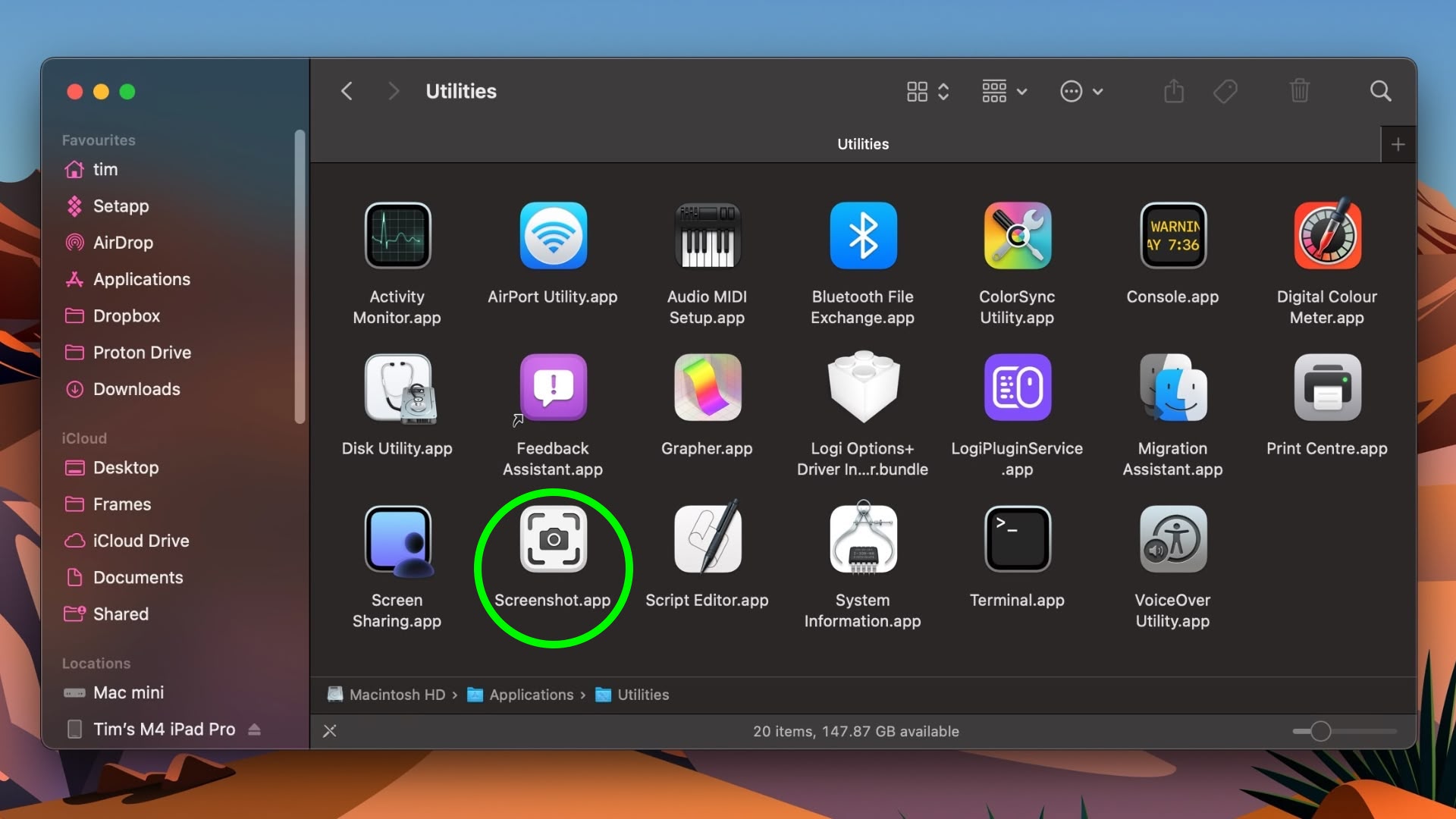
- Screenshot Utility: This dedicated application is found within your macOS Utilities folder (accessible through Applications ➝ Utilities). It presents a user-friendly interface with options similar to Preview's screenshot functionality but without the additional image editing features of Preview.
These alternatives are useful if you prefer a visual interface to keyboard shortcuts, or if you need more advanced screenshot options which might be available in Preview or other third-party apps.
Choosing the Best Method for You
Ultimately, the best method for taking screenshots depends on your personal preference and workflow. For speed and efficiency, keyboard shortcuts are unbeatable. However, if you need more control or find keyboard shortcuts challenging, using Preview or the Screenshot utility provides a more visual and intuitive approach.
Experiment with each method to discover which one best suits your needs. Mastering screenshot techniques will significantly improve your productivity and workflow on your Mac.
Further Resources
This article, "macOS Quick Tip: Screenshot Straight to the Clipboard" first appeared on MacRumors.com
Discuss this article in our forums
```from MacRumors
-via DynaSage

Post a Comment