iPhone Long Press Too Slow? Speed Up Haptic Touch in Seconds
Speed Up Your iPhone's Haptic Touch: A Guide to Faster Feedback
If you've upgraded to iOS 17 and feel that your iPhone's Haptic Touch is a bit sluggish, you're not alone. Many users miss the snappy responsiveness of the older 3D Touch. Thankfully, iOS 17 offers a simple setting to significantly speed up your Haptic Touch experience, bringing it closer to the feel of 3D Touch.
The Rise and Fall (and Rise?) of 3D Touch
Introduced with the iPhone 6s in 2015, 3D Touch was a groundbreaking feature. It allowed for different actions based on the pressure applied to the screen – a light press ("Peek") previewed content, while a firmer press ("Pop") opened it. This multi-level pressure sensitivity made interactions feel intuitive and responsive.
However, Apple discontinued 3D Touch with the iPhone XR in 2018, replacing it with Haptic Touch. Haptic Touch simplifies the interaction to a single level of pressure – a long press. This change, while streamlining the user experience for some, left many feeling that the speed and responsiveness had suffered.
The key difference lies in the pressure sensitivity. 3D Touch's multiple pressure levels allowed for near-instantaneous feedback on the initial press. Haptic Touch, relying solely on a long press, inherently takes longer to register the user's input.
Why Did Apple Remove 3D Touch?
The reasons behind Apple's decision to remove 3D Touch remain somewhat unclear. Several theories exist:
- Discoverability Issues: Some argue that 3D Touch, like the Apple Watch's Force Touch, lacked sufficient discoverability. Users simply weren't aware of its capabilities or how to utilize them effectively. Force Touch on Apple Watch also faced similar challenges and was eventually removed.
- Gesture Parity: Another possibility is that Apple aimed for greater consistency in gestures across its iPhone and iPad lines. Removing 3D Touch simplified the interaction model, making it more uniform across devices.
- Hardware Simplification: The removal of 3D Touch allowed Apple to simplify the iPhone's display technology, eliminating the need for a dedicated capacitive layer that was previously integrated into every iPhone screen. This likely resulted in cost savings and potentially enabled thinner display designs.
Regardless of the precise reasons, the impact on users was noticeable. The faster response of 3D Touch was a feature many appreciated, making the transition to Haptic Touch feel slightly less refined.
How to Speed Up Haptic Touch in iOS 17
Fortunately, iOS 17 provides a solution to this issue. You can adjust the speed of Haptic Touch to significantly improve its responsiveness. Here's how:
- Open the Settings app: Locate the Settings app on your iPhone's home screen and tap to open it.
- Navigate to Accessibility: Scroll down the Settings menu and tap on "Accessibility".
- Select Touch: Under the "Physical and Motor" section, tap on "Touch".
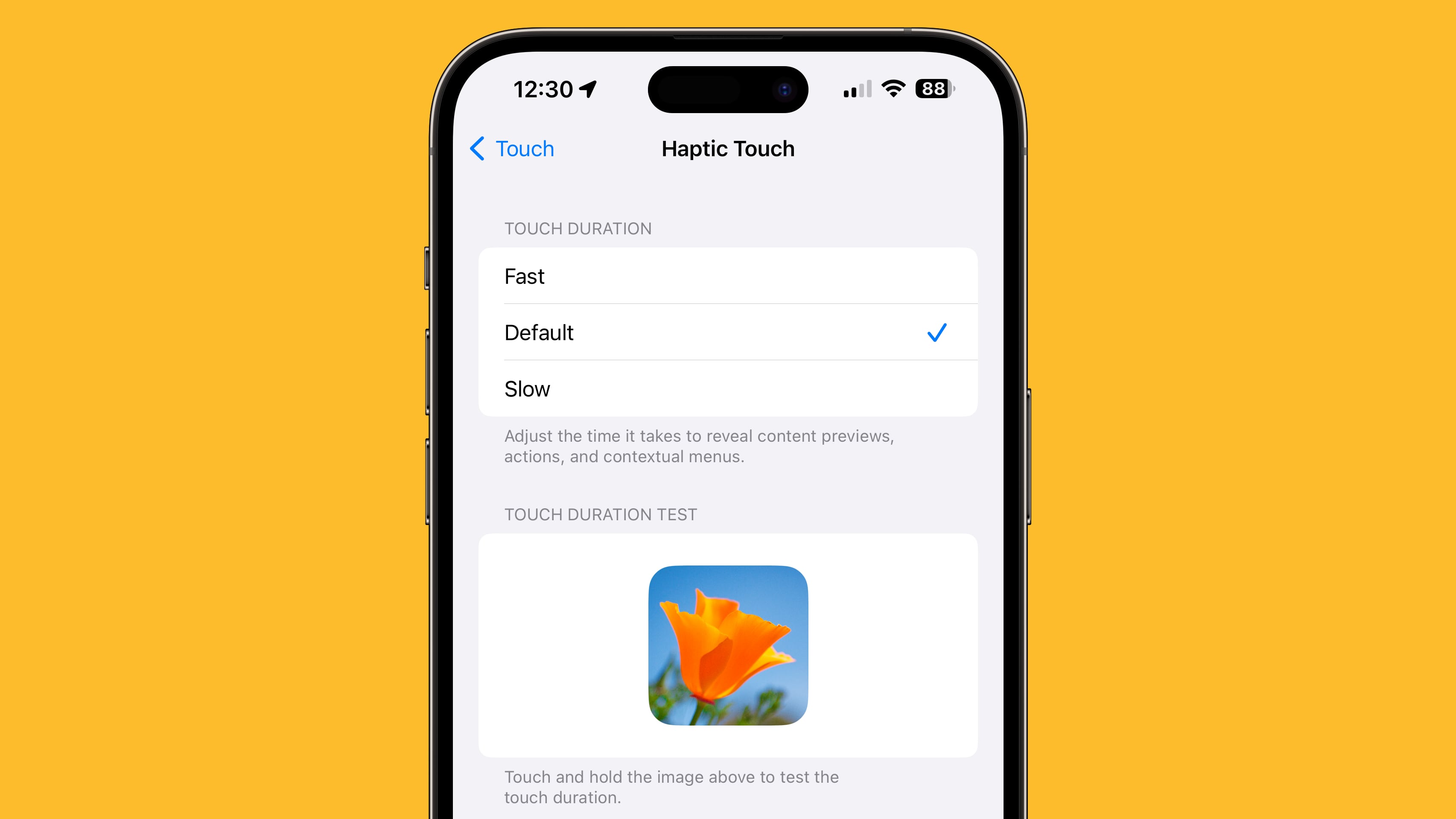
- Adjust Haptic Touch Speed: Tap on "Haptic Touch". You'll see three options: "Fast," "Default," and "Slow".
- Test and Choose: Select "Fast" to experience the quickest haptic feedback. You can test each speed setting using the flower icon displayed on the same screen.
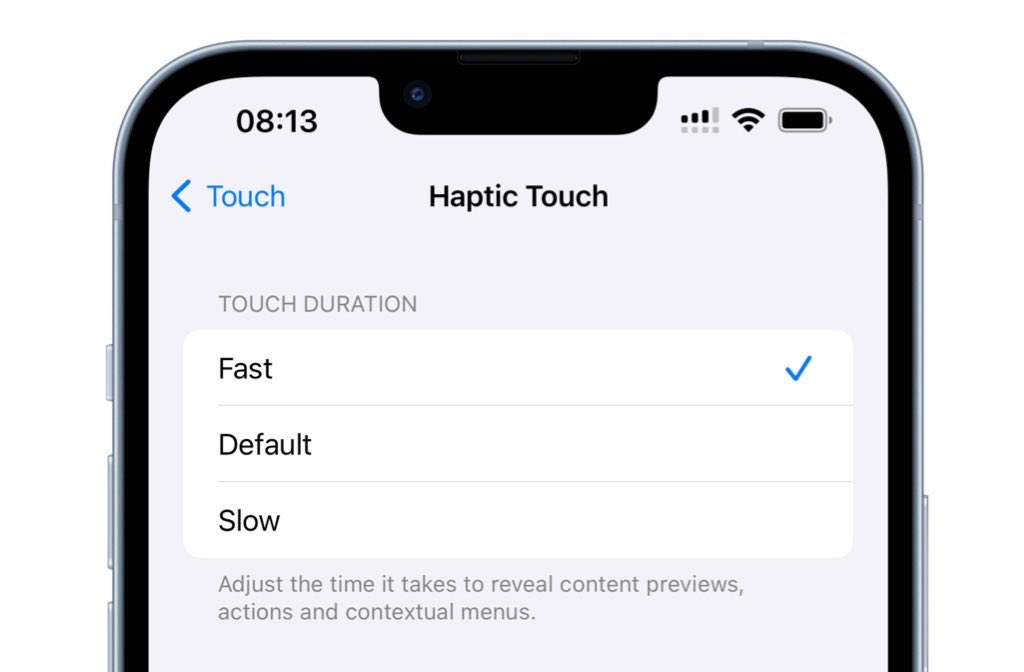
By choosing the "Fast" option, you'll notice a marked improvement in the speed at which haptic menus appear when you long-press on icons or on-screen elements. This adjustment brings the experience much closer to the immediacy of 3D Touch, addressing a common complaint among users accustomed to the faster response times.
Conclusion
While 3D Touch may be gone, the ability to customize Haptic Touch speed in iOS 17 offers a welcome compromise. This simple adjustment can significantly enhance the overall user experience, making interactions feel more responsive and intuitive. If you're looking for a way to recapture some of the snappiness of 3D Touch, take a few seconds to adjust this setting – you won't regret it.
This article, "iPhone Long Press Too Slow? Speed Up Haptic Touch in Seconds" first appeared on MacRumors.com
Discuss this article in our forums
from MacRumors
-via DynaSage

Post a Comment