Use Apple Watch Backtrack to Retrace Your Steps
Never Get Lost Again: Mastering Apple Watch Backtrack
Getting lost, especially in unfamiliar territory, can be a scary experience. But what if you had a digital trail leading you back to safety? With Apple Watch's Backtrack feature, you do! Available on Apple Watch Ultra, Apple Watch SE, and Apple Watch Series 6 and later models running watchOS 9 or newer, Backtrack uses your Apple Watch's GPS to create a virtual breadcrumb trail, allowing you to retrace your steps easily if you ever find yourself disoriented.
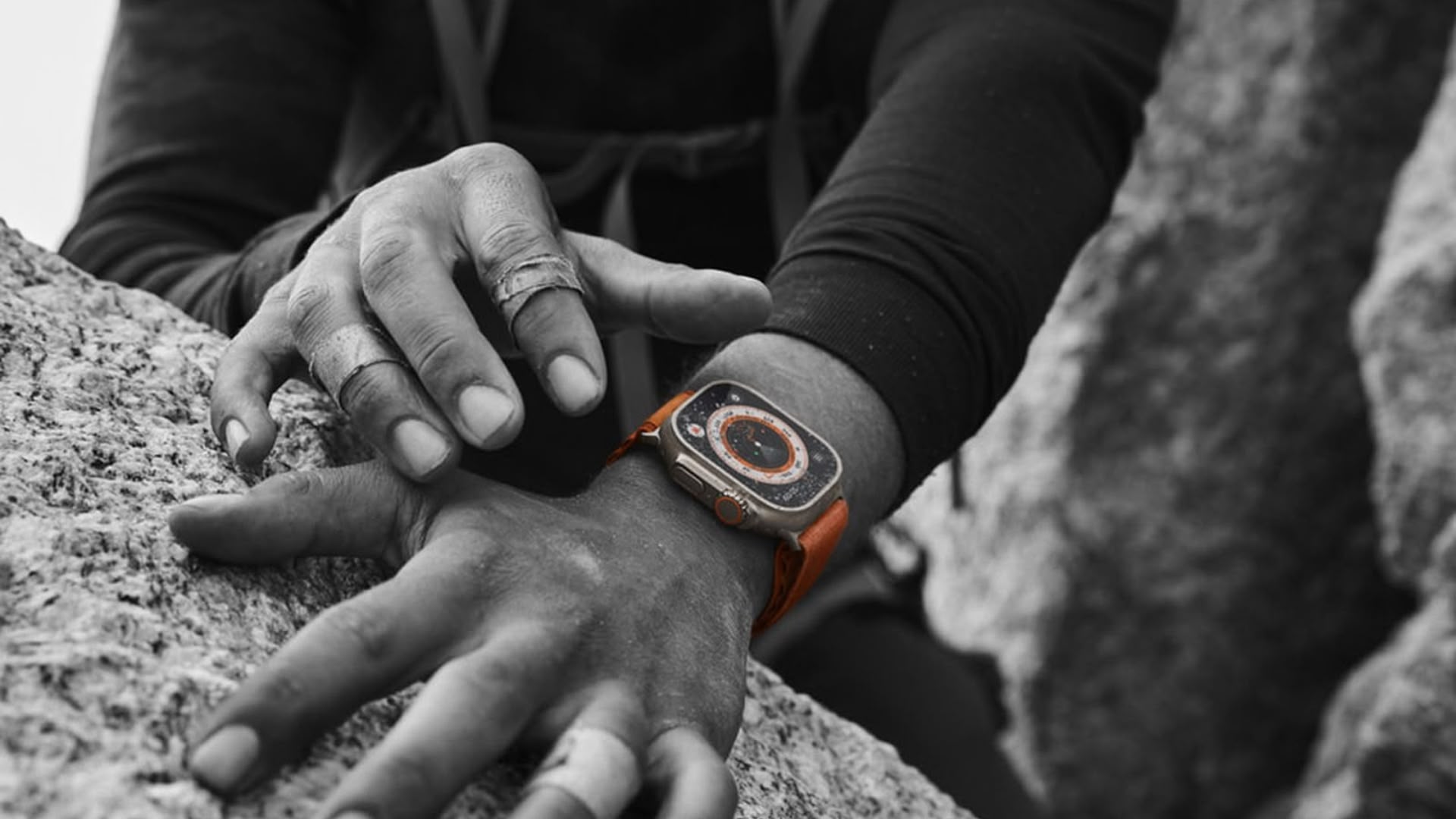
While ideal for remote locations far from Wi-Fi or familiar surroundings, Backtrack is versatile enough for any situation where you want to keep track of your path. Remember, however, that Backtrack doesn't account for changes in elevation or obstacles you might encounter. It's a guide, not a perfect replication of your journey.
How to Use Apple Watch Backtrack
Using Backtrack is simple and intuitive. Follow these steps:
- Open the Compass app: Locate and open the Compass app on your Apple Watch.
- Start Recording: Tap the Backtrack button (located in the bottom-right corner of the screen). Then, tap "Record Path" to begin tracking your route.
- Retrace Your Steps: Once you're ready to return, tap the now-highlighted Backtrack button again. Select "Retrace Steps".
- Follow the Path: Your route will appear on the screen, with your starting point marked as a white dot. Follow the path back to where you initially activated Backtrack.
- Delete the Path: After returning to your starting location, tap the Backtrack button and select "Delete Path" to clear your recorded route.
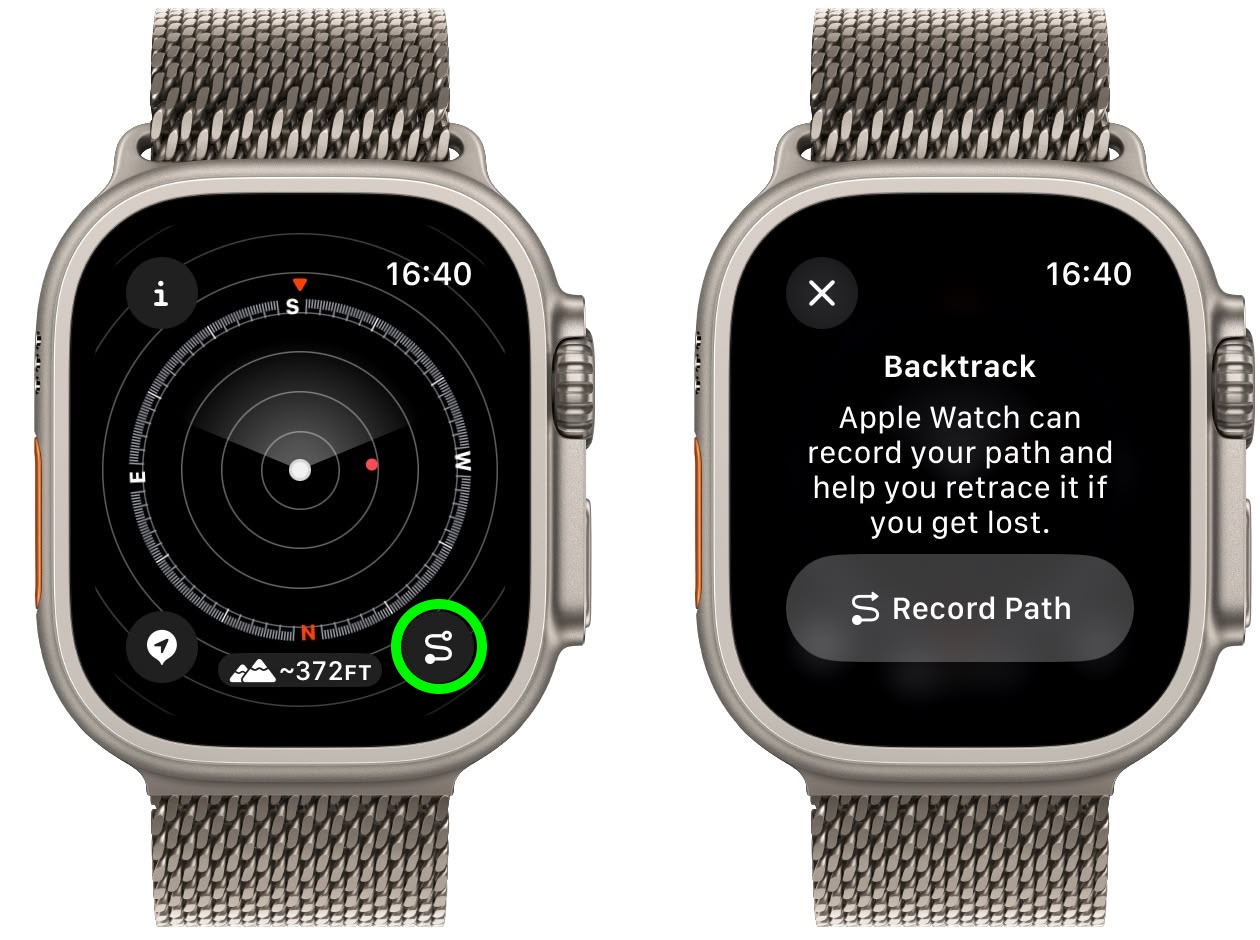

Using Backtrack with the Action Button (Apple Watch Ultra)
Apple Watch Ultra users can leverage the Action button for even quicker access to Backtrack. Here's how:
- Customize the Action Button: Open the Settings app on your watch. Navigate to Action Button > Action > Backtrack. Tap the chevron (the little arrow) to return to the action list.
- Start/Stop Recording: Simply press the Action button to start Backtrack and tap "Record Path". To switch between recording and retracing, simultaneously press the Action and side buttons.
Enhance Your Navigation with Compass Waypoints
For even more precise navigation, consider using Compass Waypoints in conjunction with Backtrack. Waypoints allow you to mark specific locations along your route, providing additional reference points during your return journey. Learn more about using Compass Waypoints by visiting this helpful guide: How to Use Compass Waypoints on Apple Watch.
Conclusion
Apple Watch Backtrack provides a valuable safety net for anyone venturing into unfamiliar territory. Its straightforward operation and integration with other Apple Watch features make it a powerful tool for outdoor enthusiasts, hikers, and anyone wanting extra peace of mind while exploring. Remember to familiarize yourself with the feature before relying on it in critical situations. Happy exploring!
This article, "Use Apple Watch Backtrack to Retrace Your Steps" first appeared on MacRumors.com
Discuss this article in our forums
from MacRumors
-via DynaSage

Post a Comment