Boost iPhone Audio Features With This Simple Bluetooth Tip
Boost Your iPhone's Audio Features: Labeling Bluetooth Accessories
Apple's iOS and iPadOS operating systems offer a handy feature: the ability to label your connected Bluetooth accessories. This seemingly small detail can significantly improve your audio experience and provide more accurate data regarding your listening habits.
By assigning labels to your Bluetooth devices, you can easily identify them in your device lists. This is particularly helpful if you have multiple Bluetooth devices, such as headphones, speakers, and car stereos, connected to your iPhone or iPad. Furthermore, accurate labeling ensures that features like real-time Headphone Audio Level measurements work correctly.
Why Label Your Bluetooth Accessories?
Properly labeling your Bluetooth accessories offers several key benefits:
- Easy Identification: Quickly identify which device is connected, eliminating confusion when switching between multiple Bluetooth devices.
- Improved Audio Notifications: Ensures that audio notifications are correctly routed to the appropriate device.
- Accurate Audio Level Measurements: Accurate labeling is crucial for the precise measurement of headphone audio levels, as seen in the iPhone's Hearing control in Control Center.
- Detailed Listening History: The Health app uses this data to build a detailed history of your headphone listening habits, helping you track your audio usage and potentially identify potential hearing health concerns.
How to Label Your Bluetooth Accessories
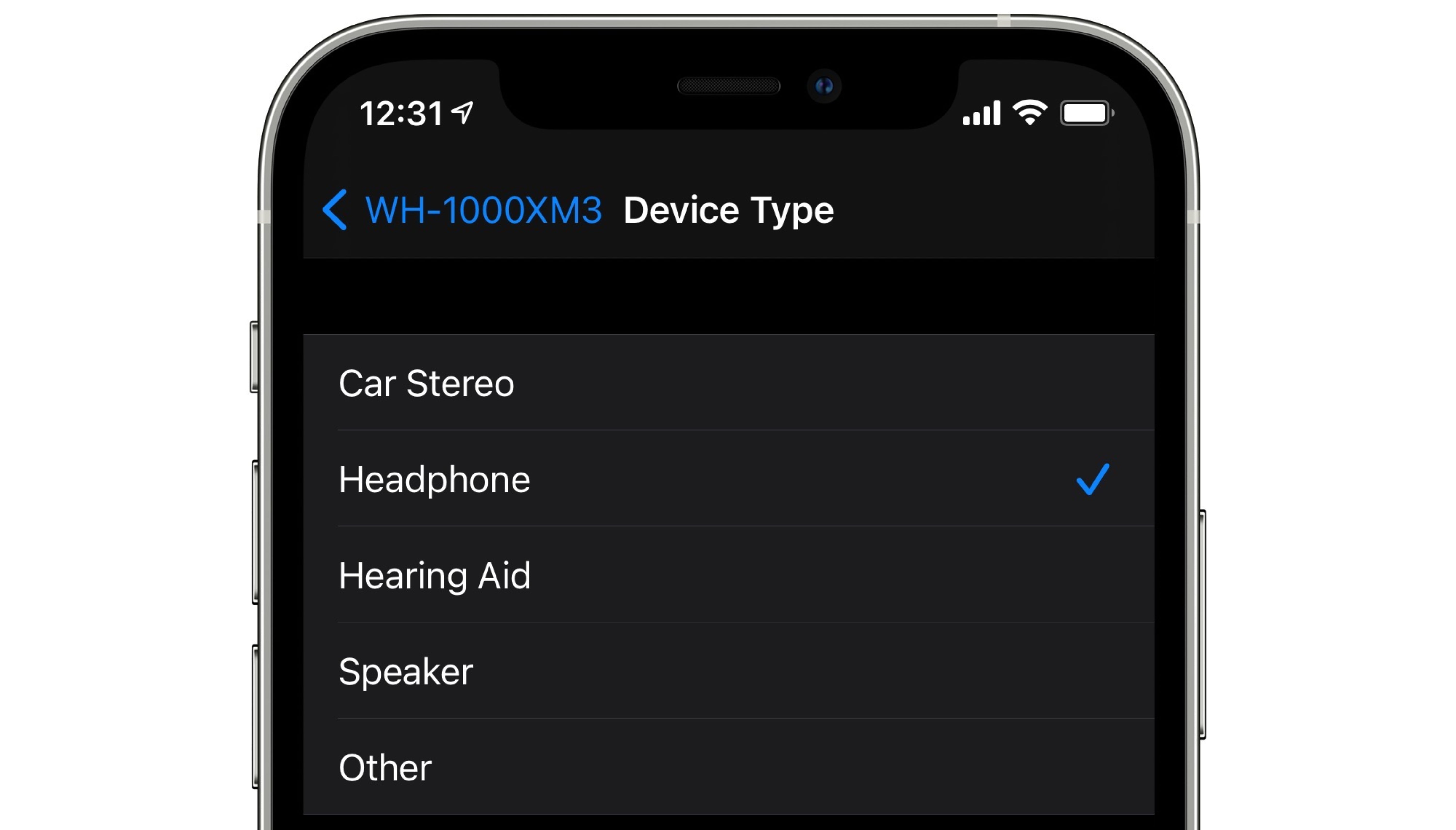
Apple provides five categories for labeling your Bluetooth devices: Car Stereo, Headphone, Hearing Aid, Speaker, and Other. Here's a step-by-step guide on how to label your devices:
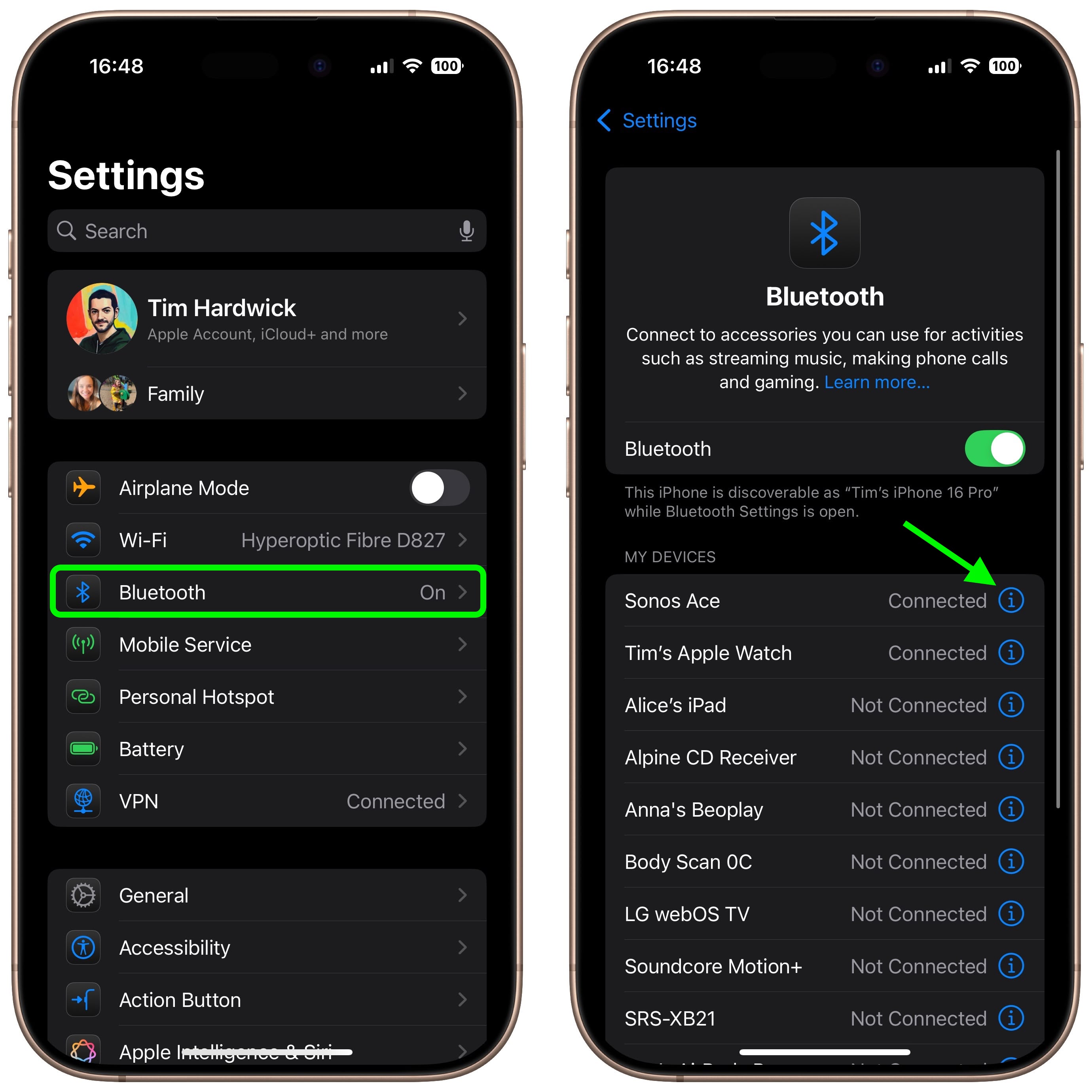
- Open the Settings App: Locate and open the Settings app on your iPhone or iPad.
- Select Bluetooth: In the Settings menu, tap on "Bluetooth".
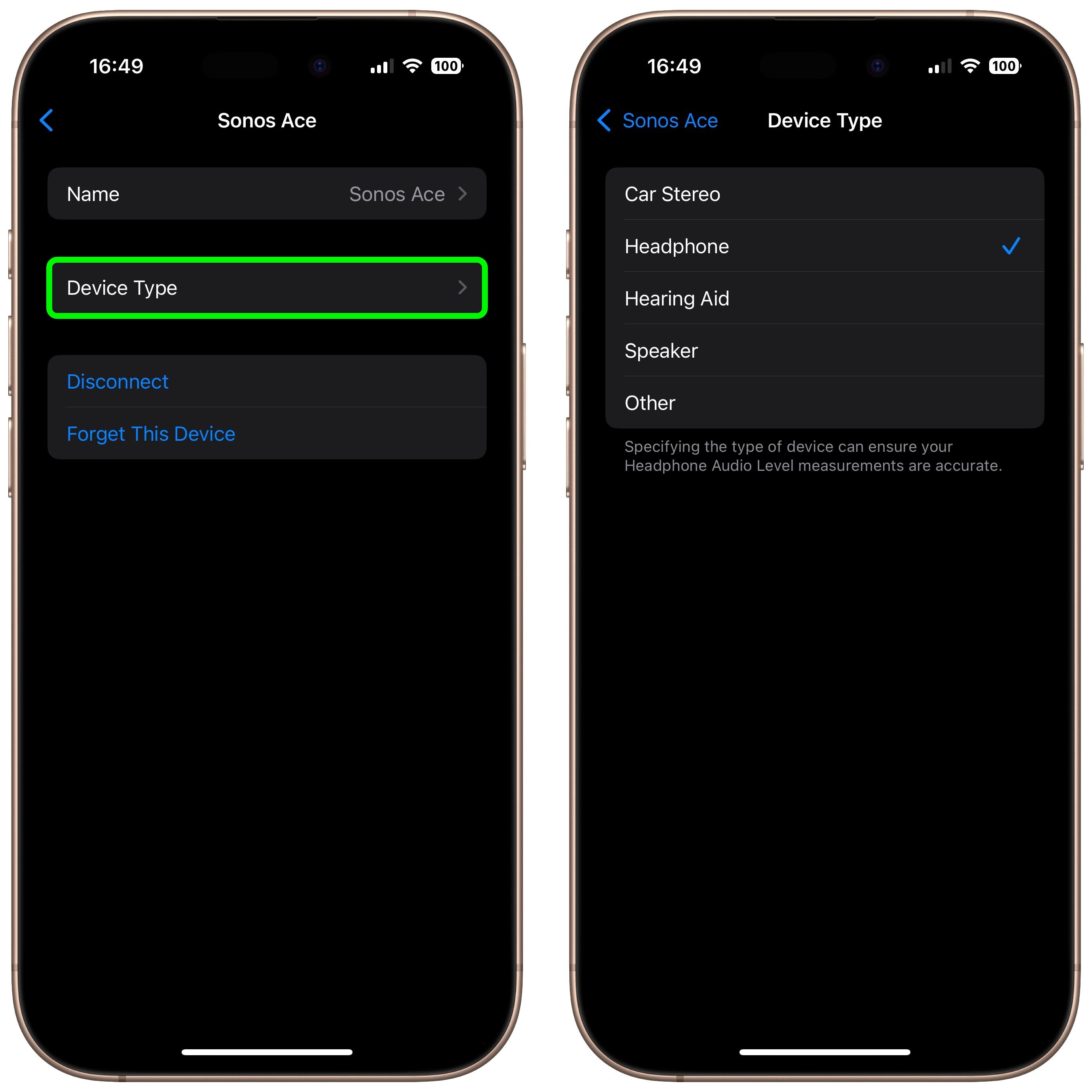
- Access Device Information: Find the Bluetooth device you want to label in the list of connected devices. Tap the "info" button (a small circle with an "i" inside) next to the device's name.
- Choose Device Type: Tap on "Device Type".
- Select the Correct Label: Choose the appropriate label from the list (Car Stereo, Headphone, Hearing Aid, Speaker, or Other) that best describes your Bluetooth accessory.
Exceptions to Labeling
It's important to note that some Apple devices, such as AirPods and AirPods Max, are automatically recognized as headphones and their labels cannot be changed. The same applies to the Apple Watch. While you can't change the Bluetooth label, you can still change the name of these devices as they appear in your Bluetooth device list for better organization.
Monitor Your Listening Habits
Once your devices are accurately labeled, you can use the Health app to track your listening habits. This app provides valuable data on your audio usage, helping you make informed decisions about your listening volume and overall audio health. Understanding your listening patterns can be crucial for maintaining good hearing health.
Conclusion
Labeling your Bluetooth accessories may seem like a minor adjustment, but it offers considerable benefits. By taking a few moments to label your devices correctly, you’ll enjoy a smoother, more efficient, and safer listening experience, ensuring your audio level measurements are precise, and providing you with a better understanding of your listening habits. This simple step can significantly improve your overall iPhone experience.
This article, "Boost iPhone Audio Features With This Simple Bluetooth Tip" first appeared on MacRumors.com
Discuss this article in our forums
from MacRumors
-via DynaSage

Post a Comment