Bookmark Multiple Tabs in Safari on iPhone
Taming the Safari Tab Chaos on Your iPhone
It's easy to accumulate a mountain of open tabs in Safari on your iPhone, especially when researching or browsing multiple topics. This can quickly become overwhelming and make it difficult to find the tab you need. Thankfully, Safari offers several ways to manage this tab overload, allowing you to declutter your browsing experience without losing valuable information.
The Nuclear Option: Closing All Tabs
If you're done with all your open tabs and want a fresh start, the quickest solution is to close them all at once. Simply select any open tab, then press and hold the tabs button located in the bottom-right corner of the screen. A menu will appear with the option to "Close All [x] Tabs," where 'x' represents the number of currently open tabs. Tap this option to instantly clear your browsing slate.

Saving Your Tabs for Later: The Bookmarking Solution
Closing all tabs is convenient for a clean sweep, but what if you need to revisit those pages later? Instead of individually bookmarking each tab, which can be tedious with a large number of open tabs, Safari provides a streamlined way to bookmark them all simultaneously.
This feature is incredibly useful for research projects, vacation planning, or any situation where you need to save a collection of web pages for future reference. Here's how to do it:
Bookmarking Multiple Tabs in a Few Taps
- Open any of your existing Safari tabs.
- Locate the Bookmark icon (it looks like an open book) at the bottom of the screen.
- Long-press the Bookmark icon. This will bring up a menu with several options.
- Select the "Add Bookmarks for [x] Tabs" option, where 'x' is the number of open tabs.
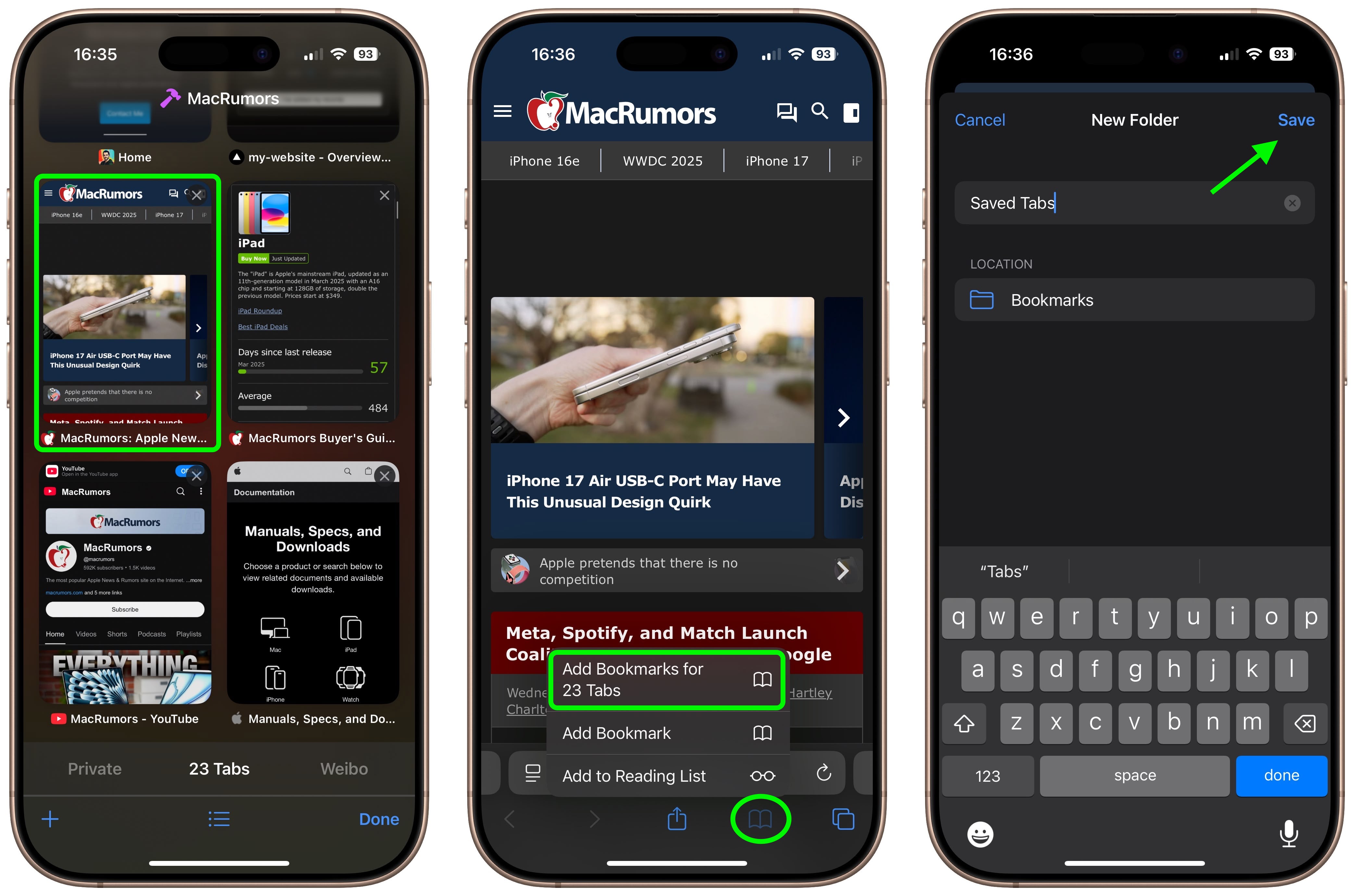
Safari will then prompt you to create a new bookmarks folder to store these tabs. You can choose a name for the new folder and even select its location within your existing bookmark hierarchy. This allows you to organize your saved tabs effectively.
Accessing Your Bookmarked Tabs
Once you've saved your tabs as bookmarks, accessing them is simple. Just tap the Bookmarks icon (the open book) in Safari's main browsing interface. This will reveal all your saved bookmarks and folders, including the one you just created. From there, you can easily reopen any or all of the saved tabs.
By utilizing these simple techniques, you can effectively manage even a large number of open tabs in Safari on your iPhone. No more endless scrolling or struggling to find the right page! Keep your browsing sessions organized and efficient with these handy tips.
This article, "Bookmark Multiple Tabs in Safari on iPhone" first appeared on MacRumors.com
Discuss this article in our forums
from MacRumors
-via DynaSage

Post a Comment