Reveal Hidden Folder Sizes in macOS Finder With These Tricks
Reveal Hidden Folder Sizes in macOS Finder
When using macOS Finder in List view, you see the sizes of individual files, but folders just show dashes (--) in the Size column. This is because macOS prioritizes speed and avoids calculating folder sizes by default, especially in folders containing many subfolders and files. However, if you need to monitor folder sizes, whether in specific locations or everywhere on your Mac, there are several handy ways to do it.
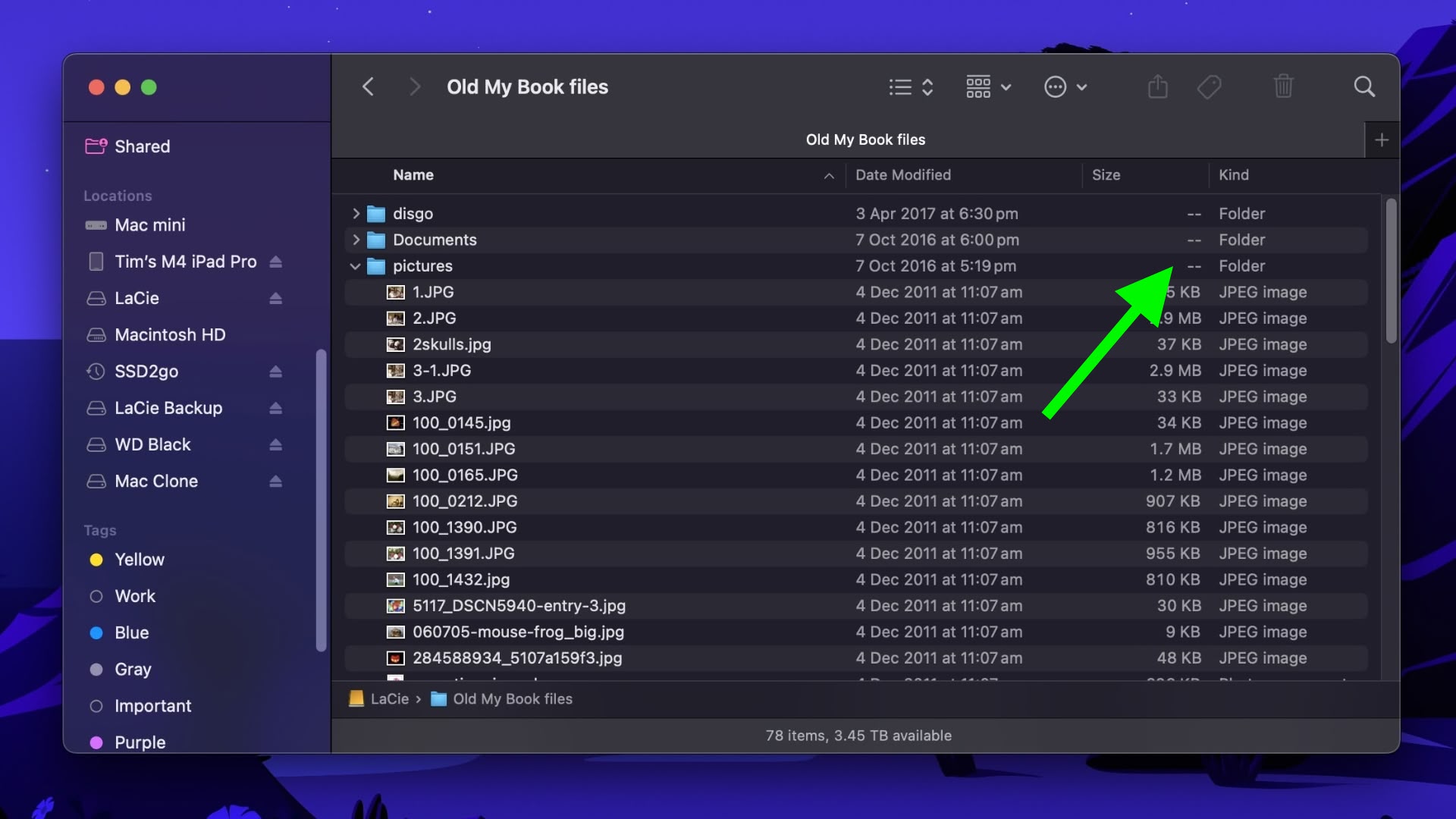
Perhaps you prefer List view but still want to see the sizes of specific folders, like those in your Documents folder or a cloud-synced directory. Or maybe you have a fast SSD that can handle calculating folder sizes on the fly. Fortunately, Finder offers multiple ways to display folder sizes, even in List view.
Enable Calculate All Sizes
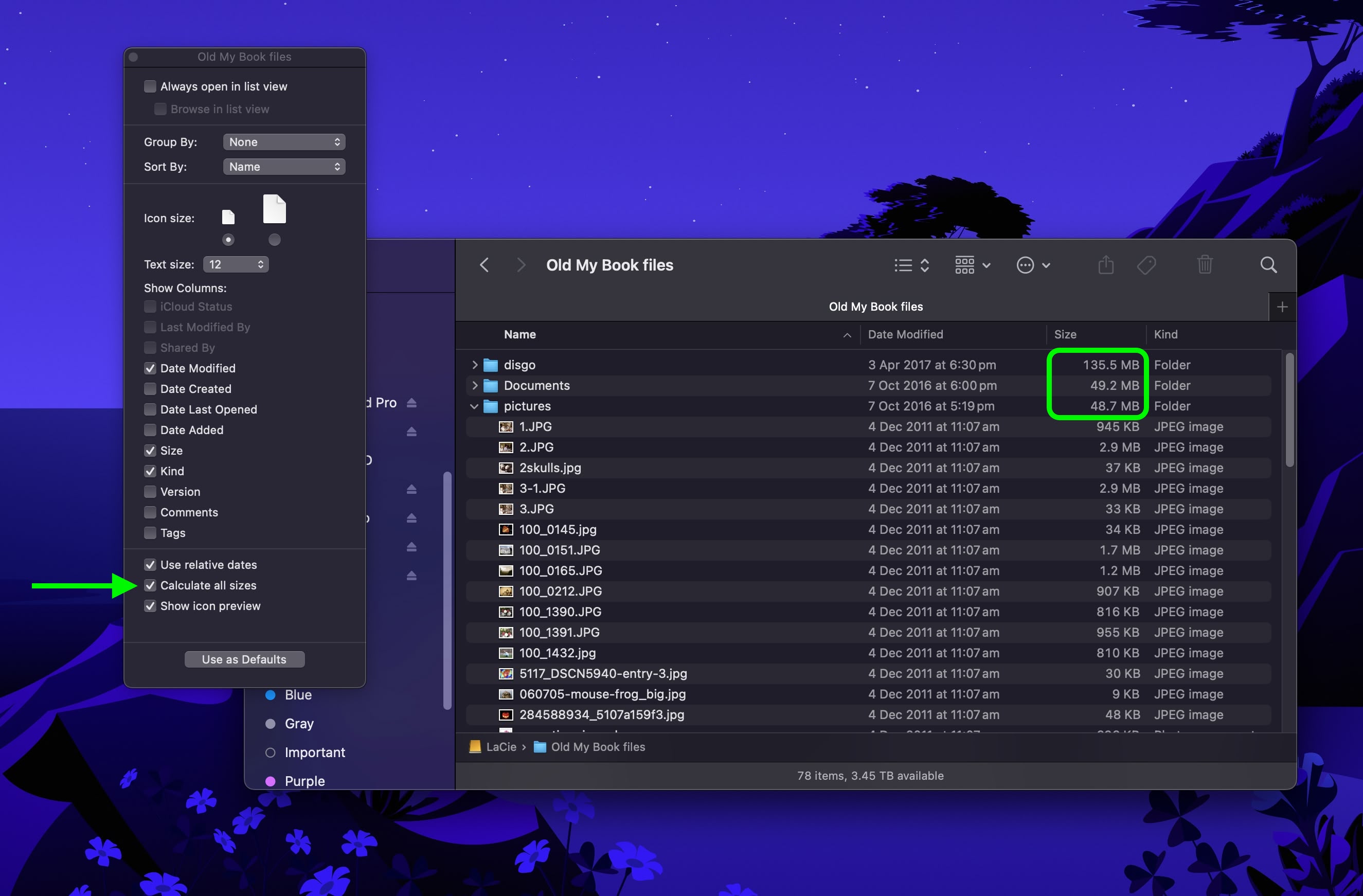
To display folder sizes within a specific folder, open that folder and go to View ➝ Show View Options in the menu bar, or press Command+J. Then, check the box next to Calculate All Sizes. Finder will remember this setting for that specific folder only.
Turn On the Preview Panel
For a more universal solution that works in any Finder view mode, enable the Preview panel. Open a Finder window and select View ➝ Show Preview from the menu bar, or press Shift+Command+P.
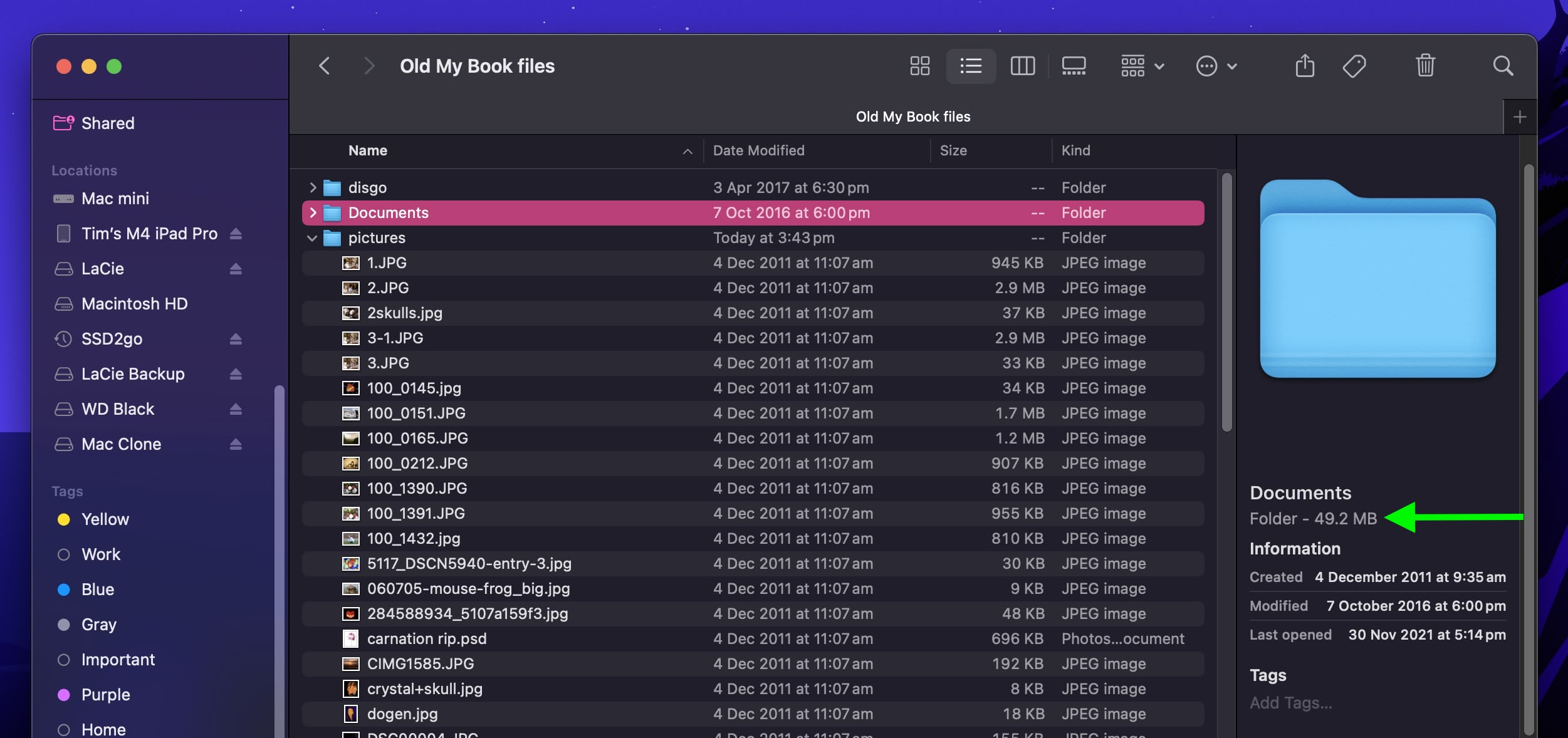
The Preview panel displays the size of the selected folder directly beneath its name. If you only want to see the folder size in the Preview panel and not other information, go to View ➝ Show Preview Options and uncheck all other metadata options.
Use Get Info
If using the Preview panel takes up too much screen space, the Get Info option is a good alternative. Select a file or folder, then go to File ➝ Get Info in the menu bar, or press Command+I. The Get Info window shows the size of the selected item, whether it's a file or a folder.
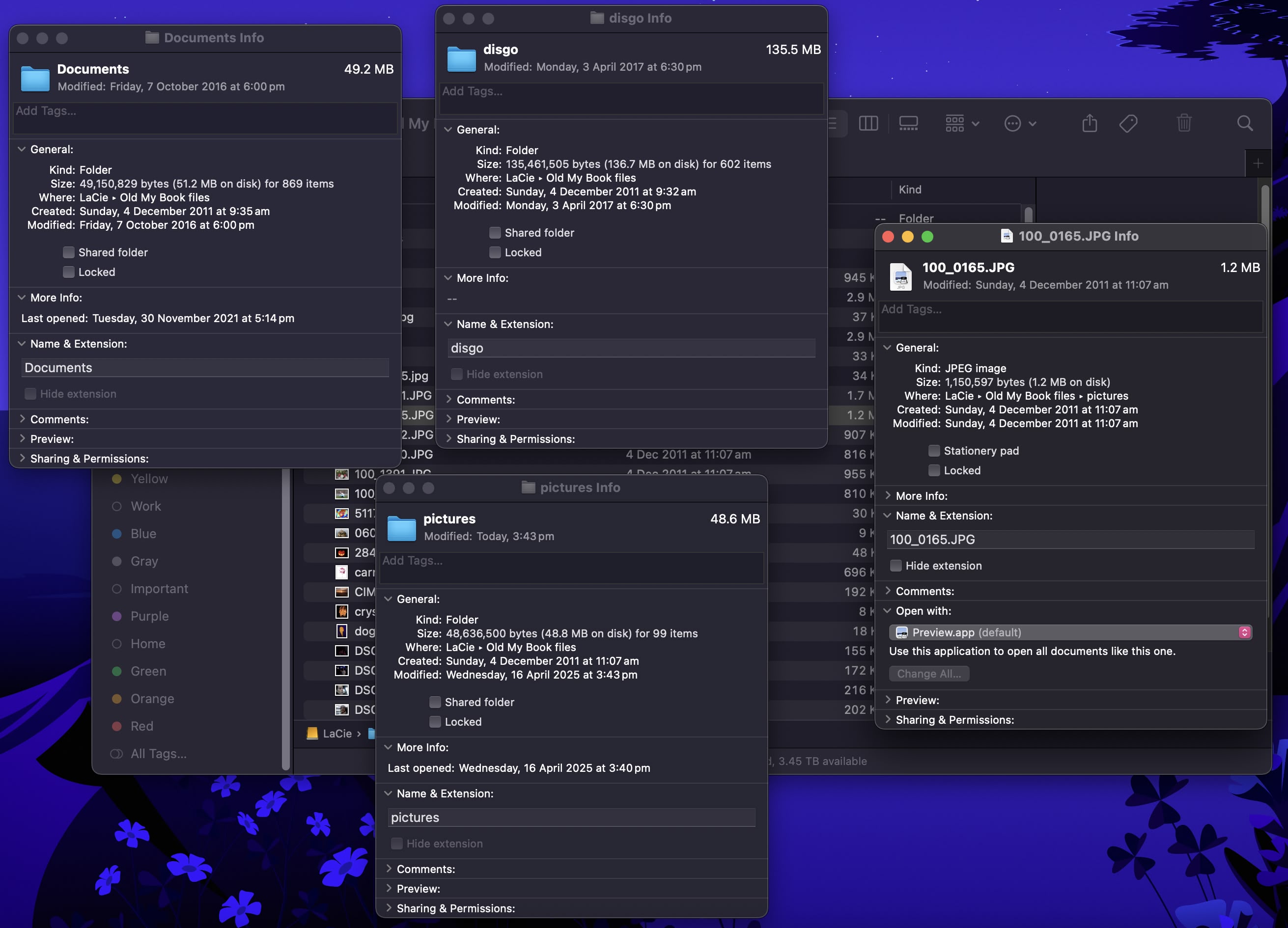
However, each Get Info window is static and tied to the specific item you selected. Opening multiple Get Info windows can clutter your desktop, as they remain open until manually closed.
Use Inspector for Live Folder Info
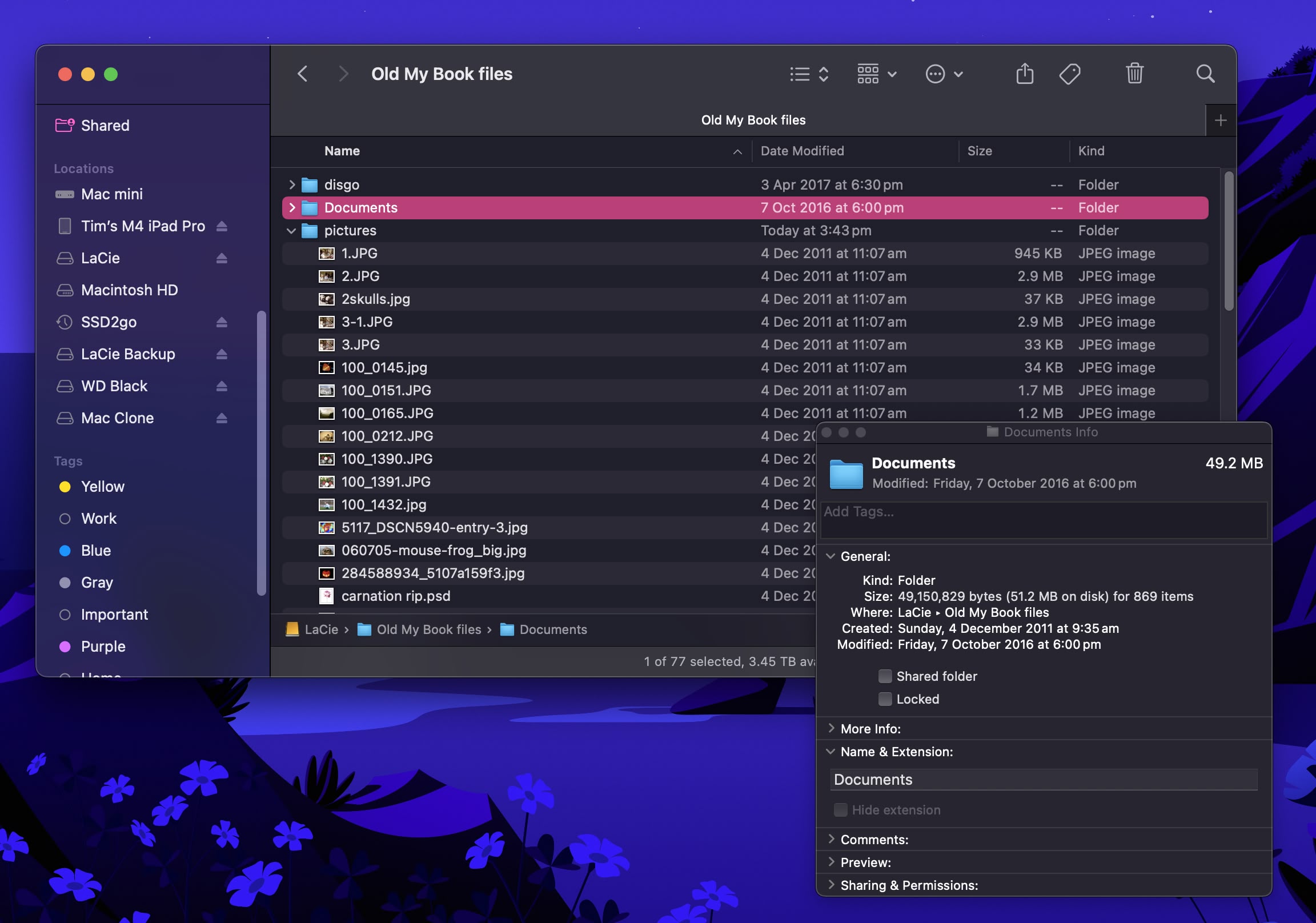
For a dynamic, real-time view of folder sizes without the clutter of multiple windows, use the Inspector panel. Hold down the Option key while clicking File in the menu bar. You'll see that Get Info changes to Show Inspector. Unlike Get Info, the Inspector panel updates dynamically to display information about the currently selected file or folder in the active Finder window, including its size.
In short, use the Preview panel for quick size checks. For multiple folders or more detailed information, enable "Calculate All Sizes" in View Options. And for real-time, clutter-free size updates, the Inspector is your best bet.
This article, "Reveal Hidden Folder Sizes in macOS Finder With These Tricks" first appeared on MacRumors.com
Discuss this article in our forums
from MacRumors
-via DynaSage

Post a Comment