How to Turn Off Apple Mail Categories
Reclaim Your Inbox: How to Disable Apple Mail Categories
Apple introduced Mail Categories in iOS 18.2, and later extended it to iPadOS 18.4 and macOS Sequoia 15.4. This feature automatically sorts your emails into four sections: Primary, Transactions, Updates, and Promotions. While designed to combat email overload, this new system might not be for everyone.
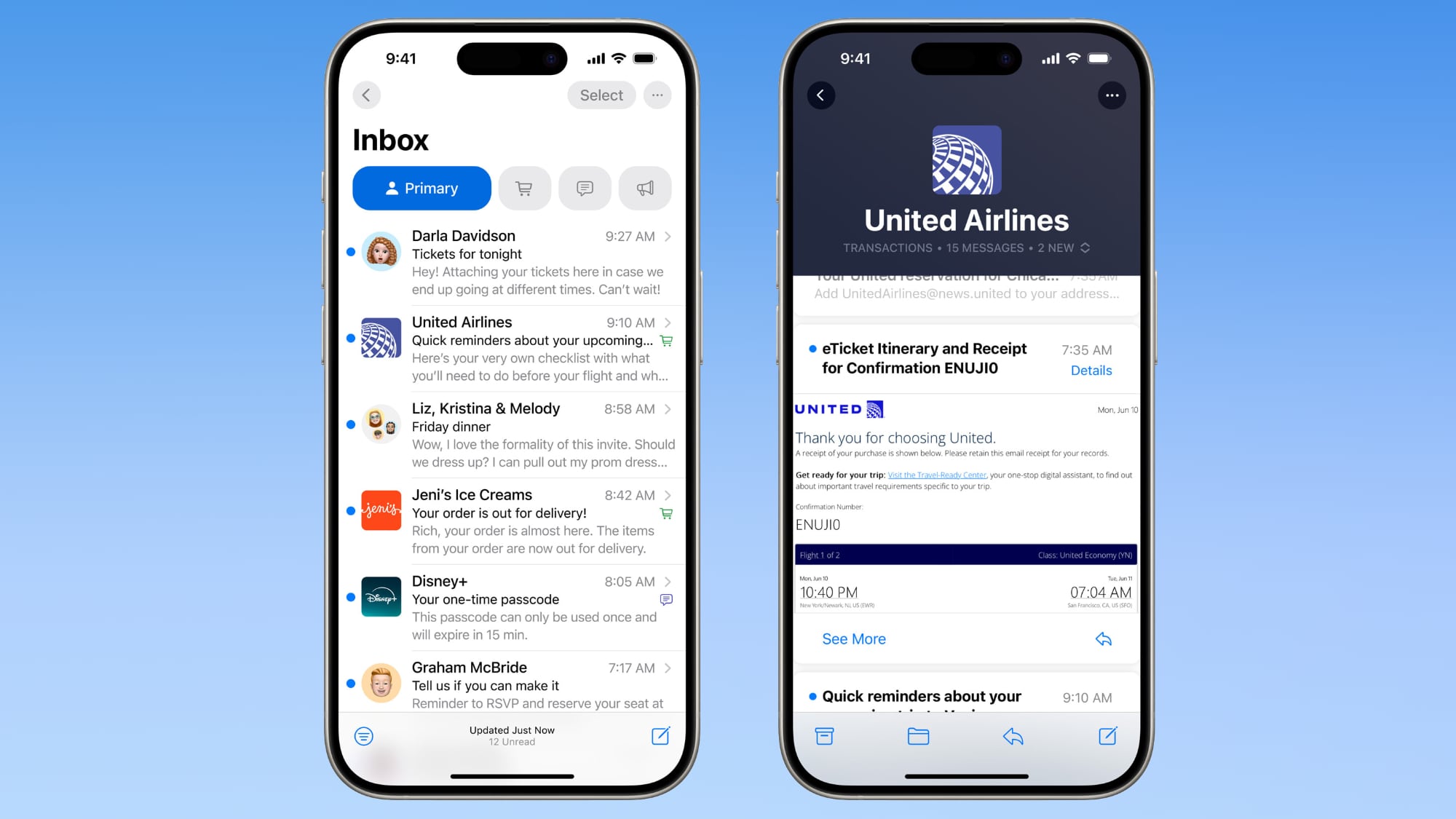
The Categories feature attempts to intelligently filter your incoming emails. Important messages land in the "Primary" inbox, while orders, newsletters, social notifications, and deals are sorted into the "Transactions," "Updates," and "Promotions" categories, respectively.
The "Transactions" section gathers receipts, orders, and delivery information, making it easier to track your purchases. "Updates" collects newsletters, appointment reminders, and other subscription-based emails. "Promotions" houses special offers and deal alerts.
Even if an email belongs in Transactions, Updates, or Promotions, it will also appear in your Primary inbox if it contains time-sensitive information. Devices with Apple Intelligence take this further by highlighting priority emails requiring action or with approaching deadlines.
Why You Might Want to Disable Mail Categories
While potentially useful for some, the Categories view might clash with your preferred email management style. You might prefer a chronological view, have a personalized organization system, or simply want quick access to all emails without navigating different categories. While you can swipe left on iPhone and iPad (or find the option to the right of category buttons on Mac) to access an "All Mail" view, you might prefer to remove the categories entirely.
How to Return to the List View in Apple Mail
Categories is the default view after updating your device. Fortunately, reverting to the traditional list view is straightforward. Follow these steps:
- Open the Mail app on your iPhone, iPad, or Mac.
- Locate the More button (represented by three dots). On iPhone/iPad, it’s in the upper right corner of your inbox. On Mac, it’s at the top of the inbox view.
- On iPhone/iPad, select List View from the menu that appears. On Mac, click Show Mail Categories to uncheck it.
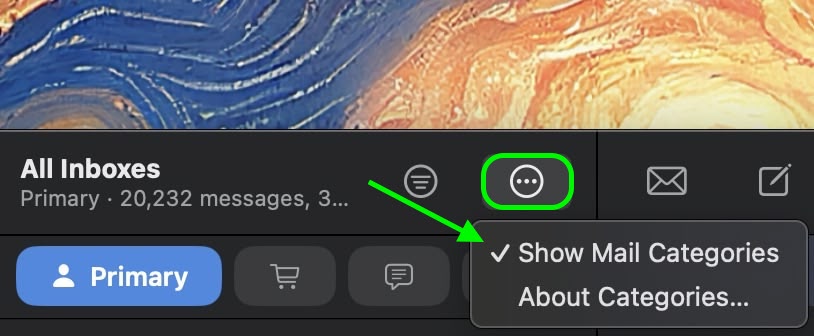
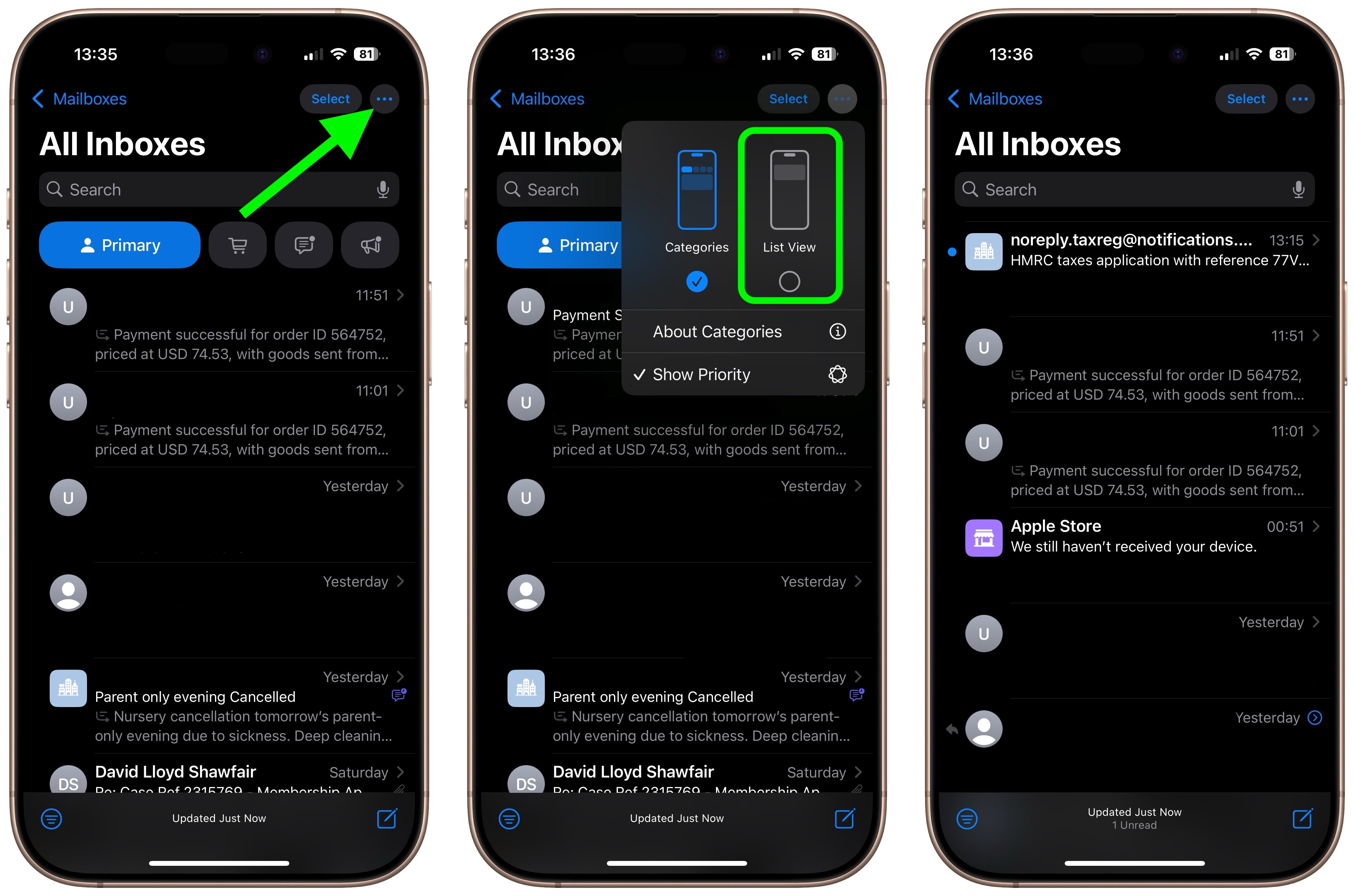
Your inbox will instantly revert to displaying all emails chronologically. While the categorization feature isn't perfect, Apple will likely refine it over time. You can always re-enable the Categories view using the same menu if you decide to try it again later.
Note: Users with iPhones or iPads supporting Apple Intelligence will see an additional option in the More menu for prioritizing messages. This won't appear on devices without Apple Intelligence support. The More menu also includes an "About Categories" section showing how messages were categorized over the past week. However, there's currently no way to manually correct the Mail app if an email is miscategorized.
This article, "How to Turn Off Apple Mail Categories" first appeared on MacRumors.com
Discuss this article in our forums
from MacRumors
-via DynaSage

Post a Comment