How to Adjust Mac Volume and Brightness More Precisely
Unlocking Hidden Precision: Fine-Tune Your Mac's Volume and Brightness
Macs offer convenient volume and brightness controls right on the function keys. A simple tap adjusts these settings, but what if you need more precise control? What if the default jumps in volume or brightness are too large for your liking? This article reveals a hidden trick that allows for incredibly granular adjustments, giving you ultimate control over your Mac's audio and display.
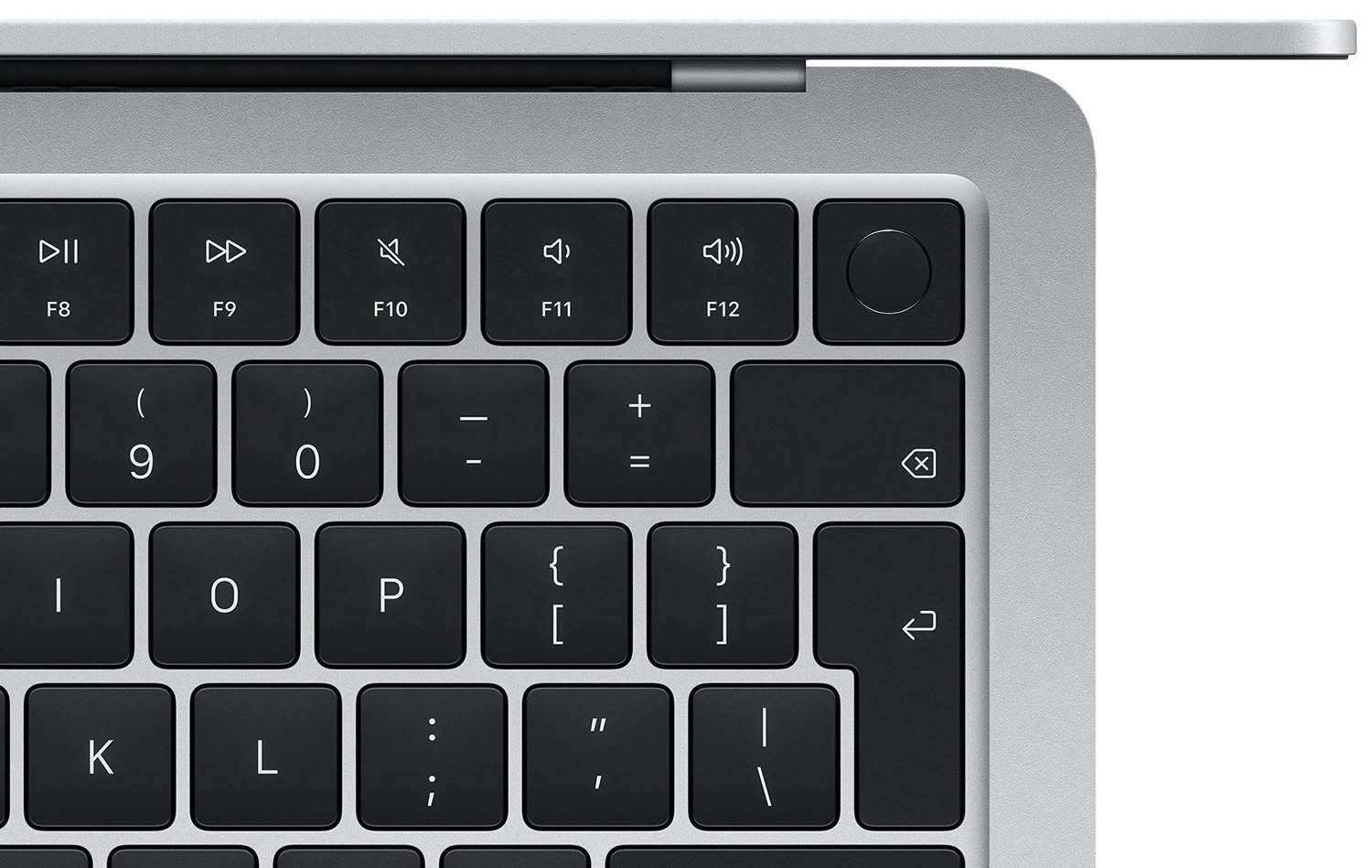
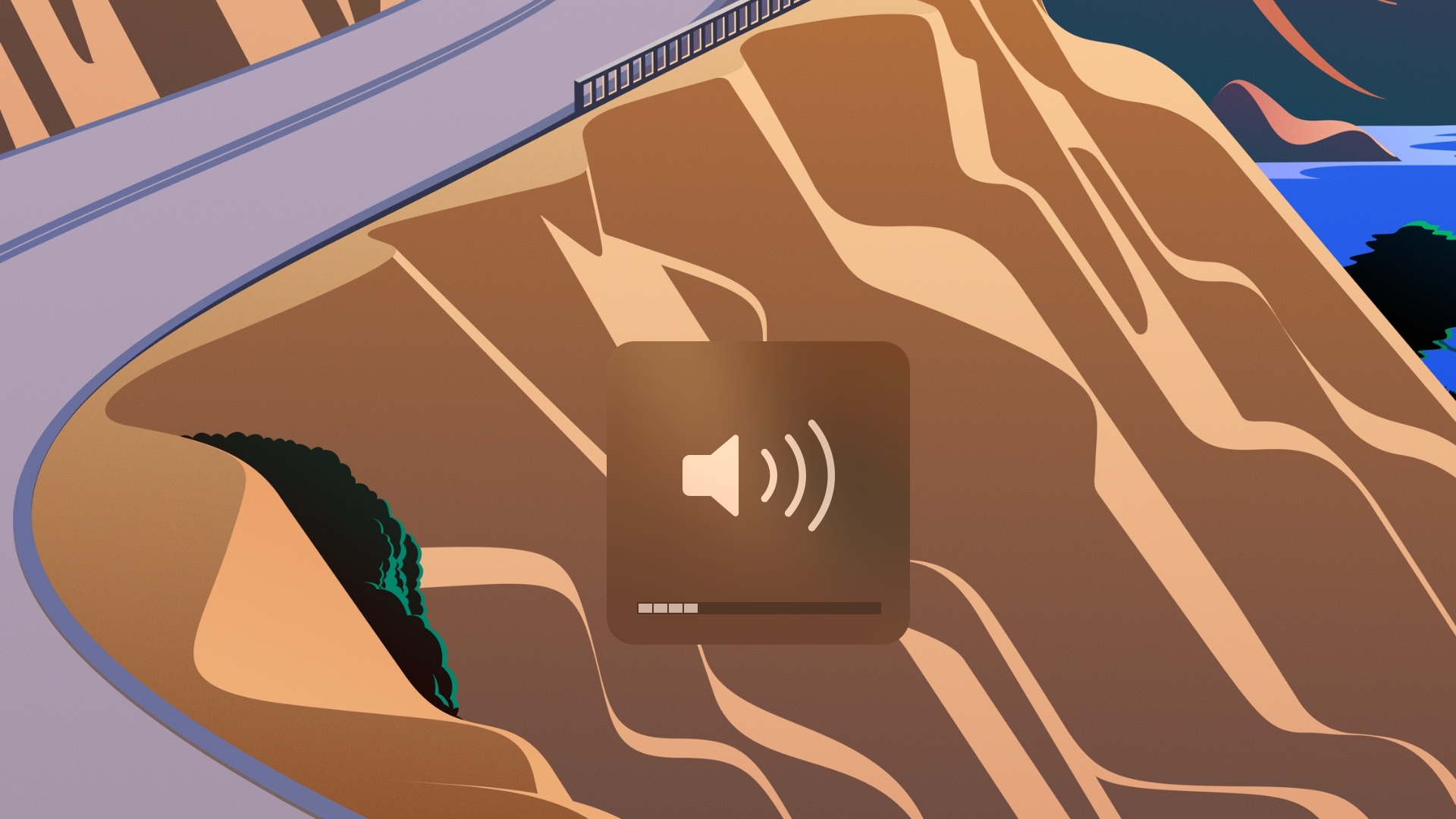
When you press the volume or brightness keys, a visual indicator appears on your screen. This indicator typically shows 16 increments, separated by lines. These represent the standard adjustment steps. But what many users don't realize is that there's a hidden level of precision waiting to be unlocked. By using a simple keyboard modifier, you can access a total of 64 increments, allowing for incredibly fine-tuned adjustments.
The Secret to Micro-Adjustments
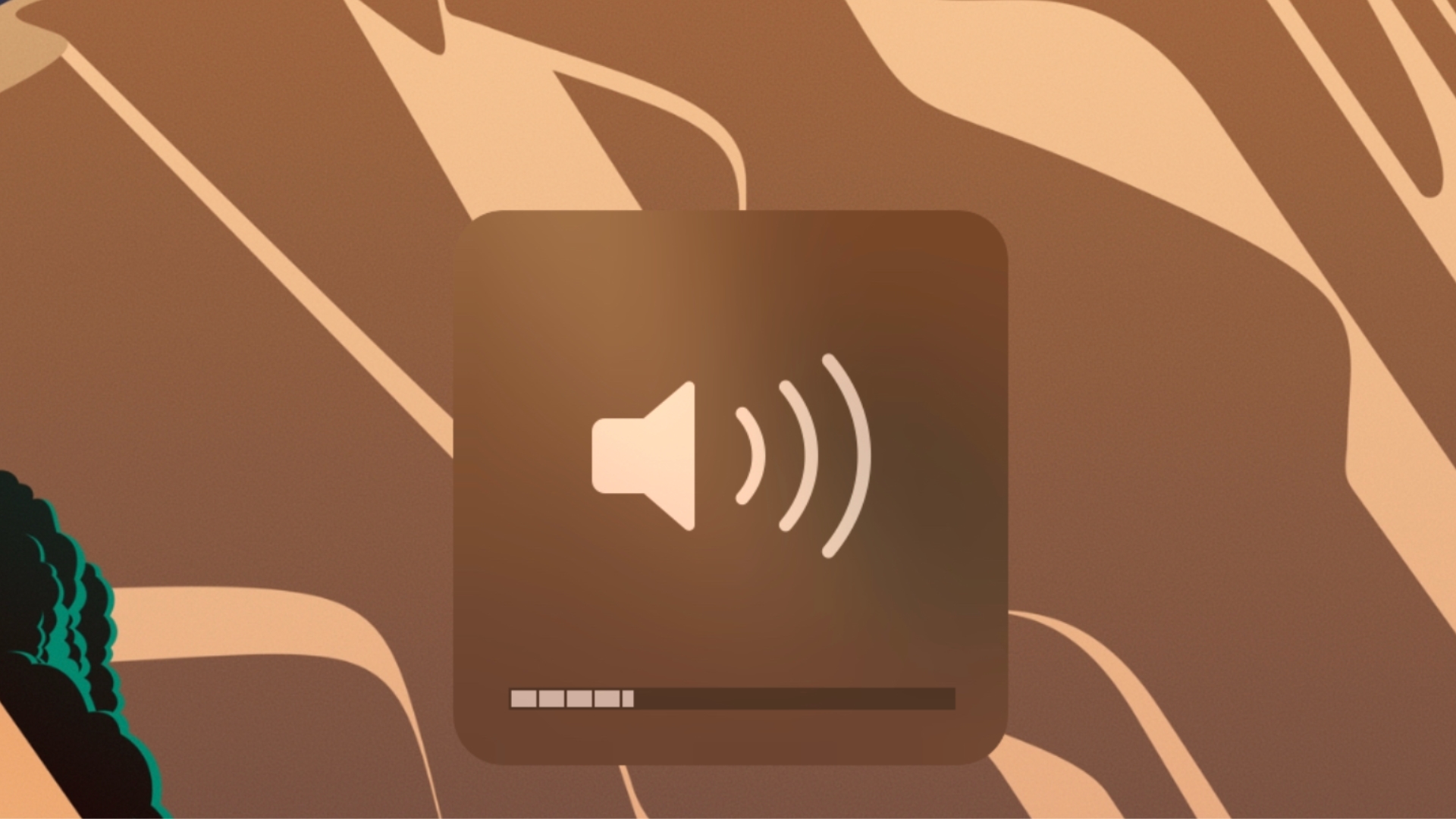
The key to unlocking this hidden precision lies in the Option and Shift keys. Before you press the volume or brightness controls, hold down both the Option and Shift keys simultaneously. Now, press the volume or brightness keys as you normally would. You'll notice a subtle but significant difference: the onscreen indicator will move in smaller increments. In fact, it now moves in quarter-steps, allowing you to fine-tune your settings with remarkable accuracy.
Why This Matters
This simple trick can significantly improve your Mac experience. Imagine listening to music with headphones and wanting to adjust the volume to the perfect level. The standard increments might be too coarse, leaving you either slightly too loud or slightly too quiet. With the Option+Shift modifier, you gain the ability to find that sweet spot with pinpoint accuracy.
The same principle applies to screen brightness. Fine-tuning your screen's brightness can reduce eye strain and improve readability, especially in varying lighting conditions. This hidden feature allows you to adjust the brightness to precisely match your environment, making your Mac more comfortable to use.
Example Scenarios
Here are a few examples of how this increased precision can be beneficial:
- Late-night work: Dim your screen to the perfect level to avoid disturbing others or straining your eyes in a dark room.
- Video conferencing: Adjust your microphone volume for optimal clarity without blasting your colleagues.
- Media editing: Make precise audio adjustments for professional-quality results.
- Gaming: Fine-tune the sound effects and music to create the perfect immersive experience.
A Small Change, a Big Difference
While seemingly a minor feature, this hidden keyboard shortcut empowers you with granular control over your Mac's audio and display. It's a testament to Apple's attention to detail, providing users with more options for customizing their experience. So, the next time you need to adjust your Mac's volume or brightness, remember the power of Option+Shift and unlock the hidden precision waiting at your fingertips.
This article, "How to Adjust Mac Volume and Brightness More Precisely" first appeared on MacRumors.com
Discuss this article in our forums
from MacRumors
-via DynaSage

Post a Comment